 Xtractor
Small ecommerce teams and bookkeepers often spend 4–12 hours a week manually copying order details from Gmail into spreadsheets. parse order emails into google sheets rows is a process that extracts structured order fields (order number, date, amount, buyer) from Gmail messages and writes each order as a single Google Sheets row. Our how-to guide shows you how to extract structured order data from Gmail and write each order as a row using xtractor.app inside Google Sheets, plus practical DIY alternatives. Follow step-by-step instructions for bulk imports, saved searches, multi-context parsing, field mapping, validation and scheduled imports to cut manual entry and reduce bookkeeping errors. One overlooked validation step at the end prevents duplicate orders — can you spot it?
What should you prepare before parsing order emails into Google Sheets rows?
Prepare Gmail filters, a precise order data model, a line-item approach, and a parsing strategy before you run any extraction. Doing this prevents hours of manual cleanup, reduces reconciliation errors, and lowers compliance risk when customer data lands in Sheets.
What is an email parser and how does it apply to order emails? 📬
An email parser is a tool that extracts structured fields from messages and maps those values into a spreadsheet or database. This matters for order-confirmation emails because parsers remove repetitive copy-and-paste work: a parser reads thousands of messages and writes order_id, dates, amounts, and customer fields into rows so your bookkeeping and reporting start from clean data. For many small ecommerce teams, manual entry of 300 receipts a week costs several hours and introduces transcription errors; a parser enforces repeatable rules. xtractor.app is a Google Sheets add-on that reads Gmail, applies saved filters and parsing contexts, and outputs extracted fields directly into your sheet. See our beginner guide on extracting order numbers and amounts for step-by-step examples and common templates.
Step 1. Define your order data model (required fields and formats) 🧾
Define an exact order data model listing each column and the format you expect before you write parsing rules. Required columns often include: order_id, order_date (YYYY-MM-DD), customer_name, customer_email, shipping_address, line_items, subtotal, tax, shipping, total, and source_email_id. Decide formats now so validation rules can flag anomalies: use ISO dates (YYYY-MM-DD), currency in a single column (numbers only), and a consistent order_id pattern (e.g., ALPHA-12345). Example row: 2026-08-12 | SHOP-00987 | Jane Doe | jane@example.com | 123 Main St, City | 1×T-shirt:$20;2×Socks:$8 | 36.00 | 2.88 | 5.00 | 43.88 | gmail:msgid. Our Gmail to Google Sheets templates include ready-to-use column layouts you can copy into your workbook to speed mapping.
Step 2. Decide how to handle line items and multi-item orders 📦
Decide whether each email produces one row with a compact line_items cell or multiple rows—one per item—before you build parsing rules. One-row-per-order reduces sheet row count and keeps accounting imports simple when the downstream tool expects order-level totals. One-row-per-item simplifies inventory reconciliation and per-SKU reporting but increases row volume and requires deduplication logic. For example, a store doing tax and SKU-level margin analysis usually prefers one row per item; a bookkeeping workflow that imports totals into QuickBooks often prefers one row per order. xtractor.app supports multiple parsing contexts and field mappings so you can extract a compact line_items string or create a flattened items table depending on your spreadsheet schema. Refer to our order-numbers-and-amounts guide for sample mappings used by teams that export QuickBooks-ready CSVs.
Step 3. Organize Gmail with filters, labels, and canonical senders 🏷️
Organize Gmail using filters, labels, and consistent sender rules so the parser sees predictable message sets. Create filters that match known marketplace senders (for example: seller@example.com), subject prefixes (Order confirmation OR Your receipt), and date ranges, then apply labels like orders/shopify or orders/amazon to split traffic by source. Predictable senders and labels reduce false positives and speed up bulk imports. xtractor.app searches by subject, sender, date, and content and saves searches for reuse, so a consistent Gmail structure makes scheduled imports reliable. ⚠️ Warning: Avoid storing unnecessary personal data in shared Sheets; restrict access, use view-only shares where possible, and remove PII you do not need for reconciliation.
Step 4. Choose a parsing strategy: rule-based, AI-assisted, or hybrid ⚙️
Choose rule-based parsing for highly consistent templates, AI-assisted parsing for varied formats, or a hybrid that applies rules first and falls back to AI. Rule-based parsing (text-before/text-after, regex) yields low ongoing error rates for single-vendor emails but requires maintenance when templates change. AI-assisted parsing handles many different sellers and HTML variations with less setup but typically needs review for edge cases. Hybrid approaches use rules to capture high-confidence fields and AI to fill gaps, reducing manual reviews while keeping predictable fields strict. xtractor.app supports custom filters, multiple parsing contexts, and optional AI parsing, letting you pick the balance between setup time and ongoing maintenance. Our Email Parser for Gmail guide compares these strategies with examples of when each produces lower error rates.
Step 5. Evaluate DIY Google Apps Script vs a dedicated add-on like xtractor.app 🔍
Compare the upfront development and ongoing maintenance costs of a DIY Google Apps Script against the lower-maintenance option of using xtractor.app. A DIY script can be free of subscription costs and fully customized, but you must build error handling, duplicate protection, Gmail quota management, monitoring, and rule updates—tasks that consume developer hours. xtractor.app moves bulk import, saved searches, multiple parsing contexts, scheduled runs, and sheet-output handling into the add-on so non-developers can run imports and maintain parsing rules with less operational risk. Consider team capacity: if you lack developer time or need scheduled imports and saved filters, xtractor.app reduces implementation risk and ongoing maintenance. For implementation help, review our no-code automation tutorial and the Gmail-to-Sheets templates to decide which path matches your budget and staffing.
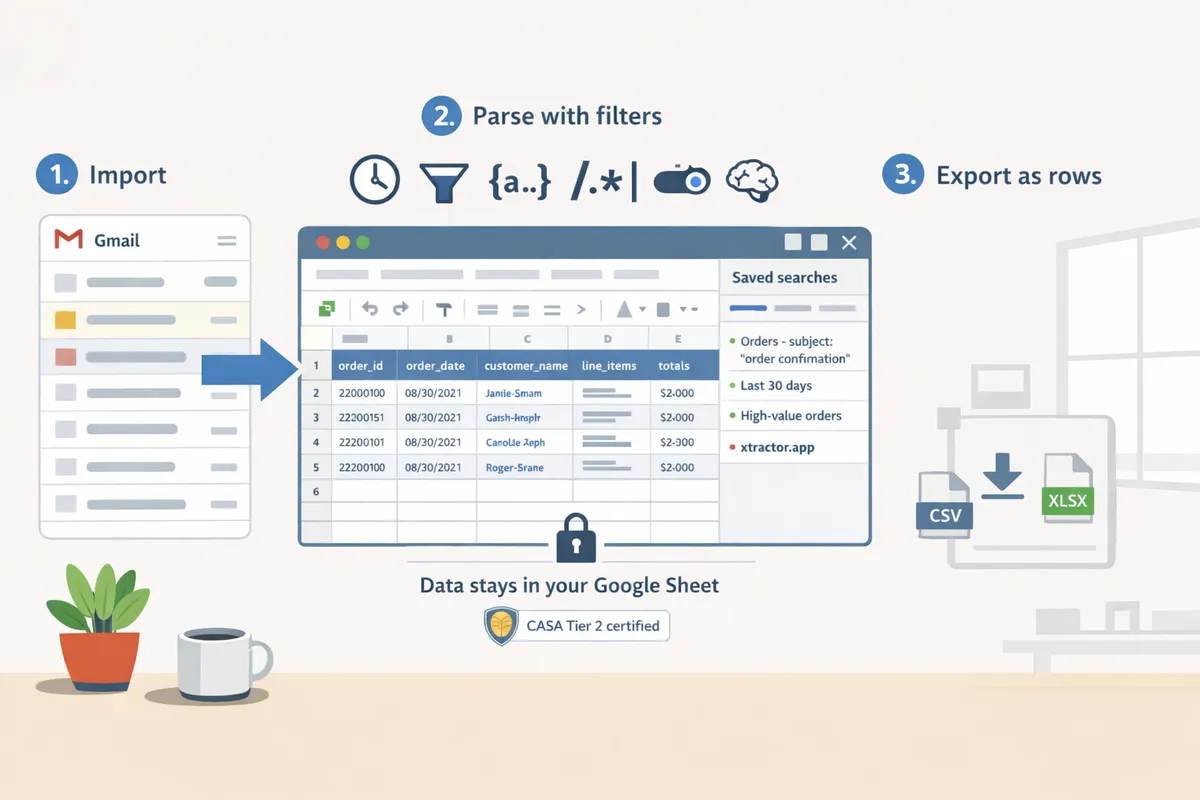
How do you parse order emails into Google Sheets rows using xtractor.app? 🔧
xtractor.app runs inside Google Sheets and reads your Gmail to extract order fields into rows in the active sheet. xtractor.app is free to install and provides a 100-email trial so you can test parsing on real messages before committing to a plan.
Step 1. Install xtractor.app in Google Sheets and grant Gmail access. 🔒
Install xtractor.app from the Google Workspace Marketplace and grant it permission to read your Gmail so it can import messages into the active sheet. After installation, open the add-on inside the Google Sheet you will use as the destination; xtractor.app reads only Gmail and writes directly to the sheet you open.
What to expect and common issues. After granting access you will see the xtractor.app sidebar inside Sheets. If the sidebar does not appear, reload the spreadsheet and confirm the add-on is enabled in Extensions. Do not attempt to use Outlook, Exchange, or other IMAP mailboxes; xtractor.app supports Gmail only.
⚠️ Warning: xtractor.app does not parse attachments (including PDFs). If orders are in attachments, plan a separate workflow or request custom attachment parsing from our team.
Step 2. Create a Google Sheet and open the xtractor.app sidebar. 📂
Create the destination spreadsheet and open xtractor.app in that same file so parsed values land where you control them. Name the sheet tab and reserve the top row for headers you will map to parsed fields (for example: order_id, order_date, customer_email, item_sku, item_qty, line_total).
Expected outcome. The sidebar shows options to create searches, define parsing contexts, and map fields to the active sheet. If you accidentally open xtractor.app in a different spreadsheet, close the sidebar and open the correct file to avoid scattering data.
Step 3. Build and save a search that selects the order emails you need. 🔎
A saved search picks messages by subject, sender, date range, or message content so you process only relevant order confirmations. Use Gmail search terms you already trust (for example: from:sales@store.com subject:(“Order Confirmation”) after:2026/01/01) and save that query inside xtractor.app as a reusable saved search.
Practical tip for accuracy. Start by saving a narrow search that returns 20–50 representative messages so you can test parsing rules quickly. Use saved searches to avoid rebuilding filters when you schedule imports or run bulk imports.
Step 4. Define parsing contexts and filters for each email format. 🧭
Parsing contexts are named extraction templates that handle different email layouts so one saved search can parse mixed-format messages. Create a parsing context per template (store receipt, marketplace receipt, subscription notice) and add custom filters such as text-before/text-after rules and regex filters to pull order number, date, item lines, and totals.
Example and recovery. For a Shopify receipt, create a context that finds “Order #” then extracts the digits that follow; for marketplace emails create a second context that uses the vendor label. If a rule misses values, run the test messages in Step 5 and refine the text-before/text-after boundaries until values match consistently.
Step 5. Map parsed fields to Google Sheets columns and test with sample emails. 🧪
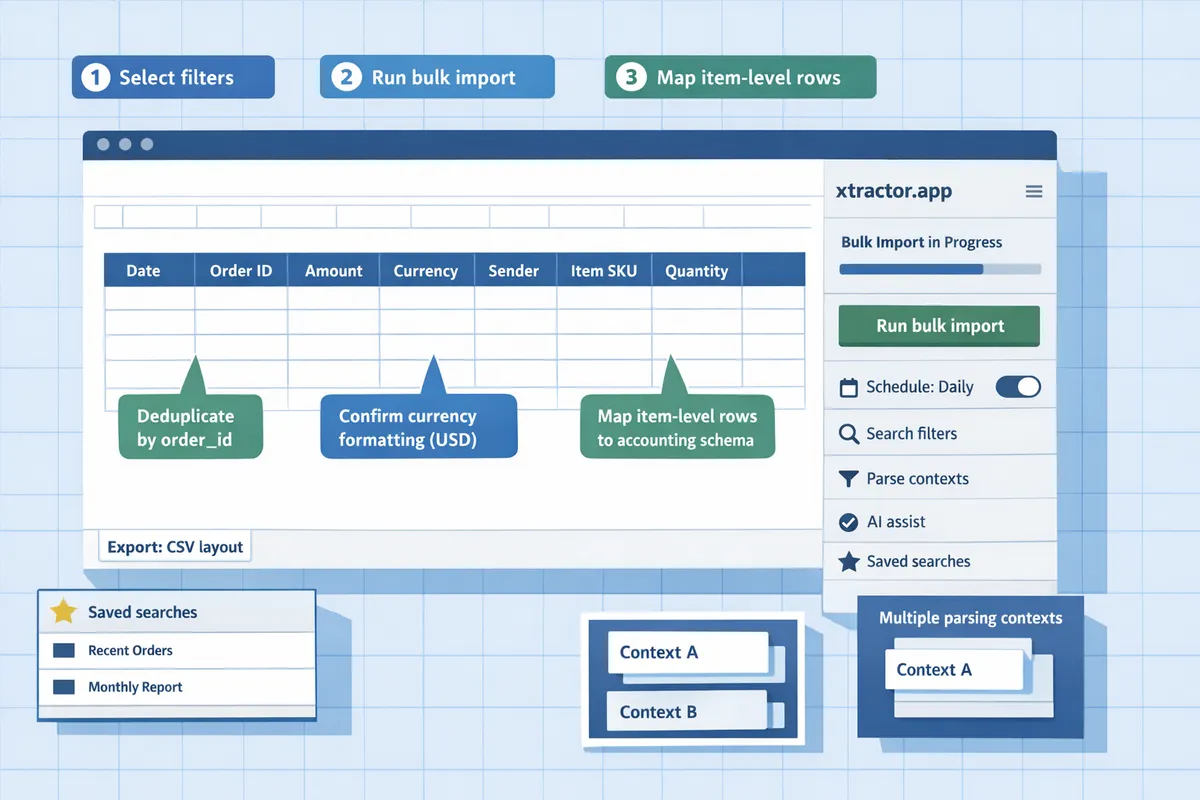
Map each extracted field to a specific column in your sheet and run tests on 10–30 representative messages to validate parsing and column formats. Use the mapping UI in xtractor.app to assign parsed fields (order_id, total, currency, item_sku, quantity, customer_email) to the header names in your sheet.
What to check in tests. Verify numeric fields are written as numbers (no currency symbols), dates use your spreadsheet locale, and line-item formats match your downstream import needs. If a value is missing on a test message, open that message in Gmail and compare the email layout to your parsing context to spot edge cases.
💡 Tip: Pick test emails that include edge cases—multi-item orders, promotional blocks, and multi-page receipts—so you catch parsing errors before a bulk run.
Step 6. Run a bulk import or set a schedule to import automatically. 🕒
Use xtractor.app’s bulk import to process thousands of messages at once or enable scheduled imports to run automatically at the cadence your plan allows. Choose bulk import for historical backfills and scheduling for ongoing daily or hourly processing.
Practical constraints and expectations. Bulk imports write rows directly into your sheet during the job; expect larger imports to take more time and to be subject to plan limits. If a scheduled job fails, check saved search criteria and the parsing context that was active, then rerun the saved search as a bulk import to catch up.
Step 7. Save and reuse searches and filters for repeatable imports. ♻️
Save parsing configurations as saved searches so you can re-run or schedule them without rebuilding rules. Use named saved searches for each sales channel (store, marketplace, subscription) so audits and troubleshooting point to a specific configuration.
Change control example. When a vendor changes their receipt layout, clone the saved search, create a new parsing context, test on sample messages, then swap the saved search used by the schedule. Keeping old saved searches archived helps you trace why past rows look different.
Step 8. Export the sheet as CSV or Excel for bookkeeping and reporting. 💾
Download the parsed rows from Google Sheets as CSV or Excel for import into accounting software or reporting tools; xtractor.app writes values to your sheet and you manage downstream exports. Use standard Google Sheets File > Download options to create QuickBooks-ready CSVs or Excel files.
Export checklist. Before exporting, deduplicate by order_id, confirm currency formatting, and ensure item-level rows match the schema your accounting system expects. If you need a specific CSV layout, create a dedicated export tab that maps columns in the exact order required.
For additional patterns and examples on extracting order numbers, amounts, and dates, see our guide on Email Parser for Gmail: How to Extract Order Numbers, Amounts, and Dates to Google Sheets, CSV, or Excel. If you prefer starting with a ready layout, browse our Gmail to Google Sheets Templates: 7 Free, Ready-to-Use Sheets for Orders, Recipts, and Daily Summaries.
How do you handle edge cases, scale imports, and secure your parsing workflow?
Plan for multi-item orders, changing email templates, duplicates, and access controls before you run imports so your bookkeeping stays accurate and audit-ready. xtractor.app supports multiple parsing contexts, saved searches, and scheduled imports, which you can combine with spreadsheet validation and governance to keep errors out of your ledger.
Extracting line items from multi-item order emails 🧾
Choose whether each spreadsheet row represents an order or a single line item before you design the parser. If you want one-row-per-item for inventory-level reporting, use xtractor.app to pull the repeated item block into a single multi-line cell, then normalize into item rows in Sheets with a predictable rule set (for example, split on item separators, trim quantity and SKU fields, and expand into a table). For one-row-per-order workflows, capture a summarized items column and include an items_count field so downstream reconciliation or CSV exports remain consistent.
Example outcome. For an email listing three products, the normalized sheet can show either three rows (each with order_id and item details) or one row (order_total, items_count, items_list). Pick the format that matches your accounting import or fulfillment system first. See our Gmail to Google Sheets templates for starter column mappings and sample rows.
Handling variable formats and marketplaces that change templates 🔄
Use multiple parsing contexts and saved searches to handle sellers and marketplaces that change email layout. Create one parsing context per sender or template family in xtractor.app and add a fallback AI context for messages that do not match any rule. Schedule a monthly review of parsing accuracy and run a quick sample import after known marketplace update windows (holiday season, platform UI changes) to catch breaks early.
Practical step. Save a “catch-all” search that sends mismatched emails to a separate sheet for manual review. This reduces silent failures and makes it easier to add a new parsing context when a seller changes their template. For setup patterns and example filters, consult our guide to extracting order numbers and amounts.
Deduplication, validation, and error handling ✅
Detect duplicates and missing fields before they hit your books by creating a unique key and validation rules. Construct a composite unique key (for example, Gmail message-id plus order_number) to identify repeat imports. Apply Sheets conditional formatting or data validation to flag empty required fields (order_id, total, payment_status) and append failed rows to a separate “errors” sheet for manual correction.
💡 Tip: Use a processed_log sheet with the unique key and timestamp to make bulk re-imports idempotent and to audit which emails produced rows.
What to track. Log source_message_id, parsed_order_number, parser_context_used, and validation_status so you can trace and fix failures quickly. This audit trail prevents double refunds and mismatched accounting entries.
Scaling imports and choosing the right plan 📈
Match import frequency and monthly volume to the plan that covers your peak load so imports complete without throttling. Start with a bulk import to validate parsing on real messages, then move to scheduled imports as volume grows; upgrade plans or contact xtractor.app sales if you expect steady high-volume imports or need faster scheduling windows.
Operational tip. Stagger scheduled imports for high-volume days and monitor runtime errors in a monitoring sheet. If your inbox exceeds occasional bursts, treat scheduled hourly or multi-hour imports as a reliability requirement and verify that your saved searches remain selective to avoid unnecessary processing.
Security, privacy, and compliance best practices 🔐
Keep parsed customer data in your Google Sheet and enforce Workspace access and sharing rules to limit exposure. xtractor.app keeps extracted values in your sheet and does not store them on its servers, and it holds CASA Tier 2 certification for apps that access sensitive data.
Privacy checklist. Minimize PII in exports, encrypt Sheets where your organization requires it, and limit sharing to the smallest set of users. Use double opt-in for marketing lists and avoid storing unnecessary fields such as full payment card fragments.
⚠️ Warning: Granting edit access to order sheets creates a material risk to customer data. Restrict edits to only those who need them and use protected ranges for financial columns.
Common mistakes and how to avoid them 🛑
Failing to define a clear data model, not testing on diverse email samples, and overlooking deduplication cause the most recurring problems. Document a schema (order_id, date_iso, customer_email, item_sku, unit_price, quantity, order_total, source_message_id), then test your parser against 20–50 representative emails covering multi-item orders, marketplace formats, and refunds.
How to recover from errors. Keep a manual “failed_rows” sheet for rows that need human correction, and retain original message IDs so you can re-run parsing after you adjust contexts. For column templates and starter schemas, download our Gmail to Google Sheets templates and consult the beginner’s no-code guide for setup patterns that reduce common setup mistakes.
Frequently Asked Questions
This FAQ answers common questions about parsing order emails into Google Sheets rows, including what xtractor.app can do and the practical limits to expect. Read these answers to decide whether xtractor.app or a DIY path fits your team and workflow.
Can I convert order confirmation emails to individual rows in Google Sheets automatically? ✅
Yes. xtractor.app reads Gmail messages and writes extracted fields into Google Sheets as rows via bulk imports or scheduled imports. You can run a one-time bulk import to capture historical confirmations or schedule imports to append new orders automatically. For example, saved searches let you match by sender, subject line, or date range so only relevant confirmations become rows. Use the scheduling options to keep your sheet current without manual copy-paste; see the step-by-step no-code tutorial for setup and field mapping in our guide on exporting emails to Sheets.
Does xtractor.app parse PDF attachments or invoices attached to emails? 📎
No. xtractor.app does not parse attachments or PDFs; it extracts only the text present in the Gmail message body and headers. If orders arrive as text in the email body, xtractor.app captures order IDs, amounts, dates, and line items using filters and parsing contexts. Custom attachment parsing is available on request if you need PDF extraction as part of a larger project.
⚠️ Warning: Do not rely on xtractor.app to read invoice PDFs attached to emails unless you have requested and agreed to a custom attachment-parsing engagement.
How do I perform line item extraction from order emails with varying formats? 🧾
Use multiple parsing contexts in xtractor.app to capture repeated item blocks, then normalize results in Sheets to create either order-level rows or item-level rows. Create one parsing context per email template (for example marketplace receipts, Shopify confirmations, and third-party vendors). Within each context, define text-before/text-after rules for item name, SKU, quantity, and price. After extraction, use a normalization sheet or small formulas to either aggregate items into a single order row or expand each item into its own row for per-SKU reporting. For a practical walkthrough and mapping examples, see our guide on extracting order numbers and amounts into Sheets.
Can I use xtractor.app with Outlook or non-Gmail mailboxes? ✉️
No. xtractor.app is a Google Workspace add-on that runs inside Google Sheets and reads Gmail only; it does not support Outlook, Microsoft 365, Exchange, or IMAP mailboxes. If your orders arrive in a non-Gmail inbox, common workarounds are forwarding order messages to a dedicated Gmail address or using an automation platform to move messages into Gmail before running xtractor.app. If you prefer a single-tool approach for non-Gmail mailboxes, compare Apps Script or third-party parsers, but expect additional maintenance and potential reliability differences.
How do I prevent duplicate orders when importing the same email twice? 🔁
Prevent duplicates by using a unique deduplication key such as the Gmail message ID combined with the order number and checking that key before appending rows. Implement this in one of two ways: 1) Create a helper column in your sheet that concatenates message ID and order number and use MATCH or COUNTIF to skip appending if the key exists. 2) Have your import workflow flag duplicates for review instead of auto-appending. Both approaches reduce reconciliation time and avoid accidental double-billing in downstream systems.
💡 Tip: Store the dedupe key in a hidden column and add a conditional format to highlight attempted duplicates so reviewers can resolve them quickly.
Will xtractor.app store my extracted order data outside my Google Sheet? 🔐
No. Extracted values land directly in your Google Sheet and xtractor.app does not retain those values in its own database. You control where the data lives; exports to CSV or Excel happen from your sheet. xtractor.app is CASA Tier 2 certified, which reflects its assessment for apps that access sensitive data, but the parsed values remain under your Google Workspace account control.
What are low-effort alternatives if I cannot use a paid parser? ⚒️
A low-effort alternative is a Google Apps Script that reads Gmail and appends parsed values to Sheets, but it requires ongoing developer time for maintenance and handling edge cases. Compared with xtractor.app, Apps Script keeps direct costs low but increases long-term maintenance: you must update parsing logic when templates change, add error handling for multi-item emails, and build deduplication and scheduling yourself. No-code platforms like Parseur, Make, or Zapier offer middle-ground options with prebuilt templates but may add monthly costs and connector limits. See our comparison roundup on extracting Gmail data to Sheets for pros, cons, and a decision framework to pick the lowest-risk path for your team.
Validate parsed rows and automate imports with xtractor.app.
You should finish this workflow by sampling parsed rows, fixing mapping errors, and scheduling imports so order confirmations become reliable spreadsheet rows. By following the steps above you can parse order emails into google sheets rows and stop spending hours on manual entry and reconciliation. If you want a no-code walkthrough for field mapping and scheduled imports, see our Email Parser for Gmail: How to Extract Order Numbers, Amounts, and Dates to Google Sheets, CSV, or Excel for step-by-step setup and validation tips.
💡 Tip: Run a bulk import on a recent week of messages, check order IDs and totals, then save filters and parsing contexts before enabling scheduled imports.
Start a free trial of xtractor.app to import a batch of order confirmations, save reusable searches, and turn the sample you validated into an automated feed. For mapping templates and ready-to-use sheets, consult Extract Order Numbers and Amounts From Emails Into Sheets to match field layouts for bookkeeping and reporting.