Processing 300 emailed invoices and attachments manually can cost a small accounting team 20–40 hours a month. Import email attachments into Google Sheets is a workflow that extracts values from Gmail messages and converts them into spreadsheet rows for reporting and bookkeeping. Our website compares three practical methods—manual copy-paste, Google Apps Script, and an email-parser add-on—to help you move attachment data from Gmail into Sheets reliably and on a schedule. xtractor.app runs inside Google Sheets, performs bulk Gmail imports, saves reusable searches, and schedules automated extractions so you avoid repeated copying and missed rows. Which approach reduces manual cleanup for mixed email formats, and when is custom attachment parsing required? See our detailed comparison in Email to Google Sheets: How to Import Email Data Automatically.
How can I automatically import Gmail attachments to Google Sheets? Use Apps Script or a parser for attachment contents; xtractor.app handles email fields but not attachment parsing.
Google Apps Script works well for CSV and Excel attachments, while no-code parsers with OCR handle PDFs and image-based receipts. xtractor.app extracts email fields into Google Sheets but does not parse file attachments, so combine it with an attachment parser when you need data inside files.
Google Apps Script for CSV and Excel attachments 📄
Google Apps Script can parse CSV attachments and append rows to a Google Sheet. Follow these high-level steps: 1) search Gmail messages by label or query, 2) download each attachment as bytes, 3) convert to text and normalize encoding, 4) split into rows and columns, and 5) append to a chosen Sheet. Watch Gmail and Apps Script quotas, and avoid scripts that run longer than the execution time limit; for large batches use batched imports or Cloud Functions triggered from Apps Script. Common CSV edge cases to check before parsing:
- Confirm encoding (UTF-8 vs Windows-1252) and convert if needed.
- Detect whether the first row is a header or data only.
- Handle field delimiters (comma, semicolon, tab) and quoted fields.
💡 Tip: Confirm CSV encoding (UTF-8 vs Windows-1252) before parsing to avoid broken characters.
Read our step-by-step Apps Script guide for a tested script and scheduling options: Parse Email to Google SheetsXtractor.
No-code parsers for PDFs, OCR, and mixed formats 🔍
No-code parsers extract attachment data without writing code and can include OCR to read text inside PDFs and images. These tools provide visual field mapping, sample-based rules, and scheduled imports so non-developers can parse invoices, receipts, and order summaries quickly. Trade-offs include higher per-message cost for OCRed attachments and the need to grant the parser Gmail access; review export options and vendor security before granting permissions. Choose a parser that shows an audit trail and lets you export parsed rows to CSV or Google Sheets if you want to keep control of raw files.
⚠️ Warning: Only grant minimum Gmail scopes required and verify the vendor’s security posture.
For a comparison of parser workflows and scheduling, see Email Parser to Google Sheets: Fast Setup, Bulk Imports, and Scheduling (Step‑by‑Step)Xtractor and our beginner guide Send Gmail to Google Sheets Automatically: 2026 Guide.
How xtractor.app fits into attachment workflows 🧩
xtractor.app extracts searchable email fields into Google Sheets but does not parse attachments. Use xtractor.app when you need reliable bulk imports of email metadata (subject, sender, date, amounts, order numbers), saved searches, and scheduled runs; then run a separate parser or Apps Script to extract data from attached files. Practical workflow example:
- Use xtractor.app to import emails and extract a unique key (message-id, order number, or subject + date) into Sheet A.
- Use a parser or Apps Script to parse attachments and write rows into Sheet B, including the same unique key.
- Join Sheet A and Sheet B in a new tab using a lookup or query to produce consolidated records ready for reporting or bookkeeping.
xtractor.app runs inside Google Sheets, keeps extracted data in your sheet, and supports bulk imports and scheduled runs so you avoid manual selection and repeated rule setup. For full setup steps that combine email parsing and scheduling, follow our pillar guide: Email to Google Sheets: How to Import Email Data Automatically.
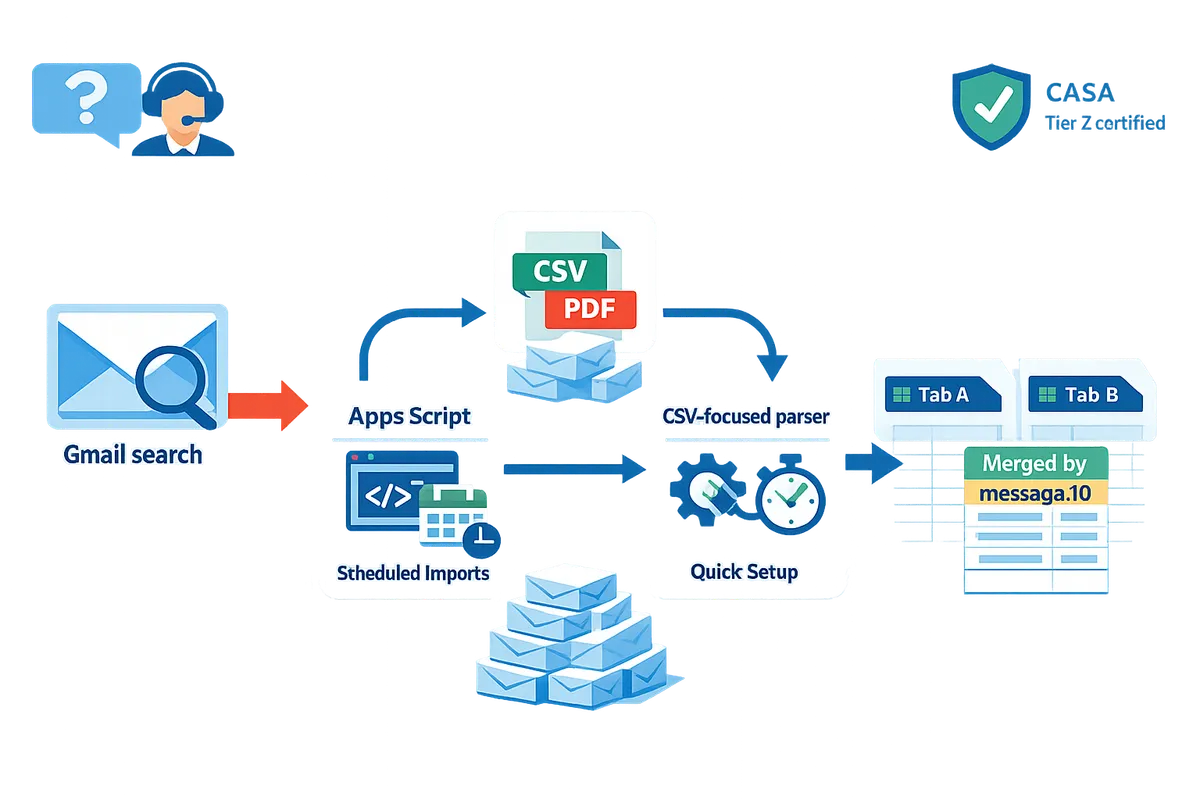
What methods reliably parse CSV attachments from Gmail to Google Sheets? Use Apps Script for code control or a CSV-focused parser for faster setup.
Use Google Apps Script when you need full control and high-volume scheduled imports, and use a CSV-focused no-code parser when you want quick setup and non-technical maintenance. Both approaches handle CSV attachments reliably; choose based on volume, attachment consistency, and how much time you can spend on maintenance. xtractor.app can help with email selection, saved searches, and scheduling of imports, but xtractor.app does not parse attachments, so pair it with a parser or script for CSV files.
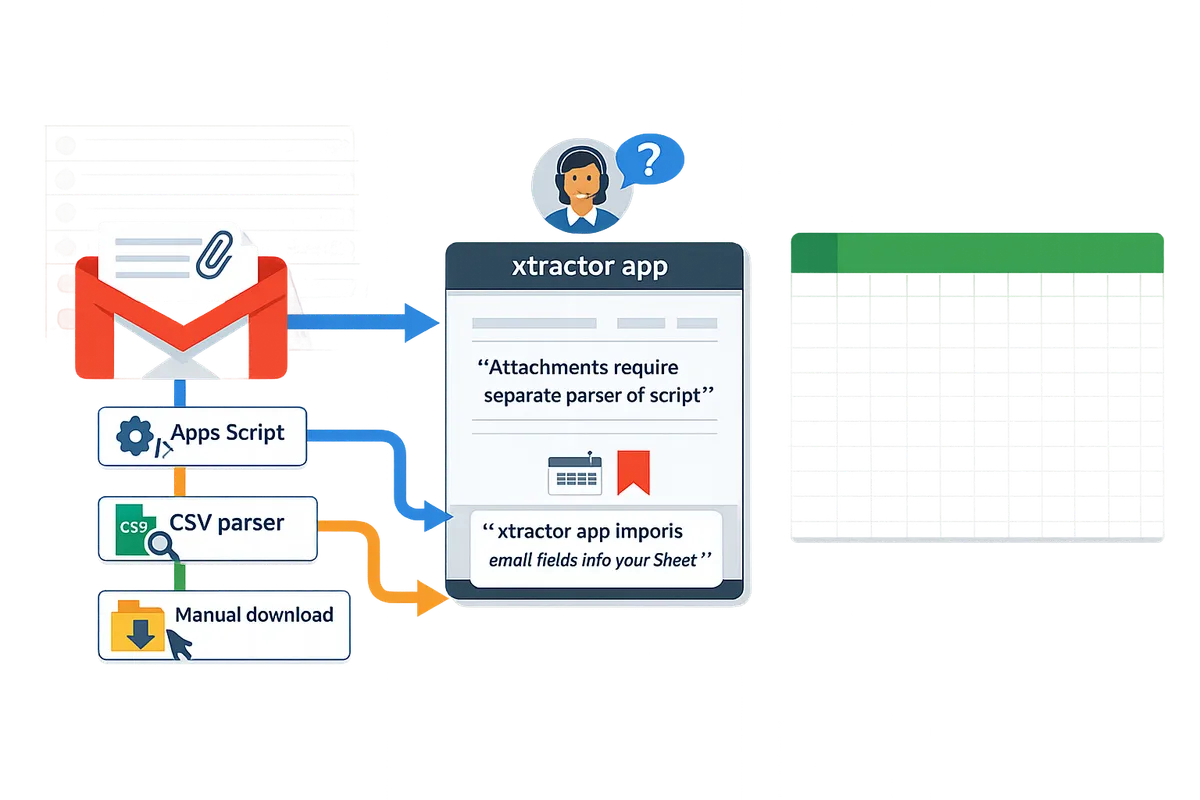
How do I choose between Apps Script, a CSV-focused parser, or manual download?
Choose Apps Script for high-volume, repeatable imports and complex transforms; choose a CSV-focused parser for faster setup and low-maintenance schedules; use manual download only for rare one-off files.
Match the method to your operational constraints: volume per day, attachment consistency, scheduling needs, and security policy. Example decisions: a small accounting firm with 300 monthly invoices and consistent headers benefits from Apps Script or a paid parser with scheduling. An e-commerce store receiving varied CSV formats from multiple vendors should pick a parser that supports multiple templates and automatic header mapping. A research team that gets a single weekly CSV can use manual download and a simple import to Sheets.
If you already use xtractor.app to find and filter the right emails, use it to narrow the inbox before running your CSV parser or script, because xtractor.app will not extract values from attachments itself.
What does a feature comparison table look like for Apps Script, CSV-focused parsers, and manual download?
The table below compares supported attachment types, scheduling frequency, estimated setup time, cost range, and common failure modes for each approach.
| Method | Supported attachment types | Scheduling frequency | Estimated setup time | Cost range | Common failure modes |
|---|---|---|---|---|---|
| Google Apps Script | CSV (and Excel with libraries) when attachments are saved to Drive first | Hourly to daily via time-driven triggers | 4–40 hours (script + testing) | Low (internal dev time) to moderate (contractor) | Quota limits, encoding issues, edge-case parsing, maintenance burden |
| CSV-focused no-code parser | CSV, sometimes Excel; attachments processed directly by parser | Built-in schedules (daily, hourly) depending on product | 10–90 minutes for basic templates; longer for multiple templates | Free trials to subscription (varies by vendor) | Header mismatch, multi-format attachments, parsing rules drift |
| Manual download + import | Any file you handle manually | Ad hoc | 5–30 minutes per file | $0 direct cost; high labor cost | Human entry errors, missed uploads, inconsistent timing |
Use this table to answer quick queries: small accounting firms with steady formats often pick Apps Script for low per-file cost and custom validation; e-commerce stores with many vendors benefit from a parser that supports multiple templates and scheduled runs; survey teams with inconsistent headers may prefer a parser that offers header-to-column mapping and preview tools.
What common CSV parsing problems should I expect and how do I fix them?
Expect mixed encodings, quoted fields that contain commas, and variable header formats; fix them by normalizing to UTF-8, using a parser that respects quoted fields, and mapping headers to fixed columns.
Reproducible fixes:
- Normalize encoding to UTF-8 before import (save or convert files in Drive).
- Use a CSV parser that supports RFC 4180 rules so quoted fields with commas remain intact.
- Maintain a header-to-column mapping template in your Sheet and use it to align incoming files.
- Log failed rows to a separate “Parsing errors” sheet with the raw CSV line and an error code for manual review.
💡 Tip: Always log failed rows to a separate tab with the original file name, raw line, and a short error note for faster triage.
When should I escalate to a paid parser or hire a developer to write an Apps Script?
Escalate to a paid parser when inbound volume, multiple CSV layouts, or SLA requirements make ongoing maintenance too costly; hire a developer for Apps Script when you need bespoke transforms, joins across sheets, or internal compliance workflows.
Practical signals to escalate: processing more than a few hundred attachments per day, frequent format changes from suppliers, or strict audit trails and validation rules. A paid parser reduces day-to-day rule maintenance and gives built-in scheduling and retry behavior. A developer-built Apps Script reduces vendor dependency and lets you implement custom validation, deduplication logic, and direct integrations with internal systems.
If you already use xtractor.app to run saved searches and scheduled email selection, pair it with a parser or script so you handle only the attachments you want; remember xtractor.app does not extract data from attachments, so the CSV parsing step still needs a separate tool or script.
Read our step-by-step scripting guide for extracting email data with Apps Script and the Gmail API at Parse Email to Google Sheets, or see the faster setup and scheduling options in Email Parser to Google Sheets: Fast Setup, Bulk Imports, and Scheduling (Step‑by‑Step).
Frequently Asked Questions
This FAQ answers the most common questions about how to import email attachments into Google Sheets and which workflows fit specific needs. Each answer names the recommended approach and gives next steps or resources you can use immediately.
Can I automatically import attachments from Gmail to Google Sheets without coding? 🤖
Yes. Use a no-code parser that supports scheduled imports and OCR for PDFs, or use community-shared Google Apps Script templates when you prefer not to grant mailbox access to an external vendor. No-code parsers handle CSV, Excel, and scanned PDFs with built-in mapping and scheduling; test any parser with a sample batch of emails to confirm delimiter, encoding, and table-detection behavior. If you want a native solution that keeps data in your Sheets and avoids third-party storage, consider a Google Apps Script approach and follow our Parse Email to Google Sheets step-by-step guide for templates and scheduling tips.
Can xtractor.app import attachment contents (PDFs or CSV data) directly into Sheets? 📄
No. xtractor.app imports email fields and metadata into Google Sheets but does not parse attachment contents such as PDFs or embedded CSV files. Use xtractor.app to extract subject, sender, date, order numbers, amounts, and other text-based fields from the email body and headers, then pair the resulting sheet with a dedicated attachment parser for table extraction or OCR. If you need a combined workflow, our Email Parser to Google Sheets guide explains how to run xtractor.app for email data and a second tool for attachments.
How do I parse CSV attachments from Gmail to Google Sheets reliably? 🧾
Either use Google Apps Script for full control or use a CSV-focused parser that supports mapping, scheduling, and UTF-8 handling. With Apps Script, download the attachment bytes, convert to text, normalize line endings, detect delimiters, and append rows to a canonical sheet; start by testing edge files that use semicolons, different line endings, or BOM markers. With a parser, confirm it offers delimiter detection, header-matching, and duplicate-protection rules. See our Parse Email to Google SheetsXtractor guide for sample scripts and mapping templates you can adapt to your invoice or order formats.
Can scheduled imports handle thousands of attachments per month? 📈
Sometimes. Scalability depends on the chosen method and quotas. Google Apps Script has execution and daily quota limits that force batching and incremental processing for high volumes, while paid parsing services typically offer higher throughput with predictable per-user plans and scheduled intervals. If you expect very large volumes, plan for batch imports (process by date range or sender) and use incremental deduplication keys so failures only reprocess a small window.
Is it safe to grant a third-party tool access to my Gmail for parsing attachments? 🔐
Yes, with careful controls: grant least-privilege scopes, review the vendor’s security certifications, and prefer tools that write results directly to your own Google Sheet rather than storing email data in their database. Our xtractor.app keeps extracted data in the user’s Google Sheet and holds independent security certification, which reduces vendor-side storage risk. Before approving any app, audit the OAuth scopes, check data retention policies, and require a data processing addendum for compliance.
⚠️ Warning: Avoid granting full mailbox or admin access to unvetted apps. Test with a limited account and confirm you can revoke access easily from Google Account settings.
What about PDF attachments? Which method will extract tables or line items? 📑
PDFs require OCR-capable parsers that extract tables and line items, and that capability typically lives in paid tools or a custom OCR pipeline. Choose a parser that supports table detection, column mapping, and export to Sheets; validate its accuracy on your most common invoice or receipt layout before rolling it out. For mixed workflows, use xtractor.app to extract email metadata and a PDF parser to extract attachment tables, then join the two datasets in Google Sheets by order number or message ID.
Related reading: our Parse Email to Google Sheets step-by-step guide and the Send Gmail to Google Sheets Automatically: 2026 Guide show detailed setup options for both script-based and no-code workflows.
Next steps to import email attachments into Google Sheets.
Choose a schedulable, repeatable process so you stop spending hours on manual copy-paste and error-prone uploads. A reliable workflow saves time and reduces transcription mistakes when you need to import email attachments into Google Sheets from recurring senders or order confirmations.
If your attachments follow a predictable CSV layout, consider a scripted or parser-based route; our step-by-step guides show when to use Apps Script versus an add-on. See the Apps Script walkthrough in “Parse Email to Google Sheets (Apps Script guide)” and compare no-code parser setup in “Email Parser to Google Sheets: Fast Setup, Bulk Imports, and Scheduling (Step‑by‑Step).”
xtractor.app runs inside Google Sheets and automates scheduled imports of email content into your spreadsheet. For cases that require custom attachment parsing, contact xtractor.app to discuss a tailored workflow or hourly scheduling that fits your volume. Start by reviewing our full automation guide: “Email to Google Sheets: How to Import Email Data Automatically”, then reach out to xtractor.app to get help setting up the exact import you need.