 Xtractor
Small e-commerce teams often lose three hours a week copying order-confirmation emails into spreadsheets, creating reconciliation bottlenecks. Choosing xtractor.app vs other gmail to sheets tools decides if scheduled imports run reliably, parsed fields are accurate, and extracted data stays under your control. xtractor.app is a Google Workspace add-on that reads Gmail and writes extracted fields—sender, date, order numbers, amounts—into Google Sheets. Our comparison examines cloudHQ’s Export Emails to Google Sheets and xtractor.app for scheduled import cadence, parsing accuracy across varying email layouts, and governance. We test bulk imports, saved searches, and parsing to show trade-offs for businesses between time saved and compliance risk. See Email to Google Sheets: How to Import Email Data Automatically for templates. Which option cuts manual hours without increasing compliance risk?
Which Gmail-to-Sheets options should buyers evaluate?
Buyers should compare Google Workspace add-ons, no-code automation platforms, and custom scripts because each option trades off setup time, control, and ongoing maintenance. This section lists representative tools (including cloudHQ Export Emails to Google Sheets and xtractor.app), shows core differences in a single table, and explains which category suits specific teams. Use the linked step-by-step import guide to run a short pilot and validate parsing accuracy before committing.
At-a-glance comparison table 📊
This table compares cloudHQ Export Emails to Google Sheets, xtractor.app, and representative automation platforms on scheduling, pricing model, mailbox support, parsing behavior, bulk imports, and whether parsed data lands directly in Google Sheets.
| Tool | Feature focus | Scheduling | Pricing model | Supported mailbox types | Parsing accuracy & duplicate handling | Bulk import limits | Parsed data lands in Google Sheets? |
|---|---|---|---|---|---|---|---|
| xtractor.app | Gmail-focused add-on for field extraction with saved searches and multiple parsing contexts | Scheduled imports available (more frequent schedules on higher tiers) | Per-user subscription (free install, trial emails) | Gmail / Google Workspace only | Custom filters, multiple parsing contexts and optional AI-assisted parsing for varied layouts | Supports bulk import of thousands of emails in one job | Yes — parsed values land directly in your sheet |
| cloudHQ Export Emails to Google Sheets | Add-on / sync tool that exports message fields into Sheets for reporting | Manual exports and sync options vary by plan | Subscription / freemium model depending on features | Primarily Gmail and Google Workspace accounts | Basic field export; best for consistent email formats or simple mappings | Depends on plan; generally aimed at ongoing syncs rather than one-click thousands-at-once | Yes — exports write into Google Sheets |
| No-code automation platforms (Zapier, Make, Power Automate) | Multi-app workflows and trigger-based routing across apps | Polling or instant triggers depending on plan and connector | Task- or action-based pricing that scales with volume | Gmail plus other providers via connectors or IMAP where supported | Parsing depends on built-in text tools or third-party parser steps; accuracy varies by setup | Not optimized for large bulk imports; better for one-off or event-driven messages | Yes — Google Sheets connector available |
Which tool category fits your team? 🧭
Choose a Google Workspace add-on like xtractor.app when your team needs repeatable, in-sheet parsing with minimal maintenance. Small finance teams and non-technical e-commerce operators prefer add-ons because they keep extracted data inside Google Sheets and remove the need to run and maintain scripts. For example, a storefront that wants parsed order numbers, dates, and amounts delivered to a reporting sheet benefits from saved searches and parsing contexts that handle multiple email layouts.
Choose no-code automation platforms when email data must trigger cross-app workflows. Zapier or Make make sense if the email extract should create CRM leads, send Slack alerts, or post to a helpdesk. Expect per-action costs to grow as volume rises, and plan for added setup time to maintain multi-step flows.
Choose custom scripts or Apps Script when you require deep control, custom validation, or integration with internal systems. Scripts give flexibility but create ongoing maintenance work: monitoring, handling Gmail quotas, and fixing breakages after format changes. See our detailed cost-and-maintenance comparison in Email to Google Sheets: Free vs Paid Methods Compared for Scheduled Imports to weigh tradeoffs for small accounting teams.
How to use our step-by-step import guide 🔗
Run a 10-email pilot in our step-by-step guide to validate parsing accuracy and compare tools quickly. The guide Email to Google Sheets: How to Import Email Data Automatically explains schema design, saved searches, parsing contexts, and what to measure during a pilot.
- Choose 10 representative emails that cover all layout variants you receive.
- Define a target schema in Google Sheets (columns for order ID, date, amount, sender).
- Run a bulk import in xtractor.app and an equivalent export or flow in the other tool(s).
- Compare results side-by-side for extraction accuracy, missing fields, and required manual cleanup.
- Measure setup time and note any ongoing maintenance tasks each option requires.
💡 Tip: Export parsed outputs to separate sheets and use a simple match formula to quantify mismatches during your 10-email pilot.
For decision support, consult our roundup on extraction methods in How Can I Extract Data From Gmail Emails Into Google Sheets? and the scheduled-imports cost comparison in Email to Google Sheets: Free vs Paid Methods Compared for Scheduled Imports. These pages help you translate pilot results into an ROI estimate and ongoing cost forecast.
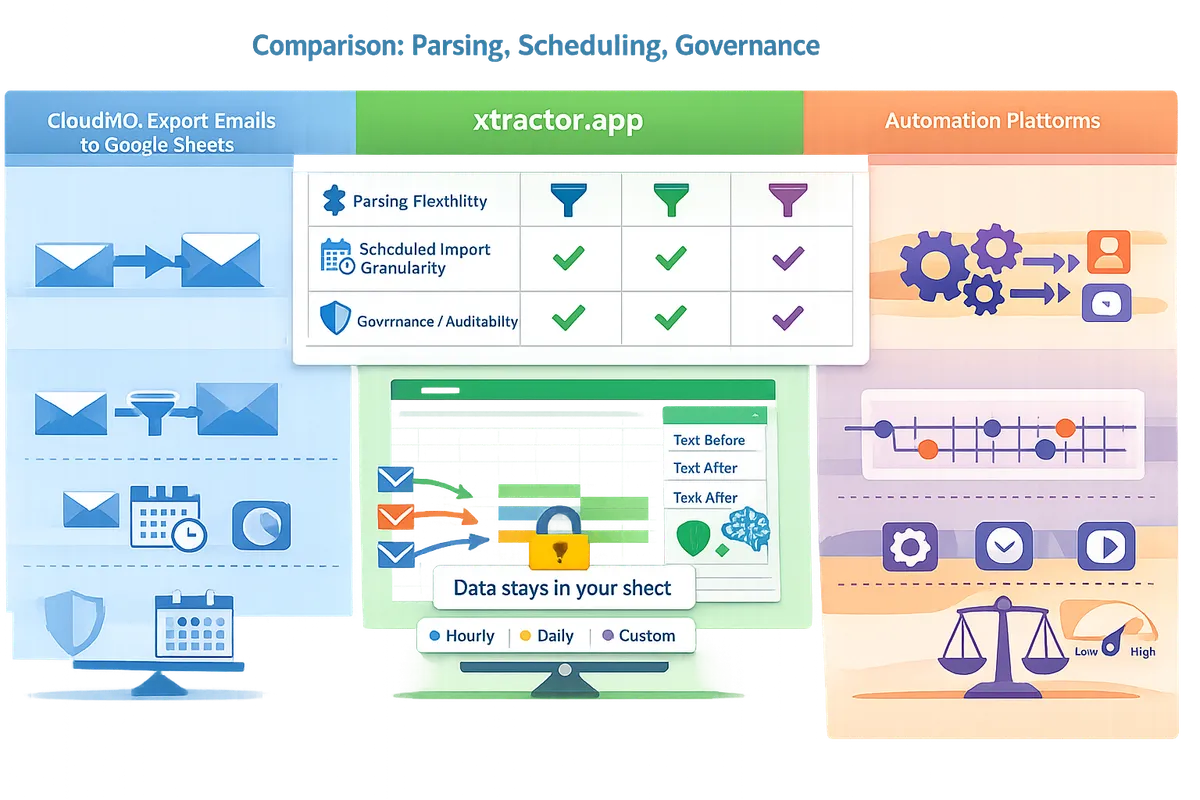
How do cloudHQ and xtractor.app compare on parsing, scheduling, and governance?
This comparison focuses on parsing flexibility, scheduled import granularity, and governance because those three areas determine accuracy, auditability, and ongoing maintenance cost. Buyers who need reliable daily reconciliations or finance-ready spreadsheets will see different trade-offs between a simple exporter and a parsing-focused add-on.
Feature-by-feature comparison table 🔎
This table shows which core features each tool supports and where they differ. Use it to answer whether a vendor fits workflows that require multi-layout parsing, large bulk imports, or strict data residency.
| Feature | xtractor.app | cloudHQ (Export Emails to Google Sheets) |
|---|---|---|
| Source mailbox | Gmail only. | Gmail and G Suite mailboxes typically supported; check vendor docs for Outlook/Exchange support. |
| Output destination | Writes parsed fields directly into your Google Sheet. | Writes email data into Google Sheets (exports full messages or selected fields). |
| Search filters | Saves searches by sender, subject, date, and content; reusable. | Uses Gmail search syntax or UI-driven filters; saved searches depend on the specific cloudHQ tool. |
| Parsing contexts | Multiple parsing contexts to handle different email templates. | Mostly single-rule exports; multi-context parsing is limited or requires post-processing. |
| Field extraction rules | Custom text-before/text-after rules, regex filters, plus optional AI parsing. | Basic field export and body extraction; advanced per-field rules are limited. |
| AI-assisted parsing | Optional AI parsing alongside rules. | Varies by product; AI parsing not a standard capability. |
| Bulk import | One-click bulk import for thousands of emails. | Bulk exports supported; limits and performance vary by plan. |
| Scheduled imports | Scheduled imports available, with higher-frequency options on upper tiers. | Scheduling offered; cadence and per-day limits vary by plan. |
| Attachment parsing | Does not parse attachments or extract PDF text. | Attachment handling varies; some cloudHQ flows export attachments or links. |
| Integrations / webhooks | No public API, no webhooks; exports stay in Sheets. | More ecosystem integrations across cloudHQ products; webhooks or connectors may be available depending on the specific tool. |
| Data residency & storage | Extracted data stays in the user’s Google Sheet; xtractor.app does not store parsed data in its own database. | Vendor storage model varies; some cloudHQ features may store metadata or copies off-sheet. |
The practical trade-off: xtractor.app focuses on extracting structured fields into Sheets with saved parsing contexts and no third-party data storage, while cloudHQ tools emphasize exporting messages and attachments and may require more sheet-side cleanup for complex templates.

Parsing accuracy and handling varied email formats 🧩
xtractor.app handles multiple email layouts better because it supports separate parsing contexts, custom rules, and optional AI parsing. For example, a retailer receiving three different order confirmation templates can create three parsing contexts: map order number to column A for template 1, column A for template 2, and column A for template 3 and then merge results into a single clean report. This reduces row-level errors from mixing formats under one rule set.
cloudHQ typically exports message fields or the raw body into Sheets, which forces more manual or formula-based cleanup. For workflows that require high-precision fields (order numbers, tax amounts, invoice IDs), xtractor.app reduces downstream cleanup by letting you save and reuse parsing contexts and filters. See our guide on parsing methods and setup examples in “How Can I Extract Data From Gmail Emails Into Google Sheets?” for step-by-step templates and a regex cookbook.
Scheduling, bulk imports, and reliability ⏱️
xtractor.app supports large one-time imports and scheduled imports with higher-frequency options on paid tiers, which matters for teams that process hundreds or thousands of emails each day. One-click bulk imports let finance teams catch up quickly after a backlog, and scheduled imports reduce manual polling.
For cloudHQ, scheduled exports are available but cadence, per-day limits, and how duplicates are handled depend on the specific cloudHQ tool and plan. Reliability questions to validate with any vendor include: how the tool handles repeated runs against the same mailbox, whether it preserves an immutable audit trail in the sheet, and what error retries look like during Gmail rate limiting. For an operational comparison of scheduled import methods and expected maintenance load, consult our post on scheduled imports: “Email to Google Sheets: Free vs Paid Methods Compared for Scheduled Imports.”
Security, data governance, and compliance 🔐
xtractor.app keeps extracted data in the user’s Google Sheet and holds CASA Tier 2 certification, which reduces third-party storage risk and supports enterprise auditability. This means the parsed values remain under the customer’s control inside Google Drive permissions and Google Workspace audit logs.
With cloudHQ and similar exporters, governance depends on how the vendor handles copies, attachments, or metadata. Key questions for any vendor are: does the tool retain copies of parsed data off-sheet, what OAuth scopes does it request, and can admins centrally revoke access? Finance and compliance teams should verify those answers before approving a tool for bookkeeping or customer data workflows.
💡 Tip: Restrict Google Sheet sharing to a small set of service accounts, enable Workspace audit logs, and document the parsing rules so auditors can reproduce extracted rows from original messages.
Related reading: our migration and method comparison pages explain governance trade-offs when moving from DIY scripts or broad automation platforms to a dedicated add-on like xtractor.app. See “Email to Google Sheets: Free vs Paid Methods Compared for Scheduled Imports” and the parsing setup guide in “How Can I Extract Data From Gmail Emails Into Google Sheets?” for migration steps and governance checklists.
Which tool should you pick and how to migrate with minimal risk?
Choose the tool that matches your parsing complexity, monthly volume, and governance needs; xtractor.app fits teams requiring field-level parsing controls inside Google Sheets and company-owned data. Paid plans typically range from $24 to $129 per user per month and scale to support from 1,000 to 100,000 email imports per month. This section gives clear use-case recommendations, a migration checklist to limit downtime and data loss, and a short pilot/ROI framework you can run in 30 days.
Decision guide: best fits by use case 📁
Map each workflow to the tool that minimizes ongoing manual fixes and compliance risk. For invoice-heavy workflows that require field-level accuracy, saved parsing contexts, and company-owned data, xtractor.app fits because it runs inside Google Sheets, saves searches and filters, and keeps extracted rows in your sheet. For simple lead-capture where speed and basic mapping matter more than auditability, cloudHQ’s Export Emails to Google Sheets or a lightweight Zapier flow can be faster to set up. For bespoke, one-off workflows with dev resources, Apps Script or a custom integration can work but usually increases maintenance time.
| Tool | Best for | Parsing control | Scheduling & scale | Setup effort | Business downside if chosen incorrectly |
|---|---|---|---|---|---|
| xtractor.app | Invoices, bookkeeping, multi-format orders | Field-level filters, saved parsing contexts, AI-assisted parsing | Bulk imports + scheduled pulls inside Sheets | Low to medium (no devs required) | Fewer manual reconciliations, better audit trail; wrong choice if you need non-Gmail mailboxes |
| cloudHQ Export Emails to Google Sheets | Fast lead capture and simple exports | Basic field mapping, less context handling | Scheduled syncs available | Low (quick install) | Higher manual cleanup when emails vary in format |
| Apps Script / DIY | Custom needs, unique integrations | Full control if you build it | Fully custom cadence | High (requires developer time) | Hidden maintenance, staff time spent fixing breaks |
For real examples, a small accounting firm extracting invoice IDs and amounts will reduce reconciliation errors by using saved parsing contexts in xtractor.app; a marketing team ingesting one-line lead notification emails may prefer cloudHQ for speed. See our decision-focused roundup on extracting Gmail data into Sheets for more setup patterns and templates.
Migration checklist and risk assessment ✅
Run a parallel import and compare parsed rows on a representative sample before switching off your existing tool. Follow these steps in order to limit downtime and data loss:
- Pick a representative sample of 200–500 emails that covers all known formats (invoices, receipts, confirmation emails). Record which email types are in the set.
- Run a parallel import for 7–14 days so both tools process the same incoming messages. Export both results to separate sheets and use row-level comparisons to identify missing or mis-parsed fields.
- Preserve schema mapping. Recreate column headers exactly in the destination sheet and archive the old mapping in a separate tab for rollback.
- Validate scheduled cadence. Confirm the new schedule handles your peak volume; test retries and exception handling on time windows that matter to accounting or operations.
- Set up parsing contexts and saved searches in xtractor.app to cover format variants; test each context against sample emails.
- Train one or two operators to resolve parsing exceptions and document common fixes in a short SOP.
- Back up historical exports as CSV before you cut over. Keep the old tool active for at least one billing cycle to catch slow-moving issues.
- Decommission gradually: move non-critical labels first, then switch core mailflows after you confirm parity.
⚠️ Warning: Do not delete or archive source emails until post-migration audits confirm every required field mapped correctly; missing source messages are the most common cause of unrecoverable gaps.
Business consequences of a DIY switch without this checklist include wasted staff hours on rework, missed reconciliations causing delayed invoices or refunds, and compliance gaps during audits. Our guide on scheduled imports contrasts these trade-offs in detail.
How to pilot both tools and measure ROI 📈
Run a 30-day pilot that measures hours saved per item, parsing error rate, and time to resolve exceptions to determine which option reduces operational cost. Use this step-by-step pilot plan:
- Select three representative workflows (invoices, order imports, and lead capture). Define a clear sample size—100–500 emails per workflow.
- Run both existing tool and xtractor.app in parallel for 30 days on the sample set. Track three KPIs: time spent per item on manual fixes, percent of rows requiring human correction, and average time to resolve an exception.
- Record outcome costs: multiply hours saved by your fully loaded hourly rate (wages + overhead).
- Use a simple break-even table: monthly license cost vs monthly labor savings. For example, a small e-commerce team processing 1,000 order emails per month that currently spends 3 minutes manually per order equals 50 staff-hours/month. If xtractor.app reduces manual fixes by 80% (example scenario), that saves 40 hours/month. At $25/hour that is $1,000/month saved—compare this to the per-user plan costs you would pay.
- Track intangible benefits: fewer reconciliation disputes, faster close times, and a documented audit trail inside Google Sheets. Document these as conservative dollar estimates when presenting ROI to finance.
For a tactical checklist and cost-comparison templates, see our detailed comparison of free vs paid methods for scheduled imports and our templates post for ready-to-use Sheets for orders and receipts.
Frequently Asked Questions
These FAQs answer the buyer questions we see most often when teams compare xtractor.app with other Gmail-to-Sheets options. Use these points to scope a pilot and reduce surprises around mailbox support, attachments, scheduling, and exports.
Can xtractor.app read non-Gmail mailboxes? ✉️
No. xtractor.app reads Gmail only and does not support Outlook, Microsoft 365, Exchange, shared mailboxes, or IMAP providers. If your organization uses non-Gmail mailboxes you will need a different tool or a mailbox-forwarding strategy that routes relevant messages into a Gmail account for xtractor.app to process. Forwarding adds operational overhead and possible compliance implications, so check your retention and access policy before choosing that route. See our guide on extracting data from Gmail for alternative approaches and trade offs: How Can I Extract Data From Gmail Emails Into Google Sheets?
Does xtractor.app parse attachments like PDFs? 📎
No. xtractor.app does not parse email attachments or PDFs as part of the standard add-on. Custom attachment parsing can be arranged on request, but most teams avoid that cost by asking senders to include key fields in the email body or by routing attachments through an OCR step before import. If you must extract values from PDFs, plan for an extra conversion step and measure its error rate during the pilot.
How do scheduled imports and daily limits compare? ⏰
Scheduled import cadence and per-day import capacity depend on each vendor and the plan tier they sell. xtractor.app supports scheduled imports with cadence based on plan tier and also supports bulk imports that process large batches of messages in a single job. Other Gmail-to-Sheets tools may offer different schedules or single-message triggers; compare how often you need fresh rows against the vendor cadence because frequency affects reporting latency and the size of each sync job. For a feature-level comparison of scheduling and paid versus free methods, see Email to Google Sheets: Free vs Paid Methods Compared for Scheduled Imports.
Where does extracted data live and who can access it? 🔍
Extracted data lands directly in the user’s Google Sheet and xtractor.app does not store the extracted rows in its own database. Access to that data is controlled by Google Sheets sharing, Google Drive permissions, and your organization’s Workspace policies. That design keeps data residency under your control and simplifies audits, but you should still document who has edit versus view access and enable Drive-level logging where required. Our best-practices guide covers schema design and governance for email-to-sheet workflows: Export Emails to Sheets: Methods, Formats, and Best Practices.
What should I test during a pilot between cloudHQ and xtractor.app? 🧪
Validate parsing accuracy, scheduling behavior, duplicate handling, and the manual time required to fix parsing errors. Run the same representative sample across both tools and measure: time to set up field mappings, percent of rows that require manual correction, how each tool handles slightly different email layouts, and how easy it is to save and reuse searches or filters. Also test end-to-end time from receiving an email to the row appearing in Sheets under your scheduled cadence.
💡 Tip: Use 50–200 real emails per template and log correction time per row; tracking minutes saved gives a clear ROI comparison between a DIY route and xtractor.app.
For pilot design and sample scripts, see How Can I Extract Data From Gmail Emails Into Google Sheets? and our scheduling comparison at Email to Google Sheets: Free vs Paid Methods Compared for Scheduled Imports.
Does xtractor.app integrate with accounting or automation platforms? 🔗
No. xtractor.app exports parsed values into Google Sheets, CSV, or Excel and does not provide direct connectors to QuickBooks, Xero, Zapier, Make, public APIs, or webhooks. The common workflow is to export the sheet or download a CSV and then import that file into accounting software or use Google Sheets as the integration hub. That approach keeps data control inside your Workspace but requires a connector step if you want fully automated posting into bookkeeping systems. For accounting workflows and CSV templates, see Inbox-to-Accounting: Convert Emails into QuickBooks/Xero‑Ready CSVs with Google Sheets.
How do pricing and trial limits affect a small team? 💳
Pricing and trial limits determine how much real volume you can validate in a free trial and when a paid pilot becomes necessary. xtractor.app is free to install and provides a limited trial so teams can confirm parsing on real messages; paid plans use a per-user model with tiered import capacities and saved-search limits, so small teams should map expected monthly email volume and the number of distinct templates before choosing a tier. Run a short paid pilot if your daily volume or saved-search needs exceed the free trial scope, and compare the expected weekly hours saved against the monthly plan cost.
For cost comparisons and help deciding between DIY scripts, add-ons, and paid tools, read Email to Google Sheets: Free vs Paid Methods Compared for Scheduled Imports and explore our ready-to-use templates at Gmail to Google Sheets Templates: 7 Free, Ready-to-Use Sheets for Orders, Receipts, and Daily Summaries.
Which Gmail-to-Sheets option should you pick?
xtractor.app fits small teams that need scheduled imports, accurate parsing across varied email layouts, and extracted data written directly into Google Sheets. Compared with simple export add-ons or general automation platforms, xtractor.app reduces manual cleanup by letting you save searches, reuse parsing contexts, and run one-click bulk or scheduled imports. For a direct decision test, xtractor.app vs other gmail to sheets tools highlights whether you value faster setup or greater parsing control and governance.
If you want a focused comparison of DIY and paid routes, read our Free vs Paid Methods for Scheduled Imports to weigh setup time and error risk. If you need a side-by-side look at specific workflows, consider how cloudHQ features compare with yours when evaluating cloudHQ Export Emails to Google Sheets vs Xtractor.app.
💡 Tip: Start with a one-click bulk import or a daily scheduled test to validate saved searches and parsing contexts on real messages.
Start a free trial with xtractor.app via our getting-started guide to test your own inbox and parsing rules: Email to Google Sheets: How to Import Email Data Automatically.