 Xtractor
Miskeying order totals costs small e-commerce teams hours per week. Extract order numbers and amounts from emails into sheets is a workflow that pulls structured order data from customer messages into Google Sheets and QuickBooks-ready CSVs using xtractor.app. On our site, xtractor.app is an email parsing and data-extraction tool that imports thousands of emails at once, applies custom filters and multiple parsing contexts, and outputs clean, tabular data ready for reporting or bookkeeping. This guide shows a step-by-step setup for one-click bulk import, field mapping to capture order ID and totals, scheduling daily imports, and exporting QuickBooks-compatible CSVs so you stop losing hours to manual entry and transcription errors. Which filters and mapping choices cut reconciliation time in half for subscription and storefront emails?
Which teams and workflows need to extract order numbers and amounts from emails into sheets?
Ecommerce operations, accounts payable, and small retail owners regularly need to extract order numbers and amounts from emails into sheets. High-volume order confirmations, supplier acknowledgements, and marketplace messages create repetitive data-entry work that delays bookkeeping and reporting. xtractor.app supports bulk email parsing to Google Sheets for ecommerce orders and removes repetitive copying by automating imports, field mapping, and scheduled runs.
Which specific roles benefit most and what tasks do they stop doing?
Ecommerce operations managers, AP clerks, and small retail owners stop copying order numbers and typing amounts manually when they use an email parser like xtractor.app. Typical manual tasks these roles stop doing include:
- Copying order IDs from email bodies into spreadsheets.
- Manually entering totals, taxes, and shipping amounts.
- Searching an inbox for related confirmations to reconcile a single order.
- Reconciling line items across multiple messages for the same purchase.
Example scenario. An AP clerk at a 20-person retailer who processes supplier confirmations can spend 6–12 hours weekly on manual entry and simple reconciliations. Redirecting that time to vendor negotiation and exception handling reduces backlog and speeds PO creation. For a step-by-step setup that shows role-based parsing contexts and scheduling, see our guide to fast setup, bulk imports, and scheduling.
What common data pain points cause bookkeeping delays? 🧾
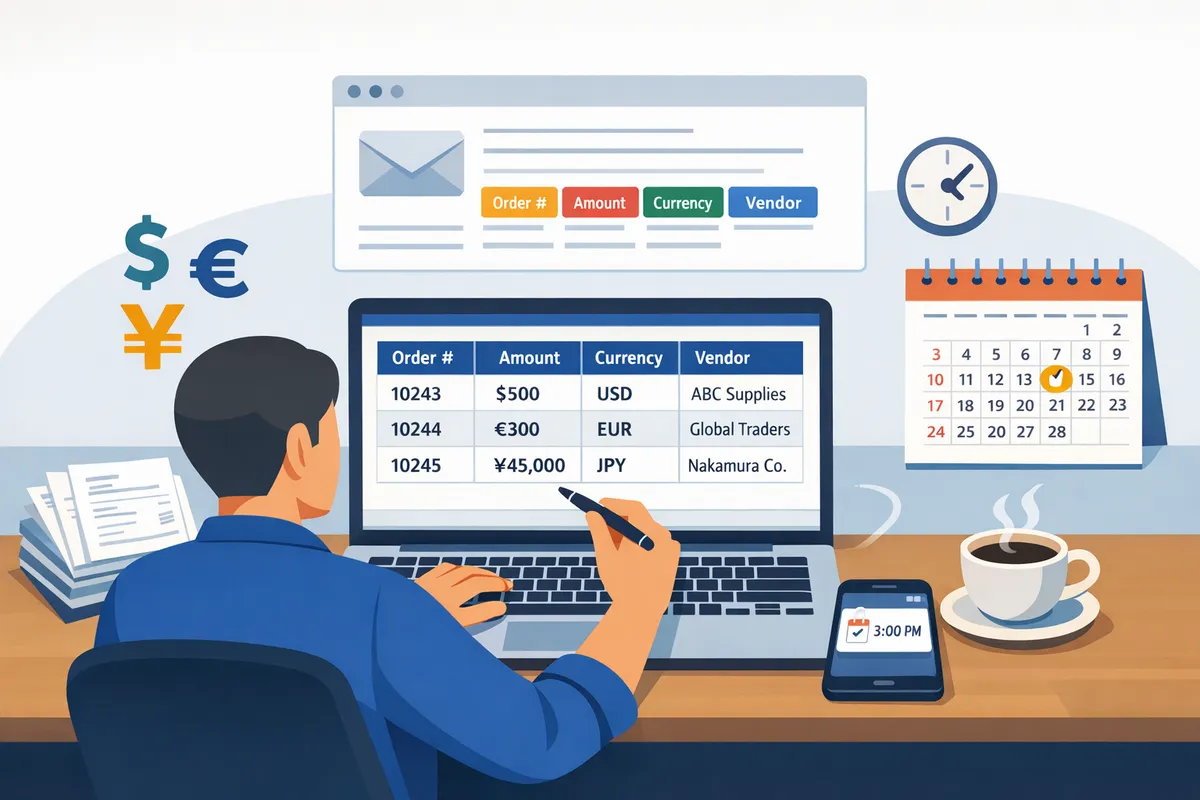
Missing fields, inconsistent field names, multiple order references, and mixed currency formats cause the largest bookkeeping delays. Top five pain points and sample email snippets that trigger them:
- Missing or renamed fields. Example: “Order: 45123” versus “Ref# 45123”. The parser must map both to the same field.
- Multiple order references in one message. Example: “Orders: 45123, 45124 (total $245.00)”. Choice rules decide whether to create one row or two.
- Mixed currency and locale formats. Example: “Total: 1.234,56 EUR” versus “Total: $1,234.56”.
- Inconsistent placement of amounts. Example: some vendors put totals in the subject, others in the footer.
- Attachments and non-standard layouts. Some confirmations embed totals in images or PDFs (custom parsing is needed).
Standard schema reduces downstream errors by enforcing consistent fields and formats. Example schema to map into Google Sheets:
- order_id. Example: “45123”.
- amount. Example: “245.00”.
- currency. Example: “EUR” or “USD”.
- date. Example: “2026-06-01”.
- vendor. Example: “ACME Supplies”.
- status. Example: “confirmed” or “shipped”.
xtractor.app supports custom filters and multi-context parsing so each template maps reliably to this schema. For a hands-on walkthrough of handling mixed email layouts, follow our multi-context parsing guide.
💡 Tip: Standardize on three-letter currency codes (USD, EUR) during extraction and store amounts as numbers. This prevents locale-based sorting errors and simplifies QuickBooks CSV exports.
What are the business risks of DIY extraction?
DIY extraction increases transcription errors, slows PO creation, and raises the risk of duplicate payments. Practical consequences include lost staff hours, delayed vendor payments, and reconciliation backlogs. For example, a 1% transcription error rate on 2,000 monthly orders creates 20 incorrect entries that require human review. That review multiplies processing time and increases the chance of late payments or missed discounts.
Manual processes also create hard-to-audit trails. Multiple people copying data into spreadsheets produces versioning problems and reconciliation gaps during month-end close. xtractor.app reduces these risks by enforcing field mapping, supporting one-click bulk imports, and running scheduled imports so data lands in a single canonical sheet for accounting and reporting. If you want a no-code path to reduce those costs, our tutorial on exporting emails to Google Sheets automatically without coding explains a production-ready setup and the Gmail filters that save the most time.
How do real ecommerce and AP workflows extract order numbers and amounts from emails into sheets?
Real ecommerce and accounts payable teams map email tokens to a standard schema and export rows that match QuickBooks CSV templates. This approach reduces manual fixes during bookkeeping and keeps each export predictable for downstream tools. Our xtractor.app handles bulk imports, saved searches, and multi-context parsing so teams move from inbox to QuickBooks-ready CSV faster.
What is a standard data model for extracted fields and why use it? 📋
A standard data model is a schema that maps extracted tokens to consistent spreadsheet columns for predictable CSV exports. Use a single, agreed column set so reports, reconciliations, and QuickBooks imports require no manual remapping. Below is a practical schema used by ecommerce stores and AP teams.
| Column | Purpose | Example value |
|---|---|---|
| order_id | Primary identifier for the order or PO | PO-2026-4123 |
| order_date | Date of the order or confirmation | 2026-06-01 |
| vendor_name | Sender or supplier name | Acme Supplies |
| amount_net | Numeric net amount (no currency symbol) | 1234.56 |
| currency | ISO currency code | EUR |
| tax | Tax amount numeric | 234.56 |
| total_gross | Net plus tax numeric | 1469.12 |
| line_items | Short JSON or pipe-separated SKU:qty:price list | SKU123:2:599.00 |
| original_message_id | Email message-id for traceability | <CAF...@mail.gmail.com> |
| parse_confidence | 0-100 score or tag for manual review | 92 |
Mapping notes for QuickBooks purchase orders.
- Map order_id to the PO number column in your QuickBooks CSV template.
- Use amount_net and currency if QuickBooks expects single-currency rows; otherwise create a currency conversion step before export.
- Preserve original_message_id for audit trails and vendor questions.
Our xtractor.app lets you save this column mapping as a template and reuse it across inboxes and vendors. See the step-by-step parser setup in our Email Parser to Google Sheets guide for field mapping details.
How to handle multiple order numbers or amounts in one email? 🔁
Treat each order number with its related amount as a separate spreadsheet row and preserve the source message ID. Many supplier emails contain repeating blocks (one confirmation per PO line). Configure extraction to capture repeatable blocks so a single email can create multiple rows.
Practical rules and examples.
- Use a repeat-block or multi-context rule (xtractor.app supports multiple parsing contexts) to capture each order block.
- Emit one row per block with order_id, amount_net, currency, and line_items.
- Add a needs_review column when relations between order_id and amount are ambiguous (for example, two order_ids and three amounts).
Example: An email lists three POs with matching totals. The parser creates three rows, each with the same original_message_id and distinct order_id and amount_net. If the parser finds two order_ids but three amounts, it still creates rows but marks the last row needs_review=true so an operator can resolve the mismatch.
Multi-context parsing templates and real-world examples are available in our Multi-Context Parsing guide.
How to normalize currencies and locale-specific formats? 💱
Normalize currencies by storing a numeric base_amount alongside a separate currency code column, and apply conversion only when required by accounting. Keep raw_amount_string for troubleshooting and set base_amount as the canonical numeric field.
Best-practice fields: raw_amount_string, base_amount, currency. Detection workflow: 1) detect symbol or ISO code, 2) parse locale-specific separators into a numeric base_amount, 3) record currency code. Example formats to handle: €1.234,56 (European format) and $1,234.56 (US format).
When to convert: convert before CSV export if QuickBooks requires a single currency file; otherwise import multi-currency rows and let accounting handle conversion. Our xtractor.app supports custom filters to detect currency symbols and capture raw and normalized values so you can apply conversion rules in Sheets or a downstream ETL.
Validation rules to apply automatically: flag rows where the currency symbol conflicts with the vendor country, or where parse_confidence is low. That cuts reconciliation time during month-end.
How do you deduplicate and reconcile when multiple emails reference the same order? 🧾
Use a deduplication key composed of vendor_name, order_id, and rounded amount to detect duplicate rows before merging. This composite key removes near-duplicates while preserving legitimate updates or credit notes.
Recommended dedupe workflow:
- After import, create dedupe_key = LOWER(CONCAT(vendor_name, “|”, order_id, “|”, ROUND(amount_net, 2))).
- Automatically mark the newest row per dedupe_key as the primary and flag older rows as duplicates.
- For partial records (missing amount or missing order_id), apply fuzzy matching rules: match on vendor_name + message_date window (for example, 7 days) then escalate to manual reconciliation when confidence < threshold.
- Keep original_message_id and a merged_sources column listing all message IDs included in the merge.
When to auto-merge vs manual: auto-merge when all core fields match exactly or when parse_confidence is high. Require manual review when any core field is missing or parse_confidence < 80. Our xtractor.app supports saved searches that isolate potential duplicates so AP clerks can resolve conflicts in batches.
⚠️ Warning: Avoid storing unredacted personal data in Sheets without access controls. Restrict editors and audit sheet exports to meet compliance requirements.
How do manual, general automation platforms, and xtractor.app compare? ⚖️
A comparison table shows trade-offs across setup time, multi-value handling, bulk imports, scheduling, and QuickBooks CSV readiness.
| Approach | Setup time | Multi-value emails | Bulk import | Scheduling | QuickBooks CSV export | Best for |
|---|---|---|---|---|---|---|
| Manual copy-paste | Low-tech but slow | Poor (manual splitting) | No | No | High manual cleanup | Very-low volume ad hoc fixes |
| Zapier / Make (generic) | Moderate – requires multiple steps | Limited – needs per-template configurations | Limited, can be slow at scale | Yes, but can hit rate limits | Requires custom mapping and transforms | Low-to-medium volume, simple formats |
| xtractor.app | Fast setup with templates and saved searches | Strong – repeat-blocks and multi-context parsing | One-click bulk import for thousands of emails | Built-in scheduling and saved searches | Export templates to match QuickBooks CSV | Medium-to-high volume ecommerce and AP teams |
Alternative approaches for restricted Google Workspace environments.
- If your org restricts add-ons, work with your administrator to approve the Google Sheets add-on; xtractor.app runs in Sheets, reads Gmail only, and supports scheduling within the add-on.
- For environments that block IMAP or third-party add-ons, use xtractor.app in Google Sheets with Gmail when permitted; it does not ingest via enterprise connectors or external inbox integrations.
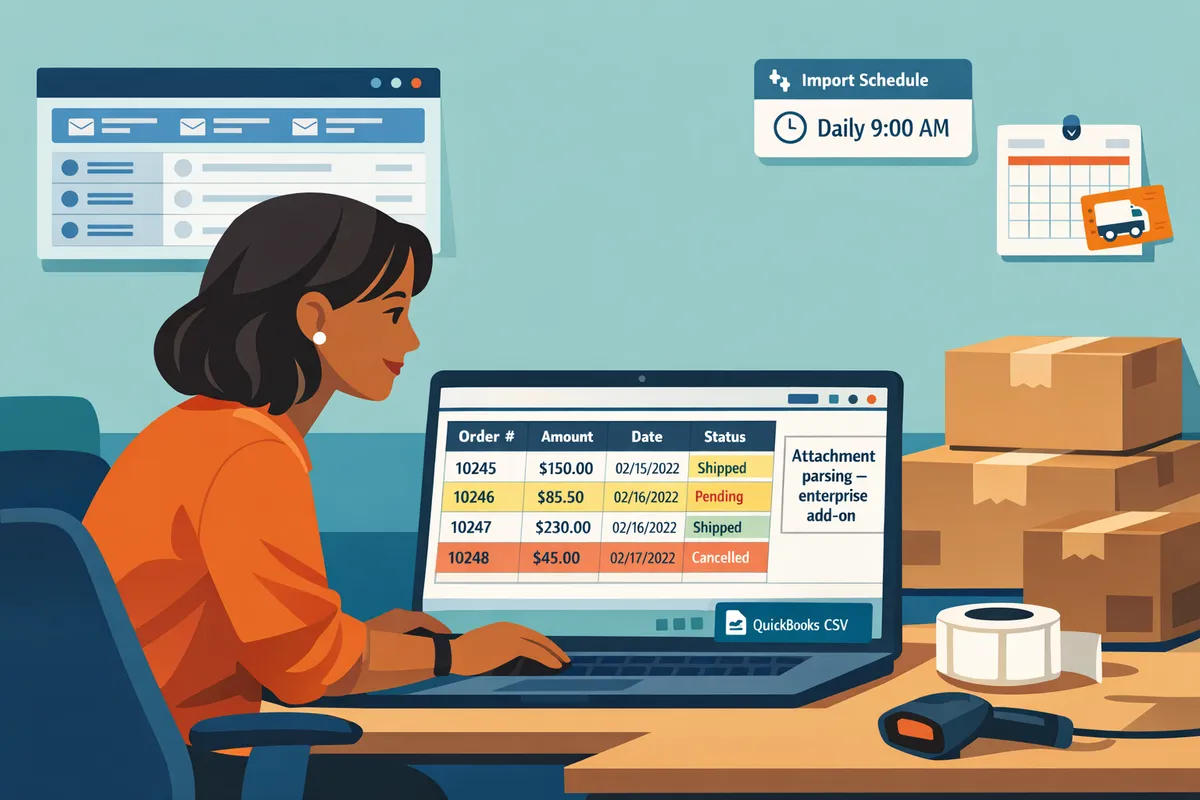
- If attachments require custom parsing, request a custom plan from our website; we offer attachment parsing as a scoped service for enterprise needs.
For a full setup walkthrough that finishes the pipeline from inbox to Sheets in under an hour, follow our how-to guide on automatically exporting emails to Google Sheets without coding.
How to implement an end-to-end workflow that extracts order numbers and amounts from emails into sheets and produces QuickBooks CSVs?
A reliable end-to-end workflow follows five stages: filter, parse, map, validate, and export. Our website recommends using xtractor.app to handle bulk imports, multiple parsing contexts, and scheduled exports so the team spends time on exceptions instead of copy-paste. Below are step-by-step actions, a standardized data model, QuickBooks mapping examples, validation rules, scaling tips, and error-handling decision rules.
Step-by-step setup: inbox to sheet 📥
Set up Gmail filters, create parsing contexts for each email layout, map extracted fields to sheet columns, run a bulk test import, iterate on rules, then schedule automatic imports.
- Create inbox filters or saved searches that target order confirmation emails by sender, subject tokens, and date range. Our website recommends naming filters for reuse.
- Define parsing contexts in xtractor.app for each email format. A parsing context is a ruleset that tells the parser which text-before/after or template to use for extraction. See our multi-context parsing guide for real templates.
- Map the extracted fields to Google Sheets columns using the output schema you will use for bookkeeping. Use consistent column names (order_id, amount, currency, date, vendor, status).
- Run a small bulk import (50–200 messages) and review extracted rows in the sheet.
- Iterate: add a parsing context for emails that failed, refine text rules for ambiguous lines, and re-run the bulk import.
- Schedule daily imports in xtractor.app once confidence is acceptable.
For a concise checklist and examples, follow our step-by-step checklist in How to Import Data from Email to Google Sheets: 7 Simple Steps.
Map parsed fields to QuickBooks purchase order CSV template 📄
Map each standardized field to QuickBooks column names, normalize date and number formats, and export a CSV that matches QuickBooks import rules.
Standardized data model (use this as your canonical schema):
| Field | Type | Format / examples |
|---|---|---|
| order_id | string | “PO-12345”, “12345” |
| amount | decimal | 1234.56 (decimal period) |
| currency | string | USD, EUR |
| date | date | YYYY-MM-DD or convert from MM/DD/YYYY |
| vendor | string | sender name or vendor domain |
| status | string | paid, pending, refunded |
Sample mapping to QuickBooks purchase order CSV:
| Standard field | QuickBooks CSV column |
|---|---|
| order_id | Vendor Ref No |
| vendor | Vendor Name |
| date | Txn Date (YYYY-MM-DD) |
| amount | Amount |
| currency | Currency (if using multi-currency) |
| status | Memo or Custom Field |
QuickBooks CSV checklist:
- Ensure date format matches QuickBooks locale (YYYY-MM-DD recommended).
- Use period as decimal separator unless your QuickBooks expects commas.
- Remove currency symbols from Amount column; place currency in its own column if required.
- Export CSV with UTF-8 encoding and no extra header rows.
- For purchase orders that include line-item detail, add separate rows per line item using QuickBooks line item columns.
Validation and monitoring practices to prevent bad imports ⚠️
Apply field-level validation, pilot a daily import for a week, and alert on low parse confidence to stop bad rows before they hit bookkeeping.
- Set required fields in the sheet for order_id, amount, and date. Mark rows missing these fields as “review needed.”
- Use numeric checks on amount and normalize currency values before export.
- Add a parse_confidence column from xtractor.app and trigger alerts (email or Slack) for rows below your threshold (for example, < 80%).
- Run a pilot: import the day’s emails into a staging sheet for 7 days and tally exceptions. If exceptions exceed a set rate (for instance, 3% of rows), pause the scheduled export and fix parsing contexts.
⚠️ Warning: Use saved searches plus manual review for low-confidence rows to reduce bookkeeping errors.
Set an ongoing monitoring cadence: daily quick checks for the first month, then weekly audits after the error rate drops to an acceptable level.
Scale and maintain the workflow across volumes ⚙️
Use scheduled daily imports for low volumes and bulk imports with multiple parsing contexts for high volumes.
- Low volume (tens to low hundreds per day): schedule daily imports with a short manual review window. This minimizes overhead.
- High volume (thousands per day): run one-click bulk import in xtractor.app and split parsing into parallel contexts so each template processes independently.
Performance tips: - Batch imports by date ranges to reduce memory spikes during processing.
- Archive or label processed emails to prevent duplicate imports.
- Keep a monthly maintenance task to review new vendors or layout changes and add parsing contexts.
When attachments require parsing, request custom parsing from xtractor.app support to avoid DIY attachment work that adds weeks of maintenance.
Error scenarios and handling: decision rules and escalation 🚨
Define a short decision tree for each common failure mode and automate the first step of escalation.
- Missing required fields: mark row as “manual review” and notify accounts staff. If the same sender repeatedly misses fields, add a parsing context for that sender.
- Multiple order IDs in one email: create a rule to extract the first ID as primary and list additional IDs in an “alternate_order_ids” column. Flag the row for manual consolidation before QuickBooks import.
- Vendor format change: when parse_confidence drops for a sender, copy one sample email to a “format changes” folder and create a new parsing context.
- Attachment-only confirmations: flag the email and escalate to a ticket; if volume justifies it, request custom attachment parsing from xtractor.app.
Example decision rule (apply in your sheet or automation tool):
- If order_id is empty -> set status = “review” and assign to AP.
- Else if parse_confidence < 80% -> set status = “low_confidence” and send row to saved search for manual review.
- Else -> set status = “ready_for_export.”
Document these rules in your operations playbook and schedule quarterly drills where an admin simulates vendor layout changes.
Related guides: use the multi-context parsing walkthrough for real templates and the automatic export tutorial to complete setup in under an hour. See Multi-Context Parsing to Handle Varying Email Layouts and How to Export Emails to Google Sheets Automatically Without Coding (Step-by-Step Tutorial) for complementary steps.
Frequently Asked Questions
This FAQ answers the top practical questions on how to extract order numbers and amounts from emails into Sheets and prepare QuickBooks-ready CSVs. Each answer focuses on predictable setup steps, failure modes to watch for, and exactly when xtractor.app should handle the work instead of manual rules.
How accurate is email parsing for extracting order numbers and amounts? 🔍
Accuracy typically ranges between about 80% and 95% for consistent order-confirmation formats with well-designed parsing contexts. Pilot runs reveal the real rate for your inbox: run a sample of 200–1,000 messages, measure parse_confidence per field, and record false positives and false negatives. Xtractor.app surfaces parse_confidence so you can route low-confidence rows to a review sheet or a human queue.
Well-designed contexts use a combination of template-based rules and a fallback AI context for small layout changes. If your pilot shows <80% accuracy, add a second parsing context for the outlier template or request a custom rule set. See our multi-context parsing guide for a production setup that reduces manual exceptions across mixed-format emails: Multi-Context Parsing to Handle Varying Email Layouts.
💡 Tip: Use a parse_confidence threshold (for example 85%). Automatically import high-confidence rows and flag lower ones to a “Review” tab for daily manual QC.
Can I handle multiple order numbers or amounts in a single email? 🔢
Yes. Configure parsing to detect repeating order blocks and output one spreadsheet row per block so each order_id and amount pair maps to its own line. Xtractor.app supports repeating-block extraction; define the start/end markers for a block (for example, “Order #” then “Total:”) and the parser will split each occurrence into separate rows.
When order items relate to a single invoice rather than separate orders, use a grouping key (invoice_id or email_id) so you can preserve parent-child relationships in the sheet. Flag ambiguous cases where the number of order_ids does not match the number of totals; those should move to a manual-review queue. For practical examples of splitting rules and saved-filter setups, see the automatic export tutorial: How to Export Emails to Google Sheets Automatically Without Coding.
How do I format the CSV so QuickBooks accepts purchase orders from the sheet? 📁
Produce a UTF-8 CSV with columns ordered to match QuickBooks’ import template and with normalized date and decimal formats. Map your Google Sheets columns to QuickBooks field names, remove currency symbols from numeric columns, and ensure dates use the format QuickBooks expects for your company file.
Follow these steps:
- Create a mapping row in the sheet using QuickBooks column headers.
- Normalize dates (for example, MM/DD/YYYY) and strip currency symbols so amounts are plain decimals.
- Ensure the order_id column has a consistent format and remove extra whitespace.
- Export as UTF-8 CSV (no formulas or merged cells).
Our step-by-step parser-to-sheets guide shows field mapping and scheduled exports to create QuickBooks-ready CSVs without manual copy/paste: Email Parser to Google Sheets: Fast Setup, Bulk Imports, and Scheduling (Step‑by‑Step).
How does xtractor.app handle attachments and non-standard email formats? 📎
Xtractor.app parses email bodies by default and offers custom attachment parsing plans on request for PDFs and image attachments. For attachments, we require sample files, a list of target fields (order_id, amount, date, vendor), and expected volume so the team can scope OCR and template work.
Request a custom plan when more than 5% of your order emails include PDFs or when attachments use inconsistent layouts. For mixed inboxes, combine multiple parsing contexts for body text with a dedicated attachments context. See the multi-context guide to handle varied layouts and reduce exception rates: Multi-Context Parsing to Handle Varying Email Layouts.
What are best practices for deduplication and reconciliation? 🔁
Use a deterministic dedupe key (for example vendor + order_id + amount) and run automated exact-match merges while sending partial or conflicting matches to a reconciliation log for human review. Xtractor.app can append a checksum column and a source_id so you can track where each row came from (message-id, timestamp).
Daily and weekly reconciliation checklist:
- Daily: auto-merge exact matches and move conflicts to a “Reconcile” tab.
- Daily: run a summary of new, merged, and flagged rows and assign ownership.
- Weekly: audit the reconcile log, correct mapping rules that caused repeated conflicts, and add new parsing contexts for frequent exceptions.
Include a small standardized schema in your sheet for downstream systems. Example fields: order_id, amount, currency, date, vendor, source_message_id, parse_confidence, status. This schema simplifies automated QuickBooks CSV mapping and reduces manual fixes.
Is it secure to parse order emails and store extracted data in Google Sheets? 🔒
Secure parsing requires encrypted access to the mailbox, least-privilege sharing for spreadsheets, and audit logs for exports and edits. Grant xtractor.app only the mailbox or folder access it needs (for example, a forwarding address or a dedicated parser account) and restrict sheet sharing to specific users or service accounts with edit control.
Recommended controls:
- Use a dedicated parser mailbox or forwarding rule rather than broad shared inbox access.
- Keep sheets in a restricted drive folder and use view-only links for general stakeholders.
- Enable audit logging and periodic access reviews.
- Remove sensitive PII from exported sheets where it is not required for accounting.
⚠️ Warning: Avoid storing unredacted sensitive personal data, such as full credit card numbers or health information, in shared spreadsheets. Follow your organization’s data retention and access policies.
Use Xtractor.app to export order data from emails into a spreadsheet.
Automating the extraction process saves hours of manual copying and cuts transcription errors so your finance and operations teams spend time on exceptions, not busywork. This workflow makes it simple to extract order numbers and amounts from emails into sheets.
Xtractor.app is an email parsing and data-extraction tool that pulls structured text out of emails and exports it directly into Google Sheets, CSV, or Excel. It imports thousands of emails at once or on a schedule, parses subject, sender, date, amounts and order numbers, and outputs a clean table. Key features include one-click bulk import, custom filters, multiple parsing contexts, saved searches, and scheduling for automated daily imports.
If you handle mixed-format confirmations, see the multi-context parsing guide to reduce missed fields and false matches. For a full setup walkthrough, follow the fast setup and scheduling guide. Start a free trial at xtractor.app to create your first parser and import a batch of order emails. If you plan to create QuickBooks purchase orders from CSV import, export your parsed sheet as CSV and map columns to QuickBooks fields.