 Xtractor
Small finance teams can lose 8–12 hours each month manually extracting transactions from emailed bank statements. Convert bank statement to excel is a practical process that extracts tabular transaction data from statements into spreadsheets for reconciliation and reporting. This step-by-step buyer-focused guide from our website shows small finance teams how to convert bank statement to excel and automate extraction using xtractor.app. Xtractor.app is an email parsing and data-extraction tool that bulk-imports thousands of emails, applies custom filters and multiple parsing contexts, and exports clean rows to Excel, CSV, or Google Sheets. Follow the workflow to cut transcription errors and set scheduled imports for daily reporting. Can a single saved filter and scheduled import replace hours of copy-paste work?
Prepare statements, file scope, and output formats before conversion. How do I prepare and choose a bank statement to Excel converter?
Start by defining the date ranges, accounts, file types, and final spreadsheet format you need before running any conversions. A bank statement to excel converter is a tool that extracts transaction text from statements into rows and columns for spreadsheets.
Step 1: Define scope and file types to convert 📁
Choose which accounts, date spans, and statement sources (digital PDFs, scanned PDFs, or emailed HTML) you need to extract. Specify the exact file types you will process: PDF (digital text), scanned PDF (image-based), and HTML/EML emails with in-body statements. Note whether statements arrive as attachments or as inline email text because attachments often require custom parsing.
For bulk work, prepare a saved search or label in your mailbox by sender and subject and export a sample 10–20 files for testing. Expect scanned PDFs to require OCR and manual validation; expect multiple bank formats to require separate parsing contexts. xtractor.app can target sender, subject, and date ranges to pull relevant emails and run scheduled imports; attachments need a custom parsing plan on request.
💡 Tip: Create an inbox label such as “Bank-Statements-Import” and a reusable saved search before bulk import to avoid missed messages.
Step 2: Choose the conversion approach 🔍
Decide between file-level PDF-to-Excel tools and an inbox-driven email-parsing pipeline like xtractor.app based on volume and audit requirements. PDF-to-Excel tools work best when you have a folder of digital PDFs and need one-off conversions. They often export XLSX or CSV but require manual batching and cleanup. Email parsing like xtractor.app works best when statements arrive by email, you need regular imports, or you want a repeatable, auditable pipeline.
Compare the business costs: manual PDF conversion costs hours per month and raises transcription errors and missed statements. An inbox parser reduces repetitive copying, enforces consistent field extraction, and produces a clearer audit trail. See our detailed conversion walkthrough in Convert PDF Bank Statements to Excel for file-level workflows and our how-to guide on converting bank statements into Excel for cleanup tips.
Step 3: Use a comparison table to pick the right tool 📊
Choose the option whose strengths match your file mix, speed needs, and privacy requirements. Below is a concise comparison of common approaches to convert bank statement to excel.
| Option | Output formats | Scanned PDF handling | Batch import speed | Support for bank emails | Data retention & privacy | Price tiers |
|---|---|---|---|---|---|---|
| Free online PDF converters | XLSX, CSV | Limited OCR; mixed results | Low to medium (manual upload) | No | Temporary uploads; vary by vendor | Free or low-cost per file |
| Desktop PDF-to-Excel software (paid) | XLSX, CSV | Better OCR with paid engines | Medium (local batching) | No | Local processing possible; better control | One-time or subscription |
| xtractor.app (email parser) | Google Sheets, CSV, XLSX | Attachments require custom parsing; inline email text handled natively | High for inbox-driven bulk imports and scheduled runs | Yes (sender/subject/date filters, saved searches) | Configurable retention; designed for inbox workflows; support for custom privacy requirements | Subscription with tiers; custom plans for attachments |
| Full-service providers (manual processing) | XLSX, CSV, QBO on request | Human-verified OCR | Low turnaround for large batches; manual queueing | Can ingest emails and attachments as part of service | Vendor-managed retention and compliance | Higher monthly or per-file fees |
For more detail on file-level conversions and cleanup, see our Convert Bank Statements to Excel guide and the step-by-step Convert Bank Statement PDFs to Excel article.
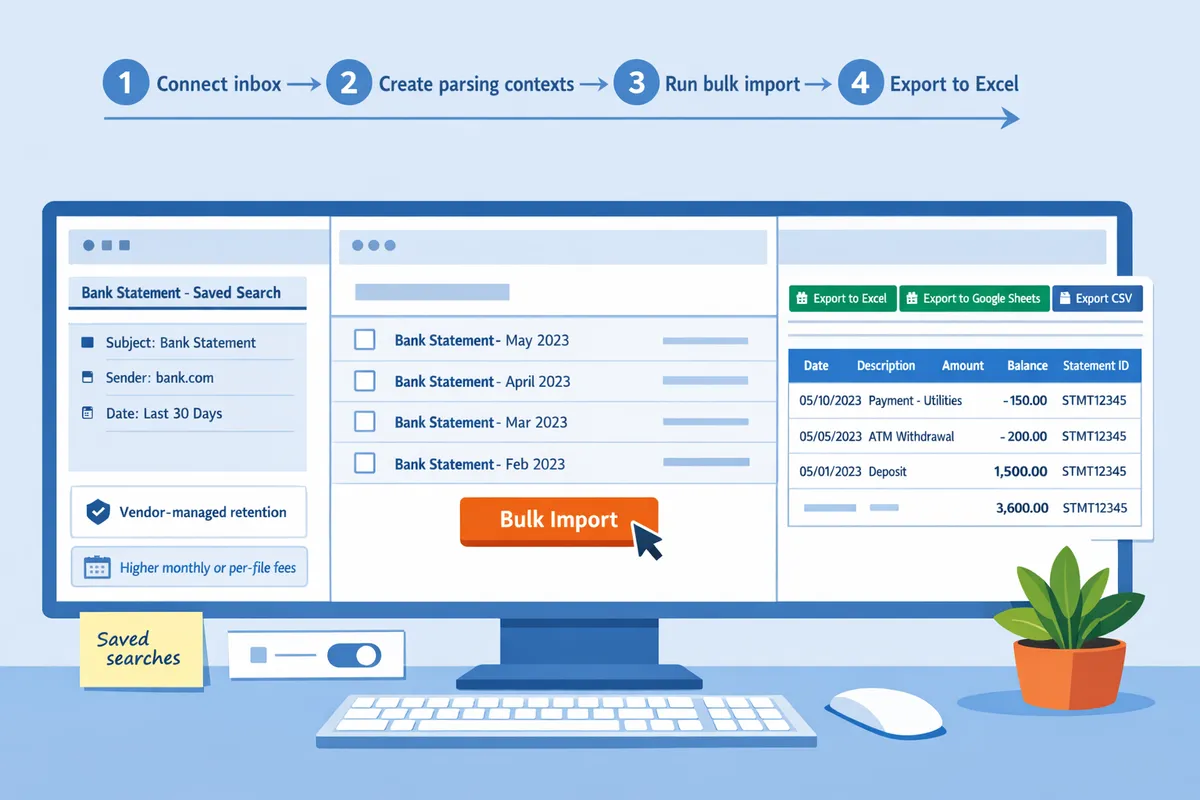
Run a repeatable parsing workflow with xtractor.app to convert statements at scale. How do I convert bank statement to Excel with xtractor.app, step by step?
Use xtractor.app to connect your inbox, create parsing contexts, run bulk parsing or scheduled runs, and export clean tables to Google Sheets, CSV, or XLSX. This repeatable workflow removes manual copy-paste, reduces transcription errors, and supports daily or weekly imports for ongoing bookkeeping.
Step 1: Link email and set filters ✉️
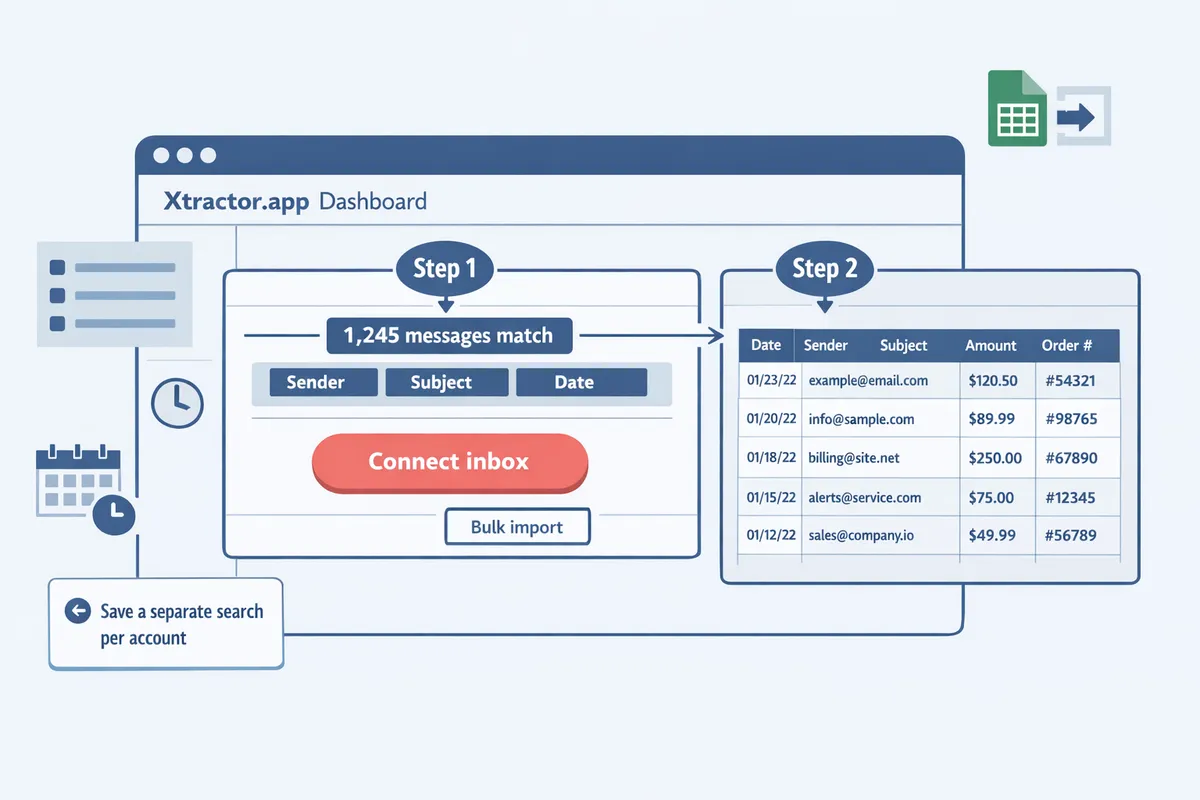
Connect your inbox and apply sender, subject, and date filters to isolate bank statement emails before import. On xtractor.app, add the mailbox you want to monitor or upload an export archive, then set filters to target the bank sender address, common subject lines, and the date range for the batch you need. Save that search as a reusable filter so future imports use the same criteria. Use one-click bulk import when you have a historical archive; the UI shows how many messages match the saved search before you start.
💡 Tip: Save a separate search per account (checking, credit card, merchant) so scheduled runs only pull relevant statements.
Step 2: Build extraction rules and test 🔧
Create parsing contexts and map each desired field to spreadsheet columns, then test against 5–10 sample emails until rows align. A parsing context is a configuration that tells xtractor.app how to find fields in a specific statement layout. Add contexts for common variations you see, for example vendor-format versus bank-format statements. Select fields such as date, description, amount, balance, and reference, and map each to the spreadsheet column name you want. Run tests on 5–10 representative messages and adjust patterns until every sample produces a correctly aligned row. Keep one context per layout to avoid mixed columns in output.
For more on cleaning and arranging exported spreadsheets after parsing, see our guide on Convert Bank Statements to Excel.
Step 3: Execute bulk parse or schedule runs ▶️
Use one-click bulk import for historical data and set scheduled runs for daily or weekly parsing to automate ongoing imports. Start with a small historical import to validate contexts, then run the full bulk parse for archives. After validation, enable scheduled parsing at the cadence you need; xtractor.app will process new matching emails automatically and add parsed rows to your chosen export target. Note that attachments require a custom plan if you need parsing beyond the default email body extraction. Monitor the first few scheduled runs and review parsing exceptions so you can refine contexts quickly.
Step 4: Export and verify the spreadsheet ⤓
Export parsed transactions directly to Google Sheets, CSV, or XLSX and run a short verification checklist to confirm clean data. xtractor.app supports live Google Sheets sync, direct CSV download, and XLSX export so you can export bank transactions to Excel without extra steps. Use this checklist after export:
- Ensure date formats are consistent across rows.
- Confirm amounts have correct signs and decimal placement.
- Verify there are no merged or missing rows and that each transaction occupies one row.
- Check for duplicate transactions against the original messages.
If you prefer step-by-step cleanup tips for spreadsheet formatting and analysis, see How to Convert Bank Statements into Excel.
Step 5: When to ask xtractor.app for support 🛠️
Open a support ticket when attachments, multi-page statements, or bank-specific layouts fail to parse with your contexts. Our team can create custom parsing for attached PDFs, multi-page statements, or unusual bank formats that the default email-body parsing does not cover. Requesting custom parsing early avoids hours of manual rework and reduces the risk of missed or mis-entered transactions. Expect a response window and delivery estimate in the support ticket so you can plan any accounting deadlines around the change.
For guidance on handling PDF source files before parsing or exporting, consult Convert PDF Bank Statements to Excel.
Clean, reconcile, and secure your exported data while avoiding common conversion mistakes. What post-conversion steps and fixes should I run?
Run a four-step post-conversion workflow: clean fields, reconcile totals, secure the file, then troubleshoot parsing errors. These steps reduce import failures, speed reconciliation, and keep data audit-ready. Our website and xtractor.app both recommend making these checks part of every export routine.
Step 1: Clean and standardize fields 🧹
Standardize dates, numbers, and currencies immediately so formulas and pivot tables work without errors. Follow these concrete steps after export (expected outcome: a consistently formatted table that groups and sums correctly).
- Convert dates to one format (example: YYYY-MM-DD) across all date columns. Use Excel’s DATEVALUE or Google Sheets DATE functions to coerce ambiguous strings. A single date format prevents mismatched groupings in pivots.
- Remove thousands separators and force numeric types for amount columns. Replace commas or nonbreaking spaces so SUM and SUMIF return correct totals.
- Normalize debit/credit signs. If the bank uses separate columns, convert to a single signed Amount column (debits positive, credits negative) so arithmetic works in one formula column.
- Standardize currency codes to ISO (USD, EUR, GBP) in a Currency column. Avoid embedding symbols in the amount cell.
- Trim stray whitespace and join split description lines into one text field so lookups and filters match.
xtractor.app makes this faster by exporting consistent column headers when you define Date and Amount in the parsing context. Reuse parsing contexts to reduce repeat cleanup for similar statement formats. For a hands-on walkthrough on initial conversion choices, see our how to convert bank statements to Excel guide.
Step 2: Reconcile and import into accounting software ✅
Map exported columns to your accounting import template and run a trial import for one account before bulk uploads. This prevents mass mismatches and rejected records.
- Create a mapping checklist: Date → Date, Description → Memo, Amount → Amount (signed), Currency → Currency code, Reference → Reference/CheckNumber. Keep a copy of the mapping in your import template.
- Export a single-account, one-month CSV/XLSX and run a trial import into QuickBooks Online, Xero, or your ERP. Expect to iterate: common fixes are changing date format, swapping debit/credit columns, or aligning memo fields.
- Reconcile totals to the original statement: compare the statement balance and the sum of imported transactions. If totals differ by more than a few cents, identify missing fees, pending holds, or duplicated rows.
xtractor.app exports directly to Google Sheets, CSV, or Excel, which simplifies matching your accounting template. For format-specific tips and templates, consult our Convert Bank Statement PDFs to Excel resource.
Step 3: Secure exports and manage access 🔐
Remove unnecessary personal data, lock down sharing settings, and encrypt files in transit before distributing spreadsheets. These checks reduce privacy risk and make audits easier.
- Remove or mask full account numbers unless reconciliation requires them. Keep a masked Account ID column (last 4 digits) for reference.
- Set Google Sheet or Excel permissions to the narrowest scope (edit only for bookkeepers, view-only for reviewers). Maintain an access log and review it monthly.
- Encrypt files when emailing or transfer via a secure file service. If you store exports on cloud drives, enable two-factor authentication and retention rules.
💡 Tip: Always remove personally identifiable information (full SSNs, account numbers) from shared spreadsheets unless strictly necessary for the task.
Reference our security guidance in the Convert Bank Statement PDFs to Excel resource for recommended retention policies and encryption options.
Step 4: Troubleshoot mismatches and missing fields ⚠️
Compare the export to the original bank statement and fix errors by adjusting parsing contexts or applying targeted manual corrections. Use checksum comparisons and row counts to spot issues at scale.
Common issues and fixes:
- Misread dates (example: 01/02 could be Jan 2 or Feb 1). Fix by forcing a date format during cleanup or updating the parsing context in xtractor.app to capture day/month order.
- Split lines for long descriptions. Fix by concatenating adjacent rows or enabling multi-line captures in a second parsing context for that layout.
- Missing negative signs or debit/credit swapped. Fix by recreating Amount as signed values from separate debit and credit columns or add a formula to infer sign from a Type column.
- Missing fields due to alternate statement layouts. Fix by adding a second parsing context in xtractor.app for the alternate layout or request custom parsing for attachments.
⚠️ Warning: Do not rely only on visual spot-checks for high-volume imports. Use automated total checks and sample-row reconciliation to catch systemic parsing errors.
For step-by-step conversion and examples of parsing context edits, see our detailed walkthrough on How to Convert Bank Statements into Excel.
Frequently Asked Questions
This FAQ answers the most common buyer and implementation questions about converting bank statements to spreadsheets with xtractor.app. Each item explains a practical choice, common pitfalls, and the exact next step you should take.
Can I export bank transactions to Excel or CSV? 📥
Yes, xtractor.app exports directly to Google Sheets and also provides downloadable CSV and XLSX files. Our product offers two export paths: a live Google Sheets sync for real-time dashboards and scheduled imports, and downloadable CSV/XLSX files for accounting imports and archival copies.
Choose Google Sheets when you need ongoing, collaborative reporting or want formulas and pivot tables to update automatically. Choose CSV when you need maximum compatibility with accounting systems (QuickBooks, Xero import templates) or when vendors require plain-text, UTF-8 comma-delimited files. Choose XLSX when you want richer formatting, multiple sheets, or to preserve Excel-specific formulas.
See our step-by-step conversion guide for examples of cleaning and exporting into Excel and CSV: How to Convert Bank Statements into Excel.
How accurate is OCR for bank statements and scanned PDFs? 🧐
OCR accuracy depends on source quality; digital bank PDFs produce far better extraction than low-resolution scans or photos. Digital statements (PDFs generated by the bank) normally parse with very few field errors, while scanned documents with noise, skew, or shadows produce misreads in dates and amounts.
Mitigation steps.
- Prefer digital statements whenever possible and ask vendors or banks to send native PDFs.
- Run a small manual QC sample (10–20 statements) to measure error rate before bulk import.
- Request custom parsing for recurring non-standard formats so xtractor.app can add targeted rules and confidence checks.
💡 Tip: Run a 20-statement QC sample and flag any recurring misreads (dates, negative signs, currency separators) before importing to your accounting system. For a technical walkthrough of converting PDFs, see: Convert Bank Statement PDFs to Excel.
Can xtractor.app parse PDF attachments or only email body text? 📎
By default, our plans extract structured text from the email body and header fields; parsing PDF attachments requires a custom parsing request. Attachments often contain the actual tabular data you need, but they vary widely in layout and quality, so we handle them as a scoped service.
What to expect for attachments.
- Provide sample PDFs when you contact support so we can estimate scope and turnaround.
- Custom parsing can extract tables from PDFs and return CSV/XLSX outputs, but it may add setup time and pricing based on volume and complexity.
- If attachments are occasional, consider routing those emails to a monitored inbox and creating a separate parsing context to limit disruption to your primary flow.
For setup guidance and examples, review our workflow notes in Convert Bank Statements to Excel.
How much time will I save converting statements with xtractor.app? ⏱️
Automating extraction with xtractor.app typically reduces manual data-entry hours substantially; for example, processing 200 statements per month can drop roughly 16 hours of manual copy-paste work to 1–2 hours of review and reconciliation. That estimate comes from a common scenario where manual extraction averages about 5 minutes per statement.
Illustrative breakdown.
- Manual: 200 statements × 5 minutes = 1,000 minutes (about 16.7 hours) of copying, pasting, and formatting.
- With xtractor.app: one-click bulk import or scheduled runs produce parsed tables; plan for 60–120 minutes monthly to spot-check, correct edge cases, and reconcile totals.
This reduces late-month crunch, cuts transcription errors, and speeds reporting cycles. See our practical conversion steps for team workflows in Convert Your Bank Statements from PDF to Excel.
Is my financial data secure during parsing and export? 🔒
We protect data in transit and at rest and provide retention controls so you can limit exposure during parsing and export. Our processing uses encrypted connections for upload and download, and you control how long parsed records remain accessible in our system.
Practical security controls you should use.
- Export parsed results to a Google Sheet with strict access controls (domain-restricted or specific service accounts) or download private CSV/XLSX files and store them in your secure drive.
- Configure minimal retention on parsed data and delete test or sensitive samples after verification.
- Use single sign-on (SSO) and role-based access where available to restrict who can trigger exports.
⚠️ Warning: Avoid placing full account numbers or unmasked personal identifiers in shared spreadsheets. For full security and compliance details, review our documentation linked from the product pages.
What if the bank changes statement layout? 🔄
Saved parsing contexts and the ability to add multiple contexts per parsing flow let you handle layout changes quickly without rebuilding everything. Each context targets specific patterns in the email or statement layout, so you can add a new context for the revised format and keep the old one active while you test.
When to call support.
- If the change is minor (column order or label text), add or tweak a parsing context and run a validation sample.
- If the bank issues a major redesign, contact xtractor.app support with sample files so we can create or update a custom parser and push it to your flow.
- Maintain versioned contexts and a quick test inbox to validate incoming statements before routing to production spreadsheets.
How do I import converted spreadsheets into my accounting software? 💼
Importing requires mapping your columns to the accounting template, standardizing date and amount formats, and testing a single-account import before bulk uploads. Follow a short checklist to avoid failed imports and reconciliation headaches.
Import checklist.
- Map columns to the accounting import template (date, description, amount, reference).
- Standardize dates to your target format (example: YYYY-MM-DD or MM/DD/YYYY).
- Ensure amounts use a period for decimals and remove thousand separators (1,234.56 → 1234.56).
- Run a test import for one account and reconcile totals back to the original statements.
- After a successful test, import remaining accounts and perform final reconciliation across all balances.
For practical examples and step-by-step cleanup guidance before import, see Convert PDF Bank Statements to Excel.
How to convert bank statement to excel with xtractor.app.
You now have a clear, repeatable path to turn emailed or PDF statements into spreadsheet-ready rows, saving small finance teams hours of manual entry and reducing transcription errors. For example, a bookkeeper processing monthly statements can replace copy-and-paste work with scheduled imports and saved filters to speed reporting.
Xtractor.app is an email parsing and data-extraction tool that pulls structured text out of emails and exports it directly into Google Sheets, CSV, or Excel. The product is designed to import thousands of emails in a single action or on a scheduled cadence, parse relevant fields (subject, sender, date, amounts, order numbers, etc.), and produce a clean, tabular output in a spreadsheet for reporting, analysis, or bookkeeping. Key features include one-click bulk import, custom filters to define exactly which pieces of text to extract, the ability to add multiple parsing contexts to handle emails that vary in format, saved searches/filters for reuse, and scheduling to automate daily imports.
💡 Tip: Save a parsing filter per bank statement format so monthly imports stay consistent.
Start a free trial and create your first import with the getting-started guide at xtractor.app to move from manual cleanup to scheduled spreadsheet exports. For PDF-to-Excel steps or cleanup tips, see our guides on Convert Bank Statement PDFs to Excel and How to Convert Bank Statements into Excel. Subscribe to our newsletter for implementation tips and updates.