 Xtractor
Small e-commerce teams spend 20+ hours a month copying order numbers and amounts from Gmail into spreadsheets. “How can I extract data from Gmail emails into Google Sheets?” is the question this roundup answers with a decision-focused comparison, a regex cookbook and practical recommendations for small teams; it builds on our guide Email to Google Sheets: How to Import Email Data Automatically. Email parsing is a process that extracts structured fields from Gmail and writes them into Google Sheets as clean rows and columns for reporting or bookkeeping. Our website compares manual copy-paste, Apps Script (see Parse Email to Google Sheets) and xtractor.app — the Google Sheets add-on that imports Gmail in bulk or on a schedule, applies text-before/text-after rules and regex, supports multiple parsing contexts, saves filters, can use AI parsing, and keeps extracted data in your sheet. We rank each method by speed, accuracy and setup time and include copyable regex patterns so you can pick the approach that fits your workflow best.
Which method should I choose to extract Gmail data into Google Sheets?
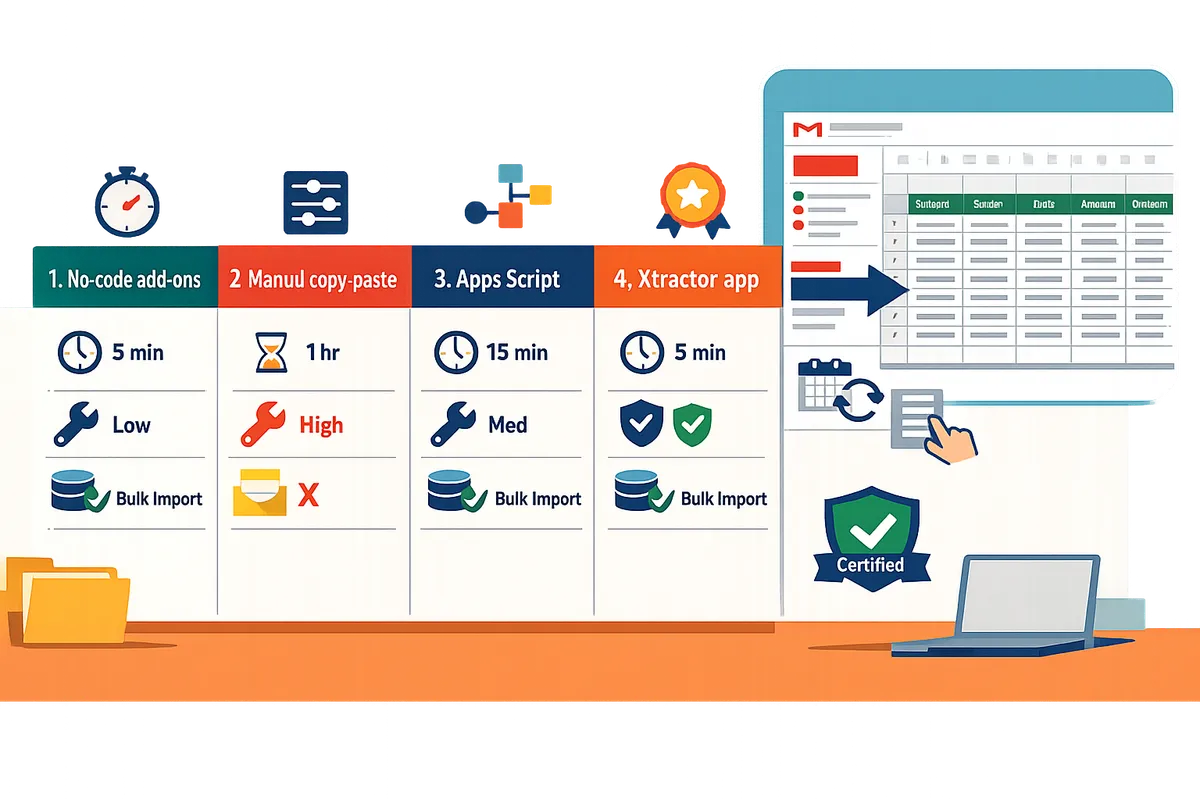
Choose a method based on email volume, required parsing complexity, and how much time you can spend maintaining the setup. The right approach minimizes manual hours while keeping rules and error handling manageable. Below are four practical options and when each fits common workflows.
No-code Gmail add-ons: Use a no-code add-on for fast setup and non-technical users.
No-code Gmail add-ons work well when you need a quick, GUI-driven setup for low-to-moderate volumes and users who cannot edit scripts. These tools usually provide point-and-click filters for sender, subject, and simple field extraction, which saves small e-commerce teams several hours per week compared with manual copy-paste. Trade-offs include limited handling of inconsistent email formats and potential per-seat or per-run costs. For example, a storefront processing 50 order confirmation emails per day can map order ID, amount, and date in a few minutes, but extracts fail or need new rules if vendors change layouts.
Our website’s Send Gmail to Google Sheets Automatically: 2026 Guide shows when a no-code add-on is the fastest path and how to schedule imports.
Apps Script (low-code): Choose Apps Script when you need bespoke extraction logic and have developer time to maintain scripts.
Apps Script gives full control over parsing rules, custom field extraction, and attachments when you add code, so it fits workflows with complex or shifting email formats. Many teams use Apps Script to implement multi-stage parsing: search messages by label or date, run regex or conditional logic, and append rows to a sheet. The cost is ongoing maintenance, sensitivity to Gmail quotas, and longer setup time than a point-and-click add-on.
Example: a B2B vendor that receives mixed-format invoices can build an Apps Script that applies format detection, extracts line items, and writes normalized rows to a master sheet, but a developer must update the script when new invoice templates arrive. See our Parse Email to Google Sheets guide for a step-by-step Apps Script walkthrough.
⚠️ Warning: Gmail enforces API and daily read quotas; large or frequent Apps Script imports often require quota monitoring and staggered runs.
Automation platforms: Use an automation platform when you need orchestration across services with retries and logging.
Automation platforms like Zapier or Make suit workflows that must move data between multiple apps and where built-in retries, error logs, and multi-step flows matter. They simplify connecting Gmail to Sheets plus downstream tools such as CRMs or Slack. Downsides include monthly platform costs, per-action billing at scale, and potential brittleness when processing thousands of Gmail messages. For mid-volume operations that need cross-app orchestration, automation platforms reduce glue work compared with custom scripts.
If your core need is reliable Gmail-to-Sheets extraction without extra orchestration, our Email-to-Google Sheets Automation: What It Is, How It Works, and Best Practices article explains when an automation platform is overkill and when it helps.
xtractor.app (recommended): Choose xtractor.app for scheduled bulk imports and repeatable parsing rules that write directly into Sheets.
xtractor.app is a Google Workspace add-on that runs inside Google Sheets and is purpose-built to import Gmail messages, apply saved searches and parsing contexts, and write extracted fields into columns. xtractor.app can import thousands of emails in one bulk import, which makes it suitable for backlog cleanups, recurring imports, and multi-layout inboxes. It supports searches by subject, sender, date, and content, and parsing rules using text-before/text-after and regex filters plus optional AI assistance. Extracted data stays in your spreadsheet and never in xtractor.app’s database, and saved searches let non-developers rerun proven rules.
For setup examples and scheduling tips, see our Email to Google Sheets: How to Import Email Data Automatically guide and the How to Save Emails in Google Sheets step-by-step article.
How do I build parsing rules and a regex cookbook for extracting fields from email bodies?
Build parsing rules by combining saved Gmail searches, text-before/text-after filters, and targeted regex contexts, then test on representative messages before running bulk imports. This approach isolates messages first, then applies narrowly scoped extraction rules to reduce false matches. Using saved searches and reusable filters saves hours when you schedule imports or rerun extractions.
Parsing building blocks 🔎
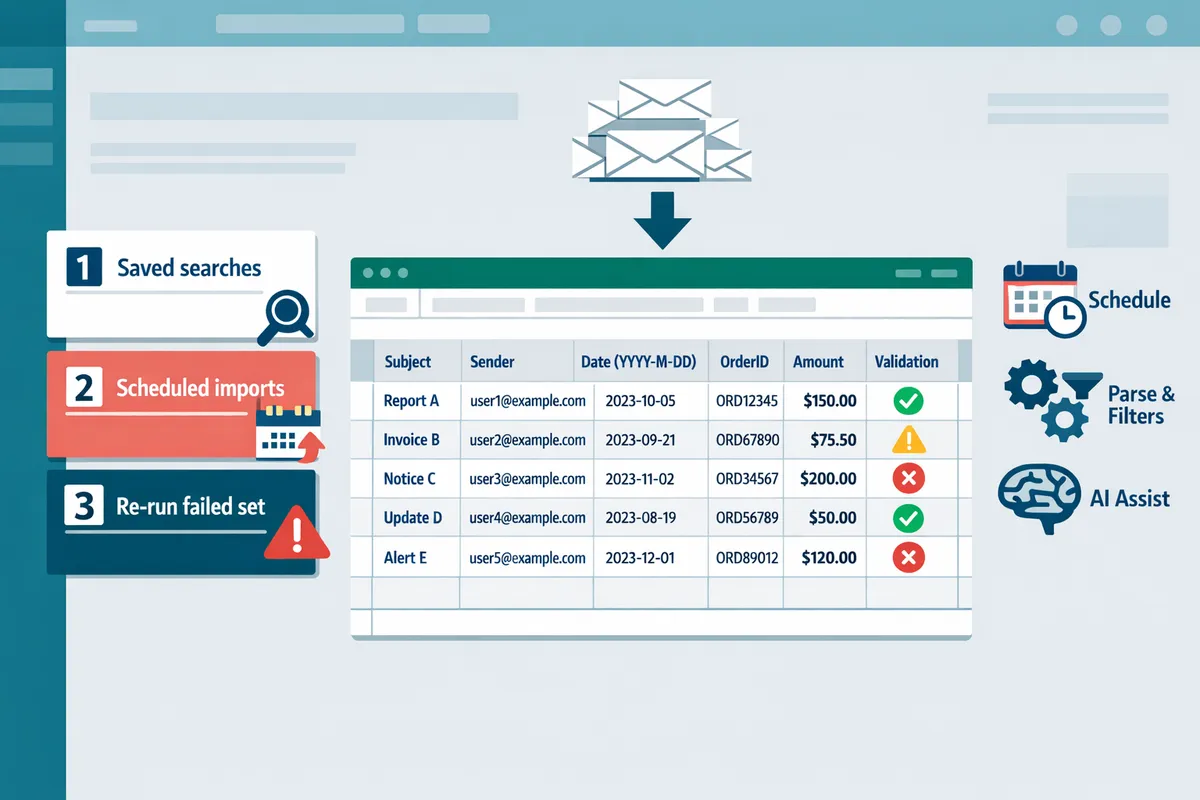
Start with a saved Gmail search that narrows messages by sender, subject, date, or label. Save the search so you can re-run it or schedule imports without rebuilding filters each time. Add text-before and text-after filters to pin the extraction window (for example, text after “Order” and before “Total”). Add a focused regex context only when text anchors still return ambiguous matches. xtractor.app supports saved searches, text-before/text-after filters, and regex contexts, so you can test a filter set and reuse it across scheduled runs. For a step-by-step on scheduling and choosing searches, see our Send Gmail to Google Sheets Automatically: 2026 Guide.
Common field recipes 🔧
Map subject and sender from Gmail metadata, normalize dates to YYYY-MM-DD, and define short, human-readable extraction rules for order numbers and amounts. Examples:
- Subject. Map the Gmail subject metadata directly into a “Subject” column.
- Sender. Map the Gmail “From” field into a “Sender” column and optionally normalize to a short vendor name.
- Date. Normalize dates to YYYY-MM-DD in your sheet so sorting and joins behave predictably.
- Order numbers. Rule: digits following the words “Order” or “Order #”; test against samples that include hyphens or prefixes.
- Amounts. Rule: currency symbol followed by numbers, allow commas and decimals; add a validation column that strips symbols and confirms numeric parsing.
Write each rule as a one-line human description, then convert that to a text-before/text-after pair or a tight regex context inside xtractor.app. Add column examples in the sheet (OrderID, NetAmount, Currency) so reviewers know expected values. If you need implementation detail beyond filters, the Parse Email to Google Sheets Xtractor guide shows alternative scripted approaches.
Handling multiple email formats 🧭
Assign a parsing context per message format so each message uses the extraction rule that matches its layout. Create contexts for each vendor or template that appears in your saved search (for example, Vendor A receipt, Vendor B receipt, and a fallback). Order contexts by priority: exact-match contexts first, fallback last. This reduces false positives from one rule matching another vendor’s layout. In practice, label contexts with the matching condition (sender, subject token, or unique phrase) and maintain a short test set for each context inside xtractor.app so you can update a single context when a vendor changes their email layout.
Testing and validation ✅
Test parsing rules on 10–20 representative messages and add validation columns in the sheet to catch bad rows before bulk imports. Use a small sample that includes edge cases: truncated bodies, extra line breaks, and alternate currency formats. Add validation columns that check date parsing (for example, whether a date converts to a valid sheet date) and amount parsing (numeric-only after stripping currency symbols). Use saved searches to isolate failed rows, refine the filter or context, and repeat the sample import until validation rates meet your threshold. xtractor.app makes this efficient because you can save filters, run one-off imports, and re-run only the failed search set.
💡 Tip: Test parsing rules against 10–20 real messages from different senders to catch format variations before you run a bulk import.
How do I run bulk imports, schedule recurring extracts, and keep spreadsheet data accurate?
Use saved Gmail searches, parsing contexts, scheduled runs, and row-level deduplication to import thousands of messages and keep your sheet reliable. xtractor.app runs bulk Gmail to Google Sheets import with parsing, saves searches and contexts for reuse, and supports scheduled imports daily or more often. Plan a labeled pilot, enforce a unique key per row, and monitor run duration against Gmail limits before scaling to full imports.
Bulk import checklist: Preparing a safe, repeatable run ✅
Prepare a saved Gmail search, define parsing contexts for each email layout, map fields to sheet columns, and run a small, labeled pilot before processing the full mailbox. Follow these steps in order:
- Create and save a narrow Gmail search (sender:, subject:, date range). Test it on 20–50 messages first.
- Define parsing contexts for each email format you expect (order confirmations, shipping notices). Use text-before/text-after rules and one regex per field where necessary.
- Map extracted fields to explicit sheet columns (date, sender, subject, order_number, amount). Reserve columns for raw_snippet, parse_status, and unique_key.
- Run a labeled pilot and compare expected vs actual values. Label pilot rows (column: pilot=TRUE) so you can filter and re-run only those messages if needed.
xtractor.app saves searches and parsing contexts inside the sheet, so you can repeat the same bulk import without rebuilding filters. See our step-by-step [Parse Email to Google Sheets Xtractor] (https://xtractor.app/parse-email-to-google-sheets/) for a detailed setup example.
Scheduling and frequency: How often should you run imports? ⏰
Schedule imports based on business windows, mailbox velocity, and Gmail quota limits; a daily run satisfies most teams while multiple runs per day support near-real-time dashboards. For example, run a daily import at 02:00 for end-of-day reporting, or run hourly for a live orders dashboard but limit each run to a narrow date range to avoid quota spikes.
Monitor average run duration and the number of messages processed. If imports begin timing out or returning partial results, reduce frequency or split the import into smaller batches (for example, process yesterday in one job and earlier seven days in a separate job). Our website’s Send Gmail to Google Sheets Automatically: 2026 Guide explains scheduling choices and sample cadences for common workflows.
Deduplication, validation and error logging: How to keep data clean 🧹
Use a stable unique key, inline validation formulas, and a dedicated errors sheet so duplicates and parsing failures surface quickly. Implement these controls:
- Unique key example: CONCATENATE(message-id, “_”, extracted_order_number) placed in a locked column. This prevents the same message or repeated imports from creating duplicate rows.
- Validation: add formulas such as ISDATE, ISNUMBER, and REGEXMATCH to flag unexpected values, then color-code with conditional formatting.
- Error logging: add columns parse_status and parse_error and copy failed rows to an Errors sheet for manual review and correction.
💡 Tip: Generate the unique key during import and use a simple filter to skip rows where that key already exists. This prevents hours of manual deduping.
Security and compliance: Where does your data live? 🔒
Extracted values land in your Google Sheet; xtractor.app does not store the data externally and is CASA Tier 2 certified for apps that access sensitive data. Keep access narrow and auditable by applying least-privilege sharing, using Google Workspace groups for role-based access, and enabling view-only rights for most users.
Avoid storing sensitive identifiers unless required. If you must keep PII, mask or hash values in a separate compliance column and restrict who can unmask them. xtractor.app reads Gmail and writes into the sheet only; it does not parse attachments, so any PDF or invoice parsing must be handled separately or requested as a custom service.
⚠️ Warning: Grant edit access only to users who need to run imports or fix parse errors; unrestricted edit rights increase the risk of accidental data exposure.
Maintenance and cost trade-offs: Which approach fits your team? ⚖️
Expect higher maintenance for custom Apps Script solutions and higher per-run costs for some integration platforms; xtractor.app reduces recurring maintenance by saving searches and filters inside Google Sheets. The table below compares common approaches.
| Method | Maintenance | Cost profile | Best for |
|---|---|---|---|
| xtractor.app (Google Sheets add-on) | Low ongoing maintenance; saved searches and reuse reduce rule churn | Subscription plans (free trial; paid tiers available) | Teams needing bulk Gmail to Google Sheets import with parsing and scheduled runs without scripting |
| Google Apps Script (custom) | High maintenance; tests, auth refreshes, and script fixes required | Low platform cost but developer time required | Teams with bespoke transformations and internal developer resources |
| Automation platforms (Zapier, Make) | Medium maintenance; workflow updates when email formats change | Per-run or per-action pricing can grow with volume | Cross-system workflows requiring many integrations and error routing |
For practical guidance on automation trade-offs and setup patterns, see our Email-to-Google Sheets Automation: What It Is, How It Works, and Best Practices.
Frequently Asked Questions
This FAQ answers operational and capability questions about extracting Gmail data into Google Sheets. Each answer gives a short, actionable response you can use immediately when configuring imports, parsing rules, and schedules.
Can xtractor.app parse email attachments or PDFs? 📎
No. xtractor.app does not parse attachments or PDFs by default. xtractor.app reads email metadata and body text only; attachments are ignored during import. Custom attachment parsing is available on request for specific file types, but that requires a separate integration project and is not part of the add-on’s standard feature set.
Can I automatically extract subject, sender and date into a spreadsheet? 📨
Yes. Map Gmail metadata fields so subject, sender and date populate spreadsheet columns automatically. Create a saved search in xtractor.app, assign the metadata fields to columns, and run a one-time bulk import or schedule recurring imports. For step-by-step scheduling and example setups, see our Send Gmail to Google Sheets Automatically: 2026 Guide.
Does xtractor.app store my extracted data outside my Google Sheet? 🔒
No. Extracted values land directly in your Google Sheet and xtractor.app does not persist those rows in a separate database. That keeps control and access inside your Google Workspace environment; exports to CSV or Excel come from the sheet itself. xtractor.app is CASA Tier 2 certified, which addresses app-level security requirements for apps that read sensitive data.
How do I handle emails with multiple formats or vendors? 🧩
Use multiple parsing contexts so each email format uses its own set of filters and extraction rules. Create one parsing context per vendor or format (for example, Shopify order confirmations, Etsy receipts, and direct-bank notices), test each context on representative messages, then save and reuse the contexts to reduce false positives. xtractor.app supports multiple contexts and saved searches so you can run a single import that applies the correct rules to each email type; see Parse Email to Google Sheets for a low-code approach and examples.
How reliable is regex compared with AI parsing for messy emails? 🤖
Regex excels when email fields follow predictable, stable patterns, while AI parsing handles high variability better. For example, extract an order number like ORD-12345 with regex and expect low maintenance; use AI parsing when vendor layouts vary across dozens of suppliers and manual rule coverage would balloon. Combine both: use regex for fixed fields and AI parsing for free-form bodies, then validate results on a sample set to measure error rates.
How do I avoid duplicates and keep the sheet clean over time? 🧹
Create a stable unique key per row and run deduplication checks during import. Use a combination such as Gmail message-id or a concatenation of sender, subject, and date (or order number plus date) as the key. Maintain an “Errors” sheet for mapping failures, schedule weekly audits to catch format drift, and let xtractor.app run dedup checks during scheduled imports to prevent repeated rows. For orchestration and scheduling tips that reduce manual audits, review Email-to-Google Sheets Automation: What It Is, How It Works, and Best Practices.
💡 Tip: Make your deduplication key resilient to minor subject changes by preferring stable identifiers (message-id or a vendor order ID) over raw subject text.
Match your extraction method to email volume and format variability.
For single messages or very small volumes, manual copy and Gmail filters make sense; scripted solutions using Apps Script work when you can maintain code; small teams that need repeatable, low-maintenance extraction from varied templates typically benefit from an email parser add-on. If you asked how can I extract data from Gmail emails into Google Sheets? pick the approach that reduces hours of manual entry and the risk of transcription errors.
xtractor.app is an email parser for Gmail. It is a Google Workspace add-on that runs inside Google Sheets: it imports emails from the user’s Gmail, extracts the fields the user wants (subject, sender, date, amounts, order numbers and so on) and puts them into Google Sheets as clean rows and columns, ready for reporting, analysis or bookkeeping. From Google Sheets the data can be downloaded as Excel or CSV.
💡 Tip: Test your regex and text-before/text-after rules on a small sample before running a bulk import.
Install xtractor.app and follow our getting-started guide in Email to Google Sheets: How to Import Email Data Automatically to set up a bulk import or scheduled run and validate parsing contexts. Subscribe to our newsletter for parsing recipes, regex examples, and scheduling tips.