A week of unprocessed order confirmation emails can add 4–12 hours of manual data entry. To send Gmail to Google Sheets automatically is a no-code process that extracts structured fields from emails and maps them into spreadsheet columns on a scheduled cadence. This beginner’s guide starts from zero and explains methods, setup steps, and decision criteria for scheduling imports from Gmail into Sheets. Our website’s xtractor.app parses thousands of emails in one action, applies custom filters and multiple parsing contexts, and exports clean, tabular output to Google Sheets for reporting and bookkeeping. We cover no-code add-ons, scripted options, and when xtractor.app’s bulk import or scheduling saves hours and reduces transcription errors. Which approach handles multiple email layouts without constant rule updates?
What are the core concepts for sending Gmail to Google Sheets automatically?
Core concepts include parsing, filtering, mapping, scheduling, and secure authorization that together move email data into a spreadsheet reliably. Each concept plays a distinct role: parsers extract values, filters pick the right messages, mappings place values into columns, schedules run imports on a cadence, and authorization controls access. Understanding how these pieces interact helps you design workflows for bookkeeping, daily revenue reports, and operations dashboards.
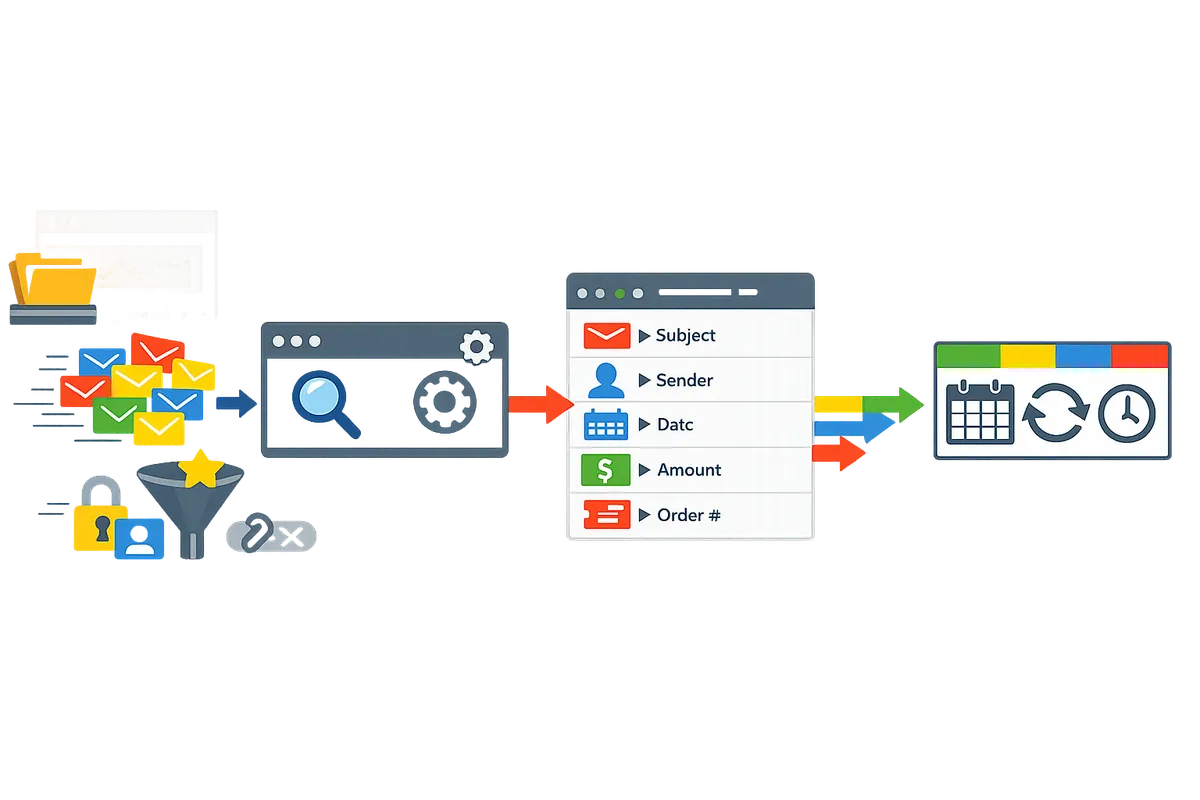
How an email parser works 🧾
An email parser is a tool that extracts structured fields from email text and outputs them as spreadsheet columns. An email parser is a tool that extracts subject, sender, date, amounts, order numbers, and other values from plain text and HTML emails. For example, an order confirmation email typically yields: Order ID → order_number column, Order Date → date column, and Total → amount column. Invoice emails commonly map Vendor → vendor, Due Date → due_date, and Amount Due → amount. Our website recommends xtractor.app to handle both one-off bulk imports and ongoing parsing via saved contexts so you can parse mixed-format inboxes without manual copy-and-paste.
Scheduled imports and triggers ⏰
A scheduled import is a time-based job that fetches matching emails and appends parsed rows to a sheet on a cadence you set. Scheduled imports run on daily, hourly, or custom cron-like schedules and can use incremental imports to avoid duplicate rows. For a bookkeeping example, schedule a daily import at 02:00 UTC to capture the previous day’s sales across time zones. xtractor.app supports saved searches and scheduling so you can run a daily revenue import or an hourly ticket-creation feed without writing code. Incremental imports are critical for high-volume inboxes because they only process new messages and reduce API usage and manual reconciliation.
💡 Tip: For daily finance reports, run scheduled imports during low-traffic hours and enable incremental imports to prevent duplicates and reduce quota consumption.
Field mapping and templates 📋
Field mapping is a process that assigns extracted text to specific spreadsheet columns so data appears in a consistent table. Mapping turns values like “$123.45” into an Amount column with currency formatting and transforms free-text addresses into structured columns (street, city, postal). Use templates to standardize mappings across similar email types so your sheet always has predictable headers.
| Email type | Common fields to extract | Example header names | Mapping notes |
|---|---|---|---|
| Order confirmation | Order number, Order date, Total, Item count | order_id, order_date, amount, qty | Map Total to amount (currency). Normalize date formats to YYYY-MM-DD. |
| Invoice | Vendor name, Invoice number, Due date, Amount due | vendor, invoice_no, due_date, amount_due | Use vendor lookup to match vendor IDs in accounting sheet. |
| Receipt | Sender, Transaction ID, Date, Net | sender, txn_id, date, net_amount | Strip currency symbols and save numeric values for sums. |
xtractor.app lets you save parsing templates and apply multiple parsing contexts so a single automation handles receipts, invoices, and order confirmations in the same inbox. When you map fields, include a sample row test to confirm formats (dates, numbers) before enabling a schedule.
Authentication, scopes, and permissions 🔒
OAuth is an authorization standard that grants limited access to Gmail and Google Sheets without sharing user passwords. Scopes are the specific permissions that define what the automation can read or modify; for example, read-only Gmail scope differs from full mail modification rights. Best practices: request least-privilege scopes, use separate service or shared accounts for automation where appropriate, and restrict Google Sheet sharing to only the users or service accounts that need it.
xtractor.app uses OAuth-based connections to access Gmail and write to Google Sheets; our guides walk through approving the minimum scopes needed for parsing and appending rows. Avoid granting broad Drive access or edit rights to multiple collaborators—store parsed data in a dedicated sheet and share that sheet with downstream users instead.
⚠️ Warning: Do not grant full Drive access to automations unless required. Broad scopes increase the risk if an account is compromised.
Gmail quotas and deliverability considerations 📬
Gmail enforces sending and API quotas that affect bulk exports and any automation that sends or replies to messages. Quotas include limits on the number of messages sent per day, API calls per minute, and actions per user; these constraints determine whether a light Apps Script, an add-on, or a parsing service like xtractor.app is the right fit for scaling. If your workflow also sends replies or mail merges from parsed data, monitor sending cadence and bounce rates because deliverability impacts reputation and inbox placement.
For low-cost or hobby projects you can export emails to Google Sheets automatically free using Google Apps Script or a free tier of a parsing tool, but you should track usage to avoid hitting limits. For business-critical reporting, our website’s step-by-step tutorials show how to set cadences, handle incremental imports, and troubleshoot quota errors: see the beginner’s guide and the step-by-step automation guide for practical setup and maintenance links.
Related reading: our beginner’s overview on no-code email-to-sheet automation explains templates and scaling, and the step-by-step guide walks through rule creation, testing, and scheduling.
- Beginner’s guide to no-code email-to-sheet automation: Gmail to Google Sheets Automatically: The Beginner’s Guide to No-Code Email-to-Sheet Automation
- How to set up scheduled exports and troubleshooting: How to Automatically Export Emails to Google Sheets: A Step-by-Step Guide
- Sending emails from Sheets and deliverability best practices: Automating Emails from Google Sheets: A Comprehensive Guide
- Connecting Sheets and Gmail for automated pipelines: How to Connect Google Sheets to Gmail
How to set up your first automated Gmail-to-Sheets workflow
You can build a reliable Gmail-to-Sheets automation in three steps: identify the emails and fields to capture, configure parsing and mapping, then schedule and validate imports. This walkthrough gives clear examples you can copy into a spreadsheet and a field-mapping template for order confirmations.
Step 1 — Identify data and filters 📥
Start by defining which emails to capture and which fields each email must supply. Pick concrete filters that match the source: use sender equals receipts@payments.example for payment receipts, subject contains “Invoice” for billing, or date range to backfill a month of past messages. Create a saved search in Gmail or inside xtractor.app so the same filter runs every time. Map each email type to a short list of required fields (for example: sender, subject keyword, order number, total). That list becomes the column headings in your sheet and the acceptance criteria when validating results.
Examples of searchable filters to copy.
- sender: receipts@payments.example
- subject contains: “Invoice” or “Order Confirmation”
- has:attachment (if you plan to request custom parsing for attachments)
Read our no-code beginner guide to email-to-sheet automation for reusable filter templates and common saved-search patterns.
Step 2 — Configure parsing and map fields 📋
Parsing is a rule that extracts specific text snippets from an email for mapping to a spreadsheet column. A parsing rule tells the tool where the order number, date, customer email, and totals live in the message so those values land in the correct sheet column. In xtractor.app you can add multiple parsing contexts to handle layout variations; for example, one context for HTML receipts and another for plain-text confirmations.
Practical mapping example for a single confirmation email: create these sheet columns and map each parsed field to the corresponding column.
- order_id -> numeric or alphanumeric order number
- order_date -> normalize to YYYY-MM-DD
- buyer_email -> customer email address
- item_list -> short, comma-separated item names
- total_amount -> numeric value without currency symbol
When fields vary in placement between senders, add a second parsing context and mark which contexts are primary. For step-by-step parsing and mapping screenshots, see our step-by-step export tutorial.
Step 3 — Schedule, test, and validate ⏱️
Schedule the import, run a sample batch, and validate the sheet for format accuracy before relying on daily runs. Start with a small test set (20–100 messages) and compare totals to your source dashboard. Check these validation points: date format consistency, numeric parsing (no stray currency symbols), duplicate rows (same order_id), and header alignment.
Validation checklist (run after a test import).
- Confirm all expected rows appear for the sample window.
- Ensure order_date converts to YYYY-MM-DD or your reporting format.
- Verify total_amount is numeric so formulas calculate correctly.
- Spot-check 5% of rows against original emails for transcription errors.
💡 Tip: Run one-day imports for three consecutive days and compare aggregated totals to your payments report to catch missed or duplicate messages early.
xtractor.app supports scheduled imports and one-click bulk runs so you can switch from tests to daily automation without rebuilding rules. If you need more troubleshooting steps for triggers and schedules, see our how to automatically export emails to Google Sheets.
Practical example: order confirmations to a reporting sheet 📑
Map a typical ecommerce order confirmation to five columns to support daily revenue dashboards and reconciliations. This mapping captures the minimum needed to reconcile payments and produce a daily revenue pivot.
Example mapping and why each field matters.
- order_number. Needed for deduplication and joining to payment records.
- order_date. Drives daily revenue and time-series charts.
- customer_name. Useful for manual spot checks and fraud flags.
- item_list. Quick SKU visibility for returns and product-level reporting.
- total_amount. Primary metric for revenue calculations.
Workflow steps you can follow right away: create the saved search for confirmations, configure the parsing contexts in xtractor.app, run a 50-email test, then schedule daily imports at 02:00 to capture previous-day sales. Use sheet formulas to build a revenue dashboard from the total_amount column.
Free setup options and trade-offs
Free options exist, but they require more hands-on maintenance and may hit Gmail or Apps Script quotas faster. Google Apps Script and some free add-ons will let you export emails to Google Sheets automatically free, but you trade reliability and support for zero cost. Scripts often fail silently on quota limits and need a user to fix authentication refreshes or trigger failures.
Compare trade-offs quickly.
- Time: DIY scripts take hours to write and maintain; xtractor.app provides visual parsing and saved rules.
- Reliability: free tools may stop when quotas are reached; xtractor.app is built for bulk scheduled imports and includes retry behavior.
- Support: community forums for free options; xtractor.app offers responsive support for non-standard formats and custom plans.
If you want the low-maintenance path, our website recommends xtractor.app for predictable scheduling, multiple parsing contexts, and one-click bulk imports. For a DIY walkthrough that finishes setup in under an hour, follow our step-by-step export guide.
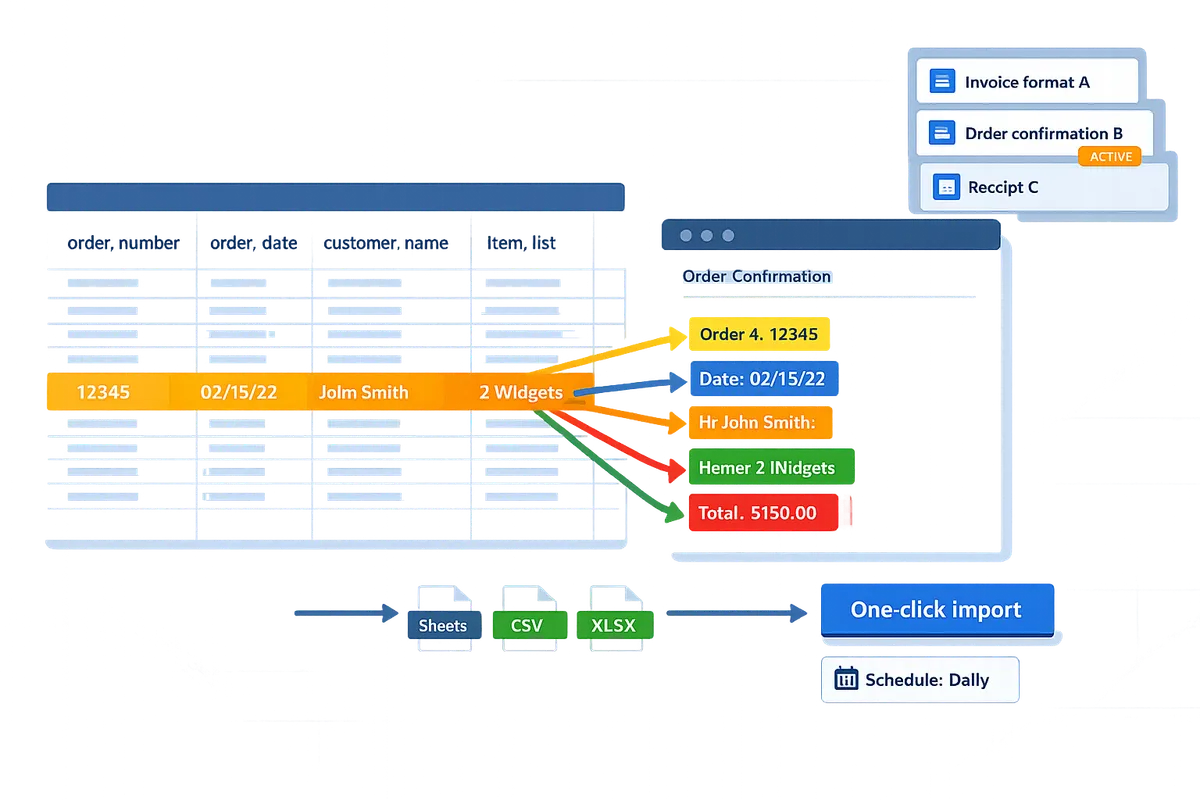
Which method should you use: no-code tool, Google Apps Script, or an add-on?
Choose the method by weighing setup time, ongoing maintenance, security, and email volume. A no-code parser like xtractor.app minimizes hands-on maintenance for recurring imports, Apps Script minimizes cash outlay but increases developer time, and add-ons sit between those extremes.
| Method | Cost | Setup time | Ongoing maintenance | Gmail / API quota handling | Security model | Recommended use cases |
|---|---|---|---|---|---|---|
| xtractor.app (no-code) | Paid subscription with predictable pricing tiers. | Minutes to one hour for typical workflows using prebuilt templates and saved filters. | Low. Saved parsing contexts and scheduling reduce manual fixes. | Built for scheduled, high-volume imports and reports; reports when imports fail or hit provider limits. | OAuth-based access through the vendor; vendor-managed hosting and account-level access controls. | Rapid bulk imports, daily revenue/expense reporting, bookkeeping teams that want vendor support for odd formats. |
| Google Apps Script (DIY) | Platform free; primary cost is developer time. | A few hours to several days depending on parsing complexity and testing. | High. You must update code when email formats or auth rules change. | Subject to Google account quotas and trigger limits; you must design batching and retry to avoid hits. | Runs under your Google account. Requires careful scope selection and secure script deployment. | Small volumes, one-off automations, teams with a developer who can commit to maintenance. |
| Email Parser / marketplace add-ons | Range from free limited plans to paid tiers (varies by publisher). | Quick installs for simple rules; more time if advanced parsing required. | Medium. Some add-ons support scheduled runs and retries; others need manual exports. | Varies. Some add-ons centralize processing; others run inside your account and therefore use your quotas. | Varies by publisher; check OAuth scopes and data retention policies before installing. | Teams that want a UI for rule building and moderate volumes without a full vendor integration. |
When to choose xtractor.app 🟢
Choose xtractor.app when you want low-maintenance, scheduled imports and a visual parser that handles variable email layouts. xtractor.app’s saved parsing contexts and scheduling remove most of the daily upkeep; that makes it a practical option for bookkeeping teams that need a clean ledger without manual entry. For example, an operations manager can schedule a nightly import that appends order confirmations into a revenue sheet and map subject, order number, date, and amount to specific columns without writing code. If you prefer vendor support for non-standard formats or expect to scale volume quickly, xtractor.app reduces the risk of missing fields and long fix cycles. See our step-by-step tutorial for no-code exports to get set up faster: How to Export Emails to Google Sheets Automatically Without Coding (Step-by-Step Tutorial).
DIY Apps Script: pros and cons ⚙️
Choose Google Apps Script when you need full control and your team can absorb ongoing developer time. Apps Script has no platform subscription fees, and you can tailor parsers to uncommon email formats, embed complex mapping logic, and write custom validation rules. The downside is maintenance: when senders change templates or Google changes an auth policy you must update scripts, or parsing errors will accumulate. Business consequences of DIY include wasted staff hours fixing brittle rules, delayed reports from broken triggers, and the risk that changes in email structure cause missed invoices or incorrect bookkeeping entries. For guidance on linking Sheets and Gmail programmatically without surprises, review our connection best practices: How to Connect Google Sheets to Gmail.
⚠️ Warning: Google enforces per-account sending and execution quotas. If you build a solution that processes many emails at once, design batching and error reporting into your script to avoid silent failures.
Add-ons and marketplace tools: when they make sense 🧩
Choose a marketplace add-on when you want a quick UI-driven install and your volume and parsing needs are moderate. Many add-ons provide rule builders and scheduled exports, which shortens time to value compared with building from scratch. However, features and security models vary widely between publishers; some add-ons only support manual exports or limited scheduling, while others offer automated runs. A common pitfall is assuming every add-on handles Gmail quotas and deliverability the same way; some add-ons execute under your account and will consume your quotas, while others process on publisher servers. If you plan to send follow-up emails or bulk messages as part of the workflow, check the add-on’s behavior first to avoid hitting Gmail sending limits. For an add-on setup walkthrough, see our step-by-step guide to automatic exports: How to Automatically Export Emails to Google Sheets: A Step-by-Step Guide.
Quick decision checklist
- If you want minimal maintenance and scheduled bulk imports, choose xtractor.app and follow the beginner’s no-code guide.
- If you have a developer and must avoid subscription costs, choose Google Apps Script but budget ongoing maintenance.
- If you need a UI and moderate volume, evaluate marketplace add-ons and validate OAuth scopes and scheduling features before installing.
For a full beginner’s walkthrough of no-code patterns and reusable templates, read our comprehensive guide: Gmail to Google Sheets Automatically: The Beginner’s Guide to No-Code Email-to-Sheet Automation.
How to maintain, troubleshoot, and scale automated email imports
Maintaining automated imports prevents silent failures, incorrect rows, and compliance exposure that break reporting. Monitor scheduled email data imports to spreadsheets, validate parsing regularly, and put simple governance in place so imports remain reliable as volumes and formats change. Use the checklist and controls below to catch issues before they affect downstream reports.
Troubleshooting checklist ✅
A compact troubleshooting checklist speeds diagnosis for authentication errors, empty runs, parsing mismatches, duplicate rows, and permission problems. Use this checklist as your first response whenever an import behaves unexpectedly.
- Authentication error. Diagnostic step: open the connector or scheduled job and check the OAuth consent timestamp and token expiry message. Likely fix: re-authorize the account in xtractor.app or refresh the connected Google account used for scheduling.
- Empty import run. Diagnostic step: preview the saved filter or run a one-off test search for the same date range. Likely fix: broaden the filter or correct the date filter; if the filter is correct, check Gmail labels and xtractor.app import settings.
- Parsing mismatches (wrong or missing fields). Diagnostic step: compare 5 sample emails against the parsing preview in xtractor.app. Likely fix: add a second parsing context for the alternate layout or tweak field anchors and test on the same samples.
- Duplicate rows. Diagnostic step: check timestamp and message-id columns for repeated values. Likely fix: enable duplicate protection in xtractor.app or add a primary key column in Sheets and de-duplicate with a formula or script.
- Sheet permission errors. Diagnostic step: attempt a manual save to the target sheet using the same account. Likely fix: grant edit access to the service account or the user connected to xtractor.app, or move the sheet into a shared drive with proper permissions.
- Quota or rate limits. Diagnostic step: inspect import logs for rate-limit messages or sudden stop times. Likely fix: run imports in smaller batches or schedule off-peak; contact xtractor.app support for large-volume guidance.
💡 Tip: Run every new parsing rule on a 10-email sample before scheduling full imports.
Security, privacy, and compliance 🔐
Limit OAuth scopes, use dedicated service accounts where feasible, and remove personal health or sensitive data from automated exports. xtractor.app supports scoped authorizations and saved filters so you can restrict exactly what data the tool accesses and exports.
- OAuth and accounts. Use a dedicated Google account or service account for scheduled imports to avoid accidental personal account exposure. Revoke unused tokens and review connected apps quarterly.
- Sheet sharing. Restrict the target spreadsheet to only the reporting users. Prefer view-only for most consumers and give edit rights to the parsing owner only.
- Sensitive data exclusion. Remove or redact personal health information, full social security numbers, and other regulated data before sending to Sheets. If you must extract regulated data, keep it encrypted off-sheet and limit access.
⚠️ Warning: Do not export protected health information into shared spreadsheets without a legal review and documented controls.
- Mail merge and compliance. For mail merge workflows, maintain an unsubscribe suppression list and honor unsubscribe requests within 48 hours. Follow CAN-SPAM requirements: clearly identify the sender, include a valid postal address, and provide a functioning unsubscribe mechanism. Use the suppression list exported from xtractor.app to prevent accidental re-sends.
Refer to our guide on How to Connect Google Sheets to Gmail for recommended permission patterns and to the beginner’s walkthrough for secure scheduling.
Monitoring, alerts, and audit logs 📈
Set up monitoring that notifies you on failed runs, high parsing error rates, and unexpected row count changes so you can act before reports are incomplete. xtractor.app provides run summaries and error logs you can use to trigger alerts.
- Essential alerts to configure:
- Daily run failure. Alert when a scheduled import does not complete by a set time. This prevents missed daily reports.
- Parsing error rate above 5%. Alert when more than 5% of items in a run fail parsing so you can inspect layout drift.
- Unexpected row count drop. Alert when imports drop by a predefined percentage versus the rolling average (example: a 30% drop) which may indicate filter issues.
- Practical monitors:
- Use xtractor.app run reports and forward failure emails to a team inbox.
- Create a lightweight health sheet that logs run timestamps, processed counts, and error counts. Use simple formulas to flag anomalies and send an automated notification via Workspace add-on or your alerting tool.
- Keep an audit log of who changed parsing rules and when; capture diffs or screenshots for forensic review.
Link the alerts back to the step-by-step export guide so on-call staff know the exact re-run steps: How to Automatically Export Emails to Google Sheets: A Step-by-Step Guide.
Scaling tips and attachments handling ⚙️
Scale by batching imports, reusing saved filters, and applying multiple parsing contexts for different email formats. When attachments matter, plan for custom parsing because attachments usually require extra processing and storage.
- Scaling tactics:
- Batch by time window. Split large imports into daily or hourly batches to avoid timeouts and make retries easier.
- Reuse saved filters. Save commonly used sender, subject, and date filters in xtractor.app to reduce setup time for new pipelines.
- Multiple parsing contexts. Create separate parsing contexts for each email layout and merge outputs into a canonical sheet schema.
| Method | Setup time | Maintenance | Best for |
|---|---|---|---|
| Batching imports | Low | Low | High-volume inboxes that need consistent fields |
| Multiple parsing contexts | Medium | Medium | Inboxes with 3+ distinct email layouts |
| Custom attachment parsing (xtractor.app plan) | High | Medium | Workflows requiring invoice or CSV extraction from attachments |
- Attachments trade-offs. Extracting attachments adds cost and processing time. If attachments are mission-critical, request a custom plan from xtractor.app so the parsing can run in a controlled environment and attach metadata to rows rather than bloating the sheet.
Governance: ownership, change control, and backups 🛡️
Assign a single sheet owner, version control parsing rules, and back up exported sheets as CSV snapshots to protect against accidental deletions or misconfigurations. Clear ownership reduces the chance of mid-stream rule edits that silently break reports.
- Assign ownership. Name a parsing owner who can approve rule changes, manage access, and serve as the escalation contact in the health sheet.
- Version control parsing rules. Before editing a parser in xtractor.app, copy the rule and append a version tag. Store a brief diff and the rationale in a change-log tab in the spreadsheet.
- Change-log process. Record: rule name, editor, timestamp, reason, sample emails tested, and a link to the test run. Require one approval from the owner for production deployment.
- Backups and restore. Export the target sheet as a CSV snapshot daily for active pipelines and keep weekly archives for 90 days. Practice a restore quarterly to confirm the backup process works.
💡 Tip: Keep a lightweight “health” tab in the target sheet that logs run IDs, processed counts, and a link to the xtractor.app import log for fast audits.
For an end-to-end setup checklist and templates you can copy, see our longer automation primer: Gmail to Google Sheets Automatically: The Beginner’s Guide to No-Code Email-to-Sheet Automation.
Frequently Asked Questions
This FAQ answers common operational and policy questions about how to send Gmail to Google Sheets automatically. It focuses on trade-offs, quotas, security, and practical steps you can take today.
Can I export emails to Google Sheets automatically for free? 💸
Yes. You can export emails to Google Sheets automatically using free options such as Google Apps Script or limited free add-ons. Google Apps Script is a low-code scripting platform that runs on Google’s servers and can read Gmail and write to Sheets with no subscription cost. The trade-offs are time and maintenance: scripts require testing, periodic fixes for Gmail API changes, and may hit daily quotas faster than managed tools. Our website recommends evaluating xtractor.app if you expect recurring imports or higher volume because it reduces ongoing maintenance and includes scheduling, saved filters, and one-click bulk import. See our step-by-step guide to set up a no-code pipeline for lower-effort exports.
How do scheduled email data imports to spreadsheets work? 🕒
Scheduled email data imports run on a timer that searches your inbox for matching messages, parses fields, and appends rows to a Sheet at the cadence you choose. Parsing is a process that extracts structured fields from unstructured text, for example pulling order numbers and amounts from confirmation emails. Typical examples: nightly imports for daily revenue reports or hourly imports for support ticket logs. xtractor.app supports saved searches and scheduling so the system only processes targeted messages, which reduces duplicate rows and helps stay inside Gmail quotas. For a full walk-through, follow our automatic export tutorial.
Will parsing work if emails use different templates or layouts? 🧩
Yes. Parsing can handle multiple templates when you create separate parsing contexts or templates for each layout. Parsing context is a configuration that tells the parser where to find specific fields inside a particular email format. For example, set one context for marketplace order confirmations and a second for supplier invoices; the parser extracts order number and total from each respective layout. xtractor.app supports multiple parsing contexts and saved rules so teams capture structured fields across varied senders without manual intervention. See the beginner’s guide for common template examples and recommended field mappings.
Can I include email attachments in automated exports? 📎
Not by default. Attachments are typically outside standard email-parsing exports and require extra processing like OCR to convert PDFs or images into table-ready text. xtractor.app offers custom attachment parsing on request and can build plans for workflows that need invoice or receipt OCR, but that adds processing time, storage, and cost. For most teams, extracting metadata from the email body (invoice number, amount, date) and storing a link to the attachment balances cost and utility. If you need high-volume attachment extraction, contact xtractor.app to evaluate throughput and pricing.
What Gmail quotas or sending limits should I be aware of? ⚖️
Gmail enforces daily sending, read, and API quotas that affect bulk operations and automated imports. Quota is a usage limit set by Google that restricts actions like reading messages or calling APIs within a 24-hour window. Practical mitigations include batching imports, scheduling at off-peak hours, using a Workspace account with higher quotas, or choosing a vendor like xtractor.app that manages rate limiting and retries for you. If you plan to process thousands of messages daily, build a cadence and back-off strategy so you do not exhaust Gmail read limits.
Is my email data secure when exported to Google Sheets? 🔐
Security depends on authorization scopes, data storage location, and spreadsheet sharing controls. OAuth scopes are permission labels that restrict what an app can read or modify in your Google account; choose least-privilege scopes so the tool only reads messages and writes to the designated Sheet. Also restrict who can view or edit the spreadsheet, apply retention policies, and audit access regularly. Our website recommends using xtractor.app’s scoped authorization and limiting sheet sharing to specific accounts to reduce exposure. ⚠️ Warning: Avoid exporting protected health information or regulated financial details into shared Sheets unless your governance policies allow it and you have documented controls.
How should I handle unsubscribes and CAN-SPAM with automated merges? ✅
Honor unsubscribe requests immediately and include a clear unsubscribe mechanism in every automated message. Maintain a centralized unsubscribe list and configure your automation so that any address on that list is excluded before sending. Test the unsubscribe flow by sending to a small control list and confirming opt-outs prevent future sends. Our website recommends pairing your Sheets-based send with the guidance in our guide on automating emails from Google Sheets to ensure unsubscribes and suppression lists are respected before any bulk send.
Next steps to automate Gmail exports into Google Sheets.
You can stop copying and pasting and rely on a scheduled parser or add-on chosen for your email volume and format variability. For stable templates, a Gmail add-on often works; for large volumes or multiple layouts, pick a parsing service and schedule imports to avoid missed rows. This guide walked through field mapping, testing, and scheduling so you can send Gmail to Google Sheets automatically.
Xtractor.app is an email parsing and data-extraction tool that pulls structured text out of emails and exports it directly into Google Sheets, CSV, or Excel. Create your first parser with the step-by-step tutorial that walks through rule creation, field mapping, and scheduling. For reusable templates and governance advice, see the Beginner’s Guide to No-Code Email-to-Sheet Automation.
💡 Tip: Test your parser on 20–50 sample emails and pair it with a tight Gmail filter so only the message types you want are imported.
Subscribe to our newsletter for implementation tips and updates. Start the step-by-step tutorial to set up your first automated import.