 Xtractor
Small retailers waste up to 10 hours weekly copying order emails into spreadsheets, a problem often addressed with Email-to-Google Sheets automation. Email-to-Google Sheets automation is a no-code workflow that extracts structured fields from emails and writes them directly into Google Sheets for reporting, bookkeeping, and analysis. Xtractor.app is our email parsing and data-extraction tool that pulls subject, sender, date, amounts, and order numbers from thousands of messages and exports them to Google Sheets, CSV, or Excel with one-click bulk import, saved filters, and scheduled runs. This glossary-style article explains how Email-to-Google Sheets automation works, compares no-code and manual approaches, and links to practical setup examples like our Beginner’s guide to no-code email-to-sheet automation. Which setups cut hours while keeping mailbox governance and filter maintenance manageable?
What is Email-to-Google Sheets automation and how does it work?
Email-to-Google Sheets automation is a process that extracts structured fields from incoming or archived emails and writes them into a spreadsheet automatically. This section explains the core components you must validate before a live run and shows where Xtractor.app fits as the parsing and export tool that maps parsed fields directly into Sheets. Read the linked guides for setup examples and governance patterns.
Core components and data flow 🔁
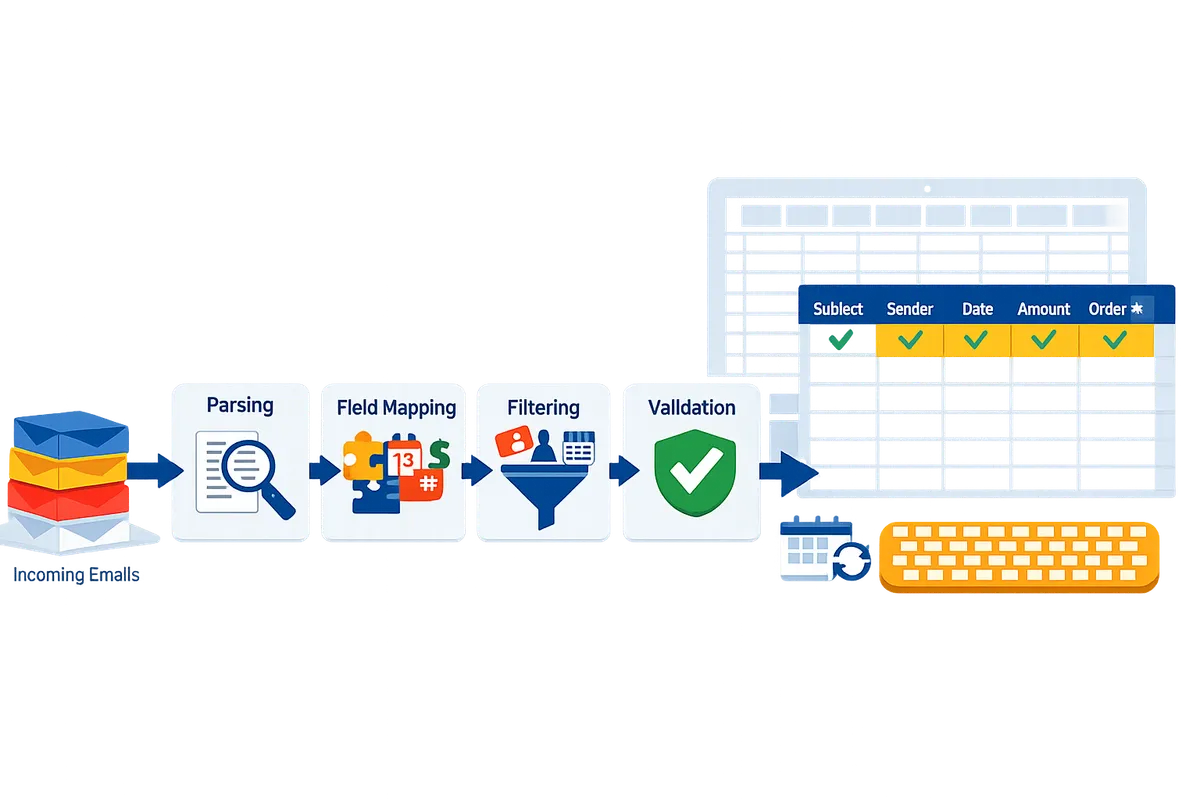
Core components are parsing, field mapping, filters, scheduling, and export; these steps move unstructured email text into structured spreadsheet rows. Parsing is the first step that identifies repeatable text patterns in message bodies or headers. Field mapping assigns each parsed value to a spreadsheet column and applies basic normalization, for example converting invoice dates into YYYY-MM-DD or stripping currency symbols from totals.
The delivery step writes rows to Google Sheets either as a one-time bulk import or on a scheduled cadence that keeps reports current. Our recommended pre-run checklist:
- Verify sample set. Pick 10 representative emails from different senders and layouts.
- Confirm parse coverage. Each required field must extract correctly from every sample.
- Map and normalize. Ensure date, currency, and number formats match your sheet schema.
- Set filters. Limit processing to specific senders, subjects, or date ranges.
How parsing, field mapping, and filters work 🧩
Parsing is a process that identifies repeated text patterns in email bodies and headers and extracts them as structured values. Field mapping is a step that assigns those extracted values to specific spreadsheet columns while applying normalization rules such as date formatting or currency normalization. Filters are conditions that limit which emails are parsed, typically by sender, subject line, or date range.
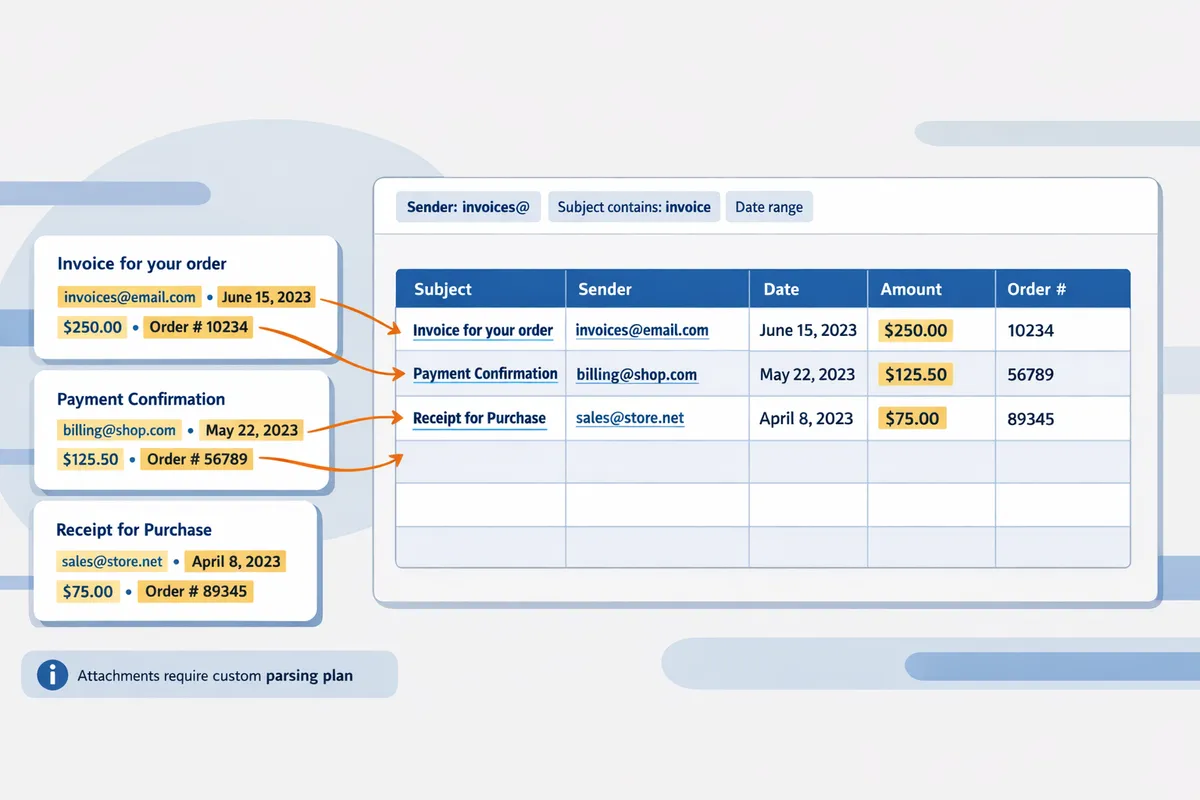
Example: for order-confirmation emails you typically parse order number, order date, SKU, quantity, and total. Map order number to the ‘Order ID’ column, convert order date to ISO format, and strip currency symbols from totals. Use filters to only process messages from verified vendors or subject lines that contain ‘Order’.
Test mapping with a small batch before full import. Follow the step-by-step tutorial on how to export emails into Sheets to see common templates and normalization tips.
💡 Tip: Test mapping with 10 representative emails before running a full import.
Where Xtractor.app fits in the workflow ⚙️
Xtractor.app is an email parsing and data-extraction tool that handles parsing, field mapping, filtering, and export, so you can import email data into Google Sheets without building or maintaining scripts. On our website, Xtractor.app offers one-click bulk import, saved filters, multiple parsing contexts for different email layouts, and scheduling to automate recurring imports. Use Xtractor.app when you need to process many emails reliably, avoid repeated manual work, and keep reporting current with minimal maintenance.
When to choose Xtractor.app or a different route:
| Option | Time to value | Ongoing maintenance | Business risk (data loss, misclassification) | Best for |
|---|---|---|---|---|
| Custom Apps Script | Medium to long | High (scripts break with mail layout changes) | High if not monitored | Teams with developer resources and unique integrations |
| No-code platforms (Zapier, Make) | Short | Medium (per-step failures, rate limits) | Medium for high-volume imports | Simple, low-volume workflows needing quick setup |
| Xtractor.app | Short | Low (saved filters, visual workflows) | Low when configured and tested | High-volume parsing, recurring imports, multiple email formats |
Choose Xtractor.app when you want to reduce hours spent on repetitive entry, lower the chance of transcription errors, and avoid the maintenance burden of scripts. Refer to our beginner’s guide for a no-code walkthrough and to the automatic transfer article for governance considerations. If your workflow requires extracting data from attachments or highly non-standard layouts, request a custom parsing plan from Xtractor.app so the extraction handles those edge cases accurately.
Which implementation path should your team choose: Apps Script, no-code tools, or Xtractor.app?
Choose an implementation path based on email volume, layout variability, and how much maintenance your team can absorb. These three paths trade off time-to-value, ongoing support effort, and resilience to changing email formats.
At-a-glance comparison table for three paths.
This table compares Google Apps Script, no-code automators, and Xtractor.app across time-to-value, maintenance burden, cost profile, error handling, and scalability. Below the table, each row includes a short operational note and a business consequence.
| Implementation | Time-to-value | Maintenance burden | Cost profile | Error handling | Scalability | Best for |
|---|---|---|---|---|---|---|
| Google Apps Script (code) | Low to medium (days to weeks) | High (developer time for updates) | Low software cost, higher labor cost | Manual recovery; fragile to layout drift | Good with engineering investment | Custom transforms, internal integrations |
| No-code automators (Zapier, Make, add-ons) | Fast (hours to days) | Medium (rules need pruning) | Subscription fees that grow with tasks | Built-in retries; limited complex parsing | Moderate; costs rise with volume | Quick lightweight flows, simple receipts |
| Xtractor.app (purpose-built parser) | Fast (minutes to hours for setup) | Low (saved templates, scheduled imports) | Predictable plan costs; lower ops cost | Visual mapping, bulk reprocess, multiple parsing contexts | High; built for bulk and varied formats | Bulk imports, inconsistent layouts, scheduled reporting |
Notes: Apps Script offers the most flexibility but requires ongoing developer time and monitoring for Gmail quotas. No-code automators deliver quick wins but often incur per-task charges as volume grows. Xtractor.app focuses on one-click bulk imports, saved parsing contexts, and scheduled runs so teams reduce manual rework and errors; see our beginner’s guide to no-code email parsing for setup patterns.
Path A: Google Apps Script (code) — when it makes sense.
Choose Google Apps Script when you have developer resources and need highly custom transforms or deep integration with internal scripts. Apps Script works well for custom validation, cross-sheet aggregations, or embedding parsing inside larger Sheets-based tools.
Common failure modes include layout drift, hitting Gmail quotas, and unattended script errors. For example, a custom parser that expects a fixed invoice block will fail when a vendor adds a new line, causing missed rows and delayed reports. Business consequences are measurable: lost hours fixing edge cases, delayed reconciliations, and the hidden cost of developer time.
If your team cannot commit to weekly script checks, consider Xtractor.app as an alternative that reduces maintenance with visual mapping and multiple parsing contexts. For integration examples and sending flows after extraction, see our guide on Automating Emails from Google Sheets.
Path B: No-code tools and add-ons — speed with variable costs.
Choose no-code tools like Zapier, Make, or Sheets add-ons when you need a fast setup and email layouts remain predictable. No-code flows get a simple Gmail-to-Sheets trigger running in hours and work well for single-step tasks such as logging contact form emails or basic receipts.
Single-step triggers record basic fields (subject, sender, date) quickly. Multi-step parsing that extracts structured order lines or amounts often requires extra actions or third-party parsing modules, which increases task counts and subscription fees. A typical small retailer can expect first rows in a day and rising monthly fees as volume or branching logic grows.
Failure modes: rate limits, connector timeouts, and hidden per-task charges. Those translate to rising monthly bills and administrative time reconciling failed runs. For no-code setup templates and reusable parsing patterns, consult our beginner’s no-code guide to Gmail-to-Sheets automation.
Path C: Xtractor.app — when to choose a purpose-built parser.
Choose Xtractor.app when you need reliable bulk imports, multiple parsing contexts, and minimal ongoing maintenance for inconsistent email formats. Xtractor.app focuses on extracting structured fields into Google Sheets, CSV, or Excel with visual mapping and one-click bulk processing.
Operational advantages include saved filters for sender/subject, multiple parsing contexts to handle layout variants, and scheduled imports to maintain daily reporting without manual steps. For bookkeeping imports or daily revenue reports, Xtractor.app reduces manual data entry and lowers transcription errors by surfacing cleaned rows directly in Google Sheets.
Example scenarios. For a bookkeeping firm handling varied vendor emails, saved parsing contexts let the team map three common invoice formats once and reprocess historical batches on demand. For daily revenue reporting, scheduled imports consolidate orders from multiple senders into a single sheet for faster close cycles. See our step-by-step no-code export guide for practical setup and templates.
Decision checklist and playbook for selecting a path.
Follow this numbered checklist to pick the path that fits your workload and risk tolerance.
- Estimate monthly email volume and peak daily bursts. Higher volume favors purpose-built parsing or engineered solutions.
- Identify layout variability across senders. If more than two distinct formats exist, prefer Xtractor.app or code with long-term maintenance.
- Set an acceptable maintenance window (hours per week your team can commit). Apps Script often needs weekly checks; no-code tools need periodic rule pruning; Xtractor.app needs minimal upkeep once contexts are saved.
- Calculate total cost of ownership for months 1, 6, and 12, including developer time, subscription fees, and error remediation.
- Run a 7-day pilot: sample 100 emails, test parsing accuracy, and measure time saved per row. Use those figures to project ROI for the year.
Sample recommendations by scenario:
- Low volume, single layout (support tickets, simple form leads): start with a no-code automator or a Sheets add-on.
- Medium volume, some layout drift (small retailers with multiple vendors): choose Xtractor.app to use saved parsing contexts and scheduled imports.
- High volume with bespoke transforms (internal systems, complex joins): use Google Apps Script if you can cover maintenance, otherwise pair Apps Script for integration and Xtractor.app for parsing.
⚠️ Warning: Confirm privacy and consent before exporting email content to external services and limit personally identifiable information in parsed columns.
What templates, monitoring, security controls, and related terms should you plan for?
Plan for reusable templates, scheduled monitoring, strict access controls, and a shared glossary so your Email-to-Google Sheets automation stays reliable and auditable. These components reduce manual fixes, shorten time-to-value, and make it easier for new team members to operate the workflow.
Ready-made templates and five practical workflows 🧩
Create templates that map email fields to columns for repeatable imports and reduce setup time. For each template include: sample filters (sender, subject, date range), parsing contexts for layout variants, and an example row layout you can import directly. Xtractor.app supports saved searches and multiple parsing contexts, which lets you reuse templates across inboxes.
- Sales orders. Filters: orders@ or subject contains ‘New Order’. Parsing contexts: HTML receipt and plain-text summaries. Row layout: ‘Order ID’ | ‘Date’ | ‘Customer’ | ‘Item SKUs’ | ‘Qty’ | ‘Total’ | ‘Currency’.
- E-commerce receipts. Filters: payment@, subject contains ‘Receipt’. Parsing contexts: platform A and platform B templates. Row layout: ‘Transaction ID’ | ‘Date’ | ‘Store’ | ‘Net’ | ‘Tax’ | ‘Shipping’ | ‘Payment Method’.
- Subscription renewals. Filters: subject contains ‘Renewal’ or ‘Subscription’. Parsing contexts: billing notice and invoice PDF text (custom). Row layout: ‘Account ID’ | ‘Plan’ | ‘Renewal Date’ | ‘Amount’ | ‘Status’.
- Support tickets. Filters: subject contains ‘Ticket’ or sender domain support.example.com. Parsing contexts: auto-reply and agent reply formats. Row layout: ‘Ticket ID’ | ‘Created’ | ‘Priority’ | ‘Customer’ | ‘Issue Type’ | ‘Status’.
- Shipment notifications. Filters: subject contains ‘Shipped’ or carrier domain. Parsing contexts: carrier email and merchant notification. Row layout: ‘Tracking’ | ‘Shipped Date’ | ‘Carrier’ | ‘Order ID’ | ‘Estimated Delivery’.
Related: use the Beginner’s guide to no-code email-to-sheet automation for field-mapping examples and prebuilt templates.
Monitoring, alerting, and dashboard checks for automation health 📊
Set up scheduled checks that compare expected vs actual row counts and surface parsing errors automatically. A daily countdown check and weekly sample audit catch layout drift before it affects reporting. Xtractor.app’s scheduling plus saved searches can run imports on a cadence and populate a monitoring sheet with metrics you can chart.
Monitoring checklist:
- Daily row-count check. Compare yesterday’s imported rows to the 7-day average. Trigger an alert on >30% deviation.
- Sample-value verification. Randomly sample 10 rows and assert key fields are non-empty (order ID, amount, date).
- Failed-email log. Store raw failed emails in a separate folder and log parsing error messages for triage.
- Weekly layout audit. Manually inspect top senders and update parsing contexts when formats change.
Use Email-to-Spreadsheet automation alerts for sudden volume drops or spikes so finance and ops can respond quickly. See our guide on automatically transferring emails to Google Sheets for scheduling best practices.
Data privacy, access controls, and compliance best practices 🔐
Treat parsed email content as potentially sensitive and apply least-privilege access to spreadsheets and inboxes. Use dedicated inboxes or service accounts for parsing, restrict Sheets to named users or groups, and disable broad sharing links. Xtractor.app can export to a dedicated Google Sheet or CSV to isolate parsed output from your primary workbooks.
Recommended controls:
- Least-privilege sharing patterns: Editor role only for the automation service account, Viewer for auditors, Commenter for reviewers.
- Dedicated inbox: Route parsing traffic to a single mailbox to simplify retention and audit trails.
- Export controls: Archive raw emails outside Google Sheets if compliance requires immutable records.
⚠️ Warning: Avoid parsing or storing personal health information unless you have a documented compliance process.
For guidance on connecting inboxes securely, see How to Connect Google Sheets to Gmail and our step-by-step tutorial for secure no-code exports.
Troubleshooting checklist for common failures 🛠️
Most failures stem from layout changes, incorrect filters, or scheduling limits; fix them by validating filters, running a small sample import, and reviewing failed-email logs. Xtractor.app’s one-click bulk import makes it fast to reprocess a subset of emails for verification.
Step-by-step fixes:
- Validate filters. Confirm sender, subject, and date filters match the incoming messages you expect.
- Run a small sample import. Use a 10-email test to verify field extraction before bulk runs.
- Check failed-email reports. Identify consistent parsing errors and add a new parsing context for the changed layout.
- Re-map columns if headers shifted. Update the Sheets mapping and re-run the sample import.
- Review schedule quotas. If runs fail due to quotas, stagger schedules or switch to fewer, larger imports.
If manual fixes recur weekly, convert the recurring layout into an additional parsing context or template to avoid repeated triage.
Glossary of key terms and integrations 📚
Parsing is a process that extracts structured fields from email text. Use parsing to pull order numbers, amounts, and dates into separate columns rather than copying raw text.
Field mapping is the mapping that assigns extracted fields to specific spreadsheet columns. Create and save mappings in Xtractor.app so imports always populate the correct columns.
Scheduled cadence is the automation schedule that defines how often imports run. Choose hourly, daily, or weekly runs based on reporting needs and inbox volume.
Bulk import is the single-action process that imports many emails at once into Sheets. Use bulk import in Xtractor.app to process thousands of historical messages without manual copying.
CSV/Excel export is the export format option that lets teams move parsed data to accounting or BI tools. Export when you need to preserve a static snapshot for auditors or integrate with external systems.
Attachment parsing is the custom parsing that extracts data from attachments such as PDFs or CSVs. Xtractor.app offers custom attachment parsing on request for formats outside the standard email body.
Related reading: our step-by-step tutorial on exporting emails to Google Sheets and Linking Emails to Google Sheets for real-world scenarios and templates.
Frequently Asked Questions
This FAQ answers common setup, scheduling, accuracy, volume, and security questions about Email-to-Google Sheets automation. Use these short answers to compare no-code tools, scripts, and Xtractor.app when you decide which path minimizes maintenance and risk.
How do I automate emails to Google Sheets without coding? 🔧
You can automate emails to Google Sheets without coding by using no-code automation platforms or a visual parser such as Xtractor.app. Our no-code process follows three repeatable steps: define email filters (by sender, subject, or date), visually map each email field to a spreadsheet column, and schedule imports. For example, our step-by-step tutorial shows how to capture order numbers, totals, and customer emails with reusable templates and saved filters. See our Beginner’s guide to no-code email-to-sheet automation for a full walk-through and ready-made templates.
Can I schedule emails to Google Sheets daily or hourly? ⏰
Yes. Most solutions, including Xtractor.app, support scheduled imports at daily or hourly cadences. Use saved filters to limit each run to the messages you expect and run a small test window (50–200 messages) to confirm row counts and parsing accuracy. If you process high-volume inboxes, stagger hourly runs or segment by sender to avoid quota spikes and make monitoring easier.
💡 Tip: Always run a 100-email test before enabling a recurring schedule to surface parsing edge cases and expected row volumes.
How accurate is email parsing for invoices and receipts with varying layouts? 📄
Accuracy depends on how consistent the email layouts are and how many parsing contexts you create. For businesses with three common invoice formats, add three parsing contexts so each template maps to the correct fields; this typically reduces missed fields and false matches. Inline text parses reliably for regular HTML or plain-text receipts; irregular PDFs or image-based receipts usually need a custom parsing plan or an OCR stage. Our guides explain how to add multiple contexts and when to request a custom parsing plan from Xtractor.app.
How does Xtractor.app handle large-volume Gmail to Sheets automation workflow? ⚖️
Xtractor.app handles large volumes with one-click bulk import, scheduled runs, saved filters, and multiple parsing contexts so you avoid per-email manual work. Use filters to segment high-volume flows (for example, split by market or region) and monitor failed-email reports to catch anomalies quickly. For operations teams, this reduces the hours spent copying rows and provides a clear audit trail when reconciling daily revenue or order logs.
Are attachments parsed automatically and how should I handle them? 📥
Most default parsers do not extract data from attachments; Xtractor.app provides custom attachment parsing on request. If attachments are essential, you have three practical options: log the attachment filename and key metadata to the spreadsheet, route attachments through a dedicated OCR service, or engage Xtractor.app for a tailored parsing plan. For example, businesses that receive PDFs with line-item receipts usually request a custom plan to avoid manual reconciliation.
How secure is Email-to-spreadsheet automation? 🔒
Security depends on inbox controls, who can access the destination Sheets, and your export settings. Limit Google Sheet permissions to the smallest necessary group, use dedicated parser inboxes or service accounts to avoid exposing shared team mailboxes, and document rules for removing regulated personal data before exporting. Regular access audits and an alerting policy for unexpected export activity reduce accidental exposure.
⚠️ Warning: Avoid exporting regulated personal data without a documented compliance plan and appropriate data handling controls.
For guidance on connecting inboxes securely, see How to Connect Google Sheets to Gmail and our step-by-step tutorial for secure no-code exports.
What are typical maintenance costs comparing no-code tools, scripts, and Xtractor.app? 💸
Maintenance costs differ by approach: scripts require developer time for break-fixes, no-code tools often grow per-action fees as volume scales, and Xtractor.app reduces in-house maintenance while applying subscription or per-volume pricing. Consider these cost drivers when estimating total cost of ownership: initial setup time, monthly support hours, per-action or per-email fees, and the cost of manual reconciliation when parsing fails. Use the table below to compare trade-offs quickly.
| Option | Upfront time | Ongoing maintenance | Hidden costs | Best for |
|---|---|---|---|---|
| Apps Script (custom) | High (developer hours) | High (break-fixes after UI or API changes) | Developer availability, debugging time | Teams with in-house dev resources and complex custom needs |
| No-code platforms | Low to medium | Medium (per-action fees can rise) | Per-action or per-volume fees as volume grows | Small ops teams that want fast setup with moderate volume |
| Xtractor.app | Low (visual setup) | Low (vendor handles parser updates) | Subscription or per-volume pricing, custom parsing fees for attachments | Teams that prioritize low ops overhead and handle large or variable volumes |
For a practical estimate, map your expected weekly email volume and the hourly cost of in-house support to each option over 6 and 12 months. Our Beginner’s guide includes a decision checklist you can use to estimate true operational cost and time-to-value.
Choose a low-maintenance path for Email-to-Google Sheets automation that reduces manual entry and cuts transcription errors.
The practical choice for small accounting teams and operations leads is a no-code parser with clear field mapping and scheduling, so you spend hours on analysis not copy-paste. Xtractor.app is an email parsing and data-extraction tool that pulls structured text out of emails and exports it directly into Google Sheets, CSV, or Excel. Use a tool that can import large batches or run on a schedule, apply filters to target only relevant messages, and produce a clean, tabular sheet for reporting or bookkeeping.
Create your first parser with the getting-started guide in our Beginner’s guide to no-code email-to-sheet automation and see how you can automate emails to Google Sheets without adding maintenance overhead. Subscribe to our newsletter for implementation tips and updates. Start the guide and move from manual entries to repeatable spreadsheet imports with minimal setup.