 Xtractor
A bookkeeper copying 200 order emails per week can spend 4–6 hours on manual data entry. An email extraction tool is software that pulls structured text from emails and exports fields like subject, sender, date, amounts, and order numbers into a spreadsheet. Xtractor.app parses and extracts email data, importing thousands of emails in bulk or scheduled with one-click import, custom filters, multiple parsing contexts, and exports to Google Sheets or CSV/Excel. This beginner’s guide covers parser vs address scraper differences, use cases, and a buyer’s checklist for integrations, compliance, and ROI, plus Gmail-to-Sheets setup notes using xtractor.app. If that feels overwhelming, our website starts at zero, guiding setup, field mapping, scheduling. Which parsing approach fits invoices or lead lists?
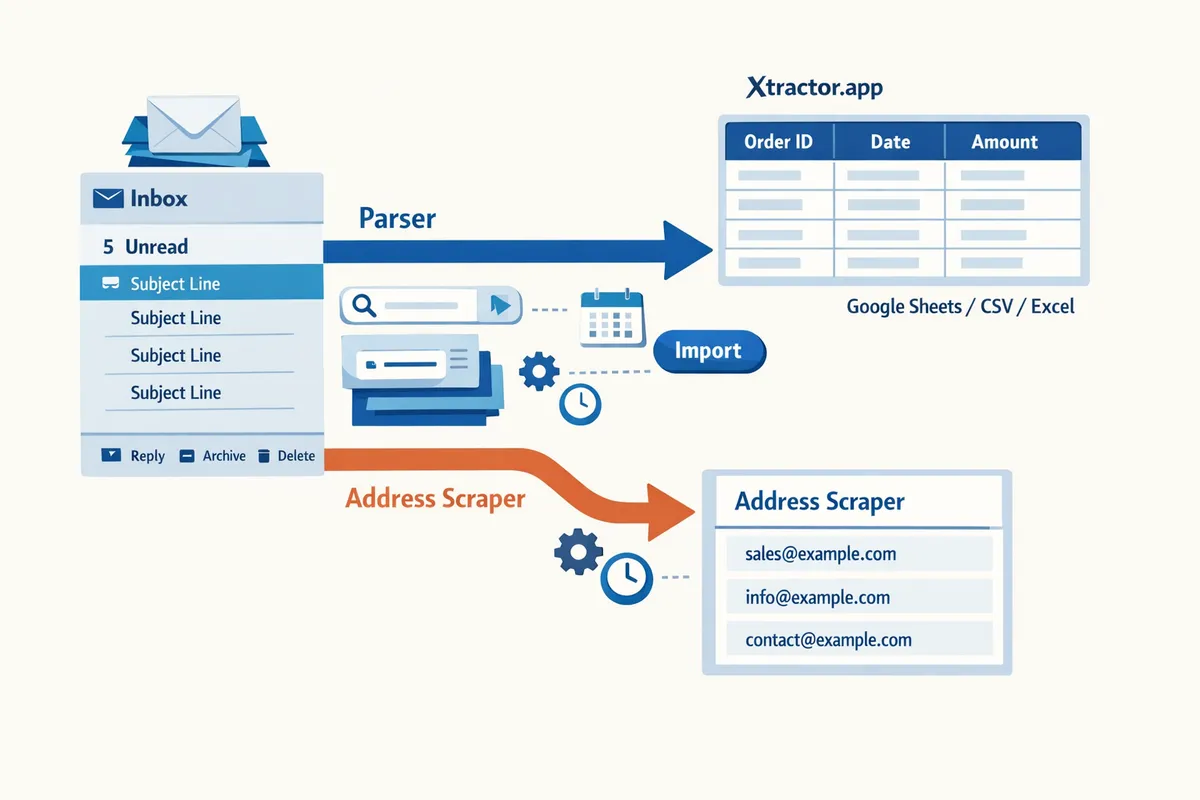
What is an email extraction tool and how does it differ from an address scraper?
An email extraction tool is software that extracts structured text from email messages so teams can use it in spreadsheets, CRMs, or reports. An address scraper is a simpler extractor that finds email addresses (and sometimes names) but does not capture reliable contextual fields such as order numbers or totals. Choosing the right tool matters for tasks like bookkeeping, where you need repeatable fields, versus contact discovery, where a list of addresses may suffice. See our step-by-step guide for parsing orders into Google Sheets for a practical Gmail to Google Sheets example.
How does an email parser work? 🧩
An email parser is a tool that maps predefined or AI-assisted fields from email headers and bodies into structured columns. Parser workflows use three core steps: collection, parsing, and export. Collection targets a mailbox or saved search (for example, Gmail filters for receipts). Parsing uses either template-based rules that match consistent formats or AI-assisted contexts that handle variable layouts. Field mapping assigns text snippets to columns, for example mapping “Order #12345” to an Order ID column and “Total: $45.60” to an Amount column. Parsers handle multiple formats by allowing multiple parsing contexts per rule set and fallbacks for unexpected layouts.
Xtractor.app supports multiple parsing contexts, custom filters to target senders or subjects, one-click bulk import for thousands of messages, and scheduled exports to Google Sheets. Our step-by-step guide shows how to set up template-based and AI-assisted parsing for common receipt and order formats.
What does an address scraper do? 🔍
An address scraper is a tool that extracts email addresses and sometimes adjacent name text from email bodies, web pages, or lists, without returning reliable structured fields. Typical scraper outputs include columns like Email, Name (if present), and Source Line (where it found the address). Scrapers detect address patterns but often return false positives (example: support@company.com listed in a signature and not a contact target) and cannot reliably return transactional context such as order totals or invoice IDs. That makes scrapers suitable for contact discovery and lead lists but unsuitable for bookkeeping or revenue reporting.
⚠️ Warning: Using scraped addresses for cold outreach increases compliance risk under GDPR, CAN-SPAM, and regional rules. Always confirm consent and maintain suppression lists before sending marketing emails.
Our website focuses on parser workflows that preserve context; xtractor.app extracts sender details and mapped fields so you keep the transaction metadata you need for accounting and reporting. For a comparison of parsing tools and when to choose them, see our buyer’s guide to the best email parser software.
Parser vs address scraper: quick comparison table
Choose a parser when you need repeatable structured fields; choose a scraper when you only need contact addresses. Below is a pragmatic comparison to help pick between a DIY parser, an address scraper, or a managed parser like xtractor.app.
| Option | Accuracy on structured fields | Maintenance effort | Export options | Compliance risk | Best-fit use cases (examples) |
|---|---|---|---|---|---|
| DIY parser (build your own) | High if rules are correct; drops with format variance. Example: works well for a single vendor’s receipts. | High. Needs ongoing tuning for new email formats and edge cases. | Flexible (CSV, Sheets, API) if you build connectors. | Medium. Depends on your governance and consent handling. | Bookkeeping for 1 vendor, internal reporting where you control formats. |
| Address scraper | Low for structured fields; high for extracting raw addresses only. | Low to medium. Easy to run but needs cleaning for false positives. | Basic CSV/Excel exports from lists and scraped pages. | High for outreach. Scraped lists often lack consent records. | Lead lists, contact discovery for manual outreach (with proper consent verification). |
| xtractor.app (managed parser) | High for mapped fields across multiple formats using multiple parsing contexts. Example: extract order IDs and totals from 5 vendor templates. | Low. Saved searches and reusable parsing contexts reduce ongoing tuning. | Direct exports to Google Sheets, CSV, Excel; scheduled imports. | Lower than scrapers when used with targeted inbox filters and consent processes. | Accounting automation, daily revenue reporting from emails, CRM enrichment from parsed sender fields. |
If your priority is bookkeeping or automated reporting, choose a parser workflow and consider using xtractor.app to reduce setup time and maintenance. If you only need raw contact addresses for outreach, an address scraper can produce lists quickly but plan for data cleaning and consent checks before emailing.
For a practical walkthrough of parsing Gmail into Google Sheets without code, follow our beginner’s guide to Gmail to Google Sheets automation. For a step-by-step setup focused on bulk imports and scheduling, see our fast setup guide for parsing email to Google Sheets.
How should you evaluate and choose an email extraction tool: buyer’s checklist
Evaluate an email extraction tool by scoring accuracy, scale, export formats, scheduling, and compliance against your business needs. Use hands-on trials with your real emails and measure error rates and time saved to make a procurement decision. This checklist gives you a repeatable test plan and governance criteria to use during demos and free trials.
Core checklist: accuracy, exports, scale, filters, scheduling, and support ✅
Prioritize accuracy on the fields that drive your workflows, native export options, bulk import and scheduling, and responsive customer support. Accuracy matters most for the fields you rely on daily. For example, a bookkeeping team must prioritize reliable extraction of order numbers, amounts, and dates because a single mis-parsed amount causes reconciliation work. Exports determine how fast data reaches downstream systems. Native Google Sheets, CSV, and Excel exports remove the manual copy step and reduce transcription errors. Scale and filters matter for inboxs with thousands of messages. Scheduling and saved searches let you automate recurring imports and avoid ad hoc exports. Finally, test vendor support response times during your trial; slow support costs hours in setup and troubleshooting. On our website, xtractor.app supports one-click bulk import, saved searches, multiple parsing contexts, scheduling, and direct export to Google Sheets, CSV, or Excel to address these priorities.
Actionable testing steps for trials 🧪
Run a practical trial by importing a realistic sample, mapping core fields, and measuring parsing error rates and correction time. Follow these steps exactly during a vendor demo or free trial:
- Gather 200 representative emails that include common and edge cases (different senders, templates, languages, and bad formatting).
- Define 6–8 core fields to extract (for example: sender, date, order number, item count, subtotal, tax, total, currency).
- Import the 200 emails using one-click bulk import or your Gmail filter. Use the same inbox sample for every vendor you test.
- Map fields in the tool and run a bulk parse.
- Measure parsing error rate: count rows with at least one incorrect field and divide by total rows. Record the time required to manually correct errors.
- Estimate hours saved: multiply error-correction time per email by average monthly volume to compare against manual entry costs.
💡 Tip: Include at least 10 malformed emails (missing headers, wrapped lines, unusual separators) in your 200-email set to reveal brittle parsers.
xtractor.app’s bulk import and saved-search features make steps 1–4 quick to reproduce across vendors. Use our step-by-step guide to Google Sheets parsing for setup reference and example templates.
Governance and compliance requirements 🔒
Require audit logs, role-based access, clear data retention, and consent handling before approving a tool. Audit logs show who ran imports and what changed, which is essential for finance and audit teams. Role-based access limits who can export or delete parsed data, reducing accidental leaks. Data retention policies determine how long parsed outputs and raw emails remain; insist on configurable retention periods to match your record-keeping rules. Verify how the vendor handles consent and opt-out for contact data to meet GDPR and CAN-SPAM obligations. Ask for a data-processing agreement and examples of their security controls.
⚠️ Warning: Do not import or store sensitive personal health data unless the vendor provides explicit controls and a compliance plan for protected data.
Our website documents governance features in the setup guides and the parsing security notes. Ask xtractor.app for audit-log samples and role-access screenshots during your trial.
How xtractor.app meets common buyer requirements ⚙️
xtractor.app provides one-click bulk import, multiple parsing contexts, saved searches, scheduling, and direct export to Google Sheets, CSV, or Excel to reduce manual work and lower transcription errors. Those capabilities speed setup because you can reuse parsing contexts for different email formats. Saved searches and Gmail filters let you target only relevant messages, which reduces noise and improves accuracy. Scheduling automates recurring imports so teams get daily or hourly sheets without manual effort. For businesses that require custom workflows, xtractor.app offers custom attachment parsing on request. During your demo, test how long it takes to map your core fields and produce a clean sheet; that hands-on time shows real ROI faster than pricing alone. See our detailed walkthroughs for configuring email-to-sheet automation and bulk imports: the step-by-step Google Sheets guide and the Email Parser to Google Sheets setup guide on our website.
Comparison table: DIY scripts vs address-scraping tools vs xtractor.app 📊
Compare DIY scripts, address-scraping tools, and xtractor.app across build time, maintenance overhead, error risk, compliance controls, and export flexibility.
| Approach | Build time | Maintenance overhead | Error risk | Compliance controls | Export flexibility | Short-term cost | Long-term maintenance | Business risk |
|---|---|---|---|---|---|---|---|---|
| DIY scripts (Apps Script, Python) | High | High | Medium to high (fragile to template changes) | Low unless you add controls | High (you decide) | Low dev cost if you have skills | High (breaks on format changes) | High (time lost troubleshooting) |
| Address-scraping tools (email finders) | Low | Medium | High for structured fields beyond addresses | Low to medium | Low subscription cost | Medium | Medium (compliance risk for contact harvesting) | |
| xtractor.app | Low | Low | Low to medium (depends on templates chosen) | Medium to high (audit logs, role controls available) | High (Google Sheets, CSV, Excel) | Medium subscription | Low (vendor handles parser updates) | Low (operational and compliance controls) |
Score each approach on short-term cost, long-term maintenance, and business risk during procurement. Use the scores to justify budget requests and to decide whether to build or buy. Our comparison guide and the feature roundup on our website help teams quantify hours saved and expected maintenance effort.
How to get started with an email extraction tool for Gmail and Google Sheets
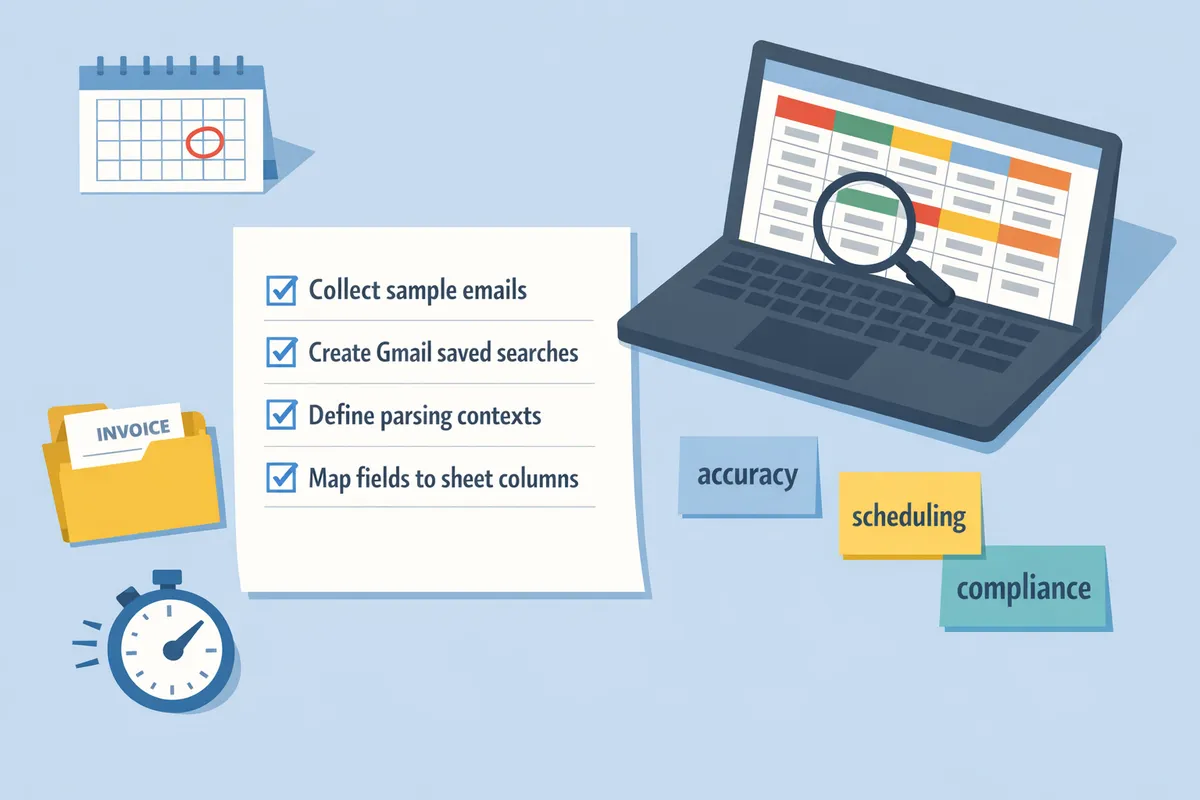
Set up an email extraction workflow by collecting representative emails, creating Gmail saved searches, defining parsing contexts, mapping fields to sheet columns, and scheduling imports. These steps let you test on a small dataset, catch format variations, and automate recurring imports so finance, ops, or sales teams stop copying fields by hand. Our website’s xtractor.app supports one-click bulk imports, multiple parsing contexts, and scheduling to simplify each step.
Step 1: Prepare sample emails and saved Gmail searches 📥
Collect 50–200 representative emails and create saved Gmail searches or filters that isolate those messages. Start with a small but varied sample so your parser sees the common templates and edge cases. Use sender, subject keywords, and date ranges to narrow results (for example, messages from billing@vendor.com plus subject terms like “invoice” or “order”).
Use Gmail saved searches to separate templates before parsing. Test on a batch of 25 messages first to confirm the filter scope. Save each search with a clear name such as “Orders – Vendor A – Jan–Mar” so you can reuse it in scheduled imports.
💡 Tip: Keep one control folder or label for parsed messages and another for test samples. This makes it quick to re-run a failed parse without mixing live and test data.
Reference: See our no-code beginner walkthrough in the “Gmail to Google Sheets Automatically” guide for practical examples of saved searches and label-based workflows. (Gmail to Google Sheets Automatically: The Beginner’s Guide to No-Code Email-to-Sheet Automation)
Step 2: Create parsing contexts and map fields 🧭
Define one parsing context per email template and map each extracted value to a specific Google Sheets column. Common fields include Order ID, Amount, Customer Email, Purchase Date, and Shipping Address. Map each field to a column and set the expected format (date, currency, plain text) so your spreadsheet formulas and reports work immediately.
Use separate parsing contexts for predictable variations. For example, create “Order Confirmation – Vendor A” and “Order Confirmation – Vendor B” when their templates differ. Reuse saved contexts across months to save setup time. xtractor.app supports template-based and AI-assisted contexts so you can handle slightly different layouts without rebuilding rules from scratch.
When mapping fields, include a raw-text column that stores the original email body for troubleshooting. That snapshot speeds debugging when a rule misses an item, because you can inspect the exact text the parser saw.
Reference: Follow the step-by-step instructions in our “Email Parser to Google Sheets: Fast Setup, Bulk Imports, and Scheduling (Step‑by‑Step)” guide to see field mapping examples and AI-assisted context creation. (Email Parser to Google Sheets: Fast Setup, Bulk Imports, and Scheduling (Step‑by‑Step))
Step 3: Run a bulk import, schedule recurring parses, and validate output ✅
Perform a bulk import on a test set, schedule recurring runs, and validate parsed output for at least three days to catch edge cases. Start with one-click bulk import on 50–200 messages, then schedule hourly or daily runs once results look reliable.
Validate with quick checks: count blank fields by column, search for formatting errors (dates that did not parse), scan for unexpected characters, and check for duplicates. Keep a validation sheet that logs row counts, blank-field totals, and parsing-errors per run so you can spot regressions at a glance. Save a snapshot of raw email text alongside parsed rows so edits to parsing contexts can be tested immediately and re-applied to historical data.
If you see recurring misses, update the parsing context and re-run the affected messages rather than editing spreadsheet rows manually. xtractor.app’s saved parsing contexts and re-import tools make this workflow faster and reduce transcription mistakes.
⚠️ Warning: Confirm you have permission to process each mailbox and avoid extracting protected health information unless you have explicit legal consent and secure handling procedures.
Reference: For troubleshooting tips, scheduling best practices, and example validation checks, see our full step-by-step guide: “Email Parser to Google Sheets: Fast Setup, Bulk Imports, and Scheduling (Step‑by‑Step)” and the broader beginner’s guide on converting emails to structured data. (Email Parser to Google Sheets: Fast Setup, Bulk Imports, and Scheduling (Step‑by‑Step); Email Parser: The Complete Beginner’s Guide to Converting Emails into Structured Data)
What are the next steps, advanced workflows, and compliance considerations for email extraction?
Advanced workflows add validation, ongoing data hygiene, integration paths, and legal safeguards to basic email extraction. Those additions reduce manual errors, speed reporting, and make parsed data safe to use in CRMs and accounting systems. Use a staged rollout: pilot with a week of real emails, fix parsing rules, then enable scheduled imports.
How to maintain data quality and ongoing cleaning 🧹
Maintain data quality by validating parsed fields, running de-duplication, and scheduling periodic audits. Implement these specific checks: numeric range checks for amounts (for example, flag totals outside expected bounds), pattern checks for order IDs, and required-field alerts when buyer name or email is missing. Use automated rules to tag uncertain rows for manual review rather than stopping the whole import.
Practical steps to reduce maintenance time:
- Create a Google Sheets staging tab to receive raw parses.
- Add validation columns: boolean checks for format, range, and presence.
- Use conditional formatting or filters to surface rows needing review.
- Run a weekly de-dup by email plus order ID and archive duplicates.
Example. A small online shop that parses 200 order emails weekly can test corrections on one week of data then measure time to clean it. If initial clean-up takes three hours and weekly maintenance drops to 30 minutes, plan that ongoing effort into your SOPs. Our Email Parser to Google Sheets: Fast Setup, Bulk Imports, and Scheduling (Step‑by‑Step) guide shows a ready-made staging pattern you can copy.
Integrations and automation: CRMs, reporting, and middleware 🔗
Send parsed data to CRMs, accounting packages, or BI tools using exports, webhooks, or automation platforms like Zapier. Common, reliable patterns include:
- Google Sheets as a staging table, then scheduled pushes to a CRM or BI tool.
- Daily CSV export to accounting software for batch imports.
- Webhook or Zapier flow that creates CRM records only when validation checks pass.
Step-by-step example using our tool. Set up a saved search to pull the target emails, add parsing contexts for the templates you receive, map fields into a Google Sheet, and enable daily scheduling. That creates a predictable pipeline for downstream automations and keeps manual handoffs to a minimum. See our no-code walkthrough for Gmail to Sheets on our site for field mapping and scheduling patterns.
Legal, consent, and deliverability checklist ⚖️
Follow GDPR, CAN-SPAM, and regional privacy rules by recording opt-in sources, honoring unsubscribe signals, and limiting extraction to necessary fields. Maintain these governance items: a documented data retention policy, role-based access controls for parsed exports, and audit logs that record who exported what and when.
- Keep a consent record for each contact (source and date).
- Suppress unsubscribes and bounce addresses before any outreach.
- Limit extraction of sensitive personal data unless you have a legal basis and strong controls.
💡 Tip: Save the consent source and date for every parsed contact so you can verify lawful basis later.
For deliverability, run address verification before sending campaigns and maintain a suppression list in your CRM. Our beginner’s guide to converting emails into structured data explains collection best practices and consent capture flows.
Handling attachments and complex formats 📎
Attachments and nonstandard formats usually require separate OCR or custom parsing workflows rather than default inbox parsers. If invoices, receipts, or embedded PDFs hold the data you need, you have three practical options:
- Request a custom parsing plan from us to handle attachments.
- Preprocess attachments with an OCR tool, export the OCR output to CSV, and map that into your staging sheet.
- Export emails with attachments for targeted manual processing when volume is low.
Example. A vendor sends 50 invoices per month as scanned PDFs. A short pilot uses an OCR pass to extract line items, then maps totals and invoice numbers back into the same Google Sheet used for email parses. Our team can provide custom attachment parsing on request when you need a managed solution.
Estimating ROI: hours saved and risk reduced 📊
Estimate ROI by comparing manual extraction time with scheduled parsing plus validation and integration overhead. Use a simple worksheet where inputs are emails per period, seconds per email manually, hourly labor cost, parser setup time, and weekly maintenance time.
Example worksheet (apply your numbers):
- Emails per week: 200.
- Manual time per email: 90 seconds.
- Manual weekly time: 200 * 90s = 5 hours.
- Hourly cost: $30.
- Manual weekly labor cost: 5 hours * $30 = $150.
- Parser setup: 4 hours one-time.
- Ongoing parser maintenance: 0.5 hours weekly.
Annual comparison. Multiply weekly savings across 52 weeks, subtract initial setup, and include error-reduction value you measure from fewer refunds, mis-ships, or rework. Run a one-week pilot using our scheduling and bulk import features to capture real numbers. Our Best Email Parser Software (2026): Features, Pricing, and Use Cases Compared article helps model cost comparisons across tools and deployment choices.
For setup details, field mapping patterns, and scheduling examples, follow the step-by-step parser guide on our site to create a repeatable, auditable workflow.
Frequently Asked Questions
This FAQ answers the most practical questions marketers and small teams ask about using an email extraction tool. The answers focus on accuracy, Gmail setup, exports to Google Sheets, pricing and privacy, and realistic testing steps.
How accurate is an email parser compared with manual entry? 🤔
A well-configured email parser typically produces far fewer transcription errors than manual entry when email formats are consistent. Parsers reduce human typographical mistakes and speed up processing; however, accuracy depends on format consistency, the number of parsing contexts, and how well edge cases are covered. Test accuracy by running a representative batch and measuring two metrics: error rate (incorrect or missing fields per 1000 extractions) and correction time (minutes per error). Use those numbers to estimate weekly time saved versus manual entry and to size review effort during onboarding. xtractor.app supports multiple parsing contexts and saved searches to lower error rates across varied templates.
Can I use an email extraction tool with Gmail? 📧
Yes — many email extraction tools, including xtractor.app, connect to Gmail using saved searches, labels, or API access to target specific inboxes and filters. Best practice is to create narrow Gmail saved searches or a dedicated parser label so imports only include relevant messages and avoid noisy threads. Use a staging label or folder for first-run imports to prevent duplicate processing. For step-by-step Gmail-to-sheet workflows and no-code options, see our guide on Gmail to Google Sheets Automatically: The Beginner’s Guide to No-Code Email-to-Sheet Automation and the Email Parser to Google Sheets: Fast Setup, Bulk Imports, and Scheduling (Step‑by‑Step).
💡 Tip: Always test saved searches with a small sample label first. That prevents importing promotional or archived threads that look similar to your target messages.
Does xtractor.app export parsed data to Google Sheets automatically? 🗂️
Yes — xtractor.app exports parsed fields directly to Google Sheets, CSV, or Excel and supports scheduled imports so sheets update automatically. You can map parsed fields (order number, amount, date) to sheet columns, run one-click bulk imports for historical data, and set daily or hourly schedules for new messages. For guided setup and examples of mapping and scheduling, follow the Email Parser to Google Sheets step‑by‑step guide and the Parse Email to Google Sheets walkthrough.
How do I validate parsed fields before using them for reporting? ✅
Validate parsed fields by applying consistency checks, formatting rules, and targeted spot audits before connecting the feed to reports. Concrete checks include required-field enforcement (no empty order IDs), format rules (dates as YYYY-MM-DD, phone numbers as +12223334444), and range checks (amount > 0). Implement automated validation in Google Sheets with formulas or conditional formatting to flag rows, and create a review queue for flagged records so a human can confirm or correct entries. xtractor.app’s field mapping and scheduling make it simple to run repeat validations, and our step‑by‑step guide covers common validation templates.
Are email extraction tools legal under GDPR and CAN-SPAM? ⚖️
Email extraction tools can be used legally under GDPR and CAN-SPAM provided you observe lawful basis, consent, and opt-out rules. That means you must record the lawful basis for processing personal data under GDPR (for example, consent or legitimate interest), retain proof of consent or opt-outs, and stop sending commercial messages to recipients who opt out under CAN-SPAM. For high-risk datasets (sensitive personal data, large consumer lists) consult legal counsel and keep an auditable trail of processing steps and consent records.
⚠️ Warning: Do not harvest emails from private groups, purchased lists without consent, or sources that lack explicit permission; doing so increases legal and deliverability risk.
Can email extraction tools handle attachments or scanned receipts? 📎
Attachments and scanned receipts generally require OCR or a custom parsing workflow and are not supported by default in most parsers. xtractor.app does not parse attachments out of the box but offers custom parsing plans on request; alternatively, run an OCR step (for example, a document OCR service) to extract text into the email body or a CSV before feeding it to the parser. Ask vendors about turnaround and pricing for custom attachment parsing, because handling scanned images will add processing time and often a per-document cost.
What sample size should I use for testing during evaluation? 📊
Use a representative test set of 100 to 500 emails that includes every common template, plus edge cases and noisy examples. Include historical and recent emails to surface format drift and seasonal variants. Measure three outcomes on that sample: parsing accuracy (percent correct fields), average correction time per error, and throughput (time to import and parse the batch). Use those measurements to compute ROI: for example, if manual entry of 200 weekly emails takes 4–6 hours, a parser that cuts errors and time by half saves several hours per week. For test workflows and bulk-import tips, see Email Parser to Google Sheets: Fast Setup, Bulk Imports, and Scheduling (Step‑by‑Step) and our Best Email Parser Software (2026) comparison to benchmark vendor features and pricing.
Next steps to pick and start an email extraction tool.
Choose the approach that matches the email formats, volume, and reporting cadence your team needs. Parsers work best when emails contain consistent fields you must record; address scrapers fit quick lists of contacts but miss structured data. Prioritize integrations, compliance, and the time saved versus continued manual work.
Xtractor.app is an email parsing and data-extraction tool that pulls structured text out of emails and exports it directly into Google Sheets, CSV, or Excel. Create your first parser in Xtractor.app by following the Beginner’s Guide to No-Code Email-to-Sheet Automation to map fields from Gmail to a spreadsheet, or use the Email Parser to Google Sheets step-by-step guide for bulk imports and scheduled runs.
💡 Tip: Test parsers with a small, representative sample of emails and save parsing contexts for recurring formats to avoid missed fields.
Create your first parser in Xtractor.app with the no-code guide linked above, then explore related posts in our uncategorized cluster for advanced setup and validation tips. Subscribe to our newsletter for parsing best practices and updates.