A shared mailbox with 2,000 messages can cost a finance team dozens of hours to export and clean by hand. Export Outlook shared mailbox to CSV is the process that extracts structured fields from messages into a spreadsheet for reporting, reconciliation, or bookkeeping. This comparison evaluates four approaches—native export, Power Automate, Graph/PowerShell, and email parsers—against effort, accuracy, automation, and governance. xtractor.app is an email parsing and data-extraction tool that imports thousands of emails in one action, parses subject, sender, date, amounts, and order numbers, and outputs clean CSV or Google Sheets for reporting. We measure setup time, expected error sources, scheduling options, and audit controls so you can choose the lowest-risk path. Which approach saves the most time while keeping governance intact?
Which methods can export an Outlook shared mailbox to CSV or Google Sheets?
Four practical methods can export an Outlook shared mailbox to CSV or Google Sheets: Outlook’s Export wizard, PowerShell or Microsoft Graph scripts, and Power Automate flows. Email parsers such as xtractor.app work with Gmail only, not Outlook. Each method trades off setup time, repeatability, and governance; pick the one that matches your volume, compliance needs, and available admin time.
⚠️ Warning: Confirm mailbox permissions, retention holds, and DLP rules before exporting; unauthorized exports can break compliance and trigger audit alerts.
Outlook UI export: quick manual CSV for small, one-off jobs
Outlook’s Export wizard is a built-in client feature that produces a basic CSV but fits only low-volume, one-off exports because it exports limited fields and requires post-export cleaning. Use File > Open & Export > Import/Export > Export to a file > Comma Separated Values, then choose the shared mailbox folder or subfolder. The wizard maps common headers (From, To, Subject, Received/Sent, Size) but places message body as HTML or plain text with embedded commas and line breaks that break CSV rows.
Common pitfalls:
- HTML body becomes messy in CSV and often needs cleaning (strip tags, normalize newlines).
- Attachments do not export into CSV; only filenames may appear.
- Character encoding and commas in fields require careful CSV quoting.
Sample CSV schema (mail item):
| ReceivedDate | From | To | Subject | BodyPlainText | AttachmentNames |
|---|---|---|---|---|---|
| 2025-03-12 09:14 | vendor@example.com | finance@company.com | Invoice 123 | “Invoice attached for March” | invoice_123.pdf |
When realistic: small finance or audit tasks under a few hundred messages where quick manual cleanup is acceptable. For a repeatable, cleaner output consider an automated approach; our guide on simplifying exports explains more in detail: Simplify Your Data Management: How to Export Email Data to CSV.
PowerShell / Microsoft Graph: scripted exports for admins ⚙️
PowerShell is a scripting shell and Microsoft Graph is a REST API that let admins export mailbox messages at scale with granular field control but they require admin consent and careful error handling. Required permissions typically include Exchange admin or application-level Mail.Read for Graph; tenant-wide consent and app registration may be necessary. High-level steps: authenticate, target the shared mailbox (Get-Mailbox or /users/{mailbox}/messages), select fields (headers, metadata, body format), paginate results, and write rows to CSV.
Tenant considerations and trade-offs:
- Retention holds and eDiscovery can block exports or change results; always check holds first.
- Graph is preferable when you need REST-native paging, JSON responses, or integration with external systems. PowerShell is often easier for Exchange Online admins familiar with cmdlets.
- Handle throttling, pagination, and duplicate protection; missing these produces partial exports and governance risk.
When realistic: central IT or an admin team with scripting time and the need to capture message-level metadata, mailbox folders, or perform bulk exports across many mailboxes. See our more detailed walkthroughs in the export guide: Simplify Your Data Management: How to Export Email Data to CSV.
Power Automate: scheduled flows for recurring exports 🔁
Power Automate is a low-code automation platform that can schedule Outlook shared mailbox exports and append rows to CSV or Google Sheets, but flows often require many actions to normalize fields and can hit connector limits. Typical flow designs use either a recurrence trigger (for scheduled exports) or the Office 365 Outlook trigger when a new email arrives in a shared mailbox, then parse the message and write to Google Sheets or a CSV stored in OneDrive.
Key operational details:
- Use the shared mailbox parameter in the Office 365 Outlook connector or impersonation techniques if your tenant requires it.
- Rate limits and API throttling can interrupt high-volume flows; add retry and batching where possible.
- Parsing HTML bodies requires extra actions or expressions, increasing flow complexity and maintenance.
When realistic: small IT teams or business users who prefer low-code scheduling (for example, to schedule Outlook shared mailbox export to CSV every night) and who process moderate volumes that stay under connector quotas. For a practical walkthrough that pairs parsing with flows, see our step-by-step automation article: Outlook Email Parser Power Automate.
Email parser (xtractor.app): no-code bulk parsing and direct export 📤
An email parser is a no-code tool that extracts structured text from emails and writes clean rows to Google Sheets or CSV without scripting; xtractor.app specifically supports bulk import, scheduled runs, and multiple parsing contexts to handle diverse formats. Our website’s xtractor.app supports one-click bulk imports from Gmail with scheduled polling, filters by sender/subject/date, and maps extracted fields (subject, sender, date, amounts, order numbers) to spreadsheet columns.
Practical notes:
- Use xtractor.app to export Gmail emails to Google Sheets without coding by defining parsing rules and scheduling daily imports. See the step-by-step guide: How to Automatically Export Emails to Google Sheets: A Step-by-Step Guide.
- Attachments are not parsed by default; custom plans are available for attachment parsing on request.
- Multiple parsing contexts let finance teams handle mixed formats (invoices, purchase confirmations) in a single run, reducing manual cleaning.
When realistic: finance teams that need high-volume, repeatable exports with consistent column mappings and minimal maintenance. xtractor.app reduces manual data entry and produces governance-ready CSV or Google Sheets outputs faster than scripting for many common business cases.
How do these methods compare side-by-side for shared mailbox exports?
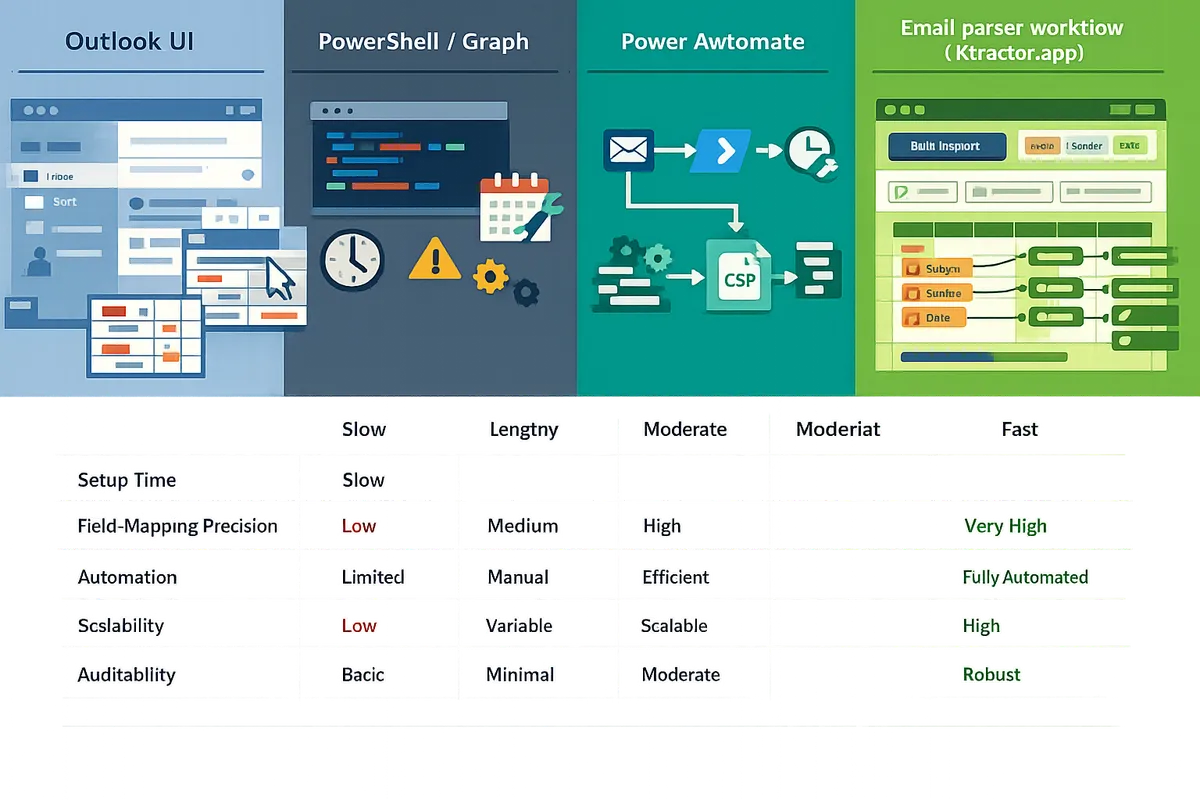
Different export methods vary widely in setup time, field-mapping precision, automation, scalability, and auditability. Choosing the right path reduces cleanup time, limits compliance risk, and determines whether you can schedule Outlook shared mailbox export to CSV without manual intervention. The table and decision tree below help match common business scenarios to the fastest, safest option.
📊 Comparison table: feature, cost, scale, and output quality
The table below compares Outlook UI, PowerShell/Graph, Power Automate, and xtractor.app across setup time, maintenance, mapping control, bulk import speed, scheduler support, governance, and typical cost.
| Method | Initial setup time | Ongoing maintenance | Mapping control | Bulk import speed | Scheduler support | Governance / auditability | Typical cost | Output quality |
|---|---|---|---|---|---|---|---|---|
| Outlook Export (UI) | Short | Low (manual) | Low | Slow for large mailboxes | None | Weak audit trail for exports | Free with Office | Raw fields, HTML bodies preserved (messy) |
| PowerShell / Microsoft Graph | Medium to long | High (script upkeep) | High | Fast when optimized | Yes (via scheduler) | Strong if run under a managed service account and logs captured | Low internal cost, admin time | High when mapped correctly, requires cleanup for HTML |
| Power Automate | Short to medium | Moderate (flow upkeep) | Moderate to high | Moderate | Native (built-in) | Moderate; run history available but tenant admin review required | Flow/connector costs may apply | Clean if parsing steps added, attachments need extra work |
| xtractor.app (email parser) | Short | Low (saved templates) | High (visual mapping, multiple contexts) | Fast for thousands of messages | Native scheduling for daily imports | Strong: saved searches, scheduled runs, and export logs | Subscription | Clean, tabular CSV/Google Sheets output designed for reporting |
The table shows trade-offs: Outlook UI is lowest friction for one-off exports but creates the most cleanup and weakest audit trails. PowerShell/Graph offers control and scale but requires maintenance and admin rights. Power Automate balances ease and automation. xtractor.app focuses on parsing fidelity, quick bulk imports, and scheduled exports into Google Sheets or CSV. For a step-by-step automation path into Sheets, see How to Automatically Export Emails to Google Sheets: A Step-by-Step Guide and the Outlook automation walkthrough in Outlook Email Parser Power Automate.
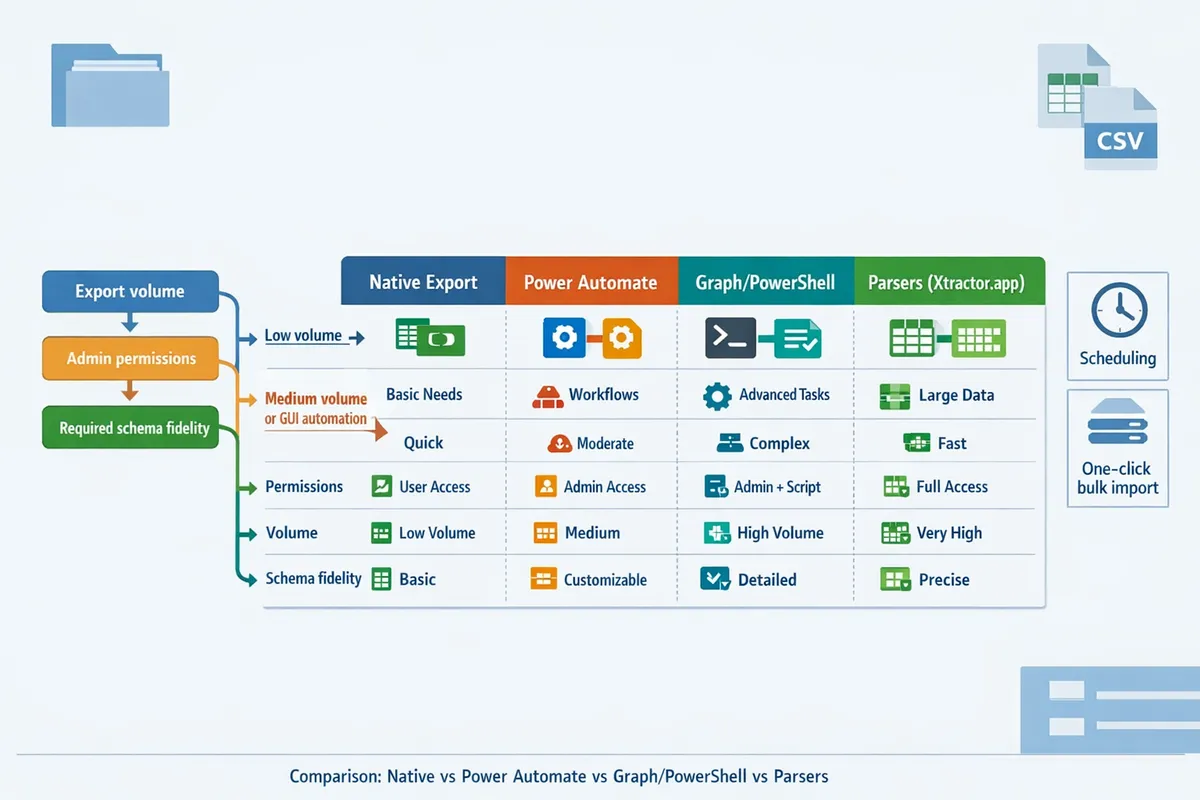
🧭 Decision tree: choose based on volume, permissions, and cleanup needs
Match your scenario to a recommended method by answering three checkpoints: export volume, admin permissions, and required CSV schema fidelity. Use the itemized path below to pick the right tool.
-
One-off audit export (small mailbox, ad-hoc). Checkpoints: no admin rights, one-time need, minimal mapping. Recommendation: Outlook Export (UI). Rationale: fastest to run for a single mailbox but expect manual cleanup and weak audit logs.
-
Repeated daily/weekly reporting (dozens to thousands of emails, fixed schema). Checkpoints: scheduling required, consistent email formats, need for clean CSV/Sheets. Recommendation: xtractor.app. Rationale: one-click bulk import, saved parsing templates, and native scheduling reduce manual hours and produce reporting-ready CSVs. See How to Automatically Export Emails to Google Sheets: A Step-by-Step Guide for setup details.
-
Tenant-wide compliance or preservation export (many mailboxes, strict audit). Checkpoints: tenant admin access, retention and eDiscovery requirements, audit trails required. Recommendation: PowerShell or Microsoft Graph with tenant-level export workflows. Rationale: scriptable, auditable, and integrates with compliance tools; requires admin ownership and ongoing maintenance.
-
Medium-complex automations with conditional logic (attachments, cross-system workflows). Checkpoints: want GUI flows, connector-based integrations, moderate parsing. Recommendation: Power Automate with parsing steps or hybrid approach using xtractor.app for parsing and Power Automate for orchestration. Rationale: Power Automate handles flows and connectors while xtractor.app produces clean tabular outputs when parsing is complex. See Outlook Email Parser Power Automate for a guided hybrid example.
Checkpoint notes:
- If you need to schedule Outlook shared mailbox export to CSV without scripting, use Power Automate. xtractor.app supports Gmail only.
- If attachments or complex HTML body parsing are required, plan for custom parsing or a parser-plus-orchestration approach; xtractor.app offers custom parsing for attachments on request.
- If you lack admin rights, avoid tenant-level PowerShell options; request a service account or use parser tools that operate with delegated mailbox access.
🔒 Risk and governance comparison: audit, DLP, and data residency
Governance outcomes differ: manual exports produce sparse audit trails while scripted and parser-driven exports can centralize logs, filters, and scheduled runs. Below is a practical risk table that focuses on permissions and compliance for shared mailbox exports.
| Method | Audit log availability | DLP & retention policy respect | Data residency / export location | Primary permission risk | Practical mitigations |
|---|---|---|---|---|---|
| Outlook Export (UI) | Low; export action not centrally logged by default | Exports may bypass retention if user downloads PST/CSV | Local machine or user OneDrive (depends on save) | Export run by any user with mailbox access can leak data | Use audited service account, encrypt exported files, store in compliant repository |
| PowerShell / Graph | High when executed under managed service account and logging enabled | Can respect retention if using tenant-level APIs and eDiscovery | Centralized exports possible to controlled storage | Over-privileged scripts can expose mailboxes | Run under least-privilege service account, enable audit logging, rotate creds |
| Power Automate | Moderate; flow runs are visible but may need admin review | Flows may read retained items; review connectors for data movement | Destination depends on connectors (SharePoint, Drive, Sheets) | Connector misconfiguration can send data outside controls | Restrict connectors, require admin approval for flows, enable run history retention |
| xtractor.app (parser) | Good: saved searches, scheduled runs, and export logs record activity | Parser reads mailbox content; exports go to specified CSV/Sheets destination | Exports flow to Google Sheets, CSV storage chosen by admin | Delegated access must be scoped to service account to avoid broad access | Use a dedicated parser service account, document saved searches, store exports in a governed spreadsheet or S3 bucket |
⚠️ Warning: Never run bulk exports from a personal account; always use a dedicated service or managed account under your tenant with least privilege and recorded approvals.
Practical governance steps for all methods:
- Assign a dedicated service account for scheduled exports and document its approval in your change control process.
- Keep exported CSVs in a governed repository with retention rules, rather than on user desktops.
- For sensitive data, enable tenant DLP policies that block or encrypt exports to uncontrolled destinations.
For governance-focused how-tos and CSV schema templates, see Simplify Your Data Management: How to Export Email Data to CSV and the Gmail export guide in How to Export Gmail Emails to CSV: A Comprehensive Guide.
Which method should I choose and how do I implement it (paths with step estimates)?
Choose the method based on message volume, how many different email layouts need parsing, and whether the export runs once or on a schedule. Below are four practical implementation paths with step estimates, step-by-step actions, sample CSV headers, and the business trade-offs of doing it yourself versus using xtractor.app.
Low-volume, one-off path: Outlook UI export and CSV cleanup 🖱️
Exporting via Outlook’s Export wizard is fastest for fewer than a few hundred messages but requires manual mapping and cleanup after export.
Implementation steps (30–90 minutes for a single mailbox).
- In Outlook desktop, open File > Open & Export > Import/Export and choose Export to a file > Comma Separated Values.
- Select the shared mailbox folder and pick fields (Date, From, Subject, Body). Outlook may force a PST if permissions differ; use an account with Full Access.
- Open the CSV in Excel or Google Sheets and remap columns to your schema.
- Run cleanup: remove line breaks in the Body, trim whitespace, and dedupe by MessageId.
Sample CSV headers for a one-off export: Date, From, Subject, BodySnippet, MessageId.
Common cleanup tasks:
- Remove HTML tags and collapse multi-line bodies into a single cell.
- Standardize date format to YYYY-MM-DD.
- Use MessageId or ConversationID to find duplicates.
Business trade-off: quick to start with no additional tools but expect at least one to several hours of manual cleaning per few hundred messages. If you need repeatable, low-effort exports, consider xtractor.app to avoid repeated cleanup.
Recurring, rule-based path: Power Automate flow (scheduled) 🔁
A scheduled Power Automate flow can append new messages to a CSV or Google Sheet automatically but requires moderate setup and ongoing maintenance.
High-level flow and time estimate (2–8 hours to build and 1–3 hours testing/maintenance weekly depending on complexity).
- Create trigger: Recurrence (daily) or When a new email arrives (V2) and point the trigger at the shared mailbox.
- Add filter conditions: sender, subject keywords, date window, or a saved search folder.
- Parse and map: use Compose or HTML to text actions to extract fields (Date, From, Subject, Amount, OrderNumber).
- Append row: write to CSV in OneDrive/SharePoint or append to Google Sheets via connector.
- Error handling: add try/catch parallel branch, logging to an admin mailbox or a monitoring sheet.
Operational notes: shared mailbox access often requires admin consent for connectors and an account with Send As/Full Access. For a step-by-step Power Automate parser workflow, see our Outlook Email Parser Power Automate guide.
Business trade-off: low per-export marginal cost once built but the DIY path increases risk from broken connectors, schema drift when email formats change, and hidden maintenance hours. xtractor.app reduces that maintenance by saving parsing contexts and scheduling imports without flow debugging.
💡 Tip: Test your flow on a 7-day sample before scheduling daily runs to catch layout changes and permission errors.
Scale and clean parsing path: xtractor.app no-code import and schedule 🔍
xtractor.app is a no-code parsing tool that imports large volumes, maps multiple layouts, and schedules exports to Google Sheets or CSV without custom code.
Quick setup steps (30–120 minutes for simple layouts; add time for multiple layouts).
- Connect your Gmail account or define a saved-search filter in xtractor.app to target messages.
- Create parsing contexts for each email layout you need to extract (receipt, vendor invoice, order confirmation).
- Map extracted fields to spreadsheet columns and run a test import on a sample batch.
- Enable schedule and destination (Google Sheets, CSV, or Excel).
- Review the parsed output, add rules for edge cases, and enable automatic daily or hourly imports.
Business impact: reduces manual entry and transcription errors, shortens reporting cycles, and centralizes parsing logic so non-technical staff can update mappings. xtractor.app can also handle multiple parsing contexts for emails that vary in format. Attachments are not supported by default but custom parsing for attachments is available on request.
For a guided tutorial on automating email-to-sheet exports without coding, see our step-by-step guide to automatically exporting emails to Google Sheets.
CSV schemas and sample rows for common finance reports 📄
Use consistent headers and formats to reduce post-export cleanup and speed up reconciliations. Below are three ready-to-use CSV schemas with example rows and a short validation checklist.
Daily revenue (use when emails contain single payment notifications):
| Date | Source | TransactionId | Amount | Currency | CustomerEmail | BodySnippet |
|---|---|---|---|---|---|---|
| 2026-03-15 | Stripe | ch_1J2a3b4c | 125.00 | USD | buyer@example.com | Payment received for order 1234 |
Usage note: parse numeric amounts into a plain number column and store currency separately for multi-currency reports.
Vendor invoices (use when extracting invoice lines or totals):
| InvoiceDate | VendorName | InvoiceNumber | DueDate | TotalAmount | Currency | AttachmentRef |
|---|---|---|---|---|---|---|
| 2026-03-10 | Acme Supplies | INV-2026-045 | 2026-04-10 | 2,450.00 | USD | INV-2026-045.pdf |
Usage note: include an AttachmentRef or a MessageId for audit trails; if attachments require parsing, request a custom plan.
Contact exports (use for vendor or customer lists):
| ExportDate | Name | Company | Role | SourceMessageId | |
|---|---|---|---|---|---|
| 2026-03-15 | Jane Doe | jane@vendor.com | Acme Supplies | Accounts Payable | <CAF1A2B3@example.com> |
Usage note: use SourceMessageId to dedupe and trace back to original email.
Validation checklist for exported CSVs:
- Date format is ISO 8601 (YYYY-MM-DD) and validated as a date.
- Amount columns are numeric with decimal points and no currency symbols.
- IDs (InvoiceNumber, TransactionId) are treated as text to preserve leading zeros.
- MessageId or unique source ID present for deduplication and auditing.
💡 Tip: Keep a small validation sheet that rejects rows missing required fields and flags non-numeric amounts before feeding the CSV into downstream systems.
For additional export scenarios and template ideas, see our export-email-data-to-CSV guide and the Gmail-to-CSV walkthrough for parallel workflows.
Frequently Asked Questions
These FAQs answer common operational and selection questions about exporting Outlook shared mailboxes to CSV or Google Sheets. Each answer highlights practical steps, permission requirements, and which method fits specific needs.
Can I export a shared mailbox without admin credentials? 🔐
Yes. You can export items from a shared mailbox when you have at least Read access to that mailbox. Tenant-level exports or automated scripts that use Microsoft Graph typically require admin consent or an account with Application permissions. For IT-managed, tenant-wide extractions use an admin account and audit controls to avoid breaks; for ad-hoc exports, assign the user Full Access or Reviewer role on the shared mailbox and proceed with Outlook export or PowerShell impersonation. xtractor.app works with Gmail only.
Provide an example: grant a compliance officer Reviewer rights, test a small folder export, then scale. If you need tenant-wide reporting, request an admin service account and documented temporary access to reduce governance risk.
How do I handle HTML message bodies and attachments in CSV exports? 📄
CSV files store plain text fields only, so HTML bodies must be converted to text or truncated before export. Many export paths strip HTML tags or collapse markup into plain text; however, this can break dates or table-like content. Attachments cannot live inside a single CSV cell reliably and require separate handling: download attachments into a folder and reference filenames or links in the CSV, or use a parser that supports attachment extraction under a custom plan.
Practical step: configure your parser or script to output a cleaned BodyText column and an AttachmentLink or AttachmentName column. xtractor.app converts common HTML patterns into readable text and offers custom attachment parsing on request for exports that must include invoice PDFs or CSV receipts.
Which method is best to schedule Outlook shared mailbox export to CSV nightly? 🕒
Power Automate or a scheduled Graph/PowerShell script suits nightly exports when you control the automation environment and can maintain credentials. Power Automate works well for no-code schedules inside Microsoft 365 but can hit connector throttles and needs robust error handling. A scheduled Graph or PowerShell script gives more control over batching and retry logic but needs admin support and operational maintenance.
If you prefer a managed, low-maintenance path for Gmail mailboxes, xtractor.app provides scheduling, saved filters, and one-click bulk import without coding, plus mapped CSV outputs ready for accounting. For a hands-on walkthrough of a Power Automate parser workflow, see Outlook Email Parser Power Automate.
Can I export Outlook shared mailbox data directly into Google Sheets without coding? 📈
Yes. Some Power Automate connectors can write directly to Google Sheets without coding. xtractor.app can write Gmail emails directly to Google Sheets without coding, but it does not support Outlook. xtractor.app offers a visual field-mapping interface, saved searches, and scheduled imports that deliver clean columns into a sheet, which avoids manual CSV intermediate steps. Power Automate can push to Sheets using connectors but often requires additional connector approvals and flow maintenance.
If you need step-by-step guidance for no-code exports to Sheets, follow How to Automatically Export Emails to Google Sheets: A Step-by-Step Guide to set up filters, test mappings, and enable a schedule.
How do I ensure exported CSV fields match my accounting import schema? 📝
Start with a sample CSV schema and test a small batch export to confirm headers, date formats, and numeric formatting match the target system. Define column headers exactly as the accounting import expects (example: Date, Account, Description, Debit, Credit). Normalize dates to yyyy-mm-dd and strip currency symbols from numeric columns when the accounting import requires raw numbers.
Use a parser or mapping tool to enforce column order and formatting before bulk imports. For a full checklist and templates you can reuse, consult Simplify Your Data Management: How to Export Email Data to CSV for CSV header examples and sample rows.
What are the common failure modes when exporting large shared mailboxes? ⚠️
Common failures include rate limits or throttling from Microsoft Graph, partial exports caused by insufficient permissions, malformed HTML breaking CSV rows, and inconsistent email layouts that break simple parsers. Exports can also fail when flows time out or when attachments inflate payloads. Automated parsers reduce these risks by normalizing varied formats and supporting retries and batching.
Mitigation steps: run exports in batches (for example, 1,000 messages per job), use saved searches to segment by sender or date, and validate a 50–100 message sample before a full run. xtractor.app supports multi-layout parsing and scheduled retries to handle large volumes with fewer manual interventions.
⚠️ Warning: Do not export sensitive health or financial personal data without DLP controls and documented legal approval. Ensure audit trails cover who requested and who received exported datasets.
How do I audit who exported mailbox data and when? 📂
Use tenant audit logs for scripted or admin exports, enable run history and logging in Power Automate flows, or use parser tools that record job runs, filters used, and output destinations. Tenant audit logs record the account and operation for Graph or Exchange admin actions; Power Automate stores flow run details and any error messages.
If you use xtractor.app, each scheduled import records the run timestamp, filter parameters, and the Google Sheet or CSV destination, which helps meet governance and retention policies. For compliance, export the audit report after each major extraction and retain it alongside the exported data.
How to pick the right export method
Choose the approach that balances automation, accuracy, and governance for your team.
If you need to export Outlook shared mailbox to CSV for regular reporting, automated parsing tools save hours and reduce transcription errors compared with one-off exports or ad-hoc scripts. Compare the trade-offs between native export, Power Automate flows, Graph/PowerShell scripts, and parser-based options to match the work required to the oversight you must maintain.
Xtractor.app is an email parsing and data-extraction tool that pulls structured text out of emails and exports it directly into Google Sheets, CSV, or Excel. The product is designed to import thousands of emails in a single action or on a scheduled cadence, parse relevant fields (subject, sender, date, amounts, order numbers, etc.), and produce a clean, tabular output in a spreadsheet for reporting, analysis, or bookkeeping.
For a practical next step, schedule a consultation with xtractor.app to map your mailbox layouts and set up scheduled imports. For implementation comparisons, see the Outlook Email Parser Power Automate workflow and our guide on exporting email data to CSV to weigh effort, governance, and automation for your use case.