 Xtractor
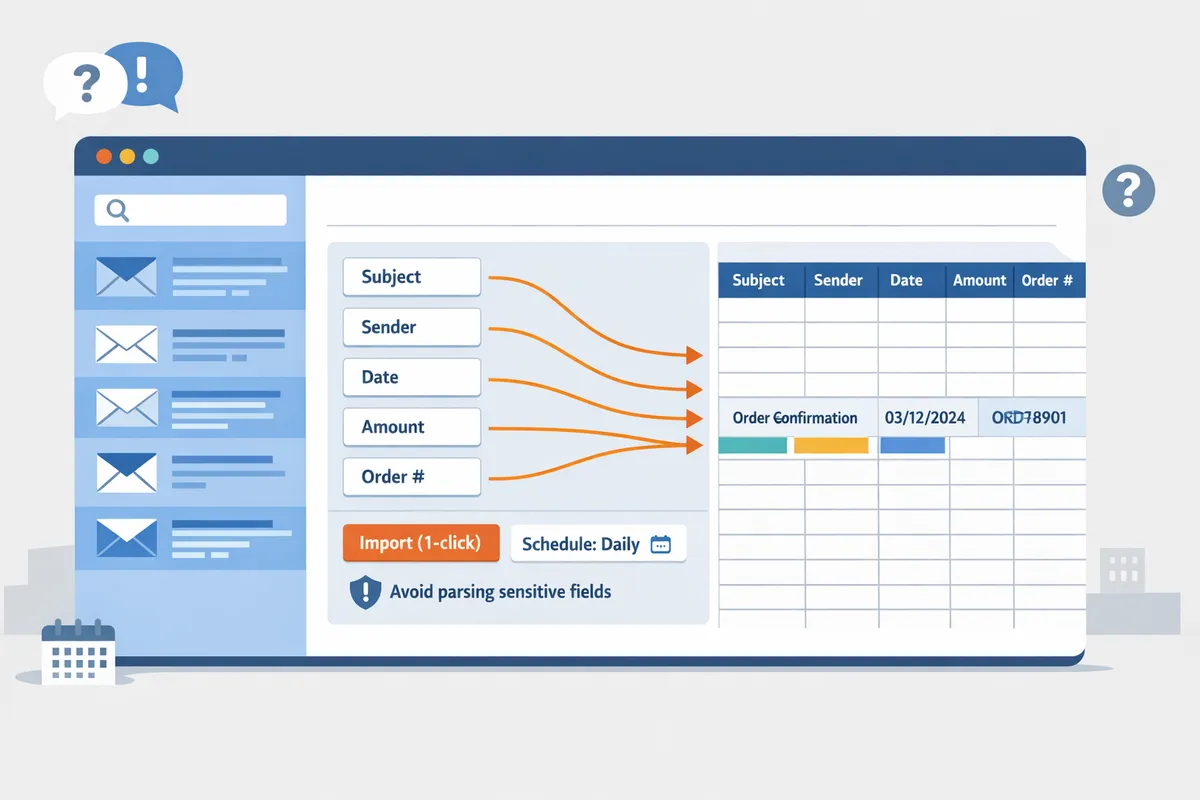
Processing 1,000 order emails by hand commonly costs a finance team 15–25 hours per week. An email parsing tool is software that pulls structured text out of emails and exports it directly into Google Sheets, CSV, or Excel for reporting and bookkeeping. xtractor.app is our email parsing and data-extraction tool that imports thousands of emails in bulk or on schedule, applies custom parsing contexts and filters, and surfaces clean, tabular output in a spreadsheet. This FAQ-style guide compares attachments support, AI versus rule-based parsing, Outlook and Power Automate options, Google Sheets add-ons, and typical cost trade-offs. You will learn practical criteria for choosing a tool and implementing it without wasting staff hours. Which parsing approach best fits daily bulk imports versus ad hoc lookups?
What are the most common practical questions about an email parsing tool?
The most common practical questions focus on attachments, AI versus rule-based parsing, Outlook/Power Automate and Google Sheets integrations, bulk-import speed, compliance, and cost. These answers give short, actionable facts so you can compare options and plan implementation quickly. Where relevant, we point to xtractor.app workflows and deeper guides for setup, multi-context parsing, and Outlook automation.
Can an email parsing tool extract attachments into a spreadsheet? 📎
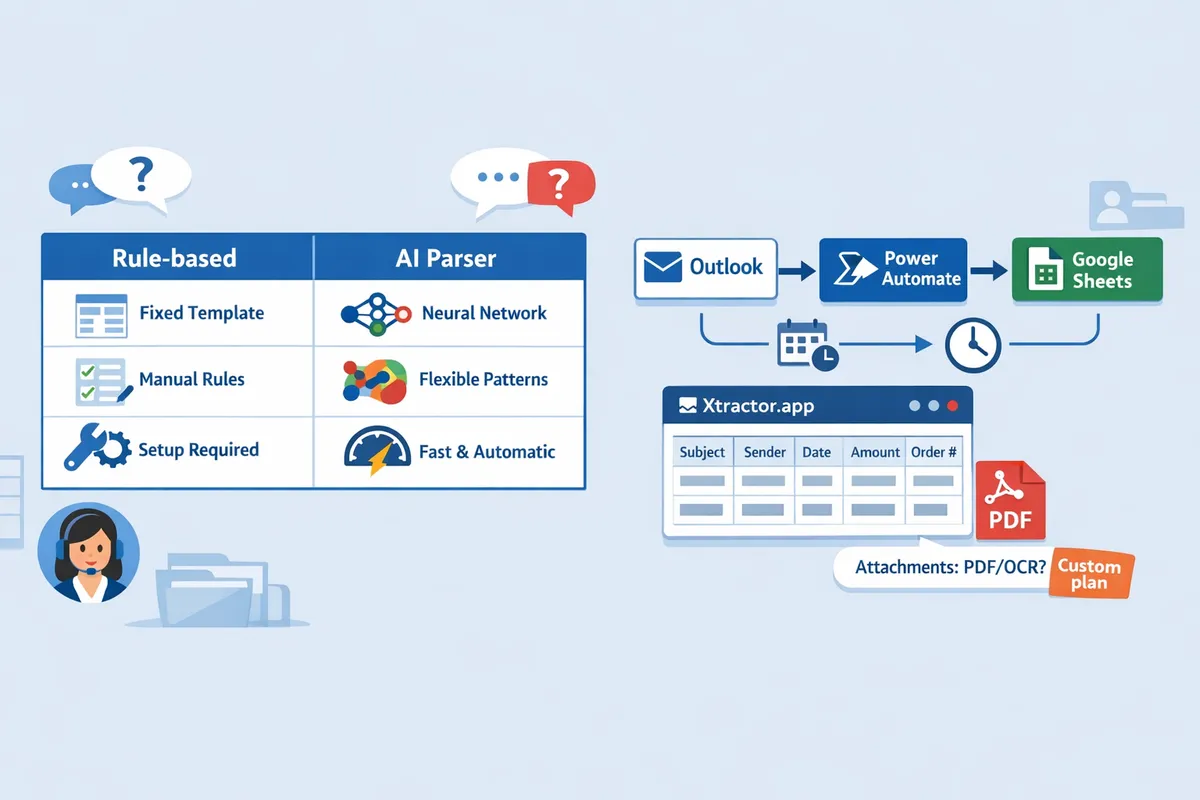
Some parsers can extract attachments into a spreadsheet, but most require explicit attachment parsing support or a custom plan. Most tools read email body and headers by default; extracting data from attached CSVs is straightforward, while attached PDFs or images usually need OCR and mapping rules. xtractor.app does not parse attachments in the default product but offers custom attachment parsing on request and can build tailored plans for large or specialized needs. For many teams, a practical workflow is to save attachments to Google Drive and then import the file contents into Sheets, or request a custom parsing workflow so the parser extracts invoice fields directly into rows.
💡 Tip: Test parsing on a 50–200 email sample set to validate attachment handling and field mapping before scheduling bulk imports.
What is an AI email parser and how does it differ from rule-based? 🤖
An AI email parser is a parsing tool that uses machine learning to identify fields across varied email formats, while a rule-based parser extracts fields using fixed templates or explicit rules. AI parsers handle format variability with less manual tuning, making them better for mixed-vendor inboxes or marketplaces where layouts change often. Rule-based parsers give deterministic results on consistent, repeatable formats and usually require less review once templates are correct. xtractor.app supports both template-based and AI-assisted parsing contexts, so you can use rule-based parsing for high-confidence vendors and AI contexts for irregular sources; see our step-by-step guide on setting up mixed parsing contexts for real templates.
Does a Google Sheets add-on email parser work differently than a web app? 🧩
A Google Sheets add-on writes parsed rows directly inside Sheets, while a web app runs externally and pushes data into Sheets via API or scheduled exports. Add-ons simplify one-click installation and immediate row writing, which suits small-scale or single-sheet workflows. Google Sheets add-ons like xtractor.app offer one-click bulk import, saved searches, multi-context parsing, and scheduling that handle large inboxes and complex templates before exporting to Sheets. If you want a fast in-sheet setup for a single format, an add-on may be quicker; if you need bulk imports, multi-template handling, or advanced filtering, a web app workflow scales better—see our detailed guide on fast setup, bulk imports, and scheduling.
How fast can I import and parse thousands of emails? ⚡
Import and parse time for thousands of emails depends on parsing complexity, attachment processing, and the tool’s bulk-import architecture. Simple template matches and text-only emails often parse in minutes, while mixed formats, OCR on attachments, or heavy validation increase processing time. xtractor.app emphasizes bulk import and scheduled runs so teams can turn daily email batches into spreadsheet rows without manual copying; test a representative batch to estimate time and plan overnight schedules for the heaviest workloads. For step-by-step scheduling and performance tips, see our fast setup and bulk imports guide.
Will parsing introduce compliance or privacy risk? 🔒
Automating email parsing increases privacy and compliance risk unless you control retention, access, and export destinations. Automated extraction widens the data surface: more copies of customer details can exist in Sheets, CSVs, or backups, so enforce retention policies, role-based access, and approved export destinations. xtractor.app documents data-handling options and supports restricting exports to internal Google Sheets or CSV so you can limit downstream exposure. If you process regulated data (payment info, health data), avoid parsing sensitive fields unless the parser and your downstream storage meet the relevant compliance standards.
Related reading: consult our step-by-step guide to Email Parser to Google Sheets: fast setup, bulk imports, and scheduling (Step‑by‑Step), the Outlook Email Parser Power Automate workflow for Outlook users, and the Multi-Context Parsing to Handle Varying Email Layouts guide when you expect many different email formats. For cost and vendor comparisons, see our roundup of Best Email Parser Software (2026): Features, Pricing, and Use Cases Compared.
How should I evaluate AI email parser vs rule‑based tools and integrations like Power Automate?
Evaluate parsers by matching extraction accuracy, supported inputs (body and attachments), throughput, integration targets, and maintenance effort to your actual inbox samples and volume. Our website recommends testing each candidate on a representative set of emails and measuring cleaning time, false positives, and scheduling limits. Use a short decision matrix to map those criteria to your workflow and confirm the tool can push clean rows into your reporting target.
Which is better for varied email formats: AI email parser vs rule‑based? 🤖
AI parsers usually perform better across diverse vendor emails because they generalize across layouts without a template per sender. For example, a procurement inbox that receives 20 different supplier invoice layouts will typically need dozens of templates with rule‑based tools but only a few AI contexts. Rule‑based parsers deliver predictable, exact extraction when you control the format, such as a single supplier sending a standardized invoice; they avoid the occasional false positive that an AI model can introduce. Our website supports both approaches: xtractor.app offers AI-assisted contexts plus multi-context template rules, so teams can combine both methods and reduce template maintenance. See our multi-context parsing guide for a real-world setup that handles mixed templates.
How do I connect Outlook to Excel with Power Automate for email parsing? 🔁
Power Automate can move Outlook message fields into Excel without custom code but requires ongoing flow testing and error handling to stay reliable. Typical steps are: 1) create a trigger (new email or filtered search), 2) extract subject, sender, date, and body snippets using built-in actions, 3) parse fields with string or AI Builder actions, 4) write a row to an Excel file in OneDrive or SharePoint, and 5) add error branches for malformed messages. This works for low-volume, stable formats but breaks when layouts vary or volumes spike because flows need manual updates. For teams that want low maintenance and scheduled bulk imports, xtractor.app imports thousands at once, applies saved parsing contexts, and writes validated rows to Google Sheets, with CSV/Excel available as downloads from there, with less ongoing tuning. For a step-by-step Power Automate walkthrough, see our Outlook Email Parser Power Automate guide.
What features should I compare across parsers? 📋
Compare supported sources, attachment parsing, bulk import and scheduling, parsing approach, output targets, pricing model, and custom-format support when choosing a parser. Below is a compact decision matrix that highlights practical trade-offs.
| Criterion | Rule-based tools | AI-first tools | xtractor.app (our website) |
|---|---|---|---|
| Supported sources | Typically Gmail/Outlook via connectors | Often Gmail/IMAP plus API integrations | Gmail, scheduled imports, and search-based imports with direct Google Sheets export |
| Attachment parsing | Some support PDFs and spreadsheets; often add-on cost | Varies; better with OCR-enabled offerings | Attachments not in default plan; custom parsing available on request |
| Bulk import / scheduling | Limited or manual in many tools | Often built for scale but may need setup | One-click bulk import and scheduled runs for recurring workloads |
| Parsing approach | Template rules with high precision on fixed formats | Generalizes across layouts; fewer templates needed | Supports template-based and AI-assisted multi-context parsing |
| Output targets | CSV, webhooks, or connectors | CSV, APIs, Sheets | Direct export to Google Sheets (CSV/Excel downloadable from Sheets) with field mapping |
| Pricing model | Per template or per parse | Per volume or subscription | Subscription with tiers; custom plans for high-volume or attachments |
| Custom-format support | Strong when you control messages | Better for unknown senders | Saved parsing contexts and custom filters for varied formats |
💡 Tip: Run a short pilot parsing 200 recent emails across two tools and compare accuracy, false positives, and time to clean the output.
When should I use a Google Sheets add‑on versus a web app for parsing? 🧭
Use a Sheets add-on when you want immediate, in‑sheet extraction for a single spreadsheet and minimal external setup. For example, a freelance accountant maintaining one client ledger benefits from a lightweight add-on that writes direct rows and requires no scheduling. Choose a web app when you need bulk imports, multiple saved parsing contexts, centralized scheduling, or team access control; these features reduce manual work for teams processing hundreds or thousands of messages per week. xtractor.app provides one-click bulk import, multi-context parsing to handle varying layouts, and scheduling so teams get clean tabular outputs in a shared Google Sheet without building or maintaining flows. If attachments matter, confirm whether the solution supports PDF/OCR out of the box or requires a custom plan.
For a full production setup that moves parsed email data into Google Sheets with scheduling and validation, see our step-by-step guide on Email Parser to Google Sheets: fast setup, bulk imports, and scheduling (Step‑by‑Step).
How do I implement an email parsing tool safely and estimate costs and next steps?
Start by mapping required fields, validating parsing on a representative email set, and locking down access and retention policies; then estimate costs by totaling subscription fees, setup labor, and expected error-handling hours. This step prevents costly rework, reduces compliance risk, and produces measurable time savings once scheduled imports run. Use a pilot run of 500–1,000 emails with xtractor.app to measure error rates and time saved before full rollout.
What is the step-by-step implementation playbook? 🛠️
Map fields, create parsing contexts or templates, test on a representative email set, enable validation rules, and then schedule imports or run a one-click bulk import. Start by listing every output column you need in your spreadsheet (for example: sender, date, order number, SKU, net amount). Create one parsing context per email layout; use multi-context parsing when formats vary. Test each context on a sample of 100–500 emails and record the percent of successful extractions and common failure patterns.
Follow this sequence:
- Map fields to spreadsheet columns and define required fields.
- Build parsing contexts in xtractor.app and save them for reuse.
- Run bulk imports against a saved search or a date range.
- Add spreadsheet validation formulas to catch anomalies (for example, ISNUMBER on amount columns and simple duplicate-protection checks).
- Move validated rows to production sheets or export as CSV/Excel for downstream tools.
See our step-by-step guide to parsing email to Google Sheets for a detailed walkthrough and templates.
How do I secure parsed email data and meet privacy rules? 🔐
Define role-based access, retention windows, and export encryption before you begin parsing, and do not parse regulated health or specially protected personal data unless the vendor confirms compliance. Restrict Google Sheets sharing to named accounts, use view-only links sparingly, and keep a documented retention schedule (for example: raw exports retained 30 days, validated records retained 2 years). xtractor.app supports exports to Google Sheets, CSV, and Excel and documents export options so you can limit exposure at the export step.
Practical controls to apply now:
- Grant spreadsheet edit rights only to the operations owner.
- Use service accounts or dedicated inboxes for parsing to simplify audits.
- Encrypt CSV/Excel exports before moving them off-network if required by policy.
⚠️ Warning: Avoid sending highly sensitive personal health information through automated parsing unless your vendor confirms compliance with applicable regulations.
How should I estimate pricing and total cost of ownership? 💰
Calculate TCO by adding subscription fees, one-time parsing setup for nonstandard formats or attachments, the labor cost to validate and fix parsing errors, and the expected monthly savings from reduced manual entry. For example, many small teams find copying fields from 500 messages takes more than 10 hours per month; compare that cost to subscription plus a 4–8 hour setup and a small monthly support budget. Factor in extra hours if you plan to build and maintain a Power Automate or Apps Script flow versus using a managed product.
Cost checklist:
- Monthly license or subscription.
- Initial setup and template creation hours.
- Custom parsing or attachment handling fees, if needed.
- Ongoing monitoring, validation, and support hours.
Use a 12-month horizon to compare the DIY route to xtractor.app. Run a paid pilot or time-boxed proof of concept to measure actual error rates and support needs before committing.
See our comparison of email parser software for more pricing questions and scenarios.
When should I choose xtractor.app instead of building a DIY flow? 🧭
Choose xtractor.app when you need fast bulk imports, saved parsing contexts, scheduled runs, and a spreadsheet-first workflow that reduces ongoing maintenance and error handling. Teams that lack developer bandwidth, face mixed-format emails, or need reliable daily imports will usually spend less time and have fewer failures with xtractor.app than with an internally maintained Power Automate flow or Apps Script.
Use xtractor.app if any of the following apply:
- You process thousands of emails in a single action or on a schedule.
- You need multiple saved contexts to handle varying layouts.
- You want one-click bulk import into Google Sheets and easy exports to CSV/Excel.
If you plan to build a DIY Outlook to Excel parser using Power Automate, read our Outlook Email Parser Power Automate guide to compare the maintenance costs and error-handling trade-offs. For spreadsheet-first setups and template examples, see our fast setup and bulk import walkthrough.
Frequently Asked Questions
This FAQ answers specific, operational questions business owners ask about email parsing tools. Read each item to get a concise, testable recommendation you can act on today.
How accurate is AI parsing for varied invoice emails? 🧾
AI parsing typically achieves high accuracy on common invoice fields like dates, totals, and vendor names when the model is trained or validated on representative email samples. AI accuracy depends on email variability and whether the data appears in the message body or as an image in an attachment. For messages with consistent layouts you will need less configuration; for mixed layouts expect iterative tuning and validation. Our website’s xtractor.app supports multi-context parsing and AI-assisted templates so you can map frequent vendors to saved contexts and run a validation pass against a sample set before full import. See our multi-context setup guide for real templates and traps: Multi-Context Parsing to Handle Varying Email Layouts.
Can I parse email attachments into sheets directly? 📎
Some email parsers extract text from attachments directly, but many require custom parsing or an upgraded plan for reliable OCR and structured output. Attachments introduce extra steps: OCR for scanned PDFs, handling embedded tables, and mapping attachment text to the same schema you use for body extractions. Our website’s xtractor.app does not parse attachments in the default product but offers custom attachment parsing on request for specialized workflows. If you receive thousands of PDF receipts monthly, budget for the extra setup and testing effort and contact vendors about custom plans. For API- and integration-focused options, review our comparison of parser approaches: Email Parser API.
How do I perform Outlook to Excel email parsing with Power Automate? 🔁
Power Automate can read Outlook messages and write rows to Excel, but building robust flows requires ongoing rule upkeep and monitoring. You must design triggers, extraction rules, and error handling for inconsistent emails, and plan for credential rotation and flow failures. For teams that prefer lower maintenance, our website’s xtractor.app exports validated rows to Google Sheets, with CSV/Excel available as downloads from there, and reduces the hours spent fixing flows and edge-case emails. For a step-by-step Power Automate workflow and alternative approaches, see our Outlook Power Automate guide: Outlook Email Parser Power Automate.
Should I use a Google Sheets add‑on email parser vs a web app? 🧩
Use a Sheets add-on for lightweight, single-user workflows and a web app for bulk imports, scheduling, and multi-user management. Add-ons shine when one person needs to capture a few fields into a single sheet with occasional imports. A web app handles thousands of messages, scheduled imports, saved searches, and role-based access across a team. Our website’s xtractor.app is a Google Sheets add-on and writes directly to Google Sheets while supporting one-click bulk import, scheduling, and saved contexts, which cuts down on manual maintenance for growing teams. For a production-ready setup that writes into Sheets and includes scheduling, see: Email Parser to Google Sheets: Fast Setup, Bulk Imports, and Scheduling (Step‑by‑Step).
How much does an email parsing tool typically cost? 💵
Email parsing pricing varies by parse volume, feature set (attachment parsing, multi-context), and support level; plan for subscription fees plus setup and validation labor. Common pricing models include monthly tiers by volume, per-parse charges, or enterprise contracts with flat fees. Hidden costs often include time to build and validate templates, QA on edge cases, and any custom attachment parsing. Our website’s xtractor.app offers tiered options and custom plans for high-volume or attachment-heavy workflows; compare pricing models and total cost of ownership in our market overview: Best Email Parser Software (2026): Features, Pricing, and Use Cases Compared. To estimate your cost, multiply expected monthly parses by the vendor rate, then add setup hours for complex formats.
How many different email formats can a parser handle? 📐
The practical limit depends on whether the parser uses saved templates, multiple contexts, or AI-driven heuristics and how easy the product makes adding contexts. Template-only tools require one rule per format and become costly to maintain as formats multiply. Tools that support multi-context parsing let you assign contexts by sender or subject and add an AI catch-all for unknown formats. Our website’s xtractor.app supports multiple parsing contexts and saved searches so teams map frequent vendors to dedicated contexts while using an AI-assisted fallback for irregular emails. For a hands-on setup using real templates, see: Multi-Context Parsing to Handle Varying Email Layouts.
Is my parsed data stored safely and who can access exported sheets? 🔒
Secure parsers provide access controls, export audit logs, and retention settings so you can restrict who views or downloads parsed data. Control who can connect Google Sheets, restrict CSV/Excel exports to specific roles, and enable audit logs to track exports and schedule activity. Our website’s xtractor.app includes scheduling and export controls and recommends least-privilege connections for spreadsheets to reduce exposure.
💡 Tip: Grant spreadsheet access using a dedicated service account or limited user, and run a validation import on a representative sample before opening exports to the wider team.
For setup guidance that covers mapping, validation, and access controls, see our detailed Sheets import guide: Email Parser to Google Sheets: Fast Setup, Bulk Imports, and Scheduling (Step‑by‑Step).
Final steps and a quick recommendation
Pick a small, representative batch of emails to test parsing accuracy and confirm exports before you scale. This exposes format edge cases and keeps validation work under an hour instead of days.
If you want a fast start, try the step-by-step Google Sheets setup to map fields and schedule imports. See our detailed guide for configuring parsing contexts and scheduling: Email Parser to Google Sheets: Fast Setup, Bulk Imports, and Scheduling (Step‑by‑Step). For a broader comparison of tools and use cases, consult our buyer guide: Best Email Parser Software (2026): Features, Pricing, and Use Cases Compared.
Xtractor.app is an email parsing and data-extraction tool that pulls structured text out of emails and exports it to Google Sheets, with CSV or Excel available as downloads from there. The product is designed to import thousands of emails in a single action or on a scheduled cadence, parse relevant fields (subject, sender, date, amounts, order numbers, etc.), and produce a clean, tabular output in a spreadsheet for reporting, analysis, or bookkeeping. Key features include one-click bulk import, custom filters to define exactly which pieces of text to extract, the ability to add multiple parsing contexts to handle emails that vary in format, saved searches/filters for reuse, and scheduling to automate daily imports.
Compare AI email parser vs rule-based approaches on a small sample before committing to a workflow.
💡 Tip: Test multi-context parsing on 100 mixed-format emails to catch template mismatches early.
Get started with Xtractor.app using the Google Sheets setup guide above.
Subscribe to our newsletter for implementation tips and parsing templates.