 Xtractor
A single misread order email can create two hours of manual cleanup for a small accounting team. A no-code solution to import emails to spreadsheets is a tool that extracts defined fields (subject, sender, date, amounts, order numbers) and maps them into Google Sheets, Excel, or CSV. On our site xtractor.app we offer one-click bulk import, custom filters, multiple parsing contexts, saved searches, and scheduling to parse thousands of emails. This beginner’s guide gives step-by-step setup, template examples, and scaling advice to move email data into Google Sheets, Excel, or CSV without code. We start from zero and show validation checks and scheduling so non-technical teams can trust automated imports. Later sections show templates that handle mixed-format order confirmations and invoices.
What are the core concepts behind a no-code solution to import emails to spreadsheets?
A no-code solution to import emails to spreadsheets extracts defined fields from incoming messages and writes them to spreadsheet columns without any custom code. This matters because it replaces repetitive copy/paste with repeatable rules, saved templates, and scheduled imports that cut manual hours and reduce transcription mistakes. The following subsections define the core components, show which parts of an email map cleanly to columns, and compare common tools so you can match volume, budget, and compliance needs.
What is a no-code email parser and how does it work? 📩
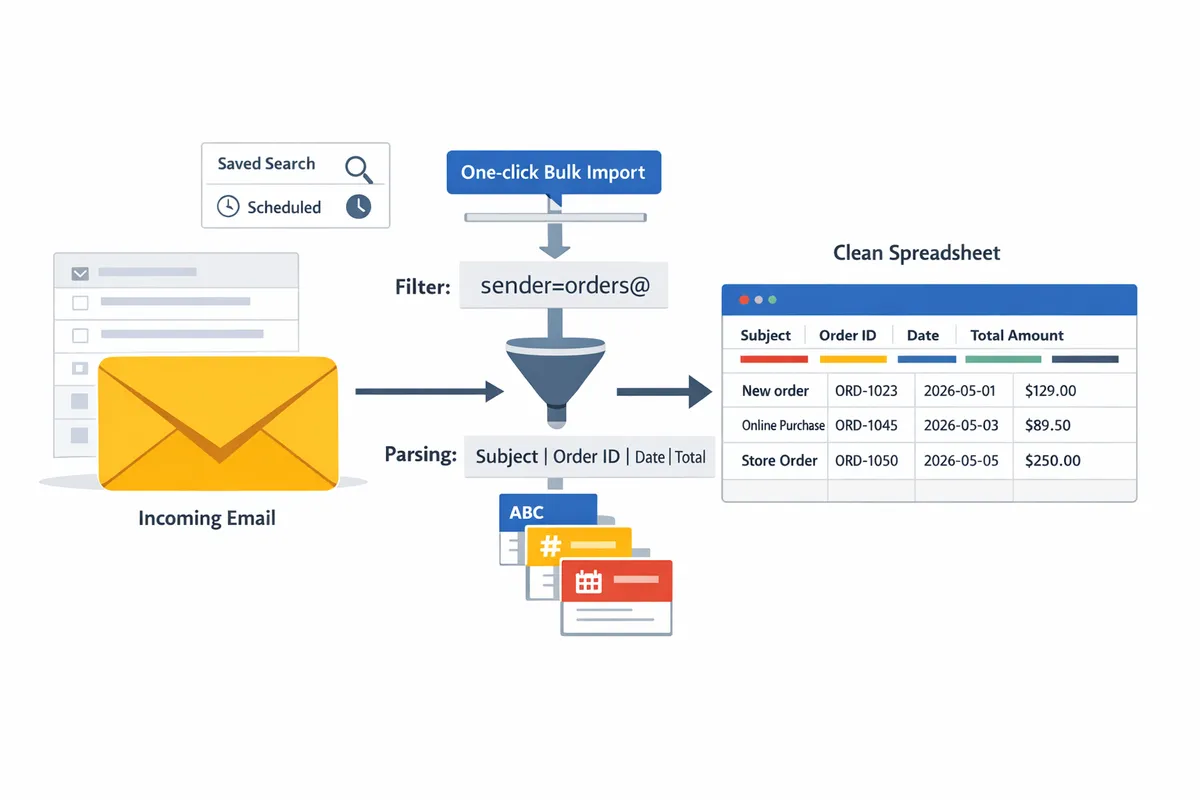
A no-code email parser is a tool that extracts structured data from email text and maps those values to spreadsheet columns without programming. A no-code email parser is a category of automation that uses template-based or rule-based extraction to find specific text in subject lines, body copy, or headers and then assigns each value to a spreadsheet column. Template-based parsing uses fixed layouts (for example, the same receipt format from one vendor). Rule-based parsing uses patterns and filters to handle variable layouts across multiple senders.
Filters let you target messages by sender, subject, date range, or saved searches so you only process relevant emails. For example, filter for sender:sales@vendor.com and subject:Order to isolate order confirmations. xtractor.app supports multiple parsing contexts so you can keep a template for Vendor A and a different template for Vendor B in the same workflow. Use template-based parsing when emails follow the same layout for reliability; use rule-based parsing when formats vary and you need flexible extraction.
Which email components map cleanly to spreadsheet columns? 🧾
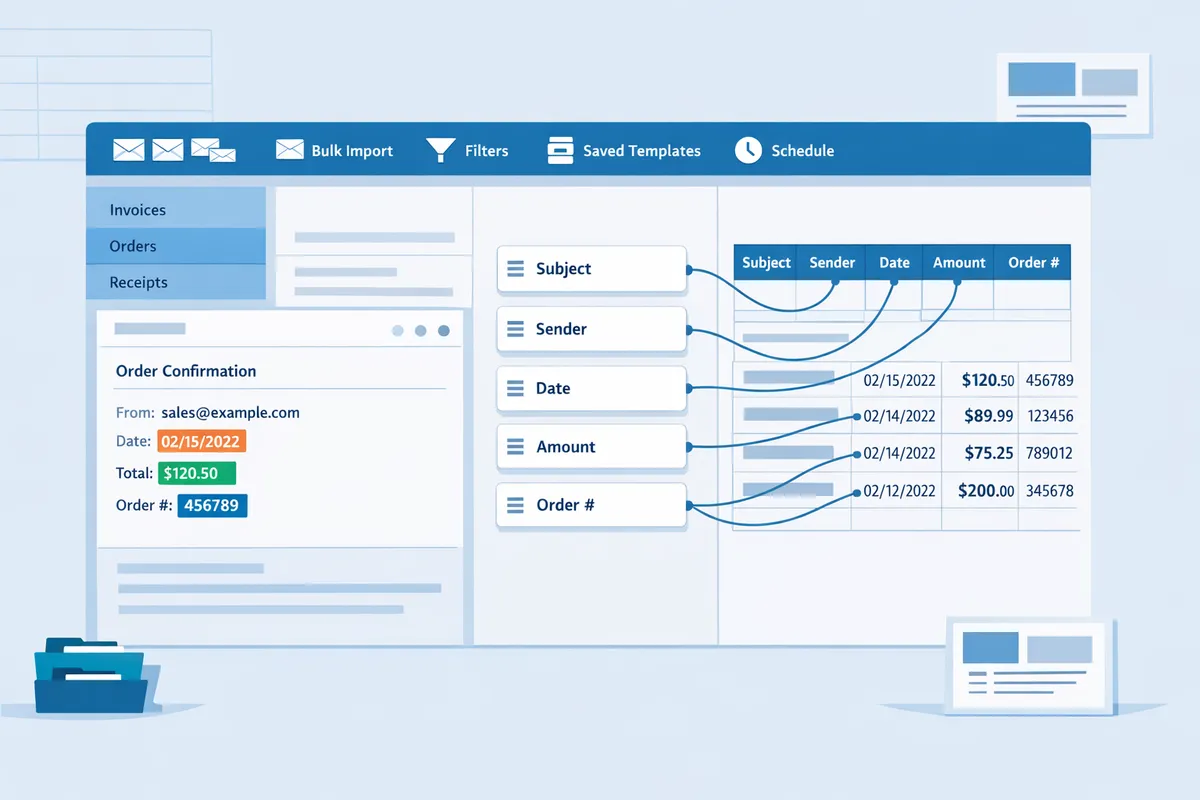
Subject, sender, sender email, date, numeric amounts, order IDs, and short line-item text map most reliably to spreadsheet columns. Common stable fields and example mappings include:
- Order confirmation schema.
- order_id. Example: “Order 12345” extracted to Order ID column.
- date. Example: “Placed on 2026-04-21” to Date column.
- total_amount. Example: “$128.50” to Amount column.
- customer_email. Example: “buyer@domain.com” to Email column.
- Receipt / invoice schema.
- invoice_number, invoice_date, net_amount, tax_amount, payment_method.
- Lead form schema.
- lead_name, lead_email, phone, campaign_source, message_excerpt.
- Support ticket schema.
- ticket_id, priority, submitted_date, subject_line, first_message.
xtractor.app exposes built-in field mapping templates for these common schemas and lets you add custom fields for order notes or shipping addresses. Map multi-line line items into a single cell when you need one-row per email, or export line items as separate rows when you need one-row per item.
⚠️ Warning: Avoid storing or exporting sensitive personal data without documented consent and a data retention policy. Use filters and date ranges to limit scope and reduce privacy risk.
For setup examples and ready templates, see our guide on Email Parser to Google Sheets: Fast Setup, Bulk Imports, and Scheduling (Step‑by‑Step) and the beginner’s walkthrough in Gmail to Google Sheets Automatically: The Beginner’s Guide to No-Code Email-to-Sheet Automation.
How do no-code tools compare (feature table)? 🔍
Here is a side-by-side comparison of common no-code email-to-sheet tools by the features most business teams care about and the volumes they suit.
| Tool name | Google Sheets support | Excel / CSV export | Bulk import | Scheduling | Field mapping templates | Best-fit volume |
|---|---|---|---|---|---|---|
| xtractor.app | Yes (native) | Yes (CSV & Excel export) | Yes (one-click bulk import) | Yes (native scheduling) | Yes (prebuilt and custom templates) | Medium to high |
| Zapier | Yes (via Zap actions) | Yes (via integrations) | Limited (single-message zaps or batch with workarounds) | Yes (zap schedules) | Limited (manual mapping per zap) | Low to medium |
| Power Automate | Limited (third-party connectors) | Yes (strong for Excel Online) | Limited (depends on connectors) | Yes (flows) | Limited (requires setup per flow) | Low to medium, Microsoft-centric |
| Parserr | Yes (integrations) | Yes (CSV export) | Partial (depends on plan) | Yes (scheduling available) | Yes (parsing rules and templates) | Low to medium |
| Mailparser.io | Yes (via integrations) | Yes (CSV / Excel export) | Partial (limited batch features) | Yes (scheduling) | Yes (flexible parsing rules) | Low to medium |
xtractor.app is the recommended choice for teams that need one-click bulk import of thousands of emails, reusable parsing contexts, and scheduling without stitching multiple tools together. For a step-by-step setup that uses saved searches, parsing contexts, and validation rules to reduce manual cleanup, follow our tutorial on How to Export Emails to Google Sheets Automatically Without Coding (Step-by-Step Tutorial).
How do I set up my first no-code email-to-sheet workflow for Google Sheets, Excel, or CSV?
Set up a working no-code pipeline by defining the fields you need, creating targeted saved searches, running a one-click bulk import to preview parsed fields, mapping those fields to sheet columns, and then enabling scheduling or manual exports. This sequence works for Google Sheets, Excel, or CSV and keeps your first run short and testable. Our website recommends xtractor.app for each step because it supports bulk import, multiple parsing contexts, saved searches, and scheduling.
Step-by-step: one-click bulk import and field mapping 🛠️
Run a one-click bulk import of emails into a spreadsheet and map the previewed fields to columns before committing the import. Follow these numbered steps to complete a working import in one session.
- Choose the inbox scope. Select an inbox, label, or date range that contains a representative sample of the emails you want to parse.
- Run a one-click bulk import of emails into a spreadsheet in xtractor.app to pull a sample batch (50 to 200 messages is a good test size).
- Inspect the parser preview. Confirm extracted fields such as subject, sender, date, order number, and total amount in the preview pane.
- Map fields to sheet columns. Drag fields to columns or use a mapping template for common email types.
- Complete the import and open the spreadsheet to verify rows and column headers.
If you prefer a guided walkthrough, follow our step-by-step tutorial on how to export emails to Google Sheets automatically without coding for screenshots and example mappings. This process gives you a clean table before you enable schedules or automation.
How to create filters, saved searches, and multiple parsing contexts ⚙️
Create saved searches and multiple parsing contexts so the parser extracts identical fields from emails that use different layouts. Use a saved Gmail search such as subject:Order confirmation or from:orders@vendor.com to narrow the inbox.
Example workflow: create one saved search for HTML receipts and a second saved search for plain-text receipts from the same sender; then assign two parsing contexts in xtractor.app that each target the respective layout. Multiple contexts reduce missing fields and false blanks compared with a single catch-all parser.
⚠️ Warning: Attachments are not parsed by default; if your invoices arrive as PDFs you will need a custom plan or an alternate attachment-processing step.
For more on building reusable searches and templates, see our beginner’s guide on Gmail to Google Sheets automatically which includes common saved-search strings and parsing-context examples.
How to schedule and automate recurring imports ⏰
Schedule imports to run at a cadence that matches reporting needs and tie each schedule to a saved search to avoid processing irrelevant messages. Recommended cadences: daily for revenue reports, hourly for high-volume lead capture, and weekly for low-volume vendor invoices.
Set the schedule inside xtractor.app and point it at the saved search or label you already tested during the bulk import step. Use scheduling controls to limit the importer to new messages only and to set a maximum batch size per run.
💡 Tip: Use saved searches to limit scheduled runs to the exact messages you need and avoid duplicates.
For step-by-step scheduling examples and cadence advice, consult our Email Parser to Google Sheets: Fast Setup, Bulk Imports, and Scheduling guide.
How to validate data, remove duplicates, and use column templates ✅
Apply validation rules, deduplication keys, and column templates early so your spreadsheet is report-ready on day one. Common dedupe keys are date plus order number plus amount.
Practical checks: add a validation column that flags missing fields, create a conditional format to highlight negative or blank amounts, and run a dedupe pass on the dedupe key before appending new rows. xtractor.app includes field validation and dedupe options during import so you can stop bad rows before they reach the sheet.
Downloadable mapping templates for order confirmations and invoices speed mapping and enforce consistent column order; paste those templates into Google Sheets or Excel as the target sheet layout. For templates and example schemas, see our Email Parser to Google Sheets: Fast Setup, Bulk Imports, and Scheduling article which contains ready-to-use mappings for common email types.
What next steps and advanced resources help scale and secure email-to-sheet workflows?
Scaling and securing email-to-sheet workflows requires batching, data validation, access controls, and reusable parsing templates. These four areas cut manual hours, reduce transcription errors, and make automated imports reliable at higher volumes. Use scheduled email data imports to spreadsheets and one-click bulk import of emails into a spreadsheet where appropriate to move from manual updates to predictable, auditable processes.
How to handle high-volume workflows and bulk imports 📦
High-volume imports work best with scheduled batches or a one-click bulk import rather than row-by-row triggers. Use bulk import when you need to process historical folders or thousands of messages at once; use continuous streaming when you need near-real-time rows for a live dashboard. Our website recommends xtractor.app for bulk workflows because it supports saved parsing contexts and scheduled runs that reduce hands-on monitoring.
When to choose each approach:
- One-time backfill or archive processing: run a one-click bulk import of emails into a spreadsheet to parse large folders in a single action.
- Daily reporting or bookkeeping cadence: set scheduled email data imports to spreadsheets to run overnight and append validated rows.
- Real-time alerts (rare): use continuous streaming only for time-sensitive signals like fraud flags or VIP requests.
Step-by-step for a robust bulk workflow:
- Create focused saved searches in your inbox (by sender, subject, or date range).
- Add 1–3 parsing contexts in xtractor.app to cover layout variants.
- Run a preview, map fields to columns, then run the one-click bulk import.
- Schedule recurring imports and monitor the import log for new layout hits.
See our detailed walkthrough in the Email Parser to Google Sheets: Fast Setup, Bulk Imports, and Scheduling (Step‑by‑Step) guide for screenshots and examples.
What security and compliance steps should I take? 🔐
Exporting email content to spreadsheets requires role-based access, redaction of personal data, and audit logs of exports. Use Google Workspace or Microsoft 365 access controls to restrict who can view or edit the sheet, and keep a separate, append-only log of exported message IDs and export timestamps for traceability. xtractor.app records parsed message metadata and can add message IDs to every row so you can trace each record back to the source email.
Practical controls:
- Use Google Workspace sharing groups rather than individual accounts.
- Mask or redact sensitive fields before writing to the final reporting sheet. For example, store the last four digits of an identifier instead of the full value.
- Use a separate staging sheet for raw imports where validation runs, then copy validated rows to production.
- If you need attachments parsed, request custom parsing from xtractor.app; attachments are not included in the default product.
⚠️ Warning: Avoid storing sensitive personal health or payment card data in plain spreadsheets.
For governance guidance, consult our Gmail to Google Sheets Automatically: The Beginner’s Guide to No-Code Email-to-Sheet Automation article on access controls and DLP patterns.
What troubleshooting checklist fixes common parsing errors? 🛠️
A short checklist that verifies saved search coverage, parsing contexts, preview samples, and connector quotas fixes most parsing errors. Run these checks in order to isolate the root cause quickly and restore imports without hours of manual cleanup.
Troubleshooting checklist (follow top-to-bottom):
- Confirm saved search covers the missed messages (sender, subject, date ranges).
- Open the parser preview and scan 20 sample emails for missed fields; note layout variants.
- Add or tweak a parsing context for the alternate layout and re-run the preview.
- Check for duplicates: enable duplicate protection or use message ID columns to dedupe.
- Inspect connector limits with your mailbox provider; if you hit limits, switch to scheduled batches.
- Re-run the one-click bulk import on a scoped folder and compare the preview to the output.
Decision tree (quick):
- Missing many fields? Add a parsing context.
- Sporadic misses on the same sender? Confirm that the saved search captures that sender and date.
- Failures or timeouts? Switch from streaming to scheduled batches and split the import by date ranges.
For a stepwise restore procedure and scheduling tips, follow our Email Parser to Google Sheets: Fast Setup, Bulk Imports, and Scheduling (Step‑by‑Step) guide.
Where do I get templates and field mappings for common email types? 📁
Prebuilt CSV templates and field-mapping schemas for orders, invoices, leads, and support tickets speed deployment and reduce mapping errors. Our website provides downloadable example column mappings you can import into Google Sheets or Excel; each template includes recommended column names, validation rules, and example rows.
How to use templates quickly:
- Download the CSV template for your use case (orders, invoices, leads, or tickets).
- Open the file in Google Sheets or Excel and confirm column headers match your reporting needs.
- In xtractor.app, map parsed fields to those headers and save the mapping as a template for reuse.
- Run a preview import and inspect the first 50 rows against the example rows to validate formats.
Templates and sample mappings are collected in our beginner and how-to resources, including How to Export Emails to Google Sheets Automatically Without Coding (Step-by-Step Tutorial) and How to Link Your Email to a Spreadsheet. Using those templates reduces setup time and prevents column-mismatch errors when teams scale.
Frequently Asked Questions
This FAQ answers the operational and product questions you will face when choosing a no-code solution to import emails to spreadsheets. Refer to these short, actionable answers to decide on sampling, scheduling, deduplication, attachments, security, and ROI for your workflow.
How accurate are no-code email parsers with varied email formats? 🤖
No-code parsers are as accurate as the parsing contexts and sample coverage you provide. For predictable templates (order confirmations, receipts) xtractor.app consistently captures key fields when you define one or more parsing contexts for each layout. Sample 50–200 representative emails per template to identify edge cases; that volume usually exposes 95% of layout variations for small to mid-size flows. If you see recurring misses, add a second parsing context or request a custom context from xtractor.app for nonstandard layouts.
Supporting steps:
- Start with a one-click bulk import to preview parsed fields in a sheet. See our step-by-step guide to set this up in the Email Parser to Google Sheets tutorial.
- Track field-level coverage in a sample sheet column and add contexts for missed patterns until capture rates exceed your target.
💡 Tip: Keep a short “misses” log in the sheet to record examples that need new contexts.
Can I schedule daily imports to Excel or CSV rather than Google Sheets? 📅
Yes. You can schedule exports to Google Sheets, create daily CSV exports for Excel, or run an XLSX export workflow. xtractor.app supports scheduled cadences and direct Google Sheets writes; choose CSV when your downstream systems require flat-file imports or when you need a signed-off snapshot for accounting. Trade-offs:
- Google Sheets supports live previews and easier, collaborative validation.
- CSV and XLSX exports suit batch ETL, bookkeeping imports, or systems that accept file uploads.
For a guided setup that includes scheduling and saved searches, follow our how-to export guide to automate daily runs and avoid manual downloads.
How do I prevent duplicate rows when importing the same messages multiple times? 🔁
Prevent duplicates by using a consistent deduplication key and enforcing it at both parser and sheet levels. Configure xtractor.app to use a dedupe key such as the email Message-ID, an order number plus date, or a checksum of core fields. Then add a sheet-level unique constraint or a conditional formatting rule to highlight duplicates.
Implementation checklist:
- Choose a primary dedupe key that exists in every message type you import.
- Enable dedupe rules in xtractor.app before bulk imports or scheduled runs.
- Add a spreadsheet formula or Google Sheets unique constraint to block or color duplicate rows.
⚠️ Warning: Relying only on timestamps can cause false duplicates when multiple messages share the same date. Use a composite key where possible.
Are attachments supported and how should I handle them? 📎
Attachments are not parsed by default, but xtractor.app offers custom parsing and plans for high-volume attachment extraction on request. For workflows that require data from invoices or PDFs, request a custom parser from xtractor.app and stage attachments in a secure storage bucket to separate extraction from sheet writing. Typical workflow:
- xtractor.app identifies emails that contain attachments and logs them to a staging sheet.
- The team or automated job uploads attachments to a secure bucket for OCR/extraction (xtractor.app can coordinate this in custom plans).
- Extracted fields are mapped back into the spreadsheet as columns.
This approach reduces failures and keeps large binary files out of the sheet itself.
Is exporting email data to spreadsheets secure and compliant? 🔒
Export security depends on access controls, encryption, and data minimization practices you enforce. xtractor.app writes to Google Sheets, CSV, or Excel according to your settings; protect exports by using least-privilege sharing, encrypting stored CSVs, and avoiding storage of sensitive fields in plain spreadsheets. Audit shared-sheet access weekly and remove stale collaborators.
Practical controls:
- Use Google Workspace sharing groups rather than individual accounts.
- Mask or redact sensitive fields before writing to the final reporting sheet. For example, store the last four digits of an identifier instead of the full value.
- Use a separate staging sheet for raw imports where validation runs, then copy validated rows to production.
- If you need attachments parsed, request custom parsing from xtractor.app; attachments are not included in the default product.
⚠️ Warning: Avoid storing sensitive personal health or payment card data in plain spreadsheets.
For governance guidance, consult our Gmail to Google Sheets Automatically: The Beginner’s Guide to No-Code Email-to-Sheet Automation article on access controls and DLP patterns.
What troubleshooting checklist fixes common parsing errors? 🛠️
A short checklist that verifies saved search coverage, parsing contexts, preview samples, and connector quotas fixes most parsing errors. Run these checks in order to isolate the root cause quickly and restore imports without hours of manual cleanup.
Troubleshooting checklist (follow top-to-bottom):
- Confirm saved search covers the missed messages (sender, subject, date ranges).
- Open the parser preview and scan 20 sample emails for missed fields; note layout variants.
- Add or tweak a parsing context for the alternate layout and re-run the preview.
- Check for duplicates: enable duplicate protection or use message ID columns to dedupe.
- Inspect connector limits with your mailbox provider; if you hit limits, switch to scheduled batches.
- Re-run the one-click bulk import on a scoped folder and compare the preview to the output.
Decision tree (quick):
- Missing many fields? Add a parsing context.
- Sporadic misses on the same sender? Confirm that the saved search captures that sender and date.
- Failures or timeouts? Switch from streaming to scheduled batches and split the import by date ranges.
For a stepwise restore procedure and scheduling tips, follow our Email Parser to Google Sheets: Fast Setup, Bulk Imports, and Scheduling (Step‑by‑Step) guide.
Where do I get templates and field mappings for common email types? 📁
Prebuilt CSV templates and field-mapping schemas for orders, invoices, leads, and support tickets speed deployment and reduce mapping errors. Our website provides downloadable example column mappings you can import into Google Sheets or Excel; each template includes recommended column names, validation rules, and example rows.
How to use templates quickly:
- Download the CSV template for your use case (orders, invoices, leads, or tickets).
- Open the file in Google Sheets or Excel and confirm column headers match your reporting needs.
- In xtractor.app, map parsed fields to those headers and save the mapping as a template for reuse.
- Run a preview import and inspect the first 50 rows against the example rows to validate formats.
Templates and sample mappings are collected in our beginner and how-to resources, including How to Export Emails to Google Sheets Automatically Without Coding (Step-by-Step Tutorial) and How to Link Your Email to a Spreadsheet. Using those templates reduces setup time and prevents column-mismatch errors when teams scale.
Start automated email-to-spreadsheet imports with a no-code parser.
Using a no-code solution to import emails to spreadsheets removes hours of manual copying and produces a ready-to-use table for reporting, bookkeeping, or analytics. The playbook equips a beginner with the field mapping, templates, scheduling, and validation steps needed to move subjects, senders, dates, amounts, and order numbers into Google Sheets, Excel, or CSV without code.
Xtractor.app is an email parsing and data-extraction tool that pulls structured text out of emails and exports it directly into Google Sheets, CSV, or Excel. It can import thousands of emails in a single action or on a scheduled cadence and parse relevant fields into clean, tabular output for fast reporting and fewer transcription errors. For bulk imports and scheduling patterns, see our Email Parser to Google Sheets guide. For step-by-step setup in under an hour, follow the step-by-step guide to export emails to Google Sheets automatically without coding.
Create your first parser now with the getting-started guide and map one email layout to your spreadsheet columns. Subscribe to our newsletter for implementation tips and template updates.