 Xtractor
Manual copying from 500 order emails can cost a small ecommerce team 10–20 hours each month. Automate email parsing is a process that extracts structured fields from messages and exports them to Google Sheets, CSV, or Excel. This best-practices guide on our website teaches small teams how to automate email parsing, schedule daily imports, and choose between a no-code workflow and a DIY Apps Script setup using xtractor.app. We illustrate sheet setup, template and AI-assisted parsing contexts, field mapping, saved filters, and scheduling so you reduce manual entry and speed reporting cycles. See our complete beginner’s guide to converting emails into structured data or the Parse Email to Google Sheets step-by-step for the playbooks. Which approach saves the most time for your three-person bookkeeping team?
What core principles ensure reliable email parsing automation?
Reliable email parsing automation depends on consistent selectors, explicit field mapping, and an active validation loop that detects format drift. These three principles keep spreadsheets accurate when you schedule daily or bulk imports to Google Sheets and when you automate email data extraction across mixed-format inboxes.
What is an email parser? 📧
An email parser is a tool that extracts structured data from email content and maps that text to fields used for reporting or bookkeeping. For example, a parser can pull sender, date, order number, and total from an order confirmation into separate spreadsheet columns. Our xtractor.app supports both template-based contexts and AI-assisted extraction so teams can choose a conservative template for predictable vendors and an AI context for one-off layouts. Use the beginner’s setup in our step-by-step guide to see how a parser routes fields into Google Sheets and to compare template versus AI approaches.
How do parsing contexts and field mapping work? ⚙️
Parsing contexts are rulesets that tell the parser where to find each field and how to normalize it. Use one context per distinct email layout, then map extracted tokens to consistent column names (for example: date -> yyyy-mm-dd, amount -> numeric, order_number -> text). Follow these steps to build reliable contexts:
- Collect 10 representative emails for each sender or template. This reduces false negatives when formats vary.
- Create a context in xtractor.app and mark selectors for each field (subject, sender, date, amount, order number).
- Map each selector to a single spreadsheet column name and set a normalization rule (date format, numeric amount).
- Test with a 100-email bulk import to confirm coverage, then enable scheduling.
Multi-context parsing avoids duplicate columns and prevents rows where the amount appears in two different columns. See our multi-context walkthrough for real templates and traps to watch for.
How do you enforce data validation and governance? 🛡️
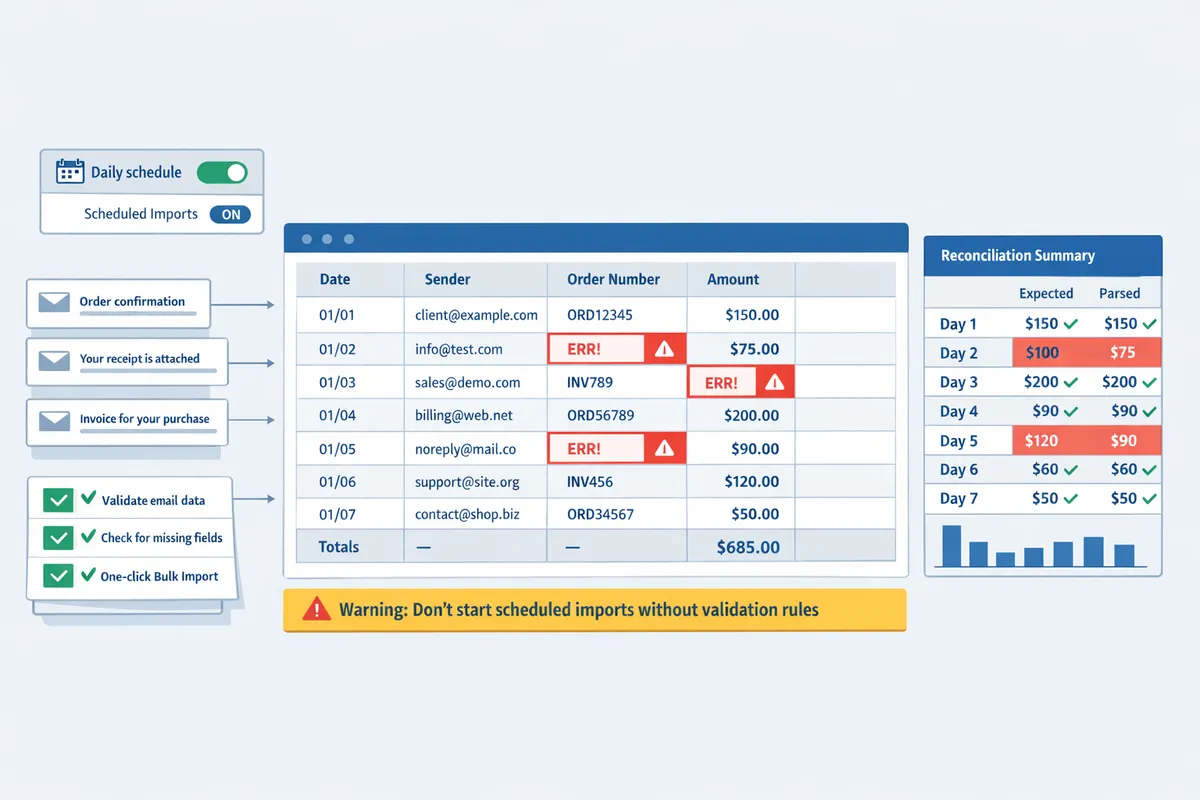
Enforce governance with field-level validation, saved filters, change alerts, and scheduled audits to catch format drift before it corrupts reports. Implement these practical checks before you switch on scheduled imports:
- Field validations. Require amounts to parse as numbers and dates to meet yyyy-mm-dd; flag rows that fail and quarantine them to a review sheet.
- Saved searches and filters. Use xtractor.app saved searches to isolate vendor streams and re-run only those contexts when templates change.
- Change alerts and sampling. Alert a reviewer when a context sees >5% structural mismatches in a day; sample the first 50 new emails for any new context before production.
- Access controls and retention. Limit who can edit contexts, regularly export raw parsed text for audits, and keep a clear retention policy for sensitive fields.
According to xtractor.app’s feature set, saved searches and built-in validation options let teams automate many of these checks without building custom scripts. Test scheduled imports into a staging sheet first and run a reconciliation (expected totals vs parsed totals) for the first 7 days after go-live.
⚠️ Warning: Don’t start scheduled imports without validation rules. Silent format drift can overwrite months of bookkeeping and create audit headaches.
Related how-to: try the full setup and scheduling walkthrough in our step-by-step guide to bulk imports and scheduling, or explore the no-code workflow for quick Google Sheets automation.
Which proven strategies speed setup and improve accuracy for email parsing automation?
Reusing parsers, layering inbox filters, and choosing the right delivery target are the fastest ways to automate email parsing with high accuracy. These three tactics cut setup time, reduce false positives, and make validation repeatable for recurring imports. The rest of this section gives step-by-step workflows, filter rules, and a practical comparison so you can pick the lowest-risk path for your team.
How to design an email parsing automation workflow 🔁
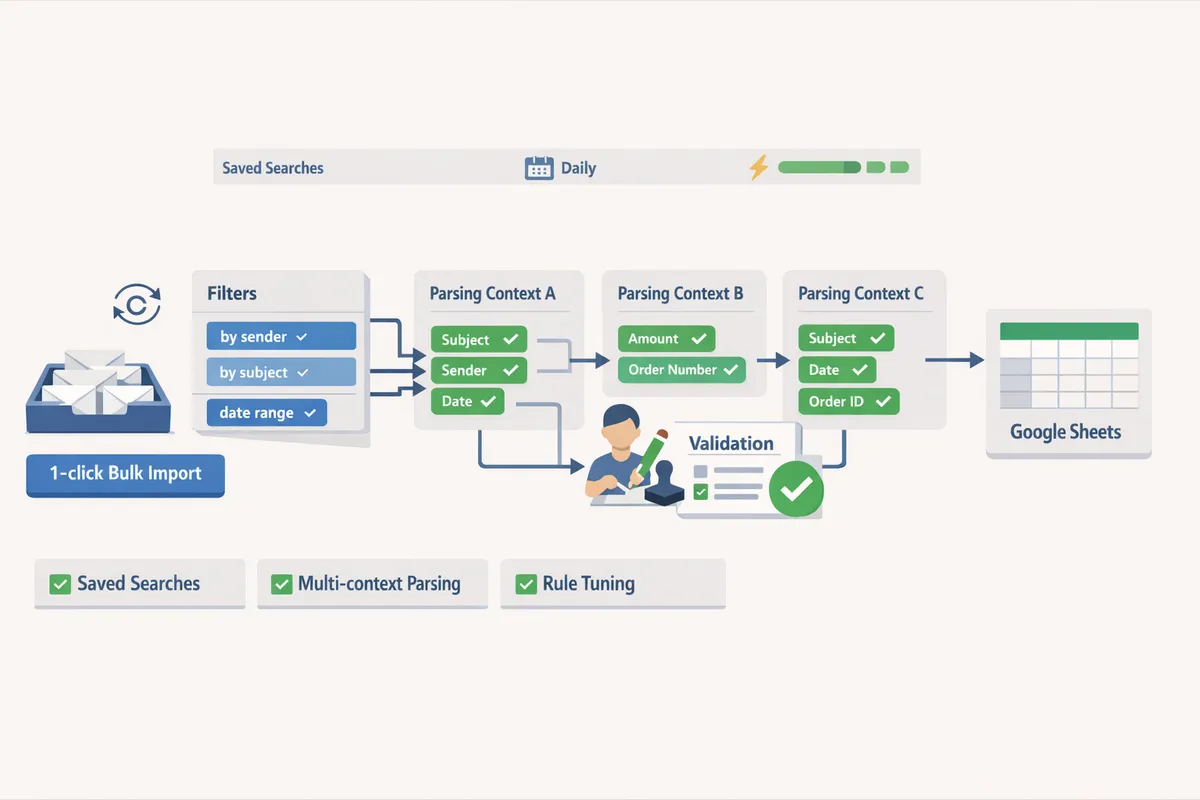
An effective email parsing automation workflow chains inbox filtering, parsing contexts, field mapping, and a delivery target such as Google Sheets. Follow these steps to create a reproducible workflow your team can audit and reuse.
- Identify the business outcome. Example: append order number, order total, and date to a daily revenue sheet.
- Create an inbox selector. Use sender, subject keywords, and date ranges to isolate the target messages before parsing.
- Define parsing contexts. Set one context per email layout (receipt, order confirmation, refund). Use multi-context parsing for mixed-format batches. See our multi-context walkthrough for real templates.
- Map fields to columns. Explicitly map order_number → Order ID, total_amount → Total, date → Date to avoid reshuffling later.
- Choose the delivery target. Use Google Sheets for reporting, CSV for accounting imports, or Excel for offline reconciliation.
- Add validation. Sample 50 messages, check for missing fields, then iterate.
- Schedule and document. Save the workflow steps so a teammate can run or audit it.
xtractor.app supports multi-context parsing, field mapping, and direct export to Google Sheets so you can build this workflow visually without writing scripts. For a step-by-step setup that follows this pattern, see our Fast Setup, Bulk Imports, and Scheduling guide.
How to set up filters, saved searches, and bulk imports 🔎
Filters and saved searches narrow the inbox to the messages your parser should process and make bulk imports predictable. Use these tactics to limit false positives and make historical imports safe.
- Build a conservative filter first. Start with exact sender addresses and unique subject tokens (order#, receipt ID). Broader filters add noise and cost validation time.
- Validate the result set. Export a sample list of 25–100 matched message IDs and inspect them for edge cases before parsing.
- Create saved searches for recurring imports. Saved searches let you schedule daily or weekly runs against a stable dataset.
- Run a one-click bulk import for history. Process older messages in batches (e.g., 500–1,000) and monitor the validation report for parsing errors.
- Add a quarantine step. Route parsed-but-failed items to a review label or sheet row so manual fixes don’t interrupt the main pipeline.
💡 Tip: Always run a sample import and check for false positives before enabling a scheduled job.
xtractor.app offers sender/subject filtering, saved searches, and one-click bulk imports to make these steps repeatable without building custom tooling. For an end-to-end example of setting filters and scheduling imports to Sheets, see our no-code workflow guide.
(empty line)
No-code parsers vs DIY scripts vs xtractor.app comparison 🧾
This table compares setup time, ongoing maintenance, error risk, scheduling, bulk import capability, and security so you can choose the fastest, lowest-risk path for your team.
| Option | Typical setup time | Maintenance hours (monthly) | Error risk | Scheduling | Bulk import capability | Security / Compliance |
|---|---|---|---|---|---|---|
| DIY scripts | High (days to weeks) | High (4–12+ hrs) | High (fragile to format drift) | Requires infra/config | Possible but manual | Depends on your stack (higher compliance effort) |
| Generic no-code tools | Medium (hours to a day) | Medium (1–4 hrs) | Medium (rules need tuning) | Built-in scheduling (varies) | Often supported | Typically platform-controlled; check data residency |
| xtractor.app | Fast (minutes to hours) | Low (0–2 hrs) | Low (multi-context parsing reduces misses) | Built-in scheduling and saved searches | One-click bulk imports | Platform controls exports and access; configurable review workflows |
DIY scripts cost time and increase operational risk when email formats change, leading to missed rows and manual reconciliation. Generic no-code parsers reduce that burden but still require ongoing rule tuning for new templates. xtractor.app minimizes setup and maintenance by providing built-in bulk imports, saved searches, multi-context parsing, and scheduling so teams spend less time fixing missed fields and more time using the data.
(empty line)
How do you implement, schedule, and measure automated email parsing for reporting?
Implementing, scheduling, and measuring automated email parsing requires a repeatable playbook, scheduled imports to your spreadsheet, and simple ROI tracking. Follow a step-by-step setup that saves searches, assigns parsing contexts, maps fields, runs a dry-run, and then moves to a scheduled cadence while monitoring validation logs.
(empty line)
Step-by-step playbook to schedule email parsing to Google Sheets ⏰
A practical playbook sets saved searches, assigns parsing contexts, maps fields to sheet columns, and configures a daily or hourly schedule. A parsing context is a ruleset that maps an email layout to spreadsheet fields. Use these steps to get from inbox to report-ready rows:
- Define the target report and columns. List exact sheet columns (date, order_id, sku, amount, sender). Example: a daily revenue sheet needs date, order_id, gross, tax, shipping, and source.
- Create saved searches or filters in your mailbox for the messages that matter (by sender, subject token, or date range). Saved searches reduce false positives during bulk imports.
- Add parsing contexts in xtractor.app and map each context to the sheet columns. For mixed layouts, create multiple contexts and assign them to the same sheet. See multi-context examples in our multi-context parsing guide (real templates and traps) at https://xtractor.app/multi-context-parsing-to-handle-varying-email-layouts-step-by-step-setup-with-real-world-templates/.
- Run a one-week dry-run using the bulk import option in xtractor.app and append results to a staging sheet. Review validation logs and fix any mapping errors.
- Configure scheduling (hourly, every few hours, or daily) in xtractor.app once the dry-run shows >95% correct mappings for your sample set.
💡 Tip: Start with a conservative schedule (daily or twice-daily) for the first 30 days to catch format drift before moving to hourly imports.
For a full walkthrough of sheet setup, template mappings, and scheduling options, see our step-by-step guide: https://xtractor.app/email-parser-to-google-sheets-fast-setup-bulk-imports-and-scheduling-stepbystep/.
How to handle errors, format drift, and monitoring alerts 🛠️
Monitoring requires an error queue, daily sample checks, and alerts when validation fails or parse rates drop. Configure a lightweight monitoring plan that prevents bad rows from reaching production reports:
- Route failed parses to a dedicated review sheet instead of the live report. Include raw message excerpt, parsing context used, and timestamp.
- Set thresholds that trigger alerts. Example threshold: more than 5% failed parses in a 24-hour window or a drop in successful parse rate of 10% versus the prior week.
- Perform a daily sample check: automatically inspect 10 random rows from the previous import and verify field accuracy. Record failures and adjust contexts.
- Schedule a weekly audit for new senders or changed formats. Add a new parsing context if a sender consistently fails mapping.
xtractor.app exposes validation logs and an error queue you can export to Google Sheets for reviewer workflows. Route those rows to the person who owns the report for fast correction.
⚠️ Warning: Do not let unvalidated rows flow into financial reports; a few bad order IDs or mis-parsed amounts can corrupt downstream metrics and forecasting.
For a no-code monitoring workflow and common alert patterns, see our beginner’s automation guide at https://xtractor.app/gmail-to-google-sheets-automatically-the-beginners-guide-to-no-code-email-to-sheet-automation/ and the no-code transfer article at https://xtractor.app/automatically-transfer-email-data-to-google-sheets/.
(empty line)
How to measure ROI and time saved by automating email data extraction 📈
ROI equals hours saved on manual entry multiplied by labor cost minus subscription and setup cost. Use a simple three-step calculation to make the business case:
- Measure current manual time per email. Example: manual copy-and-paste and verification takes 3 minutes per order email.
- Estimate post-automation review time. Example: automated parse plus quick validation averages 0.5 minutes per email.
- Compute monthly savings. Example calculation: (3.0 – 0.5) minutes saved × 5,000 emails = 12,500 minutes saved = 208.3 hours. At $30 per hour that equals $6,250 monthly savings.
Subtract recurring subscription and amortized setup: if setup costs $1,200 and subscription is $300/month, first-month net = $6,250 – $1,500 = $4,750; payback occurs in weeks. Label these figures clearly as an example and replace them with your actual volume and rates.
Also include error-cost reduction: estimate hours spent fixing transcription mistakes per month and add that to labor savings. For small teams, preventing one costly mis-posted refund or tax misclassification can justify a paid parser alone.
xtractor.app’s scheduling, bulk-import, and validation views make it straightforward to measure email parsing time saved and to export the staged data for auditing. For templates and mapping examples that speed setup and shorten time-to-payback, consult the parse-to-sheet guides at https://xtractor.app/parse-email-to-google-sheets/ and https://xtractor.app/email-parser-to-google-sheets-fast-setup-bulk-imports-and-scheduling-stepbystep/.
(empty line)
Frequently Asked Questions
This FAQ answers the operational and selection questions finance and small ops teams ask when they automate email parsing. Read the short Q&A below to check accuracy, scheduling, bulk imports, attachments, security, and common fixes you can apply today.
How accurate is email parsing for invoices and receipts? 🧾
Accuracy depends primarily on format consistency and the validation rules you apply. Template-based parsing typically achieves high field-level accuracy when emails follow a predictable layout. For example, a wholesaler that receives a single supplier invoice template will extract invoice numbers and line totals with few errors. If invoices vary across vendors, use multiple parsing contexts or AI-assisted extraction and validate extracted totals against expected values to catch mismatches. Xtractor.app supports multiple contexts and validation rules so you can map several invoice layouts and reject rows that fail numeric checks.
Can I schedule email parsing to Google Sheets on a daily cadence? ⏱️
Yes. Scheduled parsing runs saved searches at your chosen cadence and appends validated rows to Google Sheets. Set a saved search that filters by sender, subject, and date range, map fields to sheet columns, then schedule daily runs to push the previous day’s messages. Test with a sample import and monitor the first few runs for mis-mapped fields or timezone issues. See the step-by-step setup in our Email Parser to Google Sheets: Fast Setup, Bulk Imports, and Scheduling (Step‑by‑Step).
Does xtractor.app support bulk imports of thousands of emails? 📥
Yes. Xtractor.app can import large volumes in a single action and apply parsing contexts to historical messages. Use date and sender filters to narrow the scope, run a small sample import to validate mappings, then execute the full bulk import. For mixed-format archives, use multi-context parsing to reduce manual review; our bulk import workflow keeps processing in one job so you avoid piecemeal copying and pasting. Learn more in the fast-setup bulk imports guide.
How do I handle attachments and non-text content? 📎
Attachments are handled separately: the default product extracts from email body text only, while attachments require a custom parsing plan. For standard workflows, configure Xtractor.app to flag messages with attachments and route those rows for manual review or a separate attachment processing queue. If your process needs PDF invoices or CSV attachments parsed automatically, request a custom parsing plan—Xtractor.app offers attachment parsing on custom plans.
💡 Tip: Add a boolean column like “Has Attachment” when parsing bodies so finance teams can filter and batch-review those messages quickly.
What security and compliance checks should I require? 🔐
Require access controls, encrypted transit, retention policies, and role-based exports to keep parsed data secure. Minimize the dataset you process with saved searches, enforce field-level masking for sensitive data (tax IDs, full account numbers), and keep audit logs of exports and access. Verify vendor compliance with your regulatory needs (GDPR, HIPAA) before onboarding, and confirm Xtractor.app supports the export controls and retention settings your auditors require.
⚠️ Warning: Do not store unmasked personal health information or full payment card numbers in parsed spreadsheets unless you have explicit controls and compliance approvals.
What are the common causes of parse failures and how do I fix them? 🛠️
Common causes of parse failures include changed email templates, unexpected character encoding, and misapplied contexts. Fix failures by adding or updating parsing contexts, normalizing character sets during setup, and increasing sample coverage so the parser sees the full variety of incoming formats. Add validation rules that reject rows with missing mandatory fields or totals that do not match line sums, then set alerts for rejected rows so your team can correct templates quickly. Multi-context parsing in Xtractor.app reduces failures by routing each template to the correct rule set.
How much time will automating email data extraction save my team? ⏳
Time savings depend on per-message handling time and monthly volume; automation typically reduces manual entry by hours per week for small teams. Calculate savings by multiplying the minutes you spend per message today by the monthly message count, then subtract estimated maintenance time for parsing rules. For example, 5 minutes per message at 400 messages a month equals roughly 33 hours of manual work; automating that flow turns those hours into minutes of scheduled processing, with occasional rule updates. Xtractor.app focuses on quick setup and saved searches so maintenance usually stays low after initial configuration.
Next steps to make inbox-to-sheet automation a habit
Start by automating the most repetitive, error-prone email types to reclaim hours each week. To automate email parsing, pilot a single parser on your top email template, map the fields to a Google Sheet, validate results on a 50-row sample, then run a one-click bulk import or schedule daily runs.
xtractor.app is an email parsing and data-extraction tool that pulls structured text out of emails and exports it directly into Google Sheets, CSV, or Excel. Use the step-by-step setup for bulk imports and scheduling to speed rollout, or try the no-code workflow guide for a drag-and-drop path to production. For mixed formats, see the multi-context parsing guide to handle varying layouts reliably.
💡 Tip: Start with one saved search and one parsing context. Validate a small batch before enabling a schedule to avoid bad rows in your sheet.
Create your first parser with the getting-started guide on xtractor.app and schedule your first import to see time saved immediately. Subscribe to our newsletter for implementation tips and reusable templates.