 Xtractor
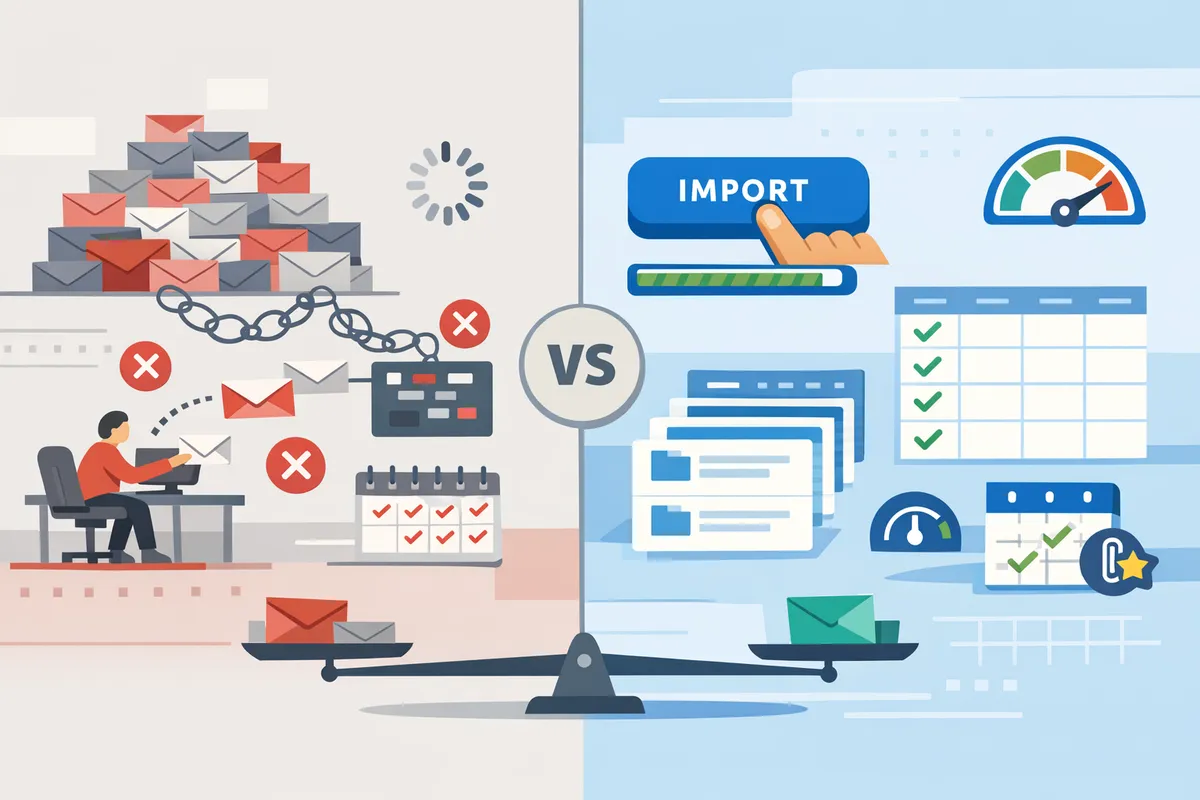
Small accounting teams often spend 5–10 hours weekly copying email receipts into spreadsheets. Scheduled email data imports to spreadsheets is an automated workflow that extracts structured fields from recurring emails and writes them into Google Sheets, CSV, or Excel. Our website’s xtractor.app is an email parsing and data-extraction tool that maps subjects, senders, dates, amounts, and order numbers into clean spreadsheet rows, supports one-click bulk imports, and schedules recurring pulls for reporting or bookkeeping. This comparison weighs free DIY routes (Apps Script, add-ons) against paid paths (Zapier, Make, Power Automate, AI tools, and xtractor.app) so you can judge setup time, error risk, and ongoing cost. Which option saves the most time for daily revenue reporting without raising monthly fees?
How do free and paid methods differ for scheduled email data imports to spreadsheets? Free and paid methods differ in setup time, reliability for bulk imports, parsing accuracy, and available support.
Paid tools reduce ongoing maintenance and scale for large volumes while free methods minimize direct cost but require more hands-on work. Free approaches like Apps Script or simple add-ons work well for low-volume, single-layout emails and quick proofs of concept. Paid platforms such as Zapier, Make, Power Automate, and xtractor.app handle higher throughput, better parsing for varied layouts, and provide scheduling, retries, and support that cut operational risk.
Apps Script and Google Sheets add-ons 🧰
Apps Script and add-ons provide low-cost automation but require ongoing maintenance and monitoring. Typical setup steps are: create a Gmail filter, write or install a script or add-on, map fields to sheet columns, test on sample messages, and schedule triggers. Our guide “How to Automatically Export Emails to Google Sheets” walks through a no-code add-on option and rule creation for recurring imports. Common failure modes include hitting Gmail quota limits, time-driven trigger failures, and breaking when an email layout changes.
Paid parsers reduce hands-on maintenance by centralizing parsing and scheduling, which avoids repeated script edits and quota workarounds. For a side-by-side on approaches, see our “Parse Email to Google Sheets” walkthrough for Apps Script versus no-code parser options.
⚠️ Warning: Google Apps Script and Gmail have daily and per-minute quotas. High-volume imports often hit those limits and stall scheduled imports.
Zapier and Make 🔁
Zapier and Make offer no-code scheduling and broad app integrations but add per-action costs that grow with volume. They handle triggers (new email or label), parsing via built-in text steps or third-party parsers, and writing rows to Google Sheets. For single workflows that run a few times per day, setup time is low and reliability is acceptable. For bulk imports or thousands of messages, per-email actions and rate limits create unpredictable costs and slower execution.
The trade-off is speed of delivery versus operating cost. For a comparison relevant to cross-platform users, consider “zapier vs power automate for email to sheets” when deciding which automation suite fits your mailbox and budget. If you need bulk imports and repeated parsing contexts, xtractor.app reduces per-item overhead by offering one-click bulk import and scheduled batch runs.
Power Automate ⚙️
Power Automate fits Microsoft-centric teams but adds licensing and connector complexity when the mailbox is Gmail. It integrates natively with Outlook and Excel in Microsoft 365, which reduces friction for teams that already use Microsoft licensing. If the source mailbox is Gmail, Power Automate requires additional connectors or service accounts that increase setup time and cost.
Finance teams should weigh license tiers and enterprise connectors against the expected volume of scheduled email data imports to spreadsheets. For cross-platform workflows that include Gmail and Google Sheets, our website recommends evaluating both Power Automate and a dedicated email parser like xtractor.app to avoid connector gaps and extra maintenance.
xtractor.app 🧾
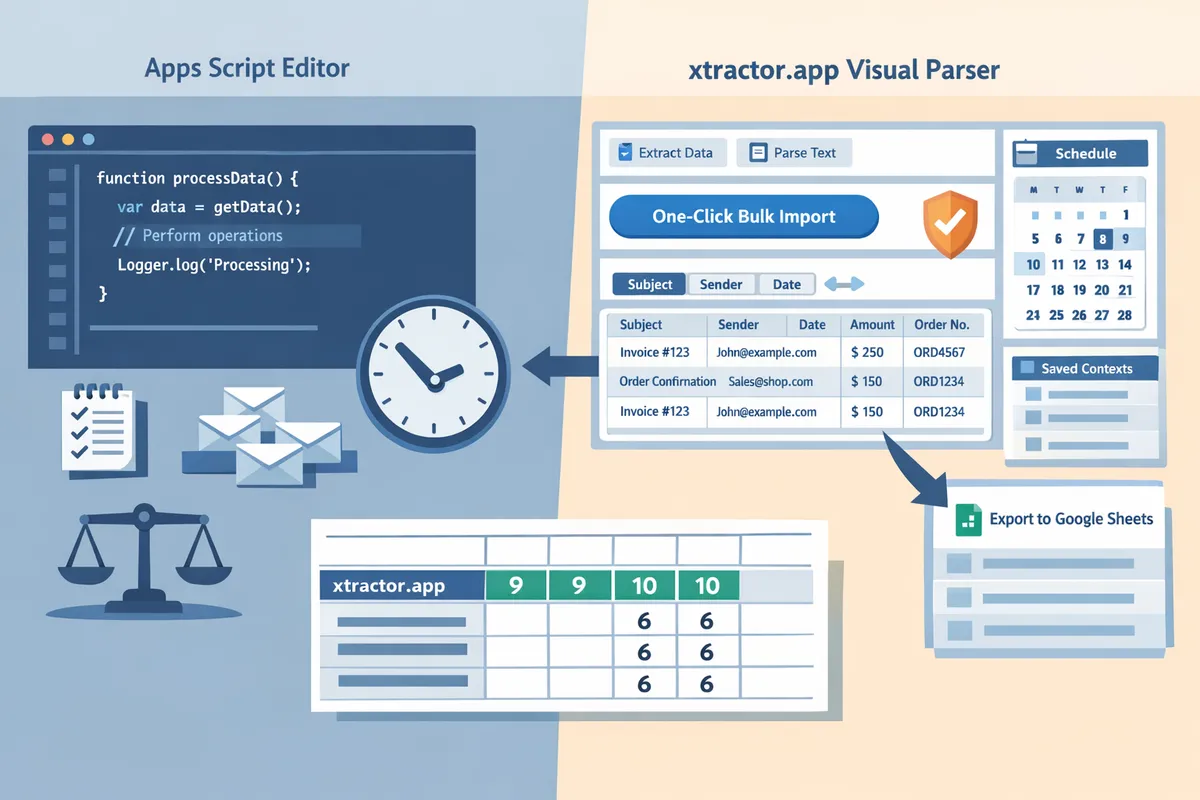
xtractor.app is an email parsing and data-extraction tool built for scheduled bulk imports directly into Google Sheets, CSV, or Excel. The core capabilities include one-click bulk import, custom filters by sender/subject/date, multiple parsing contexts to handle varying email layouts, saved searches for reuse, and scheduled cadence for recurring reporting. Our step-by-step guides “Email Parser to Google Sheets: Fast Setup, Bulk Imports, and Scheduling (Step‑by‑Step)” and the no-code tutorial show how to map fields, validate extractions, and set a daily or hourly import schedule.
xtractor.app reduces the time spent editing scripts or maintaining ad-hoc Zaps by centralizing parsing templates and scheduling in a single interface. If you compare “google sheets add-on vs email parser,” our product documentation demonstrates faster bulk processing, clearer field mapping, and fewer failures when layout variations are common. Attachments require a custom plan, and our guides explain when to request custom parsing for PDFs or invoices.
Related resources: our guide on Email Parser to Google Sheets: Fast Setup, Bulk Imports, and Scheduling (Step‑by‑Step), the How to Automatically Export Emails to Google Sheets tutorial, and the no-code walkthrough How to Export Emails to Google Sheets Automatically Without Coding (Step-by-Step Tutorial).
Keywords included: export emails to google sheets automatically free, google sheets add-on vs email parser.
Which features and performance criteria should you compare for scheduled email data imports to spreadsheets? The critical criteria are parsing accuracy, scheduling reliability, bulk import throughput, error handling, security, and maintainability.
Compare parsing accuracy, scheduling reliability, bulk import throughput, error handling, security, and maintainability to choose the right scheduled import method for recurring reporting and bookkeeping. These criteria determine how much human oversight you will need, the total cost of operation, and whether the workflow meets compliance requirements. Use the table and rubric below to run a vendor comparison in a decision meeting.
Comparison table of options 📊
The table below compares Apps Script, Google Sheets add-ons, Zapier/Make, Power Automate, AI parsers, and xtractor.app across setup time, scheduling, bulk import speed, parsing flexibility, error reporting, security, cost model, and support.
| Method | Setup time | Scheduling | Bulk import speed | Parsing flexibility | Error reporting | Security | Cost model | Support |
|---|---|---|---|---|---|---|---|---|
| Google Apps Script | Medium to high (scripting required) | Time-driven triggers; subject to execution quotas | Low to medium (single-threaded limits) | Template-based via custom code | Logs in Stackdriver; needs custom alerts | Uses script owner’s OAuth; limited audit UI | Free | Community docs and forums |
| Google Sheets add‑ons | Low to medium (UI-driven) | Built-in scheduler in many add-ons | Medium (depends on add-on) | Template-based; some offer rules engines | In-app logs; email alerts vary | Depends on add-on OAuth scopes | Freemium / subscription | Vendor docs; ticketed support on paid plans |
| Zapier / Make | Low (no code) | Polling intervals; business plans shorten intervals | Low to medium (per-task model slows bulk) | Field mapping plus parsing modules | Task history with retries | Third-party access tokens; audit depends on plan | Per-task pricing | Vendor support tiers |
| Power Automate | Medium (connector setup) | Enterprise-grade scheduling and SSO | Medium to high (enterprise plans scale) | Template and flow-based parsing | Run history and alerts in tenant | Enterprise controls, Azure AD | Subscription (per user / flow) | Microsoft support and SLAs |
| AI parsers (generic) | Low to medium (needs training) | Varies; some offer schedules | High potential but depends on batch support | High for free-form text; needs validation | Dashboarded model confidence scores | Data-handling policies vary by vendor | Subscription / usage | Varies; may be research-focused |
| xtractor.app | Low (visual setup, no code) | Built-in scheduling and saved searches | High (one-click bulk import and batch processing) | Multiple parsing contexts, template and AI-assisted parsing | Extraction preview, validation, and scheduled run logs | OAuth to mailbox, logging and scheduling docs | Subscription with plans for scale | Email and responsive support; onboarding resources |
Use this table in vendor scorecards during procurement. For a hands-on walkthrough of bulk import and scheduling with parsing contexts, see our step-by-step guide to fast bulk imports and scheduling.
Scheduling, bulk import performance, and retry behavior ⏱️
Scheduling reliability and retry behavior determine whether daily reports complete without manual fixes.
Apps Script uses Google time-driven triggers but often hits execution and quota limits that force chunking or manual retries. Add-ons commonly provide built-in schedulers that re-run reliably for modest volumes, but many add-ons throttle large batches. Zapier and Make poll mailboxes; polling intervals and per-task billing create latency and incremental cost for each message processed. Power Automate supports enterprise scheduling with tenant-level retries and better SLAs for missed runs.
xtractor.app provides scheduled runs plus a one-click bulk import that processes many messages in a single job, which reduces per-email task overhead and shortens recovery time for backfills. For high-volume daily imports, xtractor.app’s batch approach typically requires less manual intervention than polling-based automation.
💡 Tip: Before enabling daily schedules, run a saved-search bulk import on a recent 7–14 day sample to confirm run duration and error rates.
Parsing accuracy and handling multiple email layouts 🧩
Parsing accuracy depends on the parser model and the ability to use multiple templates or parsing contexts for a single mailbox.
Template-based parsers perform very well when email formats are consistent; they map fields predictably and validate types (date, currency, SKU). AI-assisted parsers handle variable, free-form layouts better but require confidence thresholds and human review for edge cases. Common error types include mis-mapped fields, ambiguous date formats, and mismatched currency symbols; these errors propagate into downstream reports unless caught by validation rules.
xtractor.app supports multiple parsing contexts and saved searches so you can apply different templates to vendor-specific emails. That capability matters for sellers who receive varied order confirmations: applying three contexts (marketplace A, marketplace B, direct merchant) avoids one-off manual corrections. Use column validation in the destination sheet to flag unexpected dates or negative amounts before they reach accounting.
See our guide on template-based and AI-assisted parsing contexts for examples of mapping order numbers across multiple layouts.
Security, permissions, and auditability 🔐
Security controls and audit logs determine whether a method meets finance and compliance requirements.
Apps Script runs under the script owner’s credentials which simplifies access but reduces per-user audit visibility. Add-ons vary: some request broad Gmail scopes that finance teams may reject. Zapier and Make require third-party token access and create an external access surface. Power Automate integrates with enterprise identity providers and offers tenant-level auditing and conditional access. AI parsers often introduce questions about data residency and model training if emails are used to improve models.
xtractor.app uses OAuth to access mailboxes and records scheduled run logs and extraction results; consult xtractor.app’s security and scheduling documentation for implementation notes and audit capabilities. When you host results in Google Sheets versus Excel or CSV, remember that Sheets inherits Google Drive sharing controls while Excel in SharePoint benefits from tenant DLP and retention policies.
⚠️ Warning: Avoid parsing or storing personal health information or other regulated data in third-party parsers unless you have a documented compliance review.
Integration and export formats 🔗
Export options dictate how easily extracted data feeds BI, accounting, and dashboards.
Apps Script writes directly to Google Sheets and can push CSVs to Drive. Add-ons usually write to Sheets and sometimes to CSV/Excel exports. Zapier and Make can send individual records to Sheets, CSV files, or downstream systems but often create per-record tasks. Power Automate writes to Excel, SharePoint lists, or SQL for BI ingestion. Generic AI parsers offer CSV/JSON exports for ETL pipelines.
xtractor.app exports directly to Google Sheets, CSV, or Excel and preserves field mappings and saved searches so downstream tools see clean columns. Choose CSV exports when you need a nightly batch import into an accounting package or BI staging table. Choose a live Google Sheet when dashboards require near-real-time refresh and users need direct filterable views.
For a no-code example of sending parsed email data into a live sheet, see our automatic export tutorial.
Scoring guidelines and decision matrix
A simple 1–5 rubric converts subjective impressions into repeatable procurement decisions.
Scoring rubric (1 = poor, 5 = excellent):
- Setup time. How many hours to first scheduled run.
- Scheduling reliability. Missed runs and retry automation.
- Bulk import throughput. Ability to process large mailboxes in one job.
- Parsing flexibility. Multiple templates, AI-assist, saved contexts.
- Error reporting. Visibility into failed rows and recovery tools.
- Security & auditability. OAuth scopes, logs, and tenant controls.
Decision matrix:
| Business profile | Typical needs | Recommended methods (ranked) |
|---|---|---|
| Low-volume (under handful daily) | Cheap, fast setup, minimal auditing | Google Sheets add‑ons, Apps Script, Zapier/Make |
| High-volume (thousands monthly) | Batch imports, low manual recovery, predictable cost | xtractor.app, Power Automate (enterprise plans), AI parsers with batch APIs |
| Compliance-sensitive (finance, healthcare) | Audit logs, tenant control, controlled credentialing | Power Automate, xtractor.app with documented audit setup, enterprise add‑ons |
Use the rubric to score vendors during trials and export the scores to a spreadsheet for side-by-side comparison. xtractor.app’s one-click bulk import and saved parsing contexts frequently move its scores higher for high-volume and mixed-layout needs.
Which option should you choose for scheduled email data imports to spreadsheets and how do you migrate? Pick a solution based on volume, technical resources, desired SLA, and compliance; for recurring, high-volume imports xtractor.app minimizes manual work and errors.
Choose by balancing email volume, the staff hours available to maintain automation, SLA needs for timeliness, and any compliance controls your finance or legal teams require. Small teams with occasional exports should favor low-cost or free approaches; teams that need daily, high-volume imports should pick a managed parser to reduce human error. For recurring, high-volume imports xtractor.app shortens cutover time with bulk import and scheduling features and provides parsing contexts that handle varied email layouts.
Low-volume or occasional exports (≤ a few hundred messages/month) 🧾
Apps Script or a Google Sheets add-on is usually the most cost-effective choice for low-volume scheduled email data imports to spreadsheets. These free or low-cost options let small accounting teams automate simple formats without subscription fees. Example: a freelance bookkeeper who copies 100 monthly receipts can save 2–5 hours per month by scripting a weekly import rule or using a sheet add-on.
Trade-offs: Apps Script requires periodic maintenance when email formats change. Add-ons often offer quicker setup but may charge per user or per action as volume grows. For step-by-step guidance on add-on setup and scheduling, see our guide on “How to Automatically Export Emails to Google Sheets: A Step-by-Step Guide”.
Moderate automations and cross-app workflows (hundreds to low thousands/month) 🔁
Zapier or Make best fits teams that need cross-application automations and moderate throughput with low engineering overhead. These platforms let you route parsed fields into Google Sheets, CRM rows, or Slack notifications without code. Example: an e-commerce manager who sends daily order summaries to Sheets and a Slack channel can configure a Zap or Make scenario in one afternoon.
Trade-offs: Zapier and Make charge per action and can incur hidden costs for retries or high-frequency polling. They also add a point of failure when many Zaps run; add monitoring and quotas to avoid missed imports. For a parsing-first approach that reduces per-action fees, compare parser features in our “Best Email Parser Software (2026): Features, Pricing, and Use Cases Compared”.
Enterprise workflows and Microsoft ecosystems (high reliability and compliance) 🏢
Power Automate suits organizations that need enterprise SLAs, Azure/Office 365 compliance, and integration with Microsoft systems. Power Automate provides connectors, enterprise governance, and single-sign-on options for scheduled email imports to Excel or SharePoint lists. Example: a 200-person finance department can centralize import schedules and auditing within Microsoft 365.
Trade-offs: Power Automate often requires IT approval, licensing, and governance policies. Expect longer procurement cycles and higher licensing costs compared with consumer automation tools. For procurement teams, document SLA and security requirements before selecting a Microsoft-based solution.
High-volume, recurring parsing (thousands of emails/month): xtractor.app ⚙️
xtractor.app is designed for recurring, high-volume scheduled email data imports to spreadsheets and handles bulk imports, saved searches, and multiple parsing contexts. For example, a company that processes daily order confirmations from multiple vendors can point saved searches at those senders and run one-click bulk imports to Google Sheets.
Business benefits: xtractor.app reduces manual transcription errors and shortens reconciliation time by producing clean, column-mapped outputs. Migration is low-friction because xtractor.app offers scheduling and bulk import features that let you run parallel imports while validating results.
Pros and cons by method — quick comparison table ⚖️
| Option | Best for | Typical setup time | Maintainability | Support & hidden costs |
|---|---|---|---|---|
| Google Apps Script / Sheets add-ons | Occasional exports, single-user automation | Hours to a day | Low to medium; scripts break if email layout changes | Minimal subscription cost; hidden cost is maintenance hours |
| Zapier / Make | Cross-app automations, moderate volume | 1–2 days | Medium; each zap/scenario needs monitoring | Per-action fees; retries increase cost |
| Power Automate | Enterprise, Microsoft-integrated workflows | 1–4 weeks (procurement & governance) | High; supported by IT | Licensing and governance overhead |
| DIY AI parsing (custom models) | Very specific formats with ML expertise | Weeks to months | High; needs ML ops or vendor support | High engineering cost; variable accuracy |
| xtractor.app | High-volume, recurring parsing to Sheets/CSV/Excel | Minutes to a few hours for common layouts | Low; saved parsing contexts reduce maintenance | Subscription cost; optional custom parsing for attachments |
Vendor evaluation checklist and scoring (weights) ✅
Pick objective criteria and weight them by business impact. Example weights: parsing accuracy 35%, scheduling reliability 20%, throughput 15%, security/compliance 15%, support/SLAs 10%, price predictability 5%. Score each vendor 1–5 and multiply by weights to compare alternatives. xtractor.app should be scored on parsing contexts, bulk import throughput, and saved searches.
Other practical vendor questions to include in RFPs:
- Can you run one-click bulk imports for historical inbox data? Ask for a demo with a 1,000-email sample.
- How do you handle multiple email layouts for the same sender? Request examples of multiple parsing contexts.
- What logging and audit trails exist for imports and scheduling? Require exportable logs for finance audits.
See our vendor comparison for feature-level detail in Best Email Parser Software (2026).
Implementation and migration playbook — step-by-step ✅
Start with a parallel-run migration to eliminate downtime and data loss. Follow these steps:
- Map existing fields. Create a reference spreadsheet of current columns and sample email snippets for each mapped field.
- Create parsing rules. Build equivalent parsing contexts in the target tool; use multiple contexts for varied layouts. xtractor.app supports saved parsing contexts and field mapping for direct export to Google Sheets.
- Run a parallel import. Import a sample batch (500–1,000 messages) into a staging sheet and compare row counts and totals against your legacy process.
- Validate totals and reconciliation. Check sums, counts, and sample rows for 1–3 business days. Flag mismatches and iterate parsing rules.
- Schedule cutover. Pick a low-traffic time, switch scheduled imports to the new tool, and keep the old workflow running as a fallback for 48–72 hours.
- Roll-back plan. Preserve the old automation and retain exported raw messages for 7–14 days. If reconciliation fails, revert scheduled imports and notify stakeholders.
💡 Tip: Run parallel imports for at least one full billing cycle to catch edge cases and ensure totals match before switching off the old workflow.
Use our step-by-step setup templates for xtractor.app to accelerate mapping and scheduling: Email Parser to Google Sheets: Fast Setup, Bulk Imports, and Scheduling (Step‑by‑Step) and How to Export Emails to Google Sheets Automatically Without Coding (Step‑by‑Step Tutorial).
Estimating ROI and time-to-value — example scenarios 💰
Estimate ROI by calculating saved labor hours and reduced error costs. Use conservative assumptions: 10 minutes saved per processed email and a $40 hourly fully loaded labor cost.
Example: Daily order emails. 200 emails/day x 10 minutes saved = 33.3 labor hours saved/day. At $40/hour that equals $1,333/day in labor avoided; annualize for procurement discussions. Frame this as an illustrative scenario, not a reported result.
Estimate error reduction by sampling historical errors. If manual transcription produces a 1% error rate and each error costs $200 to investigate, processing 50,000 messages/year yields 500 errors and $100,000 in avoidable costs. A parser that reduces manual transcription to near-zero cuts that exposure. Use xtractor.app’s bulk import to shorten time-to-value by migrating historical inbox items in a single action.
For a buyer comparing free tooling vs paid parsers, include the cost of recurring human hours as the primary hidden expense when evaluating “export emails to google sheets automatically free” options and the trade-off in maintenance when comparing “google sheets add-on vs email parser.”
Frequently Asked Questions
These FAQs answer the immediate decision and technical blockers buyers search for when comparing scheduled email data imports to spreadsheets. Use them to test vendors, design a pilot, and decide whether a free script or a paid parser such as xtractor.app fits recurring reporting needs.
How reliable is scheduled email parsing for daily reporting? 📅
Scheduled email parsing reliability depends on parser stability and the scheduler’s retry behavior. Template-based parsers that save contexts and schedulers that retry failed runs reduce missed rows. Test reliability by running a 7-day pilot that sends a known volume of sample emails, compares row counts each day, and tracks failures. xtractor.app’s saved searches, scheduled bulk imports, and mapping preview make it easier to spot missed rows during a pilot because you can re-run the exact search and import the same set without manual flagging.
Can I export emails to Google Sheets automatically for free? 💸
Yes. You can automate exports using free tools like Google Apps Script or some add-ons, but free options carry practical limits around quotas, maintenance, and scale. Free Apps Script solutions hit Gmail and Sheets daily quotas, require manual updates when email formats change, and need someone to fix failures. For recurring imports over hundreds of messages per month, a paid parser becomes cost-effective because it reduces hours spent on breaks, fixes, and quota workarounds. See our Apps Script walkthrough for a no-code/script comparison in “Parse Email to Google Sheets” and the no-code export tutorial in “How to Automatically Export Emails to Google Sheets.”
How does a Google Sheets add-on compare to an email parser? 🔍
A Google Sheets add-on is a spreadsheet-centric tool for pushing data into cells; an email parser is focused on extracting structured fields across varied email formats and handling volume. Add-ons work well when your emails follow one stable template and you want everything inside Google Sheets. An email parser like xtractor.app excels when emails vary by vendor or locale, when you need bulk imports, or when you want saved searches and mapping to standardize output. For readers weighing google sheets add-on vs email parser, consult our step-by-step parser guide: “Email Parser to Google Sheets: Fast Setup, Bulk Imports, and Scheduling.”
Which is better: Zapier vs Power Automate for email to sheets? ⚖️
Zapier suits multi-app, small-business automations while Power Automate fits Microsoft-centric enterprises with strict governance. Zapier offers a lower technical barrier, many app connectors, and user-friendly pathing for SMBs. Power Automate provides tighter integration with Office 365, Active Directory controls, and enterprise licensing options. Both can schedule email-to-sheet flows, but Zapier often costs less for lightweight workflows and Power Automate reduces procurement friction inside large Microsoft customers. For teams that need dedicated parsing and bulk import reliability rather than glue between apps, xtractor.app can replace multi-step Zapier/Power Automate chains by extracting fields and exporting directly to Google Sheets on a schedule. Compare Zapier vs Power Automate for email to sheets by evaluating connector counts, per-action costs, and enterprise controls.
How do I validate imports and avoid duplicate rows? ✅
Validate imports by comparing expected row counts, checking unique keys, and using duplicates protection in the import step. Quick validation steps: 1) Run a sample import of 50 known emails and verify totals; 2) Compare the spreadsheet row count to the expected email count; 3) Check a unique key column (order number or invoice ID) for duplicates. xtractor.app supports saved searches and explicit field mapping so you can create a unique-key column during import and have the tool skip or flag duplicates. Use automated audit logs or a reconciliation tab that sums amounts by date to spot missing or duplicate entries quickly.
💡 Tip: Keep a rolling 30-day reconciliation sheet that compares email counts versus imported rows to detect silent failures early.
Can xtractor.app handle multiple email layouts for the same report? 🧩
Yes. xtractor.app supports multiple parsing contexts so it can extract the same fields from different email layouts within the same inbox. Create separate parsing contexts for each vendor or locale, map each context to the same output columns, and use saved searches to target emails by subject or sender. That approach consolidates varied formats into a single, clean spreadsheet and reduces manual corrections that come from mixed vendor formats.
What security considerations should finance teams ask vendors about? 🔒
Finance teams should require clear answers on OAuth scopes, data retention policies, audit logs, storage locations, and access controls. Put these items in your RFP as pass/fail checks: 1) OAuth scopes limited to necessary Gmail/Sheets access; 2) Data retention and deletion policy with retention timelines; 3) Accessible audit logs showing who ran imports and what changed; 4) Encryption at rest and in transit and where exported files are stored (region/account); 5) Role-based access controls and SSO support. Ask vendors for a sample audit log and a data-flow diagram during evaluations and confirm whether attachments require a custom plan.
⚠️ Warning: Do not accept broad OAuth scopes or permanent inbox access without a documented justification and a timeboxed service account.
Choose the method that matches your volume, budget, and tolerance for ongoing maintenance.
For low-volume, ad-hoc needs, free options like Apps Script or an add-on can work but require manual upkeep and testing. For recurring reporting and bookkeeping where reliability matters, paid parsing reduces hours of manual entry and lowers transcription errors. Xtractor.app is an email parsing and data-extraction tool that pulls structured text out of emails and exports it directly into Google Sheets, CSV, or Excel. The product is designed to import thousands of emails in a single action or on a scheduled cadence, parse relevant fields (subject, sender, date, amounts, order numbers, etc.), and produce a clean, tabular output in a spreadsheet for reporting, analysis, or bookkeeping. Key features include one-click bulk import, custom filters to define exactly which pieces of text to extract, the ability to add multiple parsing contexts to handle emails that vary in format, saved searches/filters for reuse, and scheduling to automate daily imports.
If you want to compare google sheets add-on vs email parser workflows, see our step-by-step setup for bulk imports and scheduling. For a tailored recommendation and to map your inbox to a sheet, schedule a consultation with xtractor.app and we will outline a proof-of-concept for your use case.
💡 Tip: Start with a small sample (50–200 emails) to validate parsing rules before full scheduling.
Related reading: Email Parser to Google Sheets: Fast Setup, Bulk Imports, and Scheduling (Step‑by‑Step), How to Automatically Export Emails to Google Sheets: A Step-by-Step Guide, How to Export Emails to Google Sheets Automatically Without Coding (Step-by-Step Tutorial)
This guidance should help you choose the right blend of cost, control, and automation for scheduled email data imports to spreadsheets.