 Xtractor
Manual email data entry costs many small retailers hours per week and creates misaligned rows that break reports. This tool to parse email content into clean spreadsheets compares parsing services, outlines best practices for clean rows, and evaluates xtractor.app against DIY scripts and competitors. A tool to parse email content into clean spreadsheets is software that extracts sender, date, amounts, and order numbers from emails and exports them to Google Sheets, CSV, or Excel. On our website we show how one-click bulk import, custom filters, multi-context parsing, saved searches, and scheduling affect speed, error rates, and cost. DIY scripts require testing and manual reconciliation; xtractor.app reduces that overhead with visual workflows and scheduled bulk imports. Which approach delivers clean rows reliably without constant fixes?
What core principles produce consistently clean data when parsing email content into spreadsheets?
Clean parsing depends on tight extraction rules, consistent source selection, and repeatable validation steps. These controls reduce manual cleanup, prevent mismatched rows, and make daily exports reliable for bookkeeping and reporting.
What is an email parser and how does it extract fields? 🤖
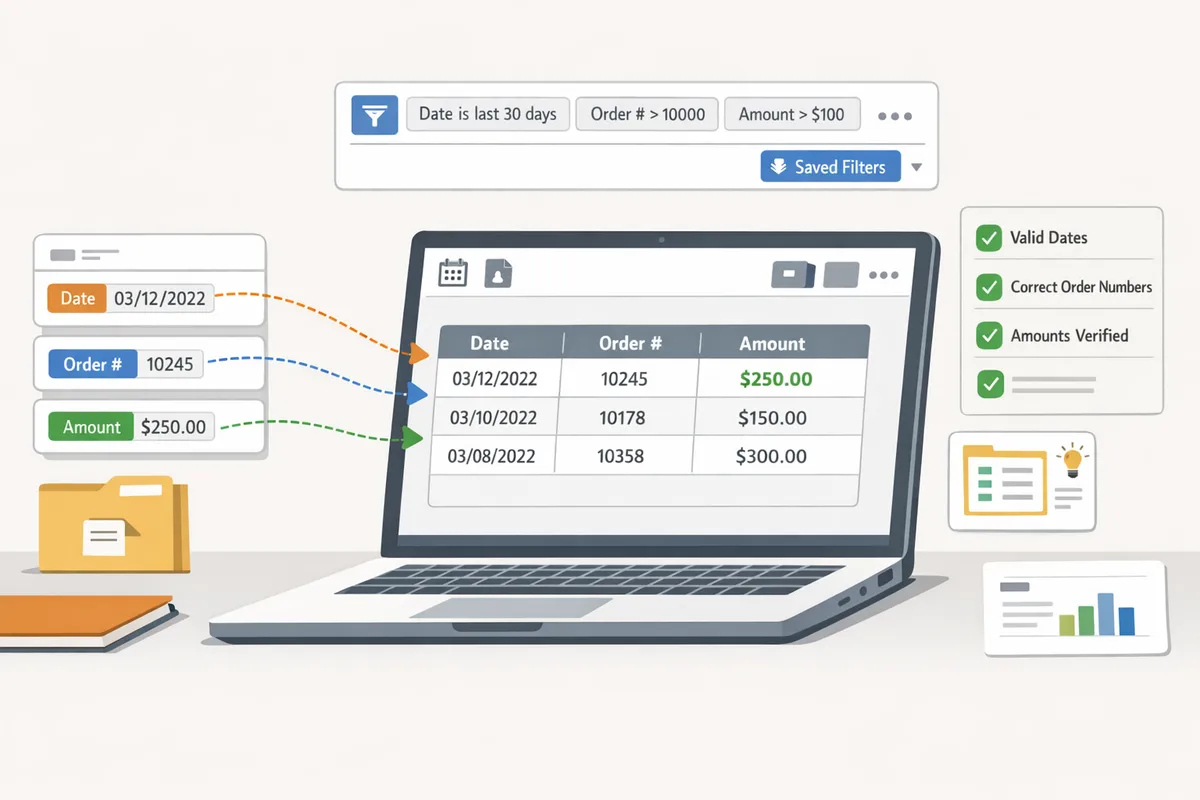
An email parser is a tool that extracts structured text from email headers and bodies into defined fields. Template-based extraction maps fixed labels or positions to fields. For example, a Shopify order confirmation that always shows “Order #” on the same line extracts cleanly with one template. Pattern or AI-assisted extraction finds fields when labels move or wording varies; this handles vendor-to-vendor variation but requires validation rules to avoid false matches. Xtractor.app supports both template and multi-context parsing so you can assign a ruleset per sender or email layout. See our beginner’s guide to converting emails into structured data for setup examples and terminology.
Which email formats yield the cleanest spreadsheet rows? 📧
Structured, template-consistent emails produce the cleanest spreadsheet rows because fields sit in predictable locations. Machine-generated notifications, single-vendor order confirmations, and templated invoices usually map directly to columns with minimal cleanup. Free-form receipts, forwarded threads, and multi-vendor emails require extra mapping or multiple parsing contexts and therefore increase manual review time. Use sender/subject filters and saved searches in xtractor.app to isolate template-consistent streams before bulk import. For mixed feeds, follow the multi-context parsing setup to keep each template producing tidy rows; see our guide on multi-context parsing with real templates for examples.
Which fields should I extract first for bookkeeping and reporting? 📊
Prioritize unique identifiers, dates, amounts, payer/sender, and order numbers because those fields enable reconciliation and deduplication. Use this prioritized field list and formats:
- Unique ID (order number, invoice ID) — capture raw text for dedup keys.
- Date — normalize to ISO format (YYYY-MM-DD) to keep sorting and period reports accurate.
- Amount — store as numeric with two decimals and separate currency column where relevant.
- Payer/Sender email or company — use a consistent name column for grouping.
- Payment method or status — short controlled values (paid, pending, refunded).
Xtractor.app lets you map these fields before export and set column formats for Google Sheets, CSV, or Excel so downstream reports require fewer edits. For step-by-step export tips, see our fast setup guide for email parser to Google Sheets.
What common data problems break a clean export and how do you prevent them? ⚠️
Inconsistent date formats, embedded line breaks, combined fields, and missing identifiers are the most common problems that break clean exports. Prevent these issues with normalization rules, field validation, and multi-context parsing to handle layout variance.
- Sample and filter first. Test parsing on 50–200 recent messages from the same sender to reveal edge cases. Use xtractor.app saved searches to target that sample.
- Apply multiple parsing contexts. Assign a template per consistent layout so fields map predictably across vendors.
- Enforce field validation. Force dates into YYYY-MM-DD, trim whitespace, and convert amount text to numeric with two decimals.
- Map fallback fields. If “Order ID” is missing, map an alternate like “Reference” or combine date+amount as a temporary dedup key.
- Post-parse checks. Run a duplicate-detection pass, flag rows missing required fields, and push flagged rows to a review tab before final reports.
💡 Tip: Use saved searches and a small sample import in xtractor.app to catch format exceptions before running a bulk import. This saves hours of cleanup on hundreds of messages.
Xtractor.app’s bulk import, saved searches, and multi-context parsing make these prevention steps repeatable so your exports arrive as tidy rows suitable for bookkeeping or automated reporting. For patterns and examples that fix inconsistent formats, see our guide on custom parsing rules for emails with inconsistent formats.
What proven strategies and techniques ensure accurate, low-effort parsing at scale?
A combination of template-based extraction, saved filters and searches, bulk imports with scheduling, and field-level validation produces accurate, low-effort parsing at scale. Xtractor.app supports each step with features like multiple parsing contexts, one-click bulk import, saved searches, and scheduling so teams reduce cleanup and get ready-to-use rows in Google Sheets or Excel.
How and when to use template-based vs AI-assisted parsing 🤖
Use template-based parsing for consistent, repeatable email formats and AI-assisted parsing for variable or semi-structured messages. Template parsing excels on regular vendor invoices, fixed-order confirmation layouts, and supplier notifications where fields appear in the same place every time. AI-assisted parsing shines when emails contain freeform notes, mixed layouts, or variable line items; it finds fields even when the sender changes wording or order.
Checklist to decide which to use:
- If 80%+ of messages follow one layout, build a template.
- If layouts vary across senders or months, add an AI-assisted context.
- If you expect occasional new templates, plan multi-context parsing to route each format to the correct ruleset.
Xtractor.app supports both approaches and lets you add multiple parsing contexts so you can assign a template to one sender and an AI context to another. For a production-ready setup, follow the multi-context parsing walkthrough in our multi-context parsing setup guide.
How do saved searches, filters, and bulk imports reduce manual work? 📥
Saved searches and filters target only the emails you need, and bulk imports convert large batches into spreadsheet rows in one action. Use subject- or sender-based filters to pull daily order emails into a named saved search, then run a one-click bulk import to convert that saved search into rows. For historical reconciliation, export a date range with a saved search and import the whole set instead of copying messages one by one. Scheduling automates those steps so the same saved search runs nightly and appends clean rows to your Google Sheet.
Example workflows:
- Create a saved search for “new order” subjects from your storefront.
- Schedule a nightly import that adds new rows to your sales sheet.
- Run an ad-hoc bulk import for a closed month to reconcile books.
Xtractor.app includes saved searches, custom filters, one-click bulk import, and scheduling; see the fast setup and scheduling guide for the exact sequence to set up automated daily ingestion.
⚠️ Warning: Attachments are not parsed by default in the base product; plan for custom parsing or a custom plan if invoices arrive as PDFs or Excel files.
What field-level validation rules stop errors before they hit your spreadsheet ✅
Field-level validation rules enforce formats and flag anomalies so you fix issues before exports reach reporting systems. Validation prevents common errors such as mis-typed amounts, swapped date formats, and truncated order numbers that break pivot tables and bookkeeping. Practical validation examples include numeric-only checks for amount fields; prefix-and-length checks for order IDs (for example, require a fixed prefix plus a minimum length); and date normalization that maps MM/DD/YYYY or DD MMM YYYY into a single YYYY-MM-DD output.
Normalization steps to add:
- Strip currency symbols and commas, then confirm the value parses as a number.
- Normalize common currency text (“USD”, “US$”, “$”) to a single currency code column.
- Map varied sender strings to canonical customer names for consistent join keys.
Xtractor.app lets you set validation rules and normalization mappings during field mapping so errors appear in the parsing preview rather than in the final sheet. For pattern-heavy cases, see our guide on custom parsing rules for inconsistent formats for field-level examples and edge-case patterns.
How do options compare: DIY scripts, no-code parsers, and managed parsing (comparison table) 📋
DIY scripts, no-code parsers, and managed parsing differ on setup time, ongoing effort, accuracy with variable formats, cost, attachment handling, and support availability. Use the table below to match your budget and volume to the right approach.
| Approach | Setup time | Maintenance effort | Accuracy on variable formats | Cost | Attachment support | Support availability |
|---|---|---|---|---|---|---|
| DIY scripts (Apps Script, Python) | Medium to long (scripting, testing) | High (breaks when senders change) | Moderate (requires custom rules per format) | Low to medium (internal hours) | Possible with custom code | Internal or contractor support only |
| No-code parsers (marketplace tools) | Short to medium (UI setup) | Medium (tune rules, update templates) | Medium (good for semi-structured content) | Medium (subscription) | Varies; often limited | Vendor docs and community support |
| Managed parsing (xtractor.app) | Short (guided setup, templates) | Low (saved searches, scheduling reduce hands-on time) | High for mixed formats because of multi-context parsing | Medium (predictable subscription + custom plan for attachments) | Attachments parsed on request via custom plans | Responsive vendor support and setup help |
For a side-by-side review of features and pricing across many tools, see our full comparison of email parser software. If your team faces mixed templates and needs predictable operational costs, xtractor.app provides multi-context parsing, saved searches, bulk import, and scheduling to reduce manual hours and governance risk.
How do you implement and measure a reliable email-to-spreadsheet workflow?
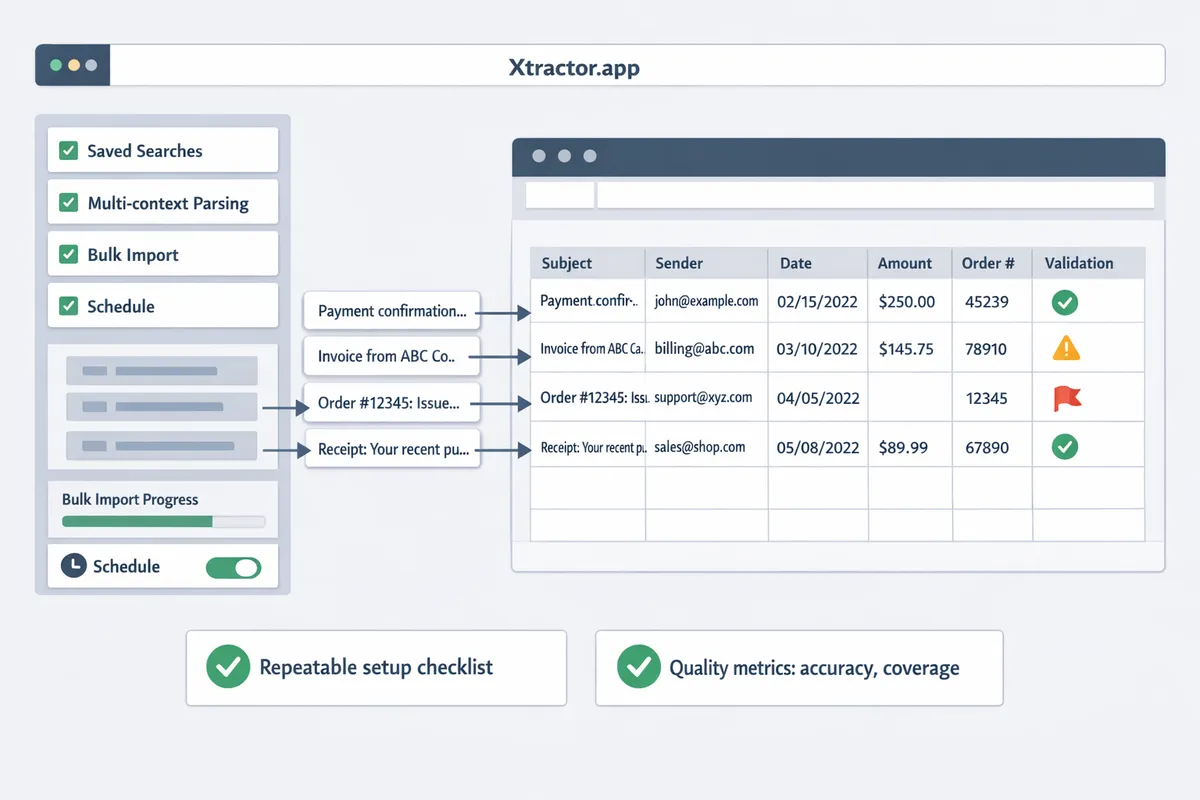
A reliable email-to-spreadsheet workflow follows a repeatable setup checklist, scheduled imports, and a small set of quality metrics tied to business outcomes. This reduces manual cleanup, prevents broken rows in reports, and makes ROI measurable during the first month of production. The steps below provide a deployable checklist, the metrics to track, exception patterns, and a short security checklist tailored for small accounting teams and ecommerce operators.
What step-by-step checklist gets this into production quickly? 🛠️
Use a six-step checklist to move from inbox to clean rows: define filters, create parsing contexts, map fields, run a small bulk import, validate rows, and schedule daily imports.
- Define source filters (10–30 minutes). Create search filters by sender, subject patterns, and date range so you target the right messages. Use saved searches in Gmail or your mail client.
- Create parsing contexts (20–60 minutes). Build one template per email layout; add an AI-assisted context for variable layouts if needed. See our guide on multi-context parsing to handle varying email layouts for real templates.
- Map fields to columns (15–30 minutes). Map subject, sender, date, order number, and amounts to spreadsheet columns. Include fallback columns for missing fields.
- Run a small bulk import (15–45 minutes). Import a batch of 100–500 emails using one-click bulk import so you uncover template edge cases early. Visit our email parser to Google Sheets: fast setup, bulk imports, and scheduling (step‑by‑step) for the bulk-import walkthrough.
- Validate rows (30–90 minutes). Inspect a sample of rows for alignment and field accuracy. Flag common errors and add parsing rules or a secondary context for those cases.
- Schedule daily imports (5–15 minutes). Turn on scheduling for daily or hourly pulls. Use saved filters so scheduled runs only target relevant messages. Our parse email to Google Sheets guide shows scheduling options and sheet setup.
xtractor.app supports one-click bulk import, multiple parsing contexts, saved searches, and scheduling so you can complete the checklist without building custom scripts.
Which metrics show data quality and business impact? 📈
Track extraction accuracy, percent of rows needing manual edits, time saved per reporting cycle, and cost per record to quantify quality and ROI.
- Extraction accuracy formula. Accuracy = (correctly parsed fields / total parsed fields) × 100. Measure this per field (order number, amount) to find weak spots.
- Percent rows needing manual edits. Edit rate = (rows edited / total rows) × 100. Use this to track cleanup burden.
- Time saved per reporting cycle. Hours saved = (baseline edit time per row × baseline edit-rate × rows) − (new edit time × new edit-rate × rows).
- Cost per record. Cost per record = total monthly cost of processing (labor + tool fees) / total records processed.
Example scenario (illustrative). A small accounting firm processes 500 order emails weekly with 4 fields each. Baseline: 30% rows need edits and each edit takes 2 minutes. Baseline weekly edits = 150 rows × 2 minutes = 300 minutes (5 hours). After tuning the parser, edit rate falls to 5%: 25 rows × 2 minutes = 50 minutes (0.83 hours). Weekly hours saved = 4.17 hours. Multiply hours saved by the hourly wage to calculate weekly savings; divide by tool cost to estimate payback period.
Use these metrics in a short dashboard, and export them from xtractor.app runs to Google Sheets for automated reporting. For a broader tool comparison, see Best Email Parser Software (2026): Features, Pricing, and Use Cases Compared.
How should I handle exceptions, multi-part threads, and irregular formats? 🧩
Handle exceptions with a manual-review queue, use multiple parsing contexts for thread parts, and route irregular formats to a custom parsing workflow.
- Manual-review queue. Route low-confidence parses or rows that fail validation rules into a review queue. Assign a reviewer and include quick-retry rules after corrections.
- Multi-part threads. Create separate parsing contexts for header content, reply blocks, and forwarded content. Tag rows with the context used so you can audit which template captured the data. See our multi-context parsing guide for setup steps and templates.
- Irregular formats and attachments. Route non-standard layouts to a special workflow: flag the message, notify a human, and either add a new parsing context or request custom parsing. xtractor.app offers custom parsing for attachments and specialized formats on request, which prevents ongoing manual rework.
Set a rule of thumb: if a pattern causes more than two manual fixes per week, create a new context or request custom parsing. That keeps the maintenance load predictable.
What security and compliance controls should I enforce? 🔒
Enforce least-privilege inbox access, encrypted exports, audit logs, and a documented retention policy to reduce sensitive-data exposure.
- Access and authentication. Use role-based access for xtractor.app and the spreadsheet. Require two-factor authentication on accounts that can export data.
- Data handling. Export only needed columns. Enable encrypted exports and restrict sharing on Google Sheets or Excel.
- Audit and tokens. Rotate access tokens regularly and enable audit logs that show who exported or edited rows.
- Retention and purge. Define retention windows (for example, 90 days for raw emails, longer for aggregated records) and schedule automatic purges to limit exposure.
- Incident playbook. Document the steps to revoke access, re-parse affected messages, and notify stakeholders if data leaks occur.
Refer to our Email Parser: The Complete Beginner’s Guide to Converting Emails into Structured Data for an expanded security checklist and compliance examples.
⚠️ Warning: Do not export or store personal health information in unprotected spreadsheets.
Frequently Asked Questions
This FAQ answers the practical buyer questions customers ask when evaluating a tool to parse email content into clean spreadsheets. It focuses on accuracy, common operational risks, setup time, and realistic DIY tradeoffs so you can compare options like xtractor.app and scripting alternatives.
How accurate is email parsing for order emails? 📦
Email parsing accuracy depends on how consistent the sender templates are and the parser approach you use. Template-based parsing typically yields very high field-level accuracy for uniform order confirmations; for example, a single-vendor store that always places the order number and total on predictable lines will parse correctly with little tuning. If you need to parse dozens of vendors with varying layouts, expect incremental tuning: add parsing contexts, map optional fields, and build validation rules. xtractor.app supports multiple parsing contexts and saved filters so you can split vendors into predictable buckets and reduce misreads.
Can I parse order confirmations into Google Sheets automatically? 📤
Yes. You can parse order confirmations into Google Sheets on a schedule or on-demand. Tools like xtractor.app provide saved searches, field mapping, and scheduling that export parsed rows directly to Google Sheets or CSV. For step-by-step setup and a no-code path, see our guide on Email Parser to Google Sheets: Fast Setup, Bulk Imports, and Scheduling, which shows how to map subject, sender, date, amounts, and order numbers into clean rows.
What about PDFs and invoices attached to emails? 📄
Attachments are frequently a separate problem because most default parsers only read the email body and headers. xtractor.app does not include attachments in the standard product, but we offer custom parsing for attachments on request and can create plans for larger or specialized needs. If attachments are critical, budget extra time and testing: OCR on invoices can introduce line-item errors, so include post-parse validation and sample-based QA before running full imports.
How do I avoid importing duplicate rows from the same email? 🔁
Prevent duplicates by assigning a unique identifier and enforcing it during import. Map a stable unique key such as the email message ID or a combination of order number plus order date, and set your import rules to skip records with existing keys. Schedule imports so bulk jobs do not overlap and include a brief deduplication step in your validation rules (for example, flag rows with identical order number and timestamp).
💡 Tip: Configure xtractor.app to write a persistent ID column in your spreadsheet and add a simple conditional-format rule that highlights duplicate keys for quick visual checks.
How long does it take to set up a working workflow? ⏱️
Setup time ranges from a couple of hours for a single, consistent email template to several days for multi-vendor environments. Many small teams complete parsing context setup, run a test bulk import, and schedule daily imports within a few hours using a no-code parser like xtractor.app. Allow additional time for multi-context parsing, attachment handling, or creating validation rules; if you have 10–20 vendor templates, plan for extra configuration and sample testing to reach reliably clean data.
Are there cheaper DIY alternatives to paid parsers? 🤖
Yes. Google Apps Script, marketplace add-ons, or Zapier can parse emails into Google Sheets at low monetary cost but they carry higher maintenance overhead. DIY scripts often break when senders change templates, require ongoing monitoring, and usually need manual cleanup after imports. If you want a feature comparison and cost tradeoffs, see our roundup Best Email Parser Software (2026): Features, Pricing, and Use Cases Compared and the Parse Email to Google Sheets guide for a scripting approach and its tradeoffs.
Next step: pick a focused approach that gives you clean spreadsheet rows every time.
Choosing a specialized tool to parse email content into clean spreadsheets stops recurring manual cleanup and frees teams to use the data. Xtractor.app is an email parsing and data-extraction tool that pulls structured text out of emails and exports it directly into Google Sheets, CSV, or Excel. Use the product to test one template first, validate field mapping on a 100-email sample, then schedule a consultation to map edge cases and recurring formats.
If you need to parse order emails into Google Sheets rows, compare parser options and practical trade-offs in our Best Email Parser Software (2026): Features, Pricing, and Use Cases Compared and follow the Email Parser to Google Sheets: Fast Setup, Bulk Imports, and Scheduling (Step‑by‑Step) when you want a runnable plan.
💡 Tip: Start with multi-context parsing for your three most common templates and run a one-click bulk import to verify clean rows before scheduling automation. Schedule a consultation with xtractor.app to map templates and get a custom plan.