 Xtractor
Parsing 500 order emails manually can cost a small accounting team 10–15 hours per week and cause transcription errors. To export emails to sheets, teams must extract consistent fields, map them to columns, and schedule imports so reporting stays current. Exporting emails to sheets is a data-extraction process that pulls structured fields (subject, sender, date, amounts, order numbers) from messages and writes them into Google Sheets, Excel, or CSV for reporting, bookkeeping, or analysis. xtractor.app is an email parsing and data-extraction tool that imports thousands of emails at once or on a set cadence, applies custom filters and multiple parsing contexts, and maps parsed fields directly into spreadsheets (see the step-by-step Google Sheets tutorial: How to Export Emails to Google Sheets Automatically Without Coding). Which method best balances accuracy, scheduling, and governance for your team?
What are the core principles for exporting emails to sheets?
The core principles are predictable data mapping, reliable filtering, and repeatable parsing rules. Predictable mapping ensures each email field lands in the same spreadsheet column so reporting and reconciliations run without manual fixes. Reliable filtering reduces noise by restricting exports to messages your bookkeeping or analytics workflows actually need.
Which email fields should you extract for bookkeeping and reporting? 📋
Extract fields that match your reporting schema: sender, recipient, date/time, subject, amounts, order numbers, and line-item identifiers. Map fields to the columns your finance team already uses so imports become immediate inputs to ledgers and pivot tables. For example:
- Invoices: invoice_number -> transaction_id, invoice_date -> date, total -> amount, tax -> tax_amount, due_date -> due_date.
- Order confirmations: order_number -> transaction_id, item_sku -> sku, quantity -> qty, line_total -> amount, currency -> currency.
- Support tickets: ticket_id -> ticket_id, customer_email -> customer_email, status -> status, subject -> subject.
Use a column for raw_text or raw_subject so you can audit parsed values against the original email. xtractor.app can parse these fields and map them into Google Sheets during bulk imports; from there you can download CSV or Excel files. For a full walkthrough of building field rules, see our step-by-step guide to automatically export emails to Google Sheets.
How do you design a spreadsheet schema that avoids messy merges and pivot errors? 📊
Design a single source-of-truth sheet with normalized columns for date, transaction ID, amount, currency, and tags to ensure consistent joins and pivots. Use explicit column names and consistent formats so formulas and VLOOKUPs do not break when new rows arrive. Example schema:
| Column | Type | Purpose |
| Column | Type | Purpose |
|---|---|---|
| transaction_id | text | Unique key for deduping and joins |
| date | date (YYYY-MM-DD) | Use ISO format for sorting and DATE functions |
| amount | number | Numeric type for SUM and currency calculations |
| currency | text | Separate column avoids locale parsing errors |
| tax_amount | number | Clear tax separation for tax reports |
| customer_email | text | Join to customers sheet |
| source_label | text | Origin (e.g., Shopify, Stripe, Amazon) |
Steps to enforce schema:
- Create lookup sheets for customers and products to avoid repeated text entries.
- Set data validation for currency and status fields.
- Use a unique transaction_id to prevent merges and duplicates.
xtractor.app writes parsed values into mapped columns so the sheet receives typed data instead of freeform cells. For a sample finance-focused workbook and mapping patterns, see Extract Shopify Emails to Google Sheets.
How should you filter and target which emails to export? 🔎
Define filters by sender, subject patterns, labels, or date ranges to restrict exports to relevant messages and reduce parsing errors. Clear filters cut the volume of irrelevant messages and focus parsing on emails that match your schema. Practical examples:
- Gmail saved search: from:orders@shopify.com subject:”Order Confirmation” label:Orders newer_than:30d.
- Invoice pipeline: from:(invoices@vendor.com OR billing@vendor.com) subject:(invoice OR receipt) has:attachment false.
- Outlook rule: messages from a domain plus subject contains “Invoice” and move to a dedicated folder for export.
xtractor.app supports saved searches and reusable filters so you can run “export Gmail to CSV automatically” or schedule daily exports of filtered messages. Test each filter on a 100-message sample before scheduling to confirm precision. For step-by-step filter examples across Gmail and Outlook, see How to Export Gmail Emails to CSV and our automatic export guide.
How do you handle multiple email layouts and exceptions? 🧩
Create multiple parsing contexts that each target a distinct email layout and route unknown formats to an exceptions sheet for manual review. Multiple contexts let you parse Stripe receipts, Shopify orders, and vendor invoices with separate extraction rules so each row matches the schema. A practical workflow:
- Build context A for Shopify order confirmations, context B for Stripe receipts, context C for vendor invoices.
- On import, run messages through contexts in priority order.
- Send rows that fail all contexts to an “exceptions” sheet with raw_subject, raw_body_snippet, and error_code.
- Review exceptions weekly, correct or add new parsing contexts, then reprocess those messages.
xtractor.app supports multiple parsing contexts and a visible exceptions workflow so saved contexts cut manual cleanup and speed reprocessing.
⚠️ Warning: Avoid exporting full payment card numbers, full social security numbers, or personal health information to spreadsheets. Keep PII to the minimum fields required for reporting and store sensitive data in purpose-built, audited systems.
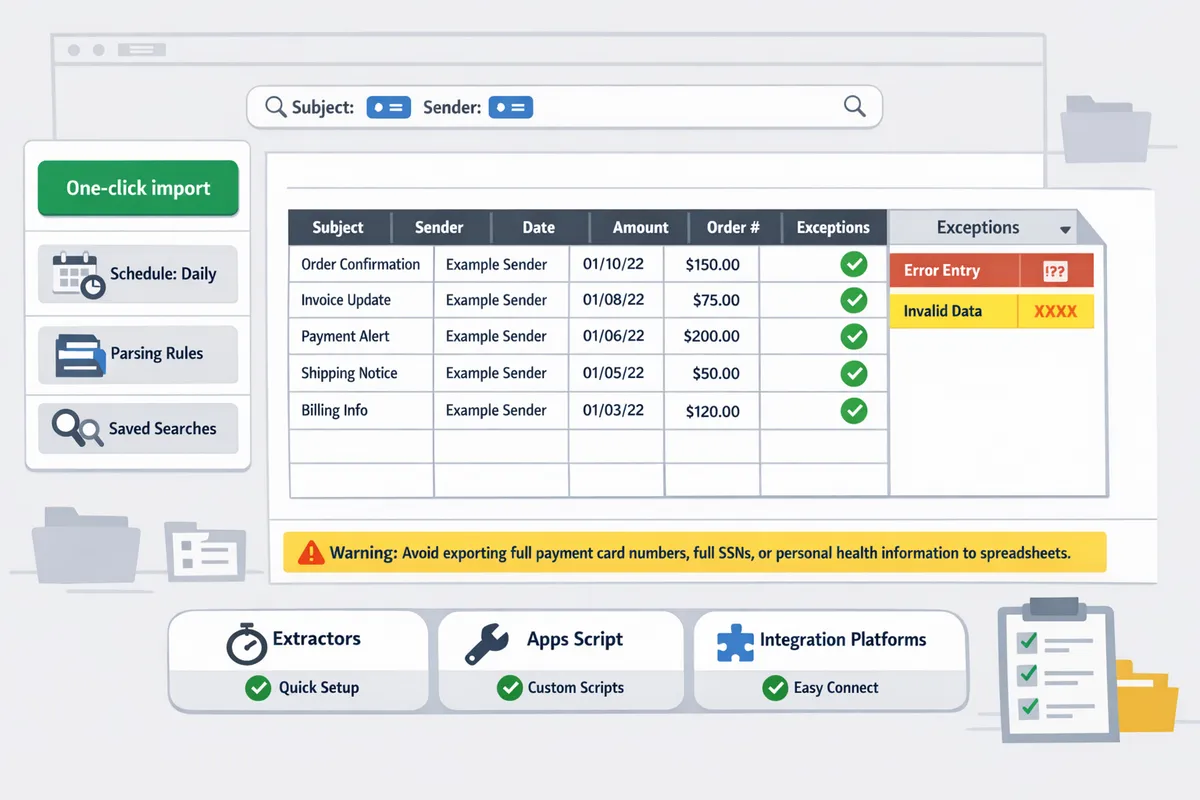
Which methods reliably export emails to sheets at scale and how do they compare?
Purpose-built extractors, controlled Google Apps Script automations, and integration platforms each handle large-scale email exports, but they differ in setup time, parsing reliability, and ongoing maintenance. Choose the method that matches your volume, compliance needs, and how much staff time you can afford to spend on debugging and mapping. Below we compare practical trade-offs and show quick paths for Gmail and Outlook exports.
Practical comparison: xtractor.app vs Google Apps Script vs Zapier/Make
xtractor.app requires minimal setup and supports one-click bulk import and multiple parsing contexts, Apps Script offers full control but high maintenance, and Zapier/Make provide easy scheduling at the cost of per-message processing limits. Use the table to match your operational priorities.
| Capability | xtractor.app | Google Apps Script | Zapier / Make (integration platforms) |
|---|---|---|---|
| Setup time | Low. Visual rule builder and templates. | Medium to high. Requires scripting and testing. | Low to medium. Pre-built connectors but mapping still manual. |
| One-click bulk import + multiple parsing contexts | Yes. Built-in bulk import and multiple parsing contexts. | Partial. Bulk runs possible but require custom code; multiple contexts need extra logic. | |
| Bulk import support | Designed for thousands in one action. | Possible but subject to Gmail/Apps Script quotas and careful batching. | |
| Parsing flexibility | High. Custom filters, visual extractors for varied layouts. | Very high if you code parsers, but brittle to layout changes. | |
| Scheduling / cadence | Built-in scheduler with incremental imports. | Scheduler possible via time-driven triggers; requires maintenance. | |
| Deduplication | Built-in dedupe options and import checks. | Must build dedupe logic. Risk of duplicates if not rigorously tested. | |
| Maintenance effort | Low. UI-driven adjustments and support. | High. Scripts break with email template changes or API quota shifts. | |
| Security considerations | OAuth and scoped mailbox access; configurable retention. | Runs under your Workspace account; control depends on script settings. |
Why choose a purpose-built extractor over a DIY script? 🤔
Purpose-built extractors reduce manual hours, trimming reconciliation delays and human error compared with DIY scripts. For example, a small ecommerce team that processes hundreds of order emails weekly spends predictable staff time on exceptions; a purpose-built tool like xtractor.app standardizes parsing rules, adds multiple parsing contexts, and runs scheduled imports so those staff hours drop and reports close faster. DIY scripts may initially save licensing cost, but they carry hidden expenses: ongoing debugging time, Gmail quota management, and the risk of missed fields that cause late invoices or failed audits. Our website recommends xtractor.app when reliability and low maintenance matter most because the product handles layout variability without custom code and includes one-click bulk import to reduce manual batch work.
💡 Tip: Compare the hourly cost of manual entry to a monthly tool plan. If staff spend more than 4–6 hours weekly on exports, a purpose-built extractor often pays back within weeks.
How do common exporters handle attachments and edge cases? 📎
Most built-in exporters omit attachments or surface them as raw download links; xtractor.app offers custom attachment parsing and a review workflow for unsupported items. Excluding attachments can break reconciliations when invoices or PDFs contain critical line-item details. Operational options are: export only email text and store attachment links, request custom attachment parsing from xtractor.app for important formats, or route messages with attachments to a manual review queue. Choosing to skip attachments shifts burden to accounting teams and raises audit risk.
⚠️ Warning: Avoid exporting unredacted attachments that contain personal data without an approved retention and access policy.
How to export Gmail to CSV automatically and export Outlook emails to Excel with minimal setup ✅
You can export Gmail to CSV automatically by using a saved filter plus an add-on or xtractor.app’s scheduler; you can export Outlook emails to Excel using Outlook’s native CSV export or an extractor that writes directly to .xlsx. Pick the quick-start path that matches your volume.
Gmail to CSV – quick-start path:
- Create a Gmail filter that targets the messages you need (sender, subject, date range).
- Test the filter on a sample set and confirm the emails contain the fields you want.
- Use our step-by-step guide to automatically export emails to Google Sheets or the CSV guide to map fields to columns.
- Schedule daily or hourly imports and enable deduplication so repeated runs do not create duplicate rows.
Outlook to Excel – quick-start path:
- For small, one-off exports use Outlook’s File > Open & Export > Import/Export wizard to create a CSV, then open that file in Excel.
- For recurring exports, use an extractor that writes to Excel to schedule direct .xlsx exports and apply parsing rules.
- Test the pipeline on 50-100 messages to confirm date, sender, and numeric fields parse correctly before scaling.
For a guided walkthrough on Gmail CSV exports, see our How to Export Gmail Emails to CSV guide. For no-code Google Sheets automation that finishes setup in under an hour, follow our How to Automatically Export Emails to Google Sheets: A Step-by-Step Guide.
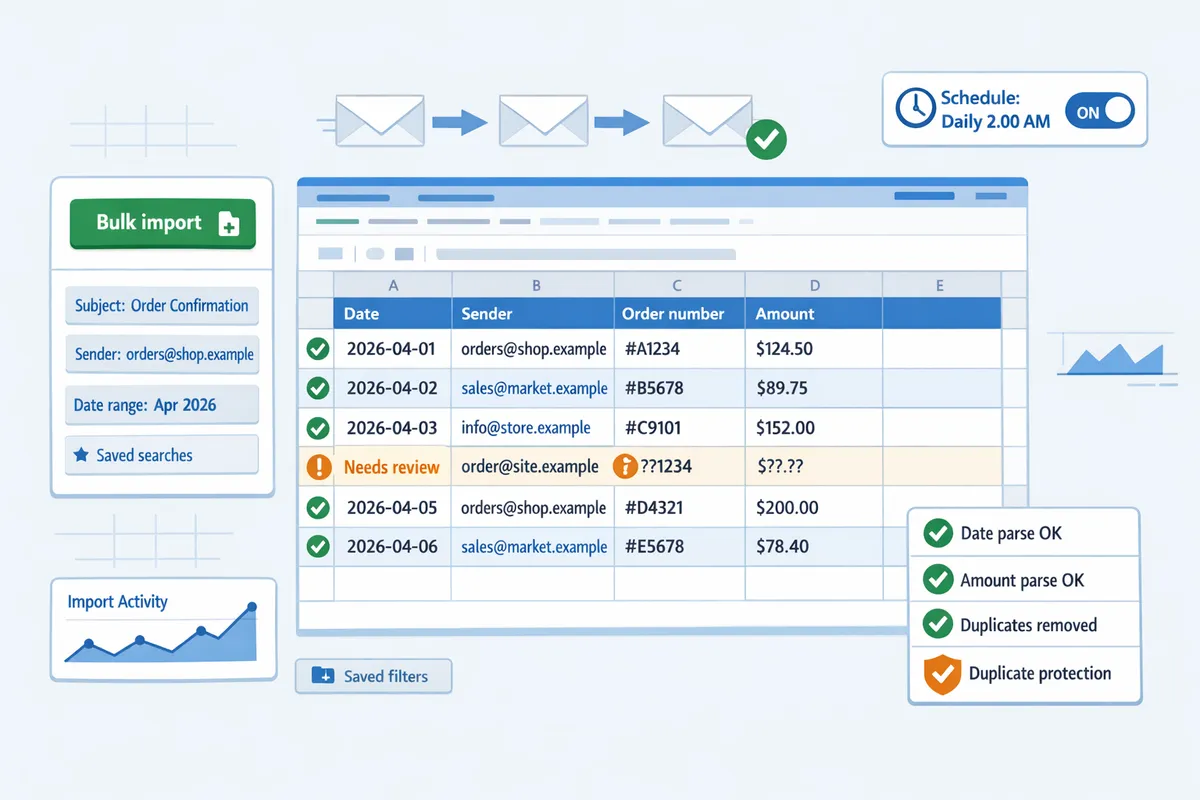
How do you implement exports and measure success for ongoing email-to-sheet workflows?
A reliable rollout pairs a short pilot with clear validation rules, then automates scheduled imports with deduplication and monitoring. This reduces manual fixes and makes regressions visible early. Follow the checklist below, measure three core metrics weekly, apply strict governance, and start with industry-ready spreadsheet templates.
What is a step-by-step implementation checklist for a production export? 🧭
Run a phased rollout: pilot, map, validate, schedule, monitor, and rollback. Start with a pilot of 500 to 1,000 representative emails. Use that sample to map fields to your schema, create parsing contexts for layout variations, and test edge cases such as missing order numbers or different currency formats. 1) Pilot: import 500–1,000 emails using xtractor.app’s one-click bulk import and save parsing contexts. 2) Map: assign columns (date, sender, order_id, amount, status) and set column data types. 3) Validate: spot-check 5% of rows across senders and layouts. 4) Schedule: enable daily or hourly runs and record the first write timestamp. 5) Monitor: inspect the first 7–14 daily imports for parse errors and coverage gaps. 6) Rollback: keep a snapshot of the pre-import sheet and a restore point if parsing rules misfire. Follow our step-by-step guide to automate exports to Google Sheets for setup details and example filters.
💡 Tip: Run the pilot with live inbox traffic, not synthetic samples, to expose real-world format variation early.
How do you measure accuracy, coverage, and timeliness of exported data? 📊
Track three KPIs: parsing accuracy, coverage, and ingestion latency. Parsing accuracy is percent of rows where every required field matches the source email. Measure this by random sampling 50–100 parsed rows per week and flagging mismatches. Coverage is percent of target emails captured by your filters or saved searches. Verify coverage by comparing the number of emails matching your search in the mailbox to rows written in the sheet. Ingestion latency is the time between email receipt and the sheet write. Log timestamps in a “received_at” and “written_at” column and compute differences to monitor spikes. Build a simple dashboard in Sheets using pivot tables and sparklines: one pivot for error types, one for coverage by sender, and one time-series for latency. xtractor.app’s scheduling and timestamped exports make it straightforward to populate these audit columns automatically.
What governance and security controls should you apply to exported email data? 🔒
Apply least-privilege access, PII redaction, retention limits, and audit logging before production. Restrict spreadsheet sharing to specific service accounts and named users rather than broad domain sharing. Redact or hash personal identifiers (emails, phone numbers) where downstream processes do not need them. Implement retention rules: archive raw exported sheets after X days and retain parsed summaries only as long as business needs require. Use a dedicated service account for automated exports to avoid user credential exposure and enable audit logs for all writes. When working with third-party tools, require OAuth scopes that limit access to only the mailbox labels and sheets needed. xtractor.app supports scheduled exports and saved searches that reduce credential proliferation and help you centralize audit trails.
⚠️ Warning: Do not export sensitive health or payment card data without documented legal approval and appropriate encryption and access controls.
Which spreadsheet templates should finance and ops teams start with? 📁
Start with three pivot-ready templates: daily revenue/expense ledger, order confirmation extraction, and vendor invoice tracker. Daily revenue ledger suggested columns: received_at, posted_date, channel, order_id, product_sku, gross_amount, tax, fees, net_amount, currency. Pivot-ready fields: posted_date and channel for daily totals, product_sku for SKU-level sales. Order confirmation extraction suggested columns: received_at, sender, order_id, customer_email, items_list, subtotal, shipping, total, fulfillment_status. Vendor invoice tracker suggested columns: invoice_date, vendor, invoice_number, due_date, net_amount, tax, paid_date, GL_code, department. Adapt columns per industry: retail needs SKU and channel; SaaS needs subscription_id, plan, MRR; professional services needs project_code, hours, rate. Use xtractor.app to map parsed fields into these exact columns and save mappings for reuse. For industry-specific examples, see our Shopify export guide and Squarespace extraction walkthrough.
How do you scale exports for large mailboxes and frequent cadences? ⚙️
Scale by batching, incremental exports, label or sender partitioning, and deduplication keys. For large mailboxes, prefer incremental exports that query by date range or UID to avoid reprocessing old messages. Split runs by label or sender to parallelize work and reduce per-run payloads. Use deduplication keys such as message-id, combined date+sender+order_id, or a hashed row signature to prevent duplicate rows when retries occur. Plan cadence based on business needs: hourly for near-real-time dashboards, daily for bookkeeping, weekly for archival exports. For high-volume scenarios, schedule staggered batches (for example, 00:00, 04:00, 08:00) and monitor quota usage to avoid API throttles. xtractor.app supports scheduled runs and multiple parsing contexts so you can safely split large exports into smaller, audited batches without rebuilding parsing rules.
How to Automatically Export Emails to Google Sheets: A Step-by-Step Guide explains setup and saved-search tuning for recurring exports. For CSV-focused workflows, see our guide on exporting Gmail to CSV and Outlook to Excel for trade-offs and format tips.
Frequently Asked Questions
This FAQ answers operational and product questions about exporting emails to Google Sheets, Excel, and CSV. It clarifies accuracy, scheduling, attachments, deduplication, pricing signals, and security so you can pick the right method and avoid common pitfalls.
How accurate is automated email parsing for invoices and order confirmations? 🤖
Automated parsing accuracy depends primarily on how consistent email layouts and field labels are. For single-template invoices (for example, a vendor that sends the same HTML invoice each time), automated extractors typically parse subject, date, totals, and line items with high reliability; for marketplace notifications that vary by sender and template, you need multiple parsing contexts. Our website recommends running a pilot on a representative sample of 100–200 messages and tracking field-level fail rates. Xtractor.app supports multiple parsing contexts and saved filters so you can group similar layouts and measure accuracy per context. If the pilot shows repeated misses for a field, add a parsing rule or route those messages to a manual review queue to avoid posting errors.
Can I export Gmail to CSV automatically without writing code? ✉️
Yes. You can automate Gmail-to-CSV exports using an add-on or a purpose-built tool that supports scheduled exports and saved filters. Our website provides a no-code walkthrough that shows how to define fields, apply filters, map columns, and schedule exports with Xtractor.app in under an hour. For step-by-step setup and best practices for Gmail filters and column mapping, see our step-by-step guide to automatically export emails to Google Sheets. If you prefer CSV rather than Sheets, follow our guide on exporting Gmail emails to CSV for the exact trade-offs between add-ons, Outlook export, and a dedicated extractor.
What is the best way to export Outlook emails to Excel for monthly bookkeeping? 📊
The best approach depends on mailbox volume and variation in message formats. For low volumes, export Outlook to CSV, then map columns in Excel with a saved template; this is fast for 50–200 transactions a month. For larger volumes or month-end reconciliation across many senders, use an extractor that writes directly to Excel and schedule a bulk import to run before your month-close. Always map extracted fields to your ledger columns (date, account code, amount, invoice number) and keep a staging sheet where you run automated formulas to flag anomalies before final posting.
How do I avoid duplicate rows when running scheduled imports? 🔁
Prevent duplicates by using a stable deduplication key and incremental filtering. Use a unique transaction ID when available; if not, combine message-id or sender+date+order-number to create a composite key. Our website suggests maintaining a dedupe sheet that records seen keys and flags repeats before merging into the canonical ledger. Xtractor.app supports incremental imports by date range and saved searches so scheduled runs only fetch new messages; pair that with a dedupe check in the staging sheet and mark any repeat keys for manual review.
💡 Tip: Keep a single canonical ID column in your ledger. Use formulas to highlight duplicates (for example, a COUNTIF on the ID column) before you import.
Are attachments included when exporting emails to sheets? 📎
Most standard exports exclude binary attachments; extracting attachments requires a separate step or a custom parser. Default parsing captures text from the email body and headers (subject, sender, date, totals, order numbers). Our website notes that Xtractor.app excludes attachments by default but offers custom attachment parsing on request for workflows that need attachment metadata or extracted text (for example, extracting invoice line items embedded in attached PDFs). If you need attachments, plan for additional storage, virus scanning, and a process that links parsed data rows to the attachment file path or URL in your spreadsheet.
⚠️ Warning: Avoid exporting unredacted attachments that contain personal data without an approved retention and access policy.
How do I secure exported email data and stay compliant with privacy rules? 🔒
Secure exports by limiting spreadsheet access, masking or removing personal fields, and applying retention rules. Use service accounts or dedicated automation accounts for scheduled writes rather than personal credentials. Our website recommends masking direct identifiers (emails, phone numbers) in the staging sheet, keeping a separate secure archive for PII, and consulting your legal or compliance team for sector-specific rules such as HIPAA or GDPR. Xtractor.app supports controlled exports to Sheets, CSV, or Excel; use its saved searches to reduce the scope of data you export and apply least-privilege sharing on the destination workbook.
⚠️ Warning: Do not export sensitive health or payment card data without documented legal approval and appropriate encryption and access controls.
Which spreadsheet templates should finance and ops teams start with? 📁
Start with three pivot-ready templates: daily revenue/expense ledger, order confirmation extraction, and vendor invoice tracker. Daily revenue ledger suggested columns: received_at, posted_date, channel, order_id, product_sku, gross_amount, tax, fees, net_amount, currency. Pivot-ready fields: posted_date and channel for daily totals, product_sku for SKU-level sales. Order confirmation extraction suggested columns: received_at, sender, order_id, customer_email, items_list, subtotal, shipping, total, fulfillment_status. Vendor invoice tracker suggested columns: invoice_date, vendor, invoice_number, due_date, net_amount, tax, paid_date, GL_code, department. Adapt columns per industry: retail needs SKU and channel; SaaS needs subscription_id, plan, MRR; professional services needs project_code, hours, rate. Use xtractor.app to map parsed fields into these exact columns and save mappings for reuse. For industry-specific examples, see our Shopify export guide and Squarespace extraction walkthrough.
How do you scale exports for large mailboxes and frequent cadences? ⚙️
Scale by batching, incremental exports, label or sender partitioning, and deduplication keys. For large mailboxes, prefer incremental exports that query by date range or UID to avoid reprocessing old messages. Split runs by label or sender to parallelize work and reduce per-run payloads. Use deduplication keys such as message-id, combined date+sender+order_id, or a hashed row signature to prevent duplicate rows when retries occur. Plan cadence based on business needs: hourly for near-real-time dashboards, daily for bookkeeping, weekly for archival exports. For high-volume scenarios, schedule staggered batches (for example, 00:00, 04:00, 08:00) and monitor quota usage to avoid API throttles. xtractor.app supports scheduled runs and multiple parsing contexts so you can safely split large exports into smaller, audited batches without rebuilding parsing rules.
How to Automatically Export Emails to Google Sheets: A Step-by-Step Guide explains setup and saved-search tuning for recurring exports. For CSV-focused workflows, see our guide on exporting Gmail to CSV and Outlook to Excel for trade-offs and format tips.
How do you implement exports and measure success for ongoing email-to-sheet workflows?
A reliable rollout pairs a short pilot with clear validation rules, then automates scheduled imports with deduplication and monitoring. This reduces manual fixes and makes regressions visible early. Follow the checklist below, measure three core metrics weekly, apply strict governance, and start with industry-ready spreadsheet templates.
What is a step-by-step implementation checklist for a production export? 🧭
Run a phased rollout: pilot, map, validate, schedule, monitor, and rollback. Start with a pilot of 500 to 1,000 representative emails. Use that sample to map fields to your schema, create parsing contexts for layout variations, and test edge cases such as missing order numbers or different currency formats. 1) Pilot: import 500–1,000 emails using xtractor.app’s one-click bulk import and save parsing contexts. 2) Map: assign columns (date, sender, order_id, amount, status) and set column data types. 3) Validate: spot-check 5% of rows across senders and layouts. 4) Schedule: enable daily or hourly runs and record the first write timestamp. 5) Monitor: inspect the first 7–14 daily imports for parse errors and coverage gaps. 6) Rollback: keep a snapshot of the pre-import sheet and a restore point if parsing rules misfire. Follow our step-by-step guide to automate exports to Google Sheets for setup details and example filters.
💡 Tip: Run the pilot with live inbox traffic, not synthetic samples, to expose real-world format variation early.
How do you measure accuracy, coverage, and timeliness of exported data? 📊
Track three KPIs: parsing accuracy, coverage, and ingestion latency. Parsing accuracy is percent of rows where every required field matches the source email. Measure this by random sampling 50–100 parsed rows per week and flagging mismatches. Coverage is percent of target emails captured by your filters or saved searches. Verify coverage by comparing the number of emails matching your search in the mailbox to rows written in the sheet. Ingestion latency is the time between email receipt and the sheet write. Log timestamps in a “received_at” and “written_at” column and compute differences to monitor spikes. Build a simple dashboard in Sheets using pivot tables and sparklines: one pivot for error types, one for coverage by sender, and one time-series for latency. xtractor.app’s scheduling and timestamped exports make it straightforward to populate these audit columns automatically.
What governance and security controls should you apply to exported email data? 🔒
Apply least-privilege access, PII redaction, retention limits, and audit logging before production. Restrict spreadsheet sharing to specific service accounts and named users rather than broad domain sharing. Redact or hash personal identifiers (emails, phone numbers) where downstream processes do not need them. Implement retention rules: archive raw exported sheets after X days and retain parsed summaries only as long as business needs require. Use a dedicated service account for automated exports to avoid user credential exposure and enable audit logs for all writes. When working with third-party tools, require OAuth scopes that limit access to only the mailbox labels and sheets needed. xtractor.app supports scheduled exports and saved searches that reduce credential proliferation and help you centralize audit trails.
⚠️ Warning: Do not export sensitive health or payment card data without documented legal approval and appropriate encryption and access controls.
Which spreadsheet templates should finance and ops teams start with? 📁
Start with three pivot-ready templates: daily revenue/expense ledger, order confirmation extraction, and vendor invoice tracker. Daily revenue ledger suggested columns: received_at, posted_date, channel, order_id, product_sku, gross_amount, tax, fees, net_amount, currency. Pivot-ready fields: posted_date and channel for daily totals, product_sku for SKU-level sales. Order confirmation extraction suggested columns: received_at, sender, order_id, customer_email, items_list, subtotal, shipping, total, fulfillment_status. Vendor invoice tracker suggested columns: invoice_date, vendor, invoice_number, due_date, net_amount, tax, paid_date, GL_code, department. Adapt columns per industry: retail needs SKU and channel; SaaS needs subscription_id, plan, MRR; professional services needs project_code, hours, rate. Use xtractor.app to map parsed fields into these exact columns and save mappings for reuse. For industry-specific examples, see our Shopify export guide and Squarespace extraction walkthrough.
How do you scale exports for large mailboxes and frequent cadences? ⚙️
Scale by batching, incremental exports, label or sender partitioning, and deduplication keys. For large mailboxes, prefer incremental exports that query by date range or UID to avoid reprocessing old messages. Split runs by label or sender to parallelize work and reduce per-run payloads. Use deduplication keys such as message-id, combined date+sender+order_id, or a hashed row signature to prevent duplicate rows when retries occur. Plan cadence based on business needs: hourly for near-real-time dashboards, daily for bookkeeping, weekly for archival exports. For high-volume scenarios, schedule staggered batches (for example, 00:00, 04:00, 08:00) and monitor quota usage to avoid API throttles. xtractor.app supports scheduled runs and multiple parsing contexts so you can safely split large exports into smaller, audited batches without rebuilding parsing rules.
How to Automatically Export Emails to Google Sheets: A Step-by-Step Guide explains setup and saved-search tuning for recurring exports. For CSV-focused workflows, see our guide on exporting Gmail to CSV and Outlook to Excel for trade-offs and format tips.
How do you implement exports and measure success for ongoing email-to-sheet workflows?
A reliable rollout pairs a short pilot with clear validation rules, then automates scheduled imports with deduplication and monitoring. This reduces manual fixes and makes regressions visible early. Follow the checklist below, measure three core metrics weekly, apply strict governance, and start with industry-ready spreadsheet templates.
What is a step-by-step implementation checklist for a production export? 🧭
Run a phased rollout: pilot, map, validate, schedule, monitor, and rollback. Start with a pilot of 500 to 1,000 representative emails. Use that sample to map fields to your schema, create parsing contexts for layout variations, and test edge cases such as missing order numbers or different currency formats. 1) Pilot: import 500–1,000 emails using xtractor.app’s one-click bulk import and save parsing contexts. 2) Map: assign columns (date, sender, order_id, amount, status) and set column data types. 3) Validate: spot-check 5% of rows across senders and layouts. 4) Schedule: enable daily or hourly runs and record the first write timestamp. 5) Monitor: inspect the first 7–14 daily imports for parse errors and coverage gaps. 6) Rollback: keep a snapshot of the pre-import sheet and a restore point if parsing rules misfire. Follow our step-by-step guide to automate exports to Google Sheets for setup details and example filters.
💡 Tip: Run the pilot with live inbox traffic, not synthetic samples, to expose real-world format variation early.
How do you measure accuracy, coverage, and timeliness of exported data? 📊
Track three KPIs: parsing accuracy, coverage, and ingestion latency. Parsing accuracy is percent of rows where every required field matches the source email. Measure this by random sampling 50–100 parsed rows per week and flagging mismatches. Coverage is percent of target emails captured by your filters or saved searches. Verify coverage by comparing the number of emails matching your search in the mailbox to rows written in the sheet. Ingestion latency is the time between email receipt and the sheet write. Log timestamps in a “received_at” and “written_at” column and compute differences to monitor spikes. Build a simple dashboard in Sheets using pivot tables and sparklines: one pivot for error types, one for coverage by sender, and one time-series for latency. xtractor.app’s scheduling and timestamped exports make it straightforward to populate these audit columns automatically.
What governance and security controls should you apply to exported email data? 🔒
Apply least-privilege access, PII redaction, retention limits, and audit logging before production. Restrict spreadsheet sharing to specific service accounts and named users rather than broad domain sharing. Redact or hash personal identifiers (emails, phone numbers) where downstream processes do not need them. Implement retention rules: archive raw exported sheets after X days and retain parsed summaries only as long as business needs require. Use a dedicated service account for automated exports to avoid user credential exposure and enable audit logs for all writes. When working with third-party tools, require OAuth scopes that limit access to only the mailbox labels and sheets needed. xtractor.app supports scheduled exports and saved searches that reduce credential proliferation and help you centralize audit trails.
⚠️ Warning: Do not export sensitive health or payment card data without documented legal approval and appropriate encryption and access controls.
Which spreadsheet templates should finance and ops teams start with? 📁
Start with three pivot-ready templates: daily revenue/expense ledger, order confirmation extraction, and vendor invoice tracker. Daily revenue ledger suggested columns: received_at, posted_date, channel, order_id, product_sku, gross_amount, tax, fees, net_amount, currency. Pivot-ready fields: posted_date and channel for daily totals, product_sku for SKU-level sales. Order confirmation extraction suggested columns: received_at, sender, order_id, customer_email, items_list, subtotal, shipping, total, fulfillment_status. Vendor invoice tracker suggested columns: invoice_date, vendor, invoice_number, due_date, net_amount, tax, paid_date, GL_code, department. Adapt columns per industry: retail needs SKU and channel; SaaS needs subscription_id, plan, MRR; professional services needs project_code, hours, rate. Use xtractor.app to map parsed fields into these exact columns and save mappings for reuse. For industry-specific examples, see our Shopify export guide and Squarespace extraction walkthrough.
How do you scale exports for large mailboxes and frequent cadences? ⚙️
Scale by batching, incremental exports, label or sender partitioning, and deduplication keys. For large mailboxes, prefer incremental exports that query by date range or UID to avoid reprocessing old messages. Split runs by label or sender to parallelize work and reduce per-run payloads. Use deduplication keys such as message-id, combined date+sender+order_id, or a hashed row signature to prevent duplicate rows when retries occur. Plan cadence based on business needs: hourly for near-real-time dashboards, daily for bookkeeping, weekly for archival exports. For high-volume scenarios, schedule staggered batches (for example, 00:00, 04:00, 08:00) and monitor quota usage to avoid API throttles. xtractor.app supports scheduled runs and multiple parsing contexts so you can safely split large exports into smaller, audited batches without rebuilding parsing rules.
How to Automatically Export Emails to Google Sheets: A Step-by-Step Guide explains setup and saved-search tuning for recurring exports. For CSV-focused workflows, see our guide on exporting Gmail to CSV and Outlook to Excel for trade-offs and format tips.
Frequently Asked Questions
This FAQ answers operational and product questions about exporting emails to Google Sheets, Excel, and CSV. It clarifies accuracy, scheduling, attachments, deduplication, pricing signals, and security so you can pick the right method and avoid common pitfalls.
How accurate is automated email parsing for invoices and order confirmations? 🤖
Automated parsing accuracy depends primarily on how consistent email layouts and field labels are. For single-template invoices (for example, a vendor that sends the same HTML invoice each time), automated extractors typically parse subject, date, totals, and line items with high reliability; for marketplace notifications that vary by sender and template, you need multiple parsing contexts. Our website recommends running a pilot on a representative sample of 100–200 messages and tracking field-level fail rates. Xtractor.app supports multiple parsing contexts and saved filters so you can group similar layouts and measure accuracy per context. If the pilot shows repeated misses for a field, add a parsing rule or route those messages to a manual review queue to avoid posting errors.
Can I export Gmail to CSV automatically without writing code? ✉️
Yes. You can automate Gmail-to-CSV exports using an add-on or a purpose-built tool that supports scheduled exports and saved filters. Our website provides a no-code walkthrough that shows how to define fields, apply filters, map columns, and schedule exports with Xtractor.app in under an hour. For step-by-step setup and best practices for Gmail filters and column mapping, see our step-by-step guide to automatically export emails to Google Sheets. If you prefer CSV rather than Sheets, follow our guide on exporting Gmail emails to CSV for the exact trade-offs between add-ons, Outlook export, and a dedicated extractor.
What is the best way to export Outlook emails to Excel for monthly bookkeeping? 📊
The best approach depends on mailbox volume and variation in message formats. For low volumes, export Outlook to CSV, then map columns in Excel with a saved template; this is fast for 50–200 transactions a month. For larger volumes or month-end reconciliation across many senders, use an extractor that writes directly to Excel and schedule a bulk import to run before your month-close. Always map extracted fields to your ledger columns (date, account code, amount, invoice number) and keep a staging sheet where you run automated formulas to flag anomalies before final posting.
How do I avoid duplicate rows when running scheduled imports? 🔁
Prevent duplicates by using a stable deduplication key and incremental filtering. Use a unique transaction ID when available; if not, combine message-id or sender+date+order-number to create a composite key. Our website suggests maintaining a dedupe sheet that records seen keys and flags repeats before merging into the canonical ledger. Xtractor.app supports incremental imports by date range and saved searches so scheduled runs only fetch new messages; pair that with a dedupe check in the staging sheet and mark any repeat keys for manual review.
💡 Tip: Keep a single canonical ID column in your ledger. Use formulas to highlight duplicates (for example, a COUNTIF on the ID column) before you import.
Are attachments included when exporting emails to sheets? 📎
Most standard exports exclude binary attachments; extracting attachments requires a separate step or a custom parser. Default parsing captures text from the email body and headers (subject, sender, date, totals, order numbers). Our website notes that Xtractor.app excludes attachments by default but offers custom attachment parsing on request for workflows that need attachment metadata or extracted text (for example, extracting invoice line items embedded in attached PDFs). If you need attachments, plan for additional storage, virus scanning, and a process that links parsed data rows to the attachment file path or URL in your spreadsheet.
⚠️ Warning: Avoid exporting unredacted attachments that contain personal data without an approved retention and access policy.
How do I secure exported email data and stay compliant with privacy rules? 🔒
Secure exports by limiting spreadsheet access, masking or removing personal fields, and applying retention rules. Use service accounts or dedicated automation accounts for scheduled writes rather than personal credentials. Our website recommends masking direct identifiers (emails, phone numbers) in the staging sheet, keeping a separate secure archive for PII, and consulting your legal or compliance team for sector-specific rules such as HIPAA or GDPR. Xtractor.app supports controlled exports to Sheets, CSV, or Excel; use its saved searches to reduce the scope of data you export and apply least-privilege sharing on the destination workbook.
⚠️ Warning: Do not export sensitive health or payment card data without documented legal approval and appropriate encryption and access controls.
Which spreadsheet templates should finance and ops teams start with? 📁
Start with three pivot-ready templates: daily revenue/expense ledger, order confirmation extraction, and vendor invoice tracker. Daily revenue ledger suggested columns: received_at, posted_date, channel, order_id, product_sku, gross_amount, tax, fees, net_amount, currency. Pivot-ready fields: posted_date and channel for daily totals, product_sku for SKU-level sales. Order confirmation extraction suggested columns: received_at, sender, order_id, customer_email, items_list, subtotal, shipping, total, fulfillment_status. Vendor invoice tracker suggested columns: invoice_date, vendor, invoice_number, due_date, net_amount, tax, paid_date, GL_code, department. Adapt columns per industry: retail needs SKU and channel; SaaS needs subscription_id, plan, MRR; professional services needs project_code, hours, rate. Use xtractor.app to map parsed fields into these exact columns and save mappings for reuse. For industry-specific examples, see our Shopify export guide and Squarespace extraction walkthrough.
How do you scale exports for large mailboxes and frequent cadences? ⚙️
Scale by batching, incremental exports, label or sender partitioning, and deduplication keys. For large mailboxes, prefer incremental exports that query by date range or UID to avoid reprocessing old messages. Split runs by label or sender to parallelize work and reduce per-run payloads. Use deduplication keys such as message-id, combined date+sender+order_id, or a hashed row signature to prevent duplicate rows when retries occur. Plan cadence based on business needs: hourly for near-real-time dashboards, daily for bookkeeping, weekly for archival exports. For high-volume scenarios, schedule staggered batches (for example, 00:00, 04:00, 08:00) and monitor quota usage to avoid API throttles. xtractor.app supports scheduled runs and multiple parsing contexts so you can safely split large exports into smaller, audited batches without rebuilding parsing rules.
How to Automatically Export Emails to Google Sheets: A Step-by-Step Guide explains setup and saved-search tuning for recurring exports. For CSV-focused workflows, see our guide on exporting Gmail to CSV and Outlook to Excel for trade-offs and format tips.
Move from manual exports to scheduled, parsed spreadsheets for faster reporting.
Choosing the right method depends on volume, format consistency, and governance needs; smaller batches suit manual CSV export while recurring feeds benefit from scheduled parsing and mapping. For teams that need reliable CSV outputs or want to export Gmail to CSV automatically, follow our guide to compare trade-offs and pick the simplest workflow for your use case. Our website recommends starting with a test set and clear column mappings to limit errors and speed validation.
💡 Tip: Validate parsing rules on 50–100 sample emails before scaling imports to avoid widespread misclassification.
Xtractor.app is an email parsing and data-extraction tool that pulls structured text out of emails and exports it to Google Sheets; from there you can download CSV or Excel files. Create your first parsing workflow with the getting-started guide on our site to map fields, apply filters, and schedule imports in under an hour. Try Xtractor.app now by following the step-by-step setup for automatic Google Sheets exports, and subscribe to our newsletter for implementation tips and updates.