 Xtractor
A misplaced decimal in an emailed invoice can add hours to month-end accounts payable. Automated email parsing for bookkeeping is a data-extraction tool that pulls structured fields like sender, date, amounts, and order numbers from emails and maps them into Google Sheets, CSVs, or Excel for QuickBooks or Xero import. xtractor.app pairs parsing with a downloadable Google Sheets template pack that outputs QuickBooks/Xero import-ready CSVs and Excel-compatible sheets and reduces manual CSV prep. Templates provide CSV mappings, column validation, and samples for invoices, supplier credits, and expense receipts. Our step-by-step guide to email-to-google-sheets parsing shows how to set filters, run one-click bulk imports, and schedule daily imports. Which templates handle multi-format supplier emails, and when should you request custom parsing from xtractor.app?
The template pack standardizes invoice fields and CSV mappings for QuickBooks and Xero. What does the Accounts Payable Template Pack for Google Sheets include and who should use it?
The template pack bundles a master invoice schema, QuickBooks and Xero mapping tabs, sample rows, validation rules, and step-by-step export instructions into one reusable Google Sheets file. This lets AP teams and small accounting firms produce import-ready CSVs without rebuilding mapping logic for every vendor. Use it with xtractor.app to convert inbound invoice emails into clean spreadsheet rows and shorten month-end cycles.
What is automated email parsing for bookkeeping? 📥
Automated email parsing for bookkeeping is a data-extraction process that captures invoice fields from emails and outputs structured rows for accounting. The core inputs are the raw email text (subject, body, header) and optional sender/date filters. The outputs are spreadsheet rows where each column maps to an invoice field such as invoice_number, vendor_name, and total. For no-code setups, follow our Gmail to Google Sheets automatically beginner guide to connect a parser to these templates. xtractor.app handles one-click bulk import, saved searches, and scheduling so you can pull thousands of matching emails into the sheet in a single action.
Which fields are included in the invoice schema? 🧾
The pack includes invoice_number, vendor_name, invoice_date, due_date, subtotal, tax, total, currency, PO_number, and payment_terms as primary columns. The table below explains each column, example formatting, whether we mark it required, and how it maps to QuickBooks and Xero import columns.
| Column | Purpose | Example format | Required? | Maps to QuickBooks | Maps to Xero |
|---|---|---|---|---|---|
| invoice_number | Unique vendor invoice ID | INV-2025-001 or 2025/123 | Yes | Invoice Number | Invoice Number |
| vendor_name | Payee name used for vendor matching | Acme Supplies Ltd. | Yes | Vendor Name | Contact Name |
| invoice_date | Transaction date | 2025-04-01 (YYYY-MM-DD) or 04/01/2025 | Yes | Invoice Date | Date |
| due_date | Payment due date | 2025-04-30 | No (recommended) | Due Date | Due Date |
| subtotal | Line subtotal before tax | 1,250.00 | Yes | Subtotal / Line Items | Subtotal |
| tax | Tax amount | 125.00 | No | Tax Amount | Tax |
| total | Invoice total including tax | 1,375.00 | Yes | Total Amount | Total |
| currency | ISO currency code | USD, GBP, EUR | Yes if multi-currency | Currency Code | Currency |
| PO_number | Buyer PO if present | PO-78945 | No | PO Number | PO Number |
| payment_terms | Net terms or spot pay | Net 30, Prepaid | No | Terms | Payment Terms |
💡 Tip: Use YYYY-MM-DD for invoice_date and due_date when possible; Google Sheets and both QuickBooks and Xero accept that format reliably during CSV import.
Columns marked “Yes” should be validated during import. QuickBooks typically expects invoice_number, vendor_name, invoice_date, and total. Xero mapping often requires invoice_date, due_date (or terms), contact name, and total. The included mapping tabs align these columns to each system’s expected headers so exports require minimal editing.
Which workflows does the template support? 🔁
The template supports one-off CSV exports for monthly bill runs, daily scheduled imports for high-volume vendors, and audit-friendly reconciliation spreadsheets for month-end. For a monthly run, filter the sheet by billing cycle, export the QuickBooks or Xero mapping tab to CSV, and import using your accounting app’s batch upload. For daily high-volume vendors, pair the sheet with xtractor.app scheduling to append parsed rows each morning, then run a quick validation filter before importing. For audit trails, enable the sheet’s validation rules and keep the sample-populated rows as an immutable log tab to show original parsed text alongside mapped fields.
Example workflow steps for a daily scheduled import:
- Configure xtractor.app saved search to capture vendor emails and run bulk import at 06:00.
- Parsed rows append to the master schema in Google Sheets.
- Run the validation pivot that highlights missing required fields.
- Export the QuickBooks mapping tab as CSV and import.
See the step-by-step email parser to Google Sheets guide for setup details and how multi-context parsing handles mixed email formats.
How does this pack compare to manual entry and basic parsers? 🧩
Compared to manual copy/paste and simple scripts, combining xtractor.app with this template reduces per-invoice time, lowers error risk, and scales without ongoing maintenance. The table below compares three approaches across setup time, per-invoice time, error risk, scalability, and governance.
| Approach | Setup time | Per-invoice time | Error risk | Scalability | Governance |
|---|---|---|---|---|---|
| Manual copy/paste | Very low to start; continuous labor costs | 2–6 minutes per invoice (example) | High (transcription errors, missed decimals) | Poor. Staff hours grow linearly with volume | Weak. No audit trail beyond edited spreadsheets |
| Simple email-to-sheet scripts | Medium (scripting + testing) | 30–90 seconds per invoice after setup | Medium. Scripts break with new email layouts | Moderate. Requires developer maintenance for new templates | Limited. Often lacks field validation and change logs |
| xtractor.app + this template | Low. Use provided mapping tabs and saved parsing contexts | 5–20 seconds per invoice for bulk flows (example) | Low. Built-in validation rules and standardized schema reduce mistakes | High. One-click bulk imports and scheduling handle thousands of emails | Strong. Validation, sample rows, and immutable logs support audits |
⚠️ Warning: Attachments are not parsed by default; if vendors send PDFs or ZIPs you will need xtractor.app custom parsing or a secondary workflow to extract attachment text before mapping.
The comparison shows the template plus xtractor.app costs a small setup time up front and then reduces day-to-day labor and compliance risk. For firms deciding between DIY scripts and a production-ready parser, review our multi-context parsing guide to see how xtractor.app handles varying email layouts and where manual approaches commonly fail.
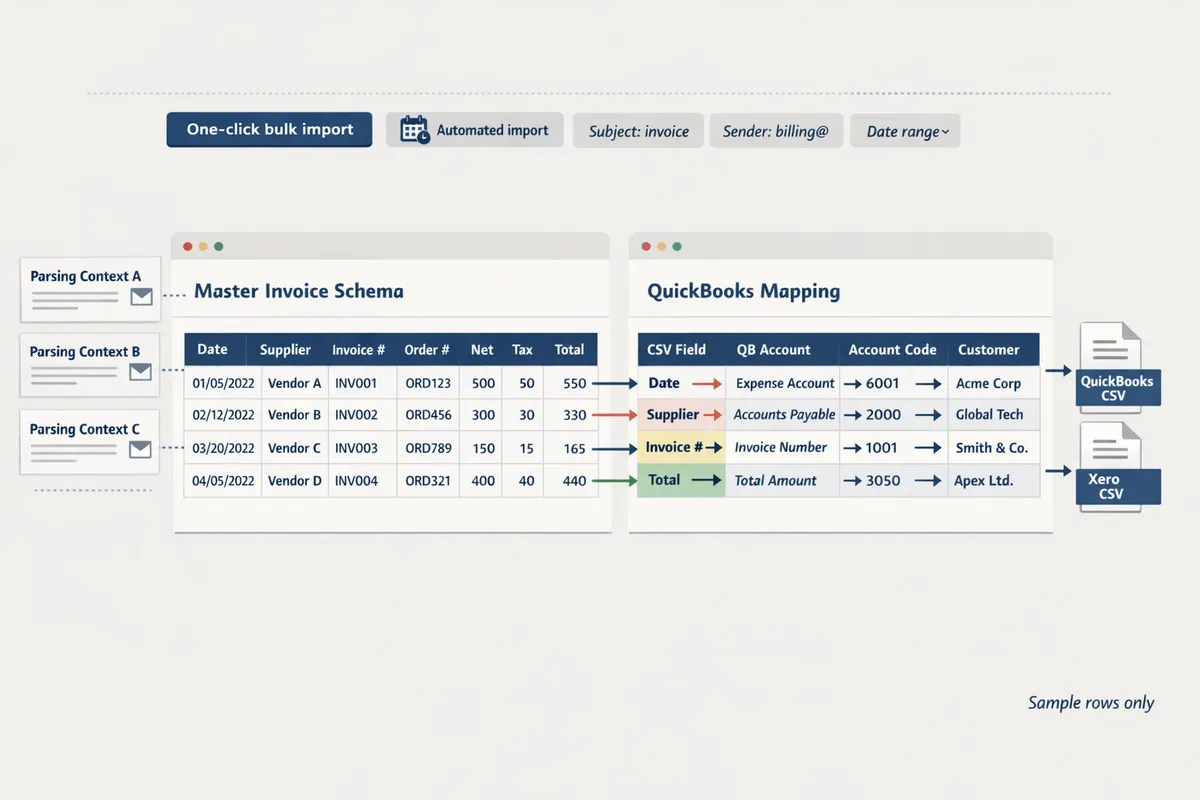
The setup requires connecting xtractor.app, creating parsing contexts, and mapping columns to QuickBooks/Xero CSVs. How do you use the template to automatically send parsed email data into Google Sheets and produce QuickBooks/Xero CSVs?
Install the Google Sheets template, connect xtractor.app to the mailbox and the destination sheet, create parsing contexts and saved searches, map the Sheet headers to QuickBooks/Xero columns, then run a bulk import and enable daily scheduling to produce CSVs automatically. This workflow supports automated email parsing for bookkeeping and reduces manual entry by appending parsed invoice rows directly into the template. Use the step-by-step import and scheduling guide for additional screenshots and troubleshooting: Email Parser to Google Sheets: Fast Setup, Bulk Imports, and Scheduling (Step‑by‑Step) Email Parser.
Connecting xtractor.app 🔌
Grant xtractor.app read access to the mailbox and edit rights to the destination Google Sheet, then authenticate both accounts inside xtractor.app.
Required permissions and a quick checklist:
- Gmail/OAuth read access to search and fetch messages.
- Google Sheets edit permission for the destination spreadsheet.
- Optional: limited service account or delegated mailbox for shared inboxes.
Recommended security checks:
- Verify the connecting account has only the folders/labels required.
- Use OAuth consent with 2FA and confirm token scopes in your Google account security panel.
- Audit first-run logs to confirm only expected messages are accessed.
Quick permissions checklist:
- Confirm mailbox owner approves OAuth consent.
- Create or share the Google Sheet and grant Editor permission to the xtractor.app connector account.
- Run a one-message test and check the sheet for an appended row.
xtractor.app supports Gmail saved searches for targeting specific suppliers; configure those saved searches in the xtractor.app UI when linking the mailbox. For connection troubleshooting and alternative approaches, see our guide on parsing Gmail to Sheets: Parse Email to Google Sheets: Xtractor.
💡 Tip: Use a dedicated parsing account or delegated label to limit scope and make audits easier.
Parsing contexts ⚙️
Create one parsing context per frequent vendor email layout and add a fallback context for miscellaneous formats so xtractor.app extracts consistent fields across templates.
Start with these parsing contexts and filters:
- Primary context: top 5 suppliers (by volume) with rules for their exact invoice labels.
- Secondary context: common marketplace or third-party emails (different label patterns).
- Fallback context: generic rules to capture sender, date, invoice number, and totals when the message does not match other contexts.
Suggested filters for each context:
- Sender address (exact or domain).
- Subject keywords (invoice, bill, statement plus vendor name).
- Date range or mail label to limit scope for historical imports.
Saved searches recommendation:
- Create a saved search per recurring supplier to speed re-runs.
- Save a “historical import” search that covers a date range for backfills.
For complex inboxes with mixed layouts, follow our multi-context parsing walkthrough with real templates: Multi-Context Parsing to Handle Varying Email Layouts. xtractor.app can also provide custom parsing for attachment-heavy workflows on request.
Mapping tab 🗂️
Use the template’s Mapping tab to match Sheet headers to the exact CSV columns QuickBooks or Xero expects, then validate with sample rows before exporting.
Exact mapping approach:
- Choose export format in the Mapping tab: QuickBooks Desktop, QuickBooks Online, or Xero CSV.
- Align each Google Sheet header with the corresponding import column name shown in the template.
- Set data formats for dates, decimals, and currency codes in the Sheet before export.
- Validate using 5–10 representative rows and open the generated CSV to confirm column order and formats.
Example field mapping (sample):
| Sheet header | QuickBooks / Xero column example |
|---|---|
| Invoice Date | TxnDate (QuickBooks) or Date (Xero) |
| Invoice Number | RefNumber (QuickBooks) or InvoiceNumber (Xero) |
| Vendor Name | Name |
| Line Amount | Amount |
| Currency | CurrencyCode |
Common pitfalls checklist:
- Date formats: confirm whether the importer expects YYYY-MM-DD or MM/DD/YYYY.
- Decimal separators: ensure values use a period for decimals if required.
- Currency codes: use ISO codes (USD, GBP) for multi-currency files.
⚠️ Warning: Mismatched date or decimal formats cause import failures and time-consuming fixes. Always validate sample CSVs in QuickBooks/Xero first.
Bulk import and scheduling ⏱️
Run xtractor.app’s one-click bulk import for historical emails, preview parsed rows in the template, then enable scheduled daily imports to keep the sheet current.
Step-by-step bulk import and scheduling:
- Select the saved search or label that contains the historical messages.
- Pick the relevant parsing contexts and run a small preview (10–20 messages) to confirm field extraction.
- Use the one-click bulk import to process the full set; xtractor.app will append parsed rows to the Google Sheet.
- Review the appended rows and run the Mapping tab validation to produce a QuickBooks/Xero CSV.
- Enable scheduling and select cadence (daily at business hour), associated saved search, and parsing contexts.
Best practices before scaling:
- Test on a 100-message sample, correct mappings, then scale to larger batches.
- Keep a rollback copy of the sheet before large imports.
- Use saved searches per supplier for predictable scheduled runs.
For a detailed walkthrough of previews, bulk runs, and schedule settings, see our step-by-step import and scheduling guide: Email Parser to Google Sheets: Fast Setup, Bulk Imports, and Scheduling (Step‑by‑Step) Email Parser.
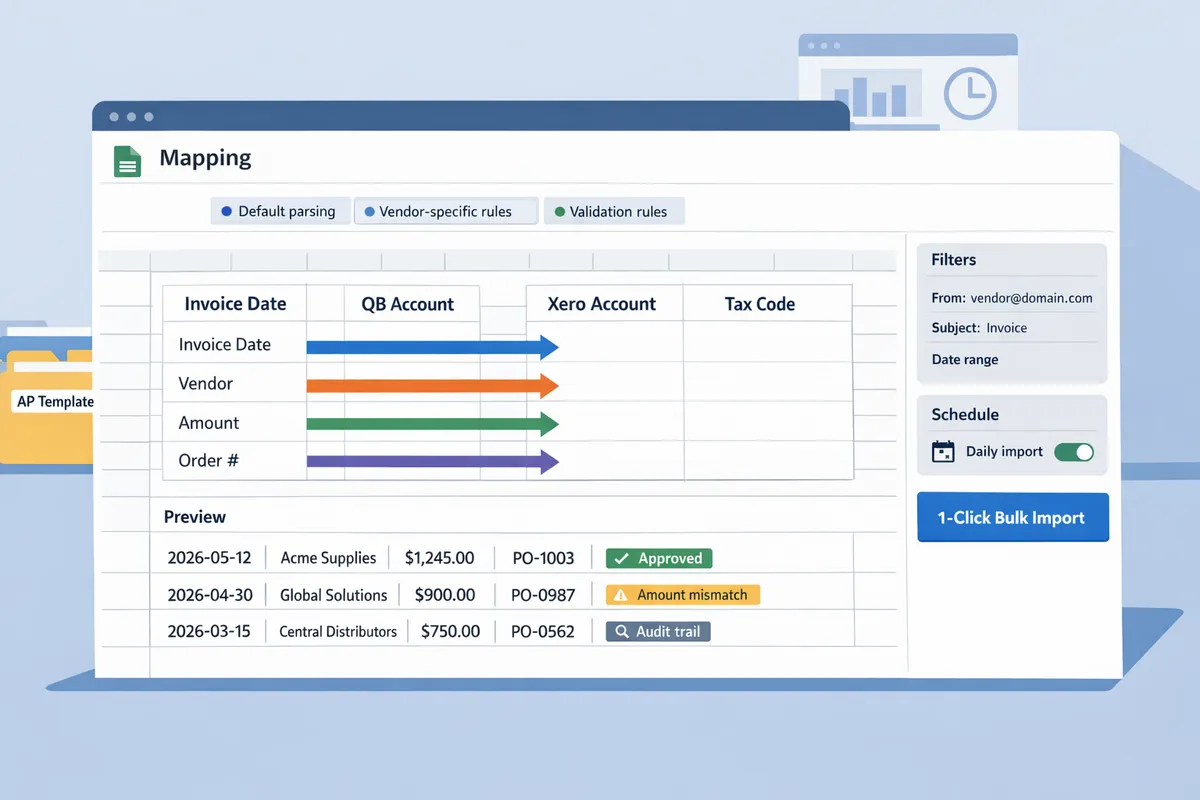
Teams extend the pack with validation, vendor-specific parsing contexts, and governance controls. How can AP teams customize the template and parsing rules to handle non-standard invoices and compliance checks?
AP teams customize the template by adding validation columns, creating vendor-specific parsing contexts in xtractor.app, and enforcing access and retention controls on parsed data. These additions let teams flag suspect rows, route exceptions to reviewers, and prove an audit trail during compliance checks. The steps below show repeatable changes you can make in the Google Sheets template and the xtractor.app parsing layer to reduce reconciliation time and control risk.
Add parsed_flag, validation_status, and manual_review_notes to track data quality ✅
Add parsed_flag, validation_status, and manual_review_notes columns to the sheet to track extraction state and reviewer outcomes. Use parsed_flag (TRUE/FALSE) to indicate whether a parsing context produced a full extraction. Use validation_status with values like valid, invalid, or pending to show automated checks outcome. Use manual_review_notes to record who reviewed the row, why it failed, and the corrective action taken.
Recommended automated validation rules to reduce reconciliation work:
- Required-field presence. Ensure invoice_number, vendor_name, and amount are present. Missing required fields set validation_status to invalid.
- Numeric ranges for amounts. Example rule: amount > 0 and amount < 1,000,000. Values outside this range set validation_status to invalid.
- Date plausibility. Example checks: invoice_date not more than 90 days in the future and invoice_date within the last 3 years. Implausible dates set validation_status to pending.
- Vendor whitelist. Match vendor_name against an approved vendor list on a separate sheet; unmatched vendors trigger manual review.
Actions for failed validations:
- Mark the row validation_status = invalid or pending.
- Set parsed_flag = FALSE for rows requiring human input.
- Add an escalation flag column (escalate_to) to route the row to a named reviewer or team inbox.
- Use a lightweight notification—Google Sheets comments, Gmail rules, or a Slack notification via Zapier—so reviewers get a single actionable message.
Link to a detailed setup that covers field mapping and scheduling in the email-to-sheet pipeline in our guide: Email Parser to Google Sheets: Fast Setup, Bulk Imports, and Scheduling (Step‑by‑Step) Email Parser.
Use multiple parsing contexts for vendor-specific layouts 🧩
Use multiple parsing contexts in xtractor.app to assign vendor-specific templates and a fallback generic context for unknown formats. Create one primary context per high-volume vendor (the ones that supply 70–90% of your invoices), a secondary generic context that handles common patterns, and a catch-all context that flags unknown layouts for review.
Pattern and steps to implement:
- Inventory top vendors by volume and create a context per vendor using sender and subject rules in xtractor.app.
- Create a generic context for receipts and simple invoices that extracts basic fields when vendor-specific patterns fail.
- Build a catch-all context that extracts minimal metadata (sender, date, subject) and sets parsed_flag = FALSE to force manual review.
- Use xtractor.app saved searches and filters to route incoming messages into the correct context based on sender, subject keywords, or domain. This reduces false positives and concentrates parsing quality effort where it matters.
See our hands-on multi-context setup with real templates for examples and common traps: Multi-Context Parsing to Handle Varying Email Layouts: Step-by-Step Setup with Real-World Templates.
Apply access controls, minimize stored PII, and log extractions to meet governance requirements 🔒
Restrict sheet access, redact sensitive fields, and maintain an extraction log that includes source message IDs and timestamps to meet security and privacy standards. Limit who can edit the Google Sheet to a small group, use View-only links for stakeholders, and keep a separate, controlled sheet for raw extraction metadata.
Practical controls and documentation checklist:
- Restrict sharing to named Google accounts and remove public links.
- Use a separate “PII” column policy: store only last four digits for card numbers and never store full payment credentials.
- Create an extraction_log sheet that records message_id, parsed_context, parser_run_timestamp, and operator_id for every row. xtractor.app surfaces message metadata you can include in the export.
- Define retention rules (for example, raw email content retained 90 days, structured exports retained 3 years) and document them in a governance playbook.
- Audit access quarterly and record the audit outcome in a governance checklist.
⚠️ Warning: Avoid storing full payment credentials or unredacted personal data in Google Sheets. If you must store sensitive fields, use a secure vault or encrypted database and record the transfer in the extraction_log.
For more on scaling secure, no-code email-to-sheet automation and governance basics, see the beginner’s guide: Gmail to Google Sheets Automatically: The Beginner’s Guide to No-Code Email-to-Sheet Automation.
Run a 30-day pilot with historical emails and measure time-to-value 📈
Run a 30-day pilot that compares parser output against manual entry to measure time saved and error reduction before full rollout. A structured pilot provides the metrics finance leaders expect and minimizes risk during migration.
Pilot playbook (step-by-step):
- Baseline metrics. Collect average manual processing time per invoice, monthly invoice volume, and current transcription error rate over a 30-day window.
- Select a representative sample. Pull 500–2,000 historical emails that cover your top vendors and edge cases.
- Configure xtractor.app contexts. Build primary vendor contexts, a generic context, and the catch-all. Schedule one bulk import run and one daily scheduled run to mirror production cadence.
- Parallel run and validation. Have the AP team continue manual entry while the parser writes to a separate sheet with parsed_flag and validation_status columns. Track time spent reviewing parser rows.
- Measure outcomes. Calculate time saved per invoice (baseline time minus average review time), reduction in transcription errors, and monthly labor cost savings using fully loaded hourly rates.
- Sign-off and rollout. Present pilot results to stakeholders with a migration timeline that phases in vendors and keeps a 2-week overlap for each phase.
Example calculation: if a team processes 1,200 invoices a month at 5 minutes per invoice manually (100 hours) and the parser+review workflow reduces review time to 1 minute per invoice (20 hours), the team saves 80 hours per month. Multiply hours saved by your fully loaded rate to estimate monthly savings.
For technical setup steps and scheduling options during the pilot, consult the step-by-step parser guide: Parse Email to Google Sheets and the bulk-import scheduling walkthrough in the email parser guide linked earlier.
Use the template pack to produce QuickBooks- and Xero-ready CSVs with minimal manual work.
The template pack gives you a structured starting point so you can pair spreadsheet mappings with automated email parsing for bookkeeping and stop copying invoices by hand. Our download turns mixed-format emails into rows you can validate, reconcile, and import without reformatting each file.
Download the Accounts Payable Template Pack now, then connect it to xtractor.app and follow our Email Parser to Google Sheets: Fast Setup, Bulk Imports, and Scheduling (Step‑by‑Step) guide to configure parsing, field mapping, and scheduled imports. If your vendors send different invoice layouts, review Multi-Context Parsing to Handle Varying Email Layouts for reliable extraction across formats.
💡 Tip: Run a small batch test (30–50 emails) and confirm the mapped CSV imports cleanly into your accounting system before you scale to full inbox imports.
Get the template pack and tie it to xtractor.app so you can download a proven workflow and start processing invoices automatically. For broader options and no-code setups, see our Gmail to Google Sheets Automatically beginner’s guide in the Email to Sheets cluster.