 Xtractor
A single misaligned CSV header can turn a bulk import of 200 checks into a day of manual fixes. Import checks into QuickBooks Online from CSV is the process that maps spreadsheet columns (payee, date, amount, memo) to QBO check fields for bulk bookkeeping. This article provides downloadable QuickBooks Online checks CSV templates, exact sample headers for 3-column and 4-column formats, a field-mapping cheat sheet, a step-by-step import workflow, and a troubleshooting matrix so small accounting teams can import checks into QBO with fewer errors. xtractor.app is our email parsing tool that pulls structured text from emails and exports CSV or Google Sheets files to prepare imports. See the exact headers and mapping checklist that stop the most common QBO import failures.
What does the QuickBooks Online checks CSV template include and which format should I use?
The QuickBooks Online checks CSV template lists required core columns and optional fields so you can import checks into QuickBooks Online from CSV with fewer mapping errors. Use the simpler 3-column layout for straightforward bank uploads and the 4-column layout when you need check numbers or to assign transactions to specific bank accounts. Download our ready-to-use Google Sheet template, save it as CSV, and paste the sample rows below into Excel to test an import quickly.
Which columns does QBO require for check imports? 🧾
QuickBooks Online requires Date, Payee, and Amount as the core columns; add either Check Number or Bank Account when importing checks or multiple accounts. Use one of these exact header labels in your CSV to avoid mapping prompts during import: Date, Payee, Amount, Check Number, Bank Account. Recommended date formats are MM/DD/YYYY or YYYY-MM-DD. Amounts must be numeric with no currency symbols; use a leading minus sign for refunds or negative amounts.
| CSV header (use exactly) | QBO field mapped | Example cell value |
|---|---|---|
| Date | Date | 2026-03-15 or 03/15/2026 |
| Payee | Payee/Description | Acme Office Supply |
| Amount | Amount (positive = expense) | 245.50 |
| Check Number | Reference / Check No. | 1024 |
| Bank Account | Bank Account name (optional) | Operating – 1234 |
💡 Tip: Use YYYY-MM-DD if you prepare files across systems with different regional settings to avoid unwanted month/day swaps.
Xtractor.app can parse email receipts into these exact headers and export a clean CSV so you do not have to rekey payees, dates, or amounts manually. See our guide on Email Parser to Google Sheets: Fast Setup, Bulk Imports, and Scheduling (Step‑by‑Step) for a one-click workflow from inbox to template.
Sample 3-column vs 4-column templates and where to download them 📥
Use the 3-column template (Date, Payee, Amount) for single-account or low-detail imports and the 4-column template (Date, Payee, Amount, Check Number) when you need to preserve check numbers for reconciliation. Below are ready-to-paste samples you can copy into a Google Sheet or Excel, then save as a UTF-8 CSV.
3-column template (headers + two sample rows):
| Date | Payee | Amount |
|---|---|---|
| 2026-03-01 | Riverside Cleaning | 150.00 |
| 2026-03-03 | Maple Hardware | 42.75 |
4-column template (headers + two sample rows):
| Date | Payee | Amount | Check Number |
|---|---|---|---|
| 2026-03-01 | Riverside Cleaning | 150.00 | 1007 |
| 2026-03-03 | Maple Hardware | 42.75 | 1008 |
To get the editable Google Sheet template, save the sheet as CSV (File > Download > Comma-separated values) and upload that file in QuickBooks Online. If your source is a PDF bank statement, follow our step-by-step conversion workflow in Convert Bank Statement PDF to QuickBooks before dropping data into the template. For bulk extraction from emails into the template, use xtractor.app to populate the rows automatically and reduce manual edits.
Common file errors to avoid when preparing CSV for QBO imports 🛑
The most common errors are wrong date formats, currency symbols in amounts, extra header or summary rows, invisible characters, and duplicate check numbers. Validate these five items in Excel or Google Sheets before importing: dates (consistent format), amounts (no $ or ,), single header row only, trimmed text (no leading/trailing spaces), and unique check numbers for the same bank account.
Validation checklist:
- Ensure only one header row appears at the top of the file.
- Remove currency symbols and commas from the Amount column.
- Run TRIM and CLEAN on Payee and Check Number fields to strip invisible characters.
- Confirm date cells are true text in MM/DD/YYYY or YYYY-MM-DD format, not Excel serial numbers.
- Check for duplicate Check Number values that would cause reconciliation mismatches.
| Symptom | Likely cause | Quick fix |
|---|---|---|
| QBO rejects file or shows mapping errors | Wrong header names or extra rows | Remove extra rows; use exact headers from the template above |
| Amounts import as text or zero | Currency symbols or commas present | Strip symbols, convert to plain number format |
| Dates shift by one month | Regional date parsing mismatch | Convert to YYYY-MM-DD text before save |
| Duplicate transactions after import | Re-imported file or duplicate check numbers | Remove duplicates; mark duplicates in your sheet before retrying |
⚠️ Warning: Duplicate check numbers across the same bank account create reconciliation mismatches that take time to fix. Remove or flag duplicates before import.
If you extract checks from email receipts, xtractor.app reduces these errors by outputting parsed dates, payees, and numeric amounts directly into the template headers above. For bulk bank-statement conversions, see our Convert Bank Statements to QBO guide for best practices on mapping and currency handling.
How do I import checks into QBO from CSV using the template and avoid mapping mistakes?
Prepare the Google Sheet or Excel file to match the template headers, validate the columns, and then use QuickBooks Online’s Upload or Import interface to map Date, Payee, Amount, and Check Number before running a small test import. Following a strict pre-import checklist and using xtractor.app to produce a correctly formatted CSV reduces manual rework and mapping errors.
Step-by-step CSV import workflow (QBO upload vs Expenses import) 🔁
Use QuickBooks Online’s Banking Upload for bank-checked items and the Import Data > Expenses or Bills path for vendor-checks that post as expenses. QuickBooks treats checks that clear a bank account as bank transactions and vendor checks recorded against a vendor or bill as expenses. Map the same four fields either way: Date -> Date, Payee -> Payee/Vendor, Amount -> Amount (set as payment), Check Number -> Check no.
Follow this sequence for a safe import:
- Export a UTF-8 CSV from Google Sheets or Excel with the template headers (Date, Payee, Amount, Check Number, plus any optional Memo or Account fields).
- In QBO choose the correct path: Banking > Upload transactions for bank-posting checks, or Gear icon > Import Data > Bills/Expenses for vendor checks.
- Upload the CSV, then map each CSV header to the matching QBO field. Confirm date format in the mapping step.
- Preview 10 rows. Look at the QBO preview columns to confirm amounts, payees, and check numbers line up.
- Import and then immediately filter QBO for the imported bank account or vendor to spot any mis-posts.
Example: a payroll check that cleared the bank uses Banking > Upload transactions so reconciliation matches the bank feed. A supplier check recorded as a vendor payment uses Import Data > Expenses so the bill/payment history stays intact. If you need a repeatable conversion from statements, see our Convert Bank Statements to QBO guide for related workflows.
Using xtractor.app to build the CSV automatically from email receipts 📤
xtractor.app extracts structured fields from emails and outputs a CSV or Google Sheet that matches our QuickBooks checks template so you avoid manual column rework. Use saved filters, multiple parsing contexts, and scheduling to parse large volumes of vendor confirmations or emailed check notices into a single, validated sheet.
How teams use it in practice:
- Set filters for sender or subject and create parsing contexts that map email text to Date, Payee, Amount, and Check Number. Saved searches let you re-run the same extraction.
- Run a one-click bulk import or schedule nightly parsing to append new transactions to the same Google Sheet. For high-volume runs, xtractor.app parses thousands of emails in one action and fills the template headers exactly.
- Export as CSV (UTF-8) or keep the live Google Sheet and open it to confirm headers. If some emails include attachments in non-standard formats, request custom parsing from xtractor.app to avoid missed fields.
See our step-by-step guide to set up an email parser and export to Sheets for details on saved filters and scheduling. For messy or inconsistent email formats, consult our Custom Parsing Rules guide.
Validation checklist before importing to QuickBooks Online ✅
Validate date formats, numeric amounts, exact bank-account names in QBO, and the absence of extra header rows before importing. Run a 10-row trial import first to catch mapping mistakes and duplicates.
Pre-import checklist (quick fixes included):
- Dates: Ensure all dates use a single format (YYYY-MM-DD or MM/DD/YYYY). Quick fix: In Google Sheets use Format > Number > Date, then export CSV.
- Amounts: Remove currency symbols and ensure values are positive for payments. Quick fix: Use VALUE or Format > Number and strip leading ± signs.
- Payees: Standardize vendor names to match QBO vendor list to avoid creating duplicate vendors. Quick fix: Use Find & Replace or a short lookup table in the sheet to normalize names.
- Check numbers: Confirm uniqueness or add a source-prefix to repeated check numbers to avoid duplicate detection issues in reconciliation. Quick fix: Concatenate a short prefix column (e.g., “IMP-2026-“) to the check number field.
- Bank account names: Make the CSV bank account name match QBO exactly. Quick fix: Copy the bank account name from QBO and paste it into the template’s bank column.
💡 Tip: Run a 10-row test import and immediately filter QBO for those rows. That test catches mapping reversals and mis-posted account assignments without creating a huge cleanup task.
⚠️ Warning: Importing the full file without testing increases the risk of duplicate transactions and reconciliation errors. Always validate a small sample first.
If your source lives in Excel, save as CSV UTF-8 and open the file in a text editor or Google Sheets to confirm there are no extra header rows or hidden characters. After import, use QBO filters and the audit log to confirm the imported checks are assigned to the intended account and vendor.
How can I customize the checks CSV template for split lines, account mapping, and bulk processing?
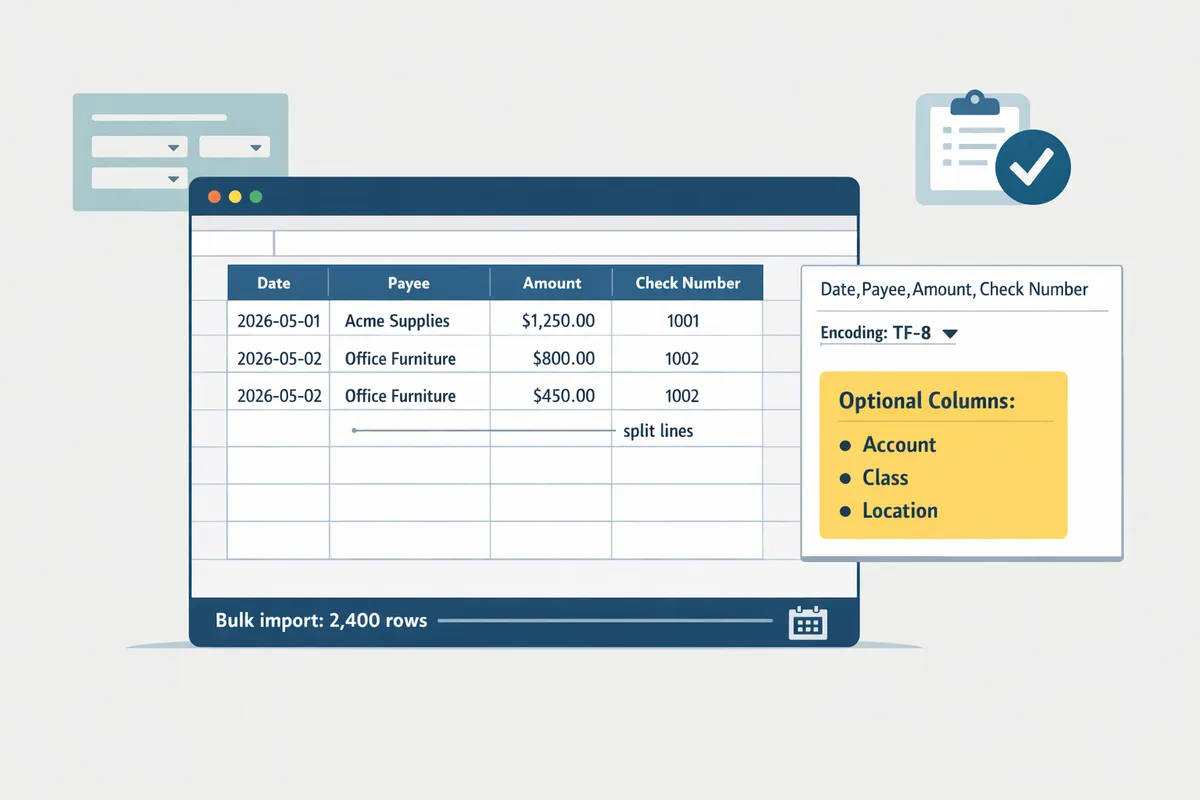
You can customize the QuickBooks Online checks CSV template by adding optional columns (Account, Class, Location) and splitting multi-line checks into one row per expense line so QBO records each line to the correct account. This makes it easier to import complex vendor payments, preserve check numbers across lines for reconciliation, and prepare files for bulk uploads from tools like xtractor.app. Below are concrete examples, a comparison of native vs third-party approaches, and a troubleshooting matrix to fix the top import errors quickly.
Split-line checks and mapping to multiple expense accounts 🧾
Split-line checks require one CSV row per expense line with the same Check Number repeated across rows so QuickBooks treats them as a single check with multiple expense distributions. Each row must include Date, Payee, Check Number, Account, and Amount; optional columns include Memo, Class, and Location. Example: a $1,200 invoice paid with a single check that covers three GL accounts could appear as three CSV rows.
| Date | Payee | Check Number | Account | Amount | Memo | Class | Location |
|---|---|---|---|---|---|---|---|
| 2026-06-01 | Acme Supplies | 1024 | Office Supplies | 300.00 | Paper/Ink | Admin | HQ |
| 2026-06-01 | Acme Supplies | 1024 | Equipment Expense | 700.00 | Printer | Fixed Assets | HQ |
| 2026-06-01 | Acme Supplies | 1024 | Freight Expense | 200.00 | Shipping | Ops | Warehouse |
Required rules for split-line imports:
- Keep Date, Payee, and Check Number identical for every row belonging to the same physical check. This preserves reconciliation and prevents duplicate checks.
- Use an Account column that matches exactly to your QBO chart of accounts text. QBO mapping is literal; typos cause unmapped-account errors.
- Put positive values for expense lines. If QBO expects negatives for refunds, format those rows explicitly.
xtractor.app can produce split-line CSVs automatically from emails or batched data by adding multiple parsing contexts and outputting each line as its own row in Google Sheets. See our guide to Email Parser to Google Sheets: Fast Setup, Bulk Imports, and Scheduling (Step‑by‑Step) for an example workflow that creates import-ready rows.
When should you use native QBO import vs a third-party tool (comparison table) 📋
Use QuickBooks native import for low-volume, single-line checks and use third-party tools like xtractor.app for high-volume imports, complex mappings, duplicate protection, and scheduled automation. The table below compares native QuickBooks import, manual spreadsheet workflows, and xtractor.app-powered automation across practical criteria.
| Capability | Native QuickBooks import | Manual spreadsheet workflow | xtractor.app-powered automation |
|---|---|---|---|
| Volume handling | Best for small batches (tens to low hundreds) | Poor—manual copy/paste slows with scale | Designed for thousands of rows per run and scheduled imports |
| Mapping flexibility | Limited to mapped columns during upload | Flexible but error-prone; requires manual mapping each time | Supports custom parsing contexts to output the exact CSV structure QBO needs |
| Duplicate prevention | Basic duplicates check during upload | Manual checks required; high risk of duplicates | Built-in duplicate protection and filter rules reduce reimports |
| Scheduling | Manual only | Manual only unless scripted | Scheduling automates daily/weekly exports to CSV or Sheets |
| Best for | Quick fixes and one-off imports | Small teams without automation tools | Accounting teams that need repeatable, validated imports |
Choose native QBO import when you have a handful of simple checks and clear mapping. Choose xtractor.app when you need repeatable parsing, saved filters, and scheduled CSV exports that match the QuickBooks Online checks CSV template. See our walkthrough on converting bank statements to QBO for similar mapping tips: Convert Bank Statements to QBO.
Troubleshooting matrix for the top import errors 🔍
The troubleshooting matrix below maps common QuickBooks import errors to root causes and precise fixes so you can correct failures without reformatting the entire file. Use a 5-row test CSV first to validate fixes before bulk runs.
| Error message shown by QBO | Likely root cause | Precise fix | Test or escalate |
|---|---|---|---|
| “Invalid date format” | Dates not in YYYY-MM-DD or locale mismatch | Convert Date column to YYYY-MM-DD in Excel or Google Sheets. Re-save as CSV UTF-8. | Test with 5 rows. |
| “Account not found” | Account name mismatches chart of accounts | Replace with exact account name from QBO or add a mapping column that QBO recognizes. | Test mapping preview in QBO. |
| “Duplicate transaction” | Same Check Number and date already in QBO | Confirm whether previous import succeeded. If not, change import ID or use xtractor.app filters to exclude already-imported items. | Test for the check number in QBO. |
| “Amount is required” | Blank or non-numeric Amount cell | Ensure Amount column contains numeric values only; remove currency symbols and commas. | Import a 1-row sample. |
| “Payee not mapped” | Missing or inconsistent Payee text | Standardize Payee names in CSV to match vendor names in QBO, or create vendor first in QBO. | Test with a vendor that exists in QBO. |
| “Split lines not grouped” | Check Number differs across split rows | Ensure identical Check Number and Date for all split rows. | Import the grouped 3-row sample. |
How to use the matrix step-by-step:
- Export a 5-row test CSV that includes the problem case and run the QuickBooks import preview.
- Copy the exact QBO error and find the row in the matrix.
- Apply the precise fix in the CSV and re-upload the test file.
- If the error repeats across many rows, use xtractor.app to enforce field normalization and scheduling so the exported CSV matches QBO every time.
💡 Tip: Always run a 5-row test import and reconcile those checks in QuickBooks before processing a full batch. This saves hours of cleanup later.
For recurring parsing issues caused by inconsistent source data, our custom parsing rules guide shows patterns and examples that reduce breakage: Custom Parsing Rules for Emails with Inconsistent Formats. If your data source is bank PDFs, see our bank-statement conversion workflow for additional formatting steps: Convert Bank Statement PDF to QuickBooks.
Final checklist and next steps
Use the included templates and mapping cheat sheet to import checks into QuickBooks Online from CSV without header mismatches or incorrect field mappings. Our downloadable package gives exact sample headers for 3-column and 4-column formats, a field-mapping cheat sheet, a step-by-step import workflow, and a troubleshooting matrix so small accounting teams cut errors and save hours.
Xtractor.app is an email parsing and data-extraction tool that pulls structured text out of emails and exports it directly into Google Sheets, CSV, or Excel. The product helps move extracted check data into your spreadsheet template quickly; follow our step‑by‑step parser guide to set up bulk imports and scheduling. If you need bank-statement conversion first, see our guides for converting statements to QBO and converting bank statement PDFs to QuickBooks.
Download the free QuickBooks Online checks CSV template and mapping cheat sheet now, then try parsing check-related emails with Xtractor.app by following the Email Parser to Google Sheets setup guide.
💡 Tip: Before importing, validate date and amount formats in the template (for example, MM/DD/YYYY and plain numeric amounts) to avoid mapping errors.