 Xtractor
A single malformed CSV row can cost a bookkeeping team two hours of manual fixes and rejected imports. quickbooks online advanced vs standard invoice import is a comparison that shows differences in per-file row limits, accepted CSV fields, and pricing implications for high-volume bookkeeping. This article compares Advanced and Standard import limits, import costs, and recommended CSV workflows so you can choose the most efficient path for daily volume. Our website’s Xtractor.app parses thousands of invoice emails at once, extracts fields like amounts and order numbers, and outputs clean CSV or Google Sheets files ready for QuickBooks import. Which QuickBooks plan actually handles your daily invoice load, and how does a parsed CSV workflow change reconciliation?
How do QuickBooks Online Advanced and Standard differ for invoice imports?
Advanced supports larger batch imports, more flexible field mapping, and automation that reduces manual cleanup compared with Standard. QuickBooks Online Advanced raises practical limits and adds workflows that let mid-size bookkeeping teams import complex invoices with fewer pre-import edits. Standard remains suitable for low-volume, single-line invoice imports but requires more manual preparation for multi-line items and tax mapping.
What is QuickBooks Online Advanced? 🚀
QuickBooks Online Advanced is an edition that provides higher import capacity, role-based controls, and automation for mid-size and growing accounting teams. Advanced changes the import experience by accepting larger CSV uploads, handling multi-line invoice item structures more robustly, and letting teams reuse saved mappings to cut repetitive mapping time. According to QuickBooks help documents, Advanced has higher CSV size and row tolerances than Standard, which reduces the chance of split uploads for monthly batches.
Example: a finance team that imports 1,200 invoices per month will spend less time splitting CSVs and remapping customers when using Advanced. xtractor.app pairs well with Advanced for teams extracting invoices from email; export a clean CSV from xtractor.app and apply a saved Advanced mapping to import thousands of records with fewer manual corrections.
What is QuickBooks Online Standard? 📄
QuickBooks Online Standard is an edition that provides core bookkeeping features and basic CSV import capabilities for small businesses. Standard typically requires a single-line-per-invoice CSV or careful flattening of multi-line items before import. Small practices using Standard commonly perform pre-import steps such as consolidating line items into a single description, creating missing customer records, and running a 10-row test import to catch header mismatches.
Example: a 10-person retailer processing 120 invoices monthly often spends 1–3 extra hours preparing CSVs because Standard enforces stricter file-size and mapping constraints. Using xtractor.app to produce tidy CSV outputs reduces transcription errors, but teams on Standard still must validate headers and tax codes manually before upload.
Which invoice import methods does each edition support? 🔁
Both editions support manual invoice entry and CSV uploads; Advanced also supports higher-volume workflows and saved mapping reuse that speed bulk imports. Below is a side-by-side comparison of common import methods and how they behave across editions.
| Import method | QuickBooks Online Standard | QuickBooks Online Advanced | Notes and typical workflow |
|---|---|---|---|
| Manual invoice entry | Fully supported | Fully supported | Best for one-off invoices or corrections. Not suitable for bulk work. |
| Native CSV upload | Supported with smaller file and row limits | Supported with larger file and row limits and saved mappings | Use the provided CSV templates to match headers. Test a 10-row import first. |
| Third-party import tools (SaasAnt) | Supported; useful for batch imports but may require per-file adjustments | Supported; pairs well with Advanced saved mappings for repeated workflows | SaasAnt automates multi-line imports and can reduce manual mapping. |
| Google Sheets connectors (Coefficient) | Supported via CSV export or integration | Supported with more robust batch handling in Advanced | Coefficient can push prepared rows from Sheets into QuickBooks after validation. |
| Email-to-CSV extractors (xtractor.app) | Supported as a CSV source; still requires header validation | Supported and often used to feed larger Advanced imports | xtractor.app extracts invoice fields from email into Sheets/CSV; scheduled exports reduce manual copying. |
Example: teams that use xtractor.app to parse 500 monthly vendor emails can export directly to Google Sheets, clean tax codes using our Essential Google Sheets Formulas article, then import into Advanced with a saved mapping to avoid repeated field alignment.
How do CSV templates differ between the editions? 🧾
QuickBooks CSV templates require specific headers and column formats; Advanced tolerates larger files and supports multi-line invoice item structures more robustly. The header set typically includes customer identifier, invoice date, invoice number, line-item description, quantity, rate, and tax/account fields; mismatches in any of these columns commonly trigger import errors. Advanced handles longer files and more consistent multi-line item imports, which reduces the need for manual flattening or multiple CSVs.
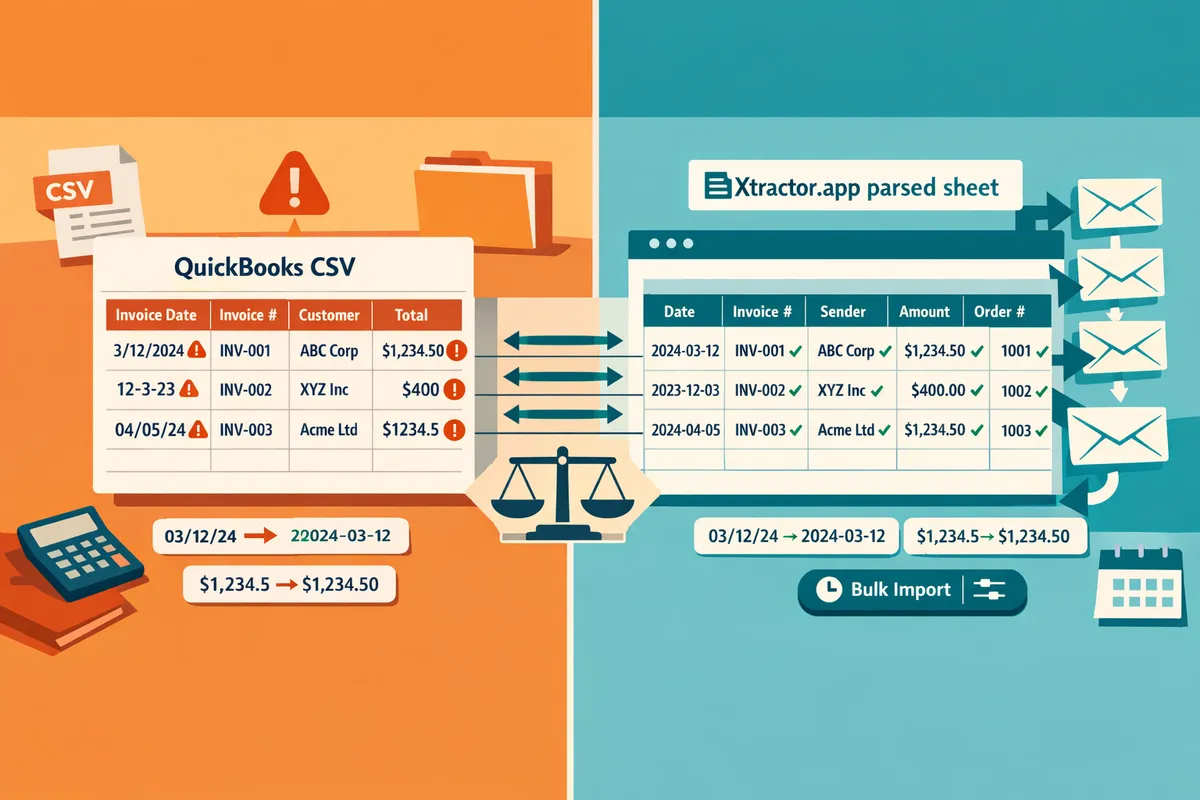
Common header issues to watch for include missing customer names, inconsistent date formats, and extra invisible characters in the header row. Use a sample 10-row import to validate headers and tax mapping before running full imports. For teams extracting invoices from email, xtractor.app can output consistent header names to match the QuickBooks Online Advanced invoice CSV template and reduce rework.
⚠️ Warning: A single incorrect header or date format will usually reject the entire CSV. Always run a small test import and validate tax code columns before processing full batches.
Helpful resources: use our Automated Email Invoice Processing Addon to set up email parsing workflows and our Essential Google Sheets Formulas for Small Business Accounting to normalize dates and totals before import. For bank-related imports, see our Convert Bank Statement PDF to QuickBooks and Convert Bank Statements to QBO guides for similar mapping and validation practices.
How do features, limits, and cost compare side-by-side for invoice CSV imports?
Advanced raises practical import limits and adds automation that reduces manual validation time compared with Standard. For email-origin invoices, xtractor.app extracts fields to clean CSVs or Google Sheets before importing to QuickBooks, which shortens the validation and mapping steps.
Feature matrix: import limits, mapping, multi-line, error reporting, and automation 🎯
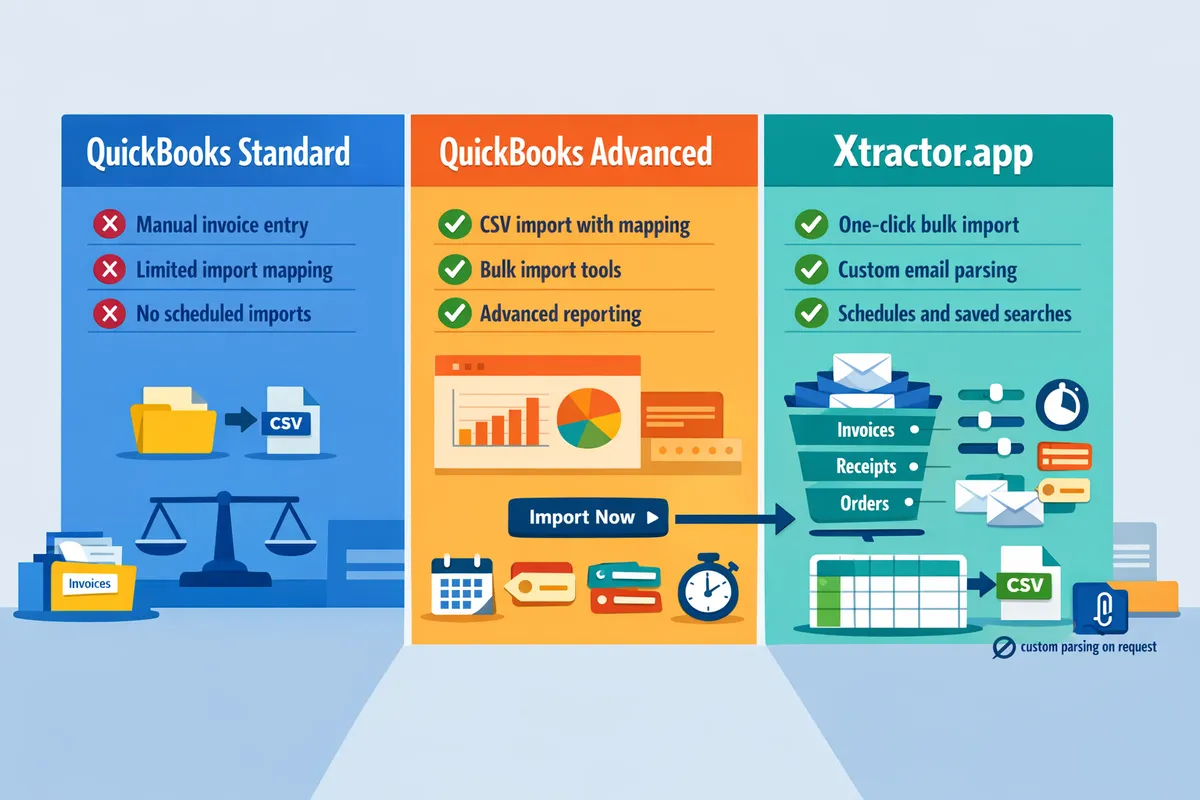
The table below compares import limits, mapping flexibility, multi-line invoice support, error reporting, and automation across QuickBooks Online Standard, QuickBooks Online Advanced, and xtractor.app (as a preprocess).
| Feature | QuickBooks Online Standard | QuickBooks Online Advanced | xtractor.app (pre-import extractor) |
|---|---|---|---|
| Typical max rows per CSV | Lower; often requires splitting very large batches (illustrative: under 200 rows per file) | Higher; supports larger batches and fewer manual splits (illustrative: 200+ rows per file) | Not applicable; parses emails into spreadsheets so you can create optimally sized CSVs for either edition |
| Field mapping flexibility | Basic field mapping in import UI | More mapping options and saved templates for repeat imports | Exports mapped columns directly to your QuickBooks invoice CSV template to reduce post-export mapping work |
| Multi-line invoice support | Limited; multi-line items often need special CSV formatting | Better handling for multi-line line items and saved templates | Converts multi-line email invoices into separate line rows matching QuickBooks invoice CSV multi-line format |
| Error reporting and recovery | Row-level error messages; manual fixes required and re-uploads can be slow | Enhanced error detail and recovery workflows, plus saved mappings to reduce repeat errors | Produces cleaner source data which reduces QuickBooks import errors and speeds rework when errors occur |
| Automation and scheduling | Manual uploads only | Automation options and saved import workflows reduce repetitive steps | Scheduled parsing and one-click bulk export to CSV/Google Sheets to automate upstream data prep |
For bank or statement conversion workflows that feed into invoices or billings, see our guide for converting bank statement PDFs to QuickBooks and the step-by-step guide for creating QBO files from statements.
Cost and licensing trade-offs for invoice-heavy teams 💰
Upgrading to Advanced increases subscription costs but can reduce labor and rework for teams handling high-volume or complex invoice imports. For example, teams that regularly import hundreds of multi-line invoices or spend several hours weekly fixing CSV rows should evaluate the subscription delta against saved staff time.
Consider these licensing items when deciding:
- Seat count and admin roles. Advanced often includes more customizable roles and permissions; factor additional seat costs if more users need upload or approval rights.
- Saved mapping and automation needs. Advanced reduces repetitive mapping work; review how many saved templates you need before deciding.
- Integration versus add-on costs. Using xtractor.app to preprocess emails may avoid upgrading QuickBooks if the primary pain point is cleaning email-origin data. According to xtractor.app, scheduled bulk parsing and one-click export reduce the manual work that drives many upgrade decisions.
Example threshold to evaluate Advanced (illustrative): if your team imports more than 200 multi-line invoices per month or spends over 6 hours weekly on import cleanup, model the subscription delta versus the hourly cost of that cleanup to decide.
💡 Tip: Compare total cost of ownership: add subscription differences, expected admin seats, and estimated monthly hours saved to get a clear ROI before upgrading.
When to use xtractor.app instead of only QuickBooks native tools 🚀
Use xtractor.app when invoices arrive by email in inconsistent formats or when attachments require pre-parsing before CSV import to QuickBooks. According to xtractor.app, scheduled bulk parsing and one-click export to CSV or Google Sheets help teams validate and map fields to QuickBooks templates faster.
xtractor.app is an email parsing tool that extracts structured fields (subject, sender, date, amounts, order numbers) into a clean spreadsheet so you import fewer errors into QuickBooks. Practical scenarios where xtractor.app outperforms a native-only workflow:
- Thousands of emailed invoices per month that vary by vendor formatting. Parsing reduces manual copy-paste.
- Repeating vendors with minor format differences where saved parsing contexts remove repeat cleanup.
- Daily reporting needs where Google Sheets outputs feed automated dashboards; see Essential Google Sheets Formulas for small-business accounting for common post-export formulas.
Step-by-step checklist to combine xtractor.app with QuickBooks CSV imports:
- Set saved searches/filters in xtractor.app to target invoice emails by sender or subject.
- Create parsing contexts that map invoice lines and totals to columns that match your QuickBooks invoice CSV template.
- Run a scheduled bulk parse or one-click import of selected messages.
- Export to CSV or Google Sheets and run validation formulas or pivot checks.
- Upload the validated CSV into QuickBooks (use saved mappings in Advanced if available).
⚠️ Warning: xtractor.app’s default plan does not parse attachments; request custom parsing for PDFs or non-text attachments if your invoices arrive as attachments.
For an overview of automated email invoice processing best practices and how parsers fit into bookkeeping workflows, see our Automated Email Invoice Processing Addon and the comparison of the Best Email Parser Software (2026).
Which workflows, templates, and troubleshooting steps ensure successful invoice CSV imports?
A validated CSV template combined with a repeatable pre-import workflow and targeted troubleshooting prevents most invoice import failures. This reduces rework for bookkeeping teams and makes it safer to scale imports from dozens to thousands of records.
End-to-end CSV workflow and reusable template checklist
A repeatable workflow that extracts, validates, maps, and tests a small batch prevents the majority of QuickBooks CSV import failures. xtractor.app is an email parsing and data-extraction tool that pulls structured text out of emails and exports it directly to Google Sheets, CSV, or Excel, which lets you turn inbox invoices into clean spreadsheet rows before mapping to QuickBooks.
Follow this 7-step checklist before any bulk import:
- Extract source data. Use xtractor.app to parse invoice emails into a Google Sheet or CSV with consistent column headers (invoice_number, customer_name, date, item_code, qty, unit_price, tax_code, currency, memo).
- Apply normalization rules. Convert dates to YYYY-MM-DD, trim extra spaces, standardize currency symbols, and force numeric values for quantity and price.
- Validate required fields. Confirm every row includes customer_name, invoice_number, date, and at least one item_code and amount.
- Map columns to QuickBooks. Use QuickBooks Online Advanced invoice CSV template field names. For guidance on pre-formats and mappings, refer to our invoice CSV template guidance in the automated invoice processing overview.
- Run a controlled test import of 10 to 20 invoices. Check for rejected rows and mismatched totals before proceeding.
- Fix mapping errors and re-export. Update column headers or tax mappings and re-run the test import until there are zero rejections.
- Schedule or run the full import. Use saved parsing contexts in xtractor.app to automate future file preparation.
For teams converting PDFs or bank-style statements, see our step-by-step workflows for converting PDFs to QuickBooks formats and for converting bank statements to QBO format.
How to handle multi-line invoice items for CSV import 📄
Multi-line invoice items must use a consistent row structure where item lines reference the same invoice identifier so QuickBooks groups them correctly. Incorrect grouping causes mismatched totals or full-line rejections during import.
Practical formatting rules:
- Use an invoice identifier column such as invoice_number repeated on every item row for that invoice. This creates explicit grouping and prevents orphan lines.
- Put header-level fields (customer_name, date, invoice_number, currency) on every row or on the first row only if your chosen QuickBooks template allows blank header fields on subsequent lines.
- Include item-specific columns on each row: item_code, description, qty, unit_price, line_amount, tax_code.
- For discounts or shipping as separate lines, include them as distinct item_code rows with negative or positive line_amounts, not as a combined total.
Validation and test strategy:
- Build a 5-invoice sample where one invoice has three line items and one has a discount line. 2. Import the sample and confirm invoice totals match the sum of line_amounts. 3. If totals mismatch, switch to the “repeat invoice_number on each item row” format and retest.
Using xtractor.app helps because you can create parsing contexts that always output repeated invoice_number and normalized item rows so multi-line grouping is consistent before mapping.
Common import errors and step-by-step fixes ⚠️
Most import failures come from date format mismatches, incorrect header names, missing tax codes, and unlinked customers. Each of these issues produces predictable QuickBooks error messages that you can fix with targeted steps.
Common errors and fixes:
- Date format rejected. Normalize all dates to YYYY-MM-DD or to the date format QuickBooks expects. Convert dates in Google Sheets using a single formula column and export as text.
- Header name mismatch. Compare your CSV headers to the QuickBooks template exactly. Rename columns to QuickBooks field names or adjust the import field mapping before upload.
- Missing tax code or inactive tax. Map tax_code to an active QuickBooks tax name or leave the column blank for non-taxed invoices. Verify tax codes inside QuickBooks before import.
- Customer not found. Create a customer import first or include a unique customer_id column that matches QuickBooks records. Avoid creating near-duplicate names; use exact customer IDs for high-volume imports.
- Rejected rows with “invalid amount”. Ensure unit_price and qty are numeric and that line_amount equals qty multiplied by unit_price, or let QuickBooks calculate totals and only send qty and unit_price.
Use xtractor.app to normalize fields and run saved filters that reject malformed rows before you export. That reduces the number of manual fixes after an import attempt.
⚠️ Warning: Avoid running full-file imports without test runs. A failed full import can create partial data that is harder to clean than the small set you would get from test batches.
Pre-import validation tests and rollback plan 🔁
Run controlled test imports, validate sums and currency, and document a rollback plan before scaling to full batches. Small tests prove mapping logic and reduce hours spent on post-import cleanup.
Pre-import test steps:
- Tag test invoices in your CSV with a unique marker in the memo field, for example IMPORT_TEST_2026.
- Import a sample of 5 to 20 invoices and immediately export those invoices from QuickBooks to confirm line-level totals and tax calculations.
- Reconcile totals: sum(line_amount) in your source sheet and compare to QuickBooks exported totals; use the formulas covered in our Essential Google Sheets Formulas for Small Business Accounting to automate this check.
- Confirm currency consistency and that no rows used different decimal separators.
Rollback and cleanup plan:
- Locate imported test invoices in QuickBooks via the memo tag or import date range. 2. Use QuickBooks batch actions where available to void or delete test invoices. If batch delete is not available in your edition, use a saved search to list invoices and then delete them in small groups. 3. Document the exact steps and assign owner responsibility for each import window.
💡 Tip: Add a single-column quality-check in your spreadsheet that flags rows failing any validation rule (date format, missing customer, non-numeric amounts). Filter out flagged rows before export to avoid repeated import attempts.
Frequently Asked Questions
This FAQ answers common purchase-informing questions about invoice CSV import differences between QuickBooks Online Advanced and Standard, and how xtractor.app is an email parsing tool that extracts invoice fields and exports clean CSVs, Google Sheets, or Excel for QuickBooks imports. Use these answers to validate templates, estimate upgrade timing, and design a repeatable pre-import workflow.
Can QuickBooks Online Standard import multi-line invoice items? 📄
Yes. Standard supports CSV invoice imports but enforces tighter file structure and practical row limits than Advanced. Standard typically requires repeating the invoice identifier on each line to group multi-line items, which increases the risk of malformed rows when invoices have many lines. For teams that regularly receive invoices with 5 to 20 line items, test the QuickBooks Standard template with a representative sample before running a full upload. xtractor.app can output CSVs that group multi-line items correctly by exporting repeated invoice numbers and ordered line rows, which reduces manual rework during mapping.
Is there a specific QuickBooks Online Advanced invoice CSV template I should use? 🧾
Yes. QuickBooks provides CSV header requirements and Advanced-friendly templates that include additional fields for multi-line items, classes, and custom metadata. Map at minimum these fields: InvoiceNumber, InvoiceDate, CustomerName, ItemCode, Description, Quantity, Rate, LineAmount, TaxCode, and Memo. We recommend keeping a saved mapping file for common vendor formats and using a sample mapping file to test imports. Use xtractor.app to generate the mapped CSV or Google Sheet, then apply formulas from our Essential Google Sheets Formulas for Small Business Accounting article to normalize values before import.
How many invoices can Advanced import at once and should I worry about size limits? 📦
Advanced typically accepts larger batch CSV imports than Standard, but exact limits depend on row counts and file size and may change. Large files increase the chance of a single malformed row causing a partial or full rejection, so run a small test batch first and use staggered imports for very large datasets. For example, a bookkeeping team importing 5,000 monthly invoices with an average of four lines each often finds it safer to split by week or by customer to keep each CSV under a manageable row count. xtractor.app can automate scheduled exports and split output files by date range or customer to match the import strategy you choose.
Can xtractor.app send parsed invoices directly into QuickBooks? 🔁
No. xtractor.app exports structured invoice data to Google Sheets, CSV, or Excel for manual import into QuickBooks rather than pushing directly into QBO. This export-first approach gives bookkeeping teams a validation step to confirm customer names, tax codes, and totals before committing data to QuickBooks. If you need a push integration, use the cleaned exports from xtractor.app with QuickBooks native import tools or third-party importers. See our Automated Email Invoice Processing Addon overview for setup patterns and the Best Email Parser Software (2026) comparison for choosing the right parser-to-ERP path.
What steps fix the most common CSV import errors quickly? ⚠️
Fixing date formats, header names, customer and tax mappings, and multi-line grouping resolves the majority of import failures. Follow these steps in order:
- Run a 10-row test import and reconcile invoice totals to ensure grouping and math are correct.
- Match QuickBooks exact header names and remove extra hidden characters or spaces.
- Standardize all dates to the QuickBooks format you use.
- Confirm every CustomerName in the CSV exists in QuickBooks or include a CustomerID column.
- Ensure tax codes and item codes match QuickBooks setup.
- Use invoice numbers to group multi-line items and keep each set of lines contiguous.
⚠️ Warning: One malformed CSV row can cause a partial or full rejection. Always run a small test batch and keep an untouched copy of the original export.
Use xtractor.app to pre-clean text, remove stray characters, and export files split by date ranges to reduce the scope of errors during re-import.
When should my firm upgrade from Standard to Advanced? 📈
Upgrade when the hours your team spends cleaning CSVs, splitting files, and retrying failed imports consistently cost more than the subscription difference. Evaluate three metrics: monthly invoice volume, average line items per invoice, and staff hours spent on imports each month. For example, if manual import tasks consume 8+ staff hours weekly or you run repeated failures on multi-line invoices, Advanced often pays for itself through reduced rework. Use xtractor.app to measure the time required to prepare import-ready CSVs and compare that baseline to the expected time savings from Advanced features, then factor the subscription delta into your ROI calculation.
Choose the QuickBooks edition that matches your invoice volume and CSV workflow.
For high-volume bookkeeping, the practical difference comes down to import limits, multi-line item handling, and time spent cleaning CSVs. quickbooks online advanced vs standard invoice import shows Advanced suits larger batches and complex line-item invoices, while Standard forces more manual edits and slower reconciliation. That gap translates to hours saved or lost and higher risk of transcription errors; see our overview of Automated Email Invoice Processing Addon for common automation patterns.
Xtractor.app is an email parsing and data-extraction tool that pulls structured text out of emails and exports it directly into Google Sheets, CSV, or Excel. The product is designed to import thousands of emails in a single action or on a scheduled cadence, parse relevant fields (subject, sender, date, amounts, order numbers, etc.), and produce a clean, tabular output in a spreadsheet for reporting, analysis, or bookkeeping. Key features include one-click bulk import, custom filters to define exactly which pieces of text to extract, the ability to add multiple parsing contexts to handle emails that vary in format, saved searches/filters for reuse, and scheduling to automate daily imports.
💡 Tip: Test a 10-row sample using a QuickBooks Online Advanced invoice CSV template before a full import and use our Essential Google Sheets Formulas for Small Business Accounting to clean data.
Download Xtractor.app’s invoice CSV import template and sample workflow to try a bulk import and compare results yourself. For CSV conversion guidance, consult our walkthrough on converting bank statement PDFs to QuickBooks at Convert Bank Statement PDF to QuickBooks.