 Xtractor
Parsing 300 order-confirmation emails manually can cost a bookkeeping team 10 hours per week. email parser gmail is a tool that extracts structured fields (order numbers, amounts, dates, sender) from Gmail messages and exports them to Google Sheets, CSV, or Excel. Xtractor.app is our email parsing and data-extraction tool that pulls structured text from thousands of emails in bulk or on a schedule, offering bulk import, custom filters, scheduling, and tabular outputs for reporting or bookkeeping. If you feel overwhelmed, this beginner’s guide starts from zero and shows setup, field mapping, and scheduled imports, with a no-code path detailed in the Gmail to Google Sheets automation guide. See how to extract order numbers from mixed-format receipts without writing code.
What is a Gmail email parser and how does it extract order numbers, amounts, and dates?
A Gmail email parser is a data-extraction tool that pulls structured fields such as order numbers, amounts, and dates from message headers and bodies. Parsers run a short workflow: target the right messages, apply extraction rules, validate the results, and export clean rows to Google Sheets, CSV, or Excel. xtractor.app performs each step with saved searches, reusable field definitions, and scheduled exports so you avoid manual copy-and-paste.
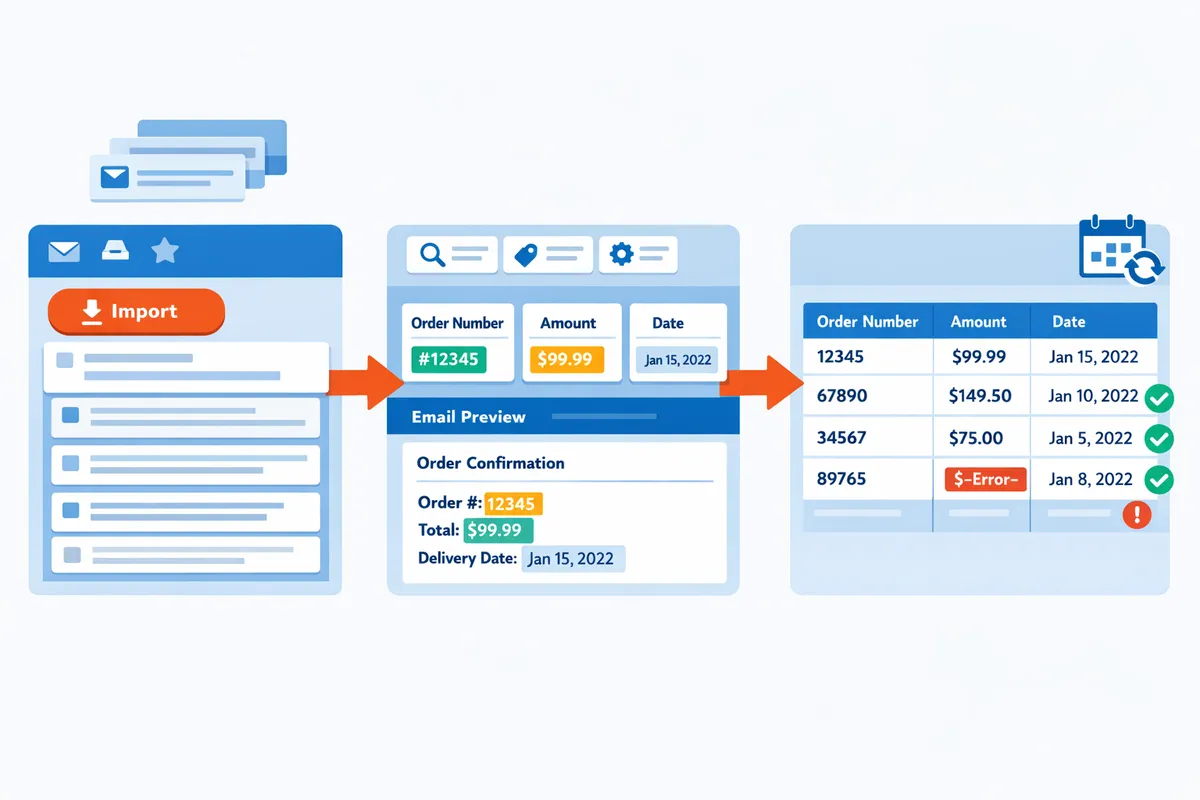
How do email formats affect extraction? 📧
Email formats determine whether a parser can use simple label-based rules or needs context-aware extraction. Structured templates (for example, an invoice that always shows “Order Number: 12345”) allow a single rule to extract values reliably. Semi-structured messages place key values near consistent labels but with small layout changes; these need flexible field definitions that look for nearby labels such as “Order ID,” “Order #,” or “Ref.” Free-form or promotional emails scatter values and often require context-aware parsing or manual mapping.
Examples that work well in practice:
- Structured invoice: extract the token immediately after the label “Order Number:”. This returns exact matches across 95% of identical templates.
- Semi-structured shipping notice: capture the nearest numeric token when the subject contains “Shipping” and the body includes “Tracking”.
- Free-form receipt: use a parsing context that searches for currency patterns near words like “Total” or “Amount charged” and then validate the result.
If you handle mixed templates, see our guide on Multi-Context Parsing to Handle Varying Email Layouts: Step-by-Step Setup with Real-World Templates for concrete templates and rules.
What are the core components of an email parser? 🧩
Core components include filters, field definitions, validation rules, and export mappings. Filters scope which messages the parser examines (sender, subject, date range). Field definitions tell the parser how to locate a value (for example, the text after “Order ID:” or the first currency near the word “Total”). Validation rules reject or flag entries that do not match expected formats (currency symbols, two-decimal amounts, or plausible date ranges). Export mappings convert parsed fields into spreadsheet columns and specify formats (date format, number vs text).
How each piece affects your workflow:
- Filters: reduce false positives and speed up processing.
- Field definitions: determine extraction accuracy.
- Validation: keeps your sheet clean and reduces reconciliation time.
- Export mapping: ensures downstream tools read your data correctly.
For a hands-on example of mapping parsed fields into a sheet and scheduling imports, see Email Parser to Google Sheets: Fast Setup, Bulk Imports, and Scheduling (Step‑by‑Step) and our Apps Script alternative in Parse Email to Google Sheets.
How xtractor.app handles variable email formats 🔁
xtractor.app supports multiple parsing contexts and saved searches so mixed-template inboxes export consistent spreadsheet rows. You can save a search that targets a vendor or subject line, then attach several parsing contexts (one per template) to that saved search; the system applies the matching context and writes the same set of columns to your sheet. Scheduling runs these saved searches automatically so daily revenue or order logs update without human intervention.
Typical setup steps with xtractor.app:
- Create a saved search that targets the messages you need.
- Add one or more parsing contexts for the templates in that search.
- Define field mappings and validation rules (date format, currency).
- Schedule a daily import or run a one-click bulk import.
⚠️ Warning: The default product does not parse attachments. Contact xtractor.app support for custom attachment parsing or larger, specialized plans.
💡 Tip: Set a strict date format (for example, YYYY-MM-DD) in your export mapping to avoid mixed-locale errors when combining feeds from different vendors.
For a production-ready walkthrough that shows how to map fields across mixed templates, scheduling, and common traps to avoid, see Multi-Context Parsing to Handle Varying Email Layouts and the no-code automation examples in Gmail to Google Sheets Automatically: The Beginner’s Guide to No-Code Email-to-Sheet Automation.
How to parse Gmail emails to Google Sheets: a step-by-step beginner workflow
You can parse Gmail emails to Google Sheets by filtering the right messages, defining parsing contexts per template, testing on sample emails, and mapping fields to sheet columns for scheduled exports. This workflow removes manual copy-paste and produces a predictable row-per-order output you can use for bookkeeping or daily revenue reports. Below are two repeatable approaches: a no-code path with xtractor.app and a DIY Apps Script route for comparison.
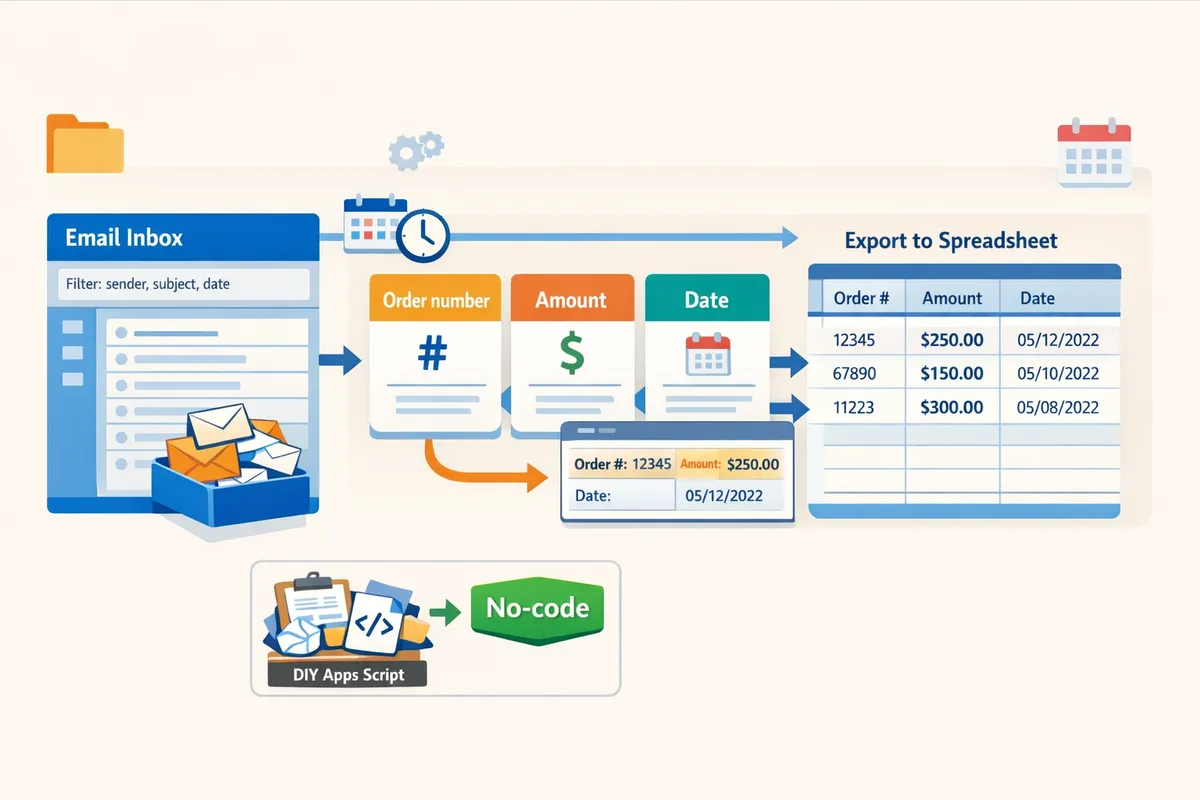
Quick start with xtractor.app 🚀
xtractor.app lets you connect Gmail, create saved searches, add parsing contexts, preview results, and export parsed fields directly into Google Sheets without writing code. Follow these steps for a reliable beginner setup:
- Connect Gmail and grant read-only access for the account you will parse. This limits scope and speeds searches.
- Create a saved search (filter) that targets the messages you need, for example sender:orders@store.com subject:”Order Confirmation” after:2026/01/01.
- Add parsing contexts for each email template you expect. One context might extract order_number and amount from plain-text confirmations; another handles HTML receipts. Use the UI to highlight sample text so the parser learns the field boundaries.
- Preview parsed results against a sample set and correct edge cases (missing currency symbol, different date formats).
- Map each parsed field to a Google Sheet column and run a one-click bulk import or enable daily scheduling for automated imports.
xtractor.app supports multiple parsing contexts and saved searches so you can target mixed-format inboxes. See our detailed step-by-step guide for bulk imports and scheduling in the Email Parser to Google Sheets: Fast Setup, Bulk Imports, and Scheduling (Step‑by‑Step).
DIY: Apps Script and no-code tools (pros and cons) ⚙️
Apps Script or workflow tools like Zapier and Make can parse Gmail to Sheets but require ongoing maintenance when templates change. DIY saves subscription fees at the cost of developer time and recurring upkeep. For example, a small ecommerce shop parsing 500 orders a month might spend 8–20 hours building a robust Apps Script and then 1–3 hours per week fixing edge cases after a template change.
Pros:
- Lower recurring software cost for very small volumes.
- Total control over logic and data flow.
Cons:
- Time cost. Expect initial setup hours to escalate if you add thread handling, currency normalization, or multi-template support.
- Fragility. Inline HTML, nested replies, and attachment-only receipts commonly break pattern matching and require frequent rule updates.
- Governance gaps. Apps Script projects often lack audit trails and role-based access out of the box, which creates risk for bookkeeping teams.
For a stepwise Apps Script walkthrough, see Parse Email to Google Sheets.
Compare Gmail parsers: xtractor.app vs Apps Script vs Zapier/Make
This table compares xtractor.app, Apps Script, and Zapier/Make on setup time, repeatability, bulk import support, handling multiple templates, and governance.
| Approach | Typical setup hours | Repeatability (low touch) | Bulk import support | Handling multiple templates | Governance / security controls |
|---|---|---|---|---|---|
| xtractor.app | 1–3 hours to connect, define contexts, and map fields | High. Saved searches and schedules make runs predictable | Yes. One-click bulk import and scheduled cadence | High. Multi-context parsing designed for mixed formats | Role controls, saved searches, and import logs visible in UI |
| Apps Script | 8–20 hours depending on complexity | Medium. Scripts can be scheduled but need maintenance when templates change | Limited. Scripts can iterate threads but large volumes require batching | Low to medium. Each new template often requires code updates | Depends on G Suite controls; auditability needs custom logging |
| Zapier / Make | 2–6 hours for basic flows | Medium. Workflows break if message structure shifts | Limited. Task-based platforms charge per run and can be slow for thousands of messages | Medium. Can add branches per template but costs increase with complexity | Platform-level controls exist, but audit trails may be fragmented |
Use this comparison to weigh hours and risk. If your inbox has many formats and you need regular bulk imports, xtractor.app reduces repeat manual work and governance headaches.
Field mapping templates and sample column layouts 🗂️
Map parsed values to fixed sheet columns: order_number, amount, currency, date, sender, subject so downstream reports and pivot tables work without extra cleanup. Below are three starter templates you can paste into a Google Sheet header row.
Ecommerce order (single-row per order):
- order_number | order_date | amount | currency | customer_email | payment_method | status
Refund record:
- refund_id | original_order_number | refund_date | refund_amount | currency | reason | processed_by
Vendor invoice (AP):
- invoice_number | invoice_date | due_date | net_amount | tax_amount | currency | vendor_email
Validation checklist before scheduling imports:
- Confirm date normalization. Ensure parsed dates map to ISO (YYYY-MM-DD) or your accounting system format.
- Confirm currency extraction. If amounts lack currency symbols, add a rule to infer currency from sender or subject.
- Sample-run 100 messages across templates and check for false positives in order_number fields.
- Verify header row is locked and new imports append below the last row to avoid overwriting.
💡 Tip: Standardize date and currency during mapping (for example, force dates to YYYY-MM-DD and amounts to numbers) so pivot tables and accounting imports work without manual cleanup.
Use our Multi-Context Parsing to Handle Varying Email Layouts guide when your inbox contains many different confirmation formats. For a full no-code automation primer, see Gmail to Google Sheets Automatically: The Beginner’s Guide to No-Code Email-to-Sheet Automation.
How to troubleshoot and improve accuracy when extracting order numbers, amounts, and dates
Most extraction errors stem from mixed templates, locale-dependent formats, threaded messages, and attachments; each error class needs a targeted fix. This section gives practical checks, validation rules, and governance steps you can run in hours rather than days. Use these steps whether you parse one inbox or schedule daily imports with xtractor.app.
Fixing inconsistent templates and multi-format inboxes 🔍
A parsing context is a ruleset that targets a single email template and maps fields consistently. Create one parsing context per template family (for example, order confirmations, shipping notices, and refunds) so each extractor pulls from predictable locations. Example: set a context for “Vendor A order confirmation” that looks for “Order #” then map that to the Order Number column in your sheet. Use xtractor.app’s multi-context feature to run those contexts in one bulk import so you avoid manual routing.
Quick test plan. 1) Sample 100 recent emails across senders and templates. 2) Run each context against its intended samples. 3) Record extraction rate and five common failures. 4) Adjust selectors or add a new context for templates with <90% accuracy.
See our step-by-step multi-context setup for real templates in the Multi-Context Parsing guide: Multi-Context Parsing to Handle Varying Email Layouts: Step-by-Step Setup with Real-World Templates.
Handling amounts, currencies, and date formats 💱
Normalization rules are automated steps that convert varied input formats (currency symbols, thousands separators, locale dates) into a consistent output format. Strip non-numeric characters from amounts, remove thousands separators, and convert dates to ISO (YYYY-MM-DD) before export. Example: convert “€1.234,56” to “1234.56” and “12/04/23” (UK) to “2023-04-12”.
Practical checks. 1) Identify top five currency formats in a 200-email sample. 2) Add normalization rules in xtractor.app for each pattern. 3) Run a staging import to verify totals match bookkeeping records for a small window.
💡 Tip: Run a validation import of 200 messages into a staging sheet to catch format edge cases before production exports.
Also map a canonical currency column (e.g., USD, EUR) if emails contain mixed currencies so finance can filter or convert later. Link this workflow to our parsing-to-sheets setup for scheduling and validation: Email Parser to Google Sheets: Fast Setup, Bulk Imports, and Scheduling (Step‑by‑Step).
Attachments, inline images, and custom parsing requests 📎
Attachments are separate file payloads in an email that many parsers do not extract by default. If your orders or receipts include PDF or CSV attachments, plan a separate attachment-processing step or request managed parsing from xtractor.app. Example: route messages with attachments to a managed plan that extracts PDF invoice fields and appends them to the same sheet columns.
What to check. 1) Search for messages with attachments using Gmail search operators. 2) Count how many required fields live only in attachments. 3) If >10% of orders rely on attachments, schedule a managed parsing plan or an attachment-specific workflow.
⚠️ Warning: Attachments are not parsed by default; do not rely on automatic exports for PDF-only invoices without a managed parsing step.
For no-code automation of email body fields, review the Gmail-to-sheet guide for alternate flows that keep attachments separate: Gmail to Google Sheets Automatically: The Beginner’s Guide to No-Code Email-to-Sheet Automation.
Preventing duplicates and ensuring data integrity ✅
Duplicate protection is a rule that prevents the same order from being imported twice by matching a reliable unique key. Use a compound unique key such as Order Number plus Sender or the email Message-ID when available. Implement deduplication at import time in xtractor.app or add a spreadsheet-level dedupe step before financial reports.
Monitoring checklist (weekly). 1) Run a duplicate-count query for the last 7 days. 2) Compare imported totals to the source inbox count. 3) Flag and review any orders missing an order number. 4) Record duplicate rate; target <1% for production feeds. Example formula approach: add a column that concatenates OrderNumber|Sender and use sheet functions to count duplicates.
If you plan scheduled imports, save a pre-import snapshot in a staging sheet and run automated row counts. For setup and scheduling best practices, see our bulk-import guide: Email Parser to Google Sheets: Fast Setup, Bulk Imports, and Scheduling (Step‑by‑Step).
What next: scaling, automation, and choosing between DIY and xtractor.app
Scaling a Gmail parsing workflow requires repeatable filters, monitoring, scheduled imports, and clear ownership. Our website recommends comparing ongoing labor and error risk from a DIY setup with the operational simplicity of xtractor.app before you expand a starter workflow.
ROI and total cost of ownership: DIY vs xtractor.app 💼
DIY may reduce subscription fees but usually increases ongoing maintenance hours and error risk; xtractor.app reduces recurring hours by automating bulk imports, saved searches, and multi-context parsing. For example, parsing 300 order-confirmation messages manually can cost a bookkeeping team about 10 hours per week. Ten hours per week equals roughly 520 hours per year; at $30/hour that is about $15,600 in labor, not counting error corrections or delayed reporting.
Compare concrete cost drivers before choosing a path:
- DIY costs. Initial setup is often cheaper. Hidden costs include ongoing monitoring, template drift when senders change formats, and time spent fixing mis-parsed rows. Those hours add up quickly for teams that need daily reporting.
- xtractor.app costs. Subscription fees replace repetitive work. Our xtractor.app handles one-click bulk imports, scheduling, and multiple parsing contexts so teams spend less time on support and manual corrections.
See our feature and pricing comparison in Best Email Parser Software (2026): Features, Pricing, and Use Cases Compared for a side-by-side look at trade-offs.
Security, access controls, and compliance 🔐
Email parsing pipelines must enforce least-privilege access, audit trails, and encryption to stay compliant with bookkeeping and privacy rules. Practical steps include using a dedicated service account for sheet writes, granting only the Gmail scopes needed for your saved searches, and keeping a changelog that records who edits parsing contexts or saved searches. Our xtractor.app plans include admin controls and support options to help document governance and lock down who can change extraction rules.
Follow these controls when you scale:
- Use a staging sheet that only developers or ops can access. Approve mappings before pushing to production sheets.
- Restrict Gmail access to a single account or service account per workflow. Rotate credentials and record access changes.
- Keep a daily validation log that flags rows failing pattern checks (missing order number, invalid currency format).
⚠️ Warning: Avoid storing unredacted personal health or extremely sensitive personal data in parsed sheets unless you have documented legal and technical controls in place.
Refer to our beginner’s guide, Email Parser: The Complete Beginner’s Guide to Converting Emails into Structured Data, for governance examples and recommended access patterns.
Scheduling, monitoring, and operational playbooks 📆
Automate imports on a cadence that matches your reporting needs and add monitoring alerts for failed imports or rising validation errors. A simple operational playbook prevents small parsing issues from becoming large reconciliation problems.
Sample operational playbook (apply to xtractor.app or a DIY script):
- Daily imports at 2:00 AM into a staging sheet. This timing avoids business-hour API quotas and gives teams a morning window to review.
- Automated validation script or rule that checks for missing order numbers, malformed amounts, and duplicate rows. Flag any row failing validation.
- Weekly validation report emailed to the owner and finance lead showing validation error trends and the top 5 senders causing failures.
- Rollback plan: mark the last known-good export, revert the production sheet to that export, and open a debug ticket with parsing context + sample email.
💡 Tip: Start scheduled imports to a staging sheet for 7 days, review validation errors each morning, then flip to production only after error rates fall below your threshold.
For scheduler patterns and examples, see our Gmail to Google Sheets Automatically guide and the step-by-step scheduling notes in Email Parser to Google Sheets: Fast Setup, Bulk Imports, and Scheduling (Step‑by‑Step).
Next resources and templates to save setup time 🧾
Start with a staging sheet, a saved search for a single sender, and one parsing context to validate before broad rollout. That sequence prevents template drift from causing large batches of bad rows.
Quick starter checklist:
- Create a saved search in Gmail limited to one sender and a short date range. Test extraction on that set.
- Build a single parsing context that returns: order number, transaction date, currency amount, and sender. Validate 20 samples manually.
- Add a second parsing context and test with mixed templates using the multi-context approach in Multi-Context Parsing to Handle Varying Email Layouts: Step-by-Step Setup with Real-World Templates.
- Configure scheduled bulk imports in xtractor.app once staging error rates are acceptable.
Templates and links our website provides:
- Order confirmations template and saved-search examples in Email Parser to Google Sheets: Fast Setup, Bulk Imports, and Scheduling (Step‑by‑Step).
- Sheet setup and no-code options in Parse Email to Google Sheets.
- Multi-template handling techniques in Multi-Context Parsing to Handle Varying Email Layouts: Step-by-Step Setup with Real-World Templates.
If your workflow must handle attachments or highly variable vendor formats, contact xtractor.app support for custom parsing plans and expert onboarding.
Frequently Asked Questions
This FAQ answers common questions about accuracy, attachments, automation, security, and choosing xtractor.app or a DIY route. Our website wrote these responses to help you estimate setup effort, plan governance, and pick the right path for orders-to-sheet workflows.
How accurate is a Gmail email parser for extracting order numbers and amounts? 🤔
Accuracy depends primarily on template consistency and the validation rules you apply. For structured order-confirmation templates that keep the same layout, parsers extract order IDs and amounts with high repeatability; for mixed or free-form messages, error rates rise and you need normalization rules. Test on a representative sample (for example, 200–500 emails) to measure baseline accuracy, log mismatches, and add parsing contexts or field validation to close gaps. xtractor.app supports multiple parsing contexts, field-level previews, and test runs so you can quantify extraction accuracy before you enable scheduled imports. See our complete beginner’s guide for more on measuring and improving accuracy: Email Parser: The Complete Beginner’s Guide to Converting Emails into Structured Data.
Can I parse attachments like PDFs or CSVs from Gmail? 📎
Attachments are not parsed by default; extracting data from PDFs or embedded CSVs requires extra processing or a managed parsing option. Typical approaches include a separate attachment-extraction pipeline with OCR for scanned invoices, or a managed service that maps PDF layouts into fields. Our xtractor.app offers custom attachment parsing on request and can build OCR and layout mapping for recurring invoice formats so you avoid manual downloads. ⚠️ Warning: Attachments usually increase parsing complexity and error rates; budget additional testing time and expect an initial validation phase. For DIY alternatives and tradeoffs, review our step-by-step workflow options in the beginner’s guide.
How do I parse Gmail emails to Google Sheets automatically on a schedule? ⏱️
Set a saved search, create parsing contexts, map extracted fields to sheet columns, and enable scheduled imports so the parser runs at your chosen cadence. Follow these steps with xtractor.app:
- Create a saved search or filter that targets the vendor, subject tokens, or date range.
- Add parsing contexts (one per template) and test each on a sample batch.
- Map fields to your Google Sheet columns and run a one-click bulk import to verify formatting.
- Enable scheduling and monitor the first week for edge cases.
Our xtractor.app includes scheduling and one-click bulk import to shorten each step. For a full walk-through on scheduling patterns and no-code automation, see Gmail to Google Sheets Automatically: The Beginner’s Guide to No-Code Email-to-Sheet Automation and the step-by-step import guide: Email Parser to Google Sheets: Fast Setup, Bulk Imports, and Scheduling (Step‑by‑Step).
How do I handle multiple email formats in the same inbox? 🔀
Use multiple parsing contexts or conditional rules that detect template signatures and apply the correct extraction set to each message. For example, create one context for vendor A that matches a unique subject token, and a second context for marketplace receipts that match a different HTML marker; each context writes the same column layout so downstream reports stay clean. xtractor.app supports adding multiple contexts to a saved search and previewing results side-by-side, which reduces manual triage when inboxes contain mixed templates. For a production-ready setup using real templates and the traps to avoid, see our multi-context guide: Multi-Context Parsing to Handle Varying Email Layouts: Step-by-Step Setup with Real-World Templates.
Is my parsed data secure when it exports to Google Sheets or CSV? 🔒
Security depends on enforcing least-privilege access for both the parser and the destination and on governance for who can edit parsing contexts or share sheets. Protect exports by using dedicated service accounts or scoped credentials, locking sharing on the destination spreadsheet, and auditing who can modify parsing rules. Our website recommends defining an owner for parsing contexts and scheduling periodic reviews of sheet sharing settings. xtractor.app writes directly to Google Sheets (avoiding manual CSV downloads) and supports workflows that minimize broad sharing; include sheet-level audits in your rollout plan and follow the governance patterns in our automation guide.
How much setup time should I expect for a basic orders-to-sheet workflow? ⏳
A basic workflow that handles a single, consistent order-confirmation template can be set up and validated in a few hours; adding mixed templates or attachments increases setup and testing to multiple days. Example: a small bookkeeping team that receives one vendor template can complete mapping, validation, and a week of monitoring in roughly 4–6 hours of active work. If your inbox contains five different vendors and PDF attachments, plan 8–24 hours for context creation, OCR tuning, and validation. xtractor.app reduces recurring maintenance by offering saved searches, multi-context parsing, and scheduled imports, which lowers the hours needed after the initial setup.
How does xtractor.app compare to building a parser with Apps Script? 🛠️
xtractor.app provides pre-built filters, saved searches, multiple parsing contexts, scheduling, and support to reduce ongoing maintenance compared with a DIY Apps Script pipeline. A DIY Apps Script approach gives full control but requires ongoing code updates, quota handling, and testing when email templates change. Choose xtractor.app when you prefer faster time-to-value and lower operational risk; choose a DIY Apps Script route if you need tight custom control and can allocate developer time for maintenance. For a practical comparison and pricing/use-case guidance, read our software comparison: Best Email Parser Software (2026): Features, Pricing, and Use Cases Compared and the Apps Script walkthrough: Parse Email to Google Sheets.
Use an email parser gmail workflow to export order numbers, amounts, and dates into spreadsheets.
If you want reliable exports of structured fields from Gmail, parsing replaces manual copy-and-paste and produces ready-to-use rows for reporting or bookkeeping. For hands-on setup and scheduling, see our step-by-step guide to Email Parser to Google Sheets: Fast Setup, Bulk Imports, and Scheduling.
Xtractor.app is an email parsing and data-extraction tool that pulls structured text out of emails and exports it directly into Google Sheets, CSV, or Excel. To get started, follow our getting-started guide on Parse Email to Google Sheets and run a sample import so you can validate order numbers, amounts, and dates in a live sheet.
💡 Tip: Test parsers on 10 varied email templates before a bulk import to catch format differences early.
Create your first parser on Xtractor.app with the getting-started guide linked above. Subscribe to our newsletter for implementation tips and templates. Begin parsing a sample batch today and turn scattered Gmail messages into a clean spreadsheet you can use for daily reporting.