 Xtractor
A single misread order number in a customer email can force hours of manual cleanup and delay month-end reporting. Custom parsing rules for emails with inconsistent formats are rule sets that map variable email layouts to consistent spreadsheet rows for reporting, analysis, and bookkeeping. On our website, xtractor.app extracts structured text from thousands of emails into Google Sheets, CSV, or Excel with one-click bulk import, saved filters, multiple parsing contexts, and scheduling. See our guide to what is email parsing for background and industry-tested approaches. This best-practices guide offers a vendor-agnostic playbook and practical xtractor.app workflows so operations, finance, and ecommerce teams reduce manual entry, cut transcription errors, and accelerate reporting cycles. Which parsing patterns stop breakage when senders change templates or fields go missing?
What core principles should guide custom parsing rules for emails with inconsistent formats?
Keep parsing simple: use a small canonical schema, group similar templates into parsing contexts, and apply strict validation so extracted rows remain usable without heavy cleanup. These three principles cut rule maintenance and reduce hours spent fixing bad rows. xtractor.app supports this workflow with saved contexts, reusable filters, and one-click bulk imports to speed testing and repeated runs.
What is a parsing context and why use multiple contexts? 🧭
A parsing context is a category that isolates a specific email layout so extraction rules apply only where they fit. A parsing context is a category that isolates a specific email layout so rules do not collide across vendors or template families. Use contexts to group emails by vendor, language, or template family so a rule for Vendor A does not accidentally match Vendor B’s receipt format.
Examples: vendor invoice context, shipping notice context, receipt context. Each context maps to the same canonical fields (transaction_date, sender, order_number, gross_amount) but uses different extraction rules. Steps to implement contexts:
- Inventory templates by sender and subject patterns.
- Create a context for each template family and name it with the vendor and intent (e.g., Acme-Invoice).
- Author rules inside that context and test on a sample set.
- Save the context and reuse it for future imports or scheduled runs.
xtractor.app’s saved contexts let you reuse those groups across bulk imports and scheduled jobs, cutting repetitive testing when new templates appear. For a practical walkthrough on building parsers and gathering templates, see our Creating an Email Parser guide (https://xtractor.app/creating-an-email-parser/).
How do you define a minimal, canonical data model for extraction? 🧾
A canonical data model is a small business-focused schema that maps diverse email fields to consistent column names so downstream teams need no translation. Keep the model as tiny as possible: include only fields accountants and ops actually use in reports and reconciliations.
Recommended minimal fields and sample definitions:
- transaction_date — date the charge or order occurred (ISO format YYYY-MM-DD).
- sender — email address or vendor name.
- order_number — vendor reference used for matching.
- gross_amount — numeric amount including decimals; currency stored in currency_code if needed.
- raw_text_snippet — short extract for manual review when parsing fails.
Sample row (spreadsheet-ready): transaction_date, sender, order_number, gross_amount, currency_code, raw_text_snippet. For bookkeeping or daily revenue reports, this 4–6 column model keeps reconciliations and pivot tables straightforward. Mapping to these column names in xtractor.app reduces later column renaming and prevents translation errors in Google Sheets. If you want a deep-dive on parsing approaches and when to adopt managed tools, see our Email Parsing: Revolutionizing Data Extraction article (https://xtractor.app/what-is-email-parsing/).
What validation and fallback rules prevent bad rows? ⚠️
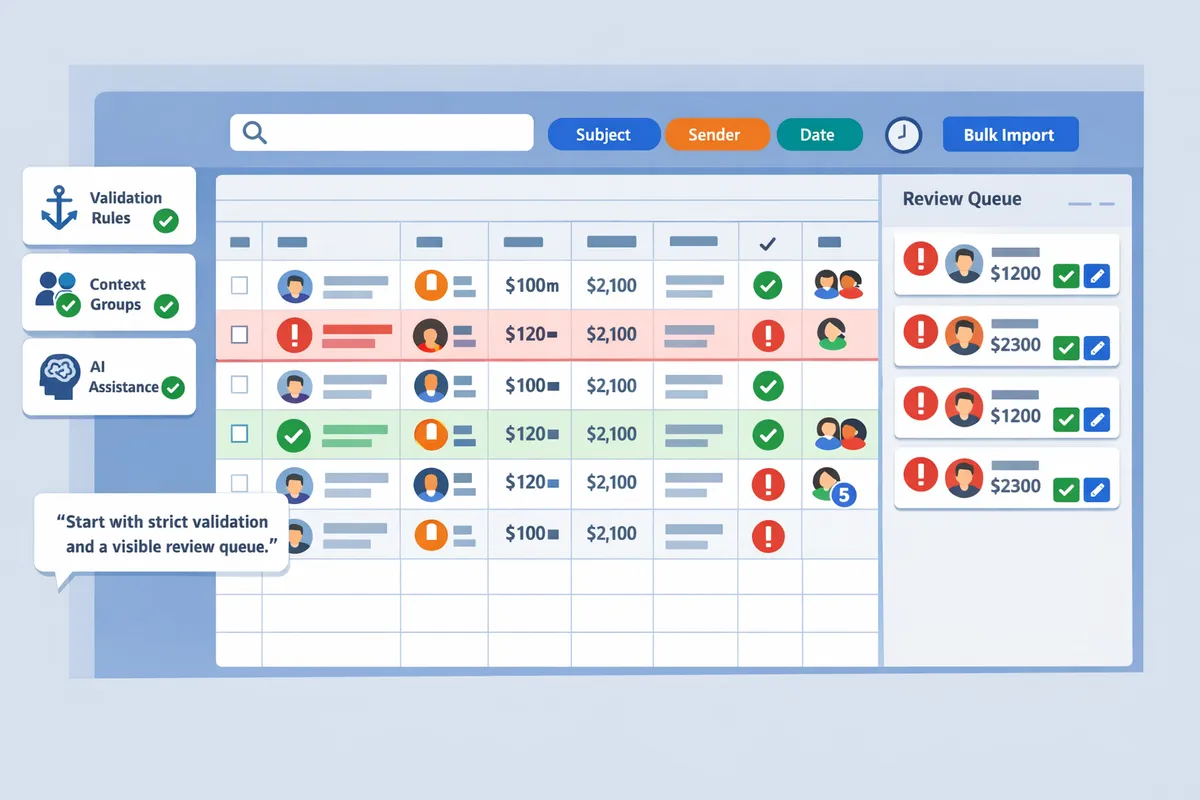
Validation rules enforce field formats and route failures to fallbacks or human review to prevent corrupt spreadsheet rows. Implement validation checks that stop bad data from entering production spreadsheets and capture failure context for fast fixes.
Practical validation checklist:
- Date validation: accept only ISO-like strings (YYYY-MM-DD) or flag for review.
- Amount validation: strip currency symbols and confirm the remaining value parses as a numeric with two decimal places.
- Order number sanity: require minimum length and alphanumeric characters; flag improbable values.
- Cross-checks: require that gross_amount > 0 and that transaction_date is not in the future by more than a defined window.
Fallback strategies:
- Fallback capture: store the original email snippet in raw_text_snippet and set row_status to needs_review rather than inserting a corrupted row.
- Auto-tag and queue: add a context-specific tag so operators can reprocess only failed rows after rule updates.
- Progressive relaxation: allow a secondary rule to capture a looser pattern into a review queue if strict rules fail.
xtractor.app supports routing failed rows into review buckets and running bulk reimports after rule tweaks, which reduces manual rework and makes iterative rule tuning efficient.
💡 Tip: Start with strict validation and a visible review queue. Tight rules reduce bad rows; a short review queue lets a human fix edge cases before they reach accounting systems.
Which proven strategies and techniques reliably parse inconsistent email formats?
A reliable approach combines anchored rule-based patterns, contextual grouping, and selective AI assistance. These techniques reduce rule churn, lower manual review, and let teams scale parsing across many vendors while keeping maintenance predictable. xtractor.app supports this workflow by letting you add multiple parsing contexts, save filters, and schedule bulk imports so parsing runs on a consistent dataset.
Rule-based patterns: anchored matching and proximity captures 🔍
Rule-based patterns use fixed anchors, label-based captures, and proximity rules to extract fields that appear consistently even when overall format varies. For example, match a start-of-line anchor for invoice numbers (e.g., “Invoice\s*#:\s*(\d+)”) to avoid capturing order IDs embedded inside paragraphs. Use label-based captures for lines that include clear labels such as “Total:” or “Qty:” and pair them with a validation rule that accepts only numeric or currency formats. Proximity capture pulls the nearest numeric token to a currency symbol when totals appear on different lines across vendors.
Practical maintenance tips: keep a canonical schema with 6–10 fields, group similar templates into parsing contexts, and validate every extracted row against rules (date range, numeric bounds, required fields). Test rules on a 200-email sample across vendors before enabling production parsing. For a stepwise build process, see the Creating an Email Parser guide for data collection and rule testing.
Decision matrix: rule-based vs AI-assisted vs hybrid (table)
Choose rule-based when templates are few and stable, AI-assisted when templates vary widely, and hybrid when you need high accuracy with controlled labeling costs.
| Approach | Typical accuracy on stable templates | Cost | Training data needs | Maintenance overhead | Best fit |
|---|---|---|---|---|---|
| Rule-based | High for consistent templates | Low | None | Medium if many templates | Small set of repeatable vendors and strict labels |
| AI-assisted | Variable to high for diverse formats | Medium to high | Moderate (hundreds of examples) | Low for new templates, needs monitoring | Highly variable layouts, semantic fields |
| Hybrid | High across mixed templates | Medium | Low to moderate | Moderate | Mixed datasets where some fields are stable and others noisy |
xtractor.app supports hybrid workflows by letting you create multiple parsing contexts and saved filters, so you can run rules against stable fields and send the remaining noisy rows to an AI-assisted extractor or a manual review queue. For comparisons of tool-first approaches, review Open Source Email Parser and Extracting Data with Zapier Email Parser for alternate workflows.
When to add AI-assisted extraction and how to manage it 🤖
Add AI-assisted extraction when template variability or semantic inference needs exceed the time your team can spend maintaining rules. AI helps with free-form item descriptions, inconsistent date phrasing, or emails where layout cues vanish after vendor updates. Start by labeling a representative sample across vendors; usually a few hundred labeled examples per noisy field gives a practical starting point, but you can use active sampling to reduce that number.
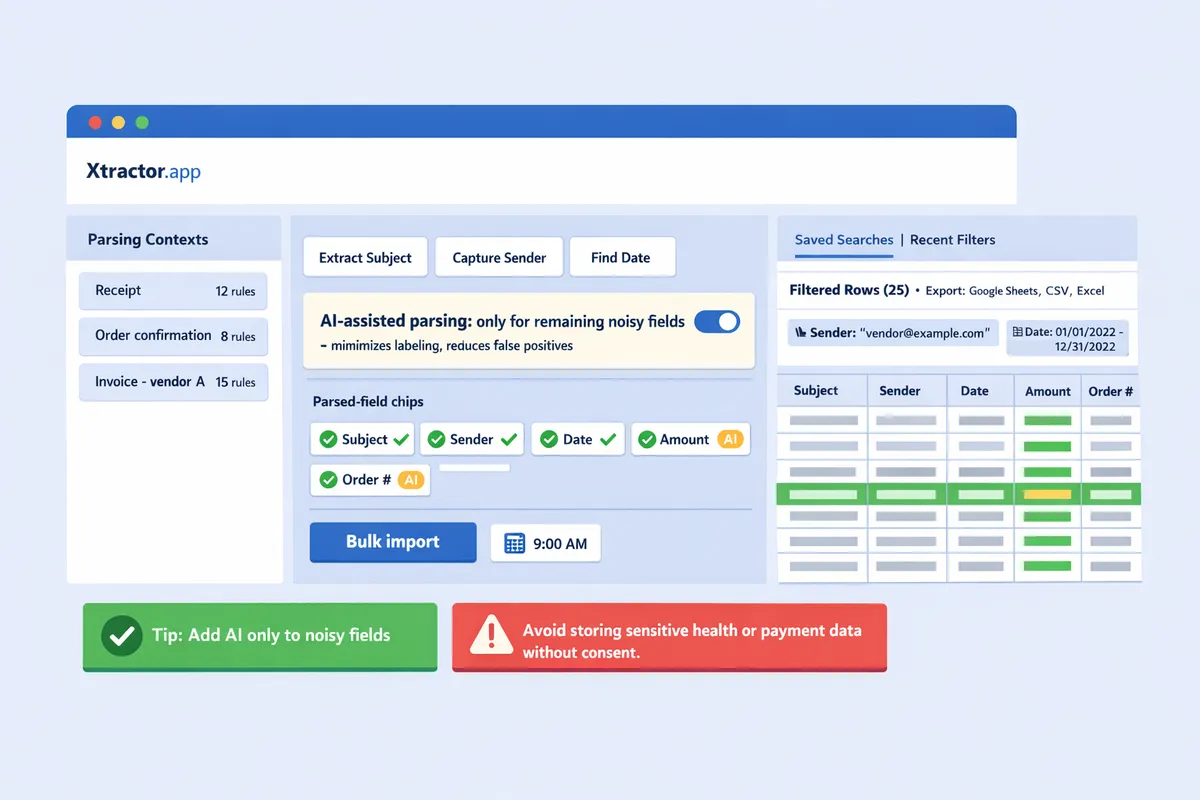
Manage AI by using a hybrid pattern: use rules for stable identifiers (order number, sender email, fixed-format dates) and AI for ambiguous fields (line-item parsing, descriptions). Build a validation pipeline that flags low-confidence predictions for human review. Use scheduled imports in xtractor.app to capture daily batches, apply rule contexts first, then route the remainder to the AI model or a review folder. Monitor model drift by sampling 1% of parsed rows weekly and retrain when error rates exceed your tolerance.
💡 Tip: Start with a conservative rule set to capture core fields, then add AI only for remaining noisy fields. This minimizes labeling and reduces false positives.
⚠️ Warning: Avoid storing or processing sensitive personal health or payment details without documented consent and a secure retention policy.
For readers building their own system, the Creating an Email Parser guide outlines a vendor-agnostic pipeline you can adapt. If you prefer a no-maintenance start, xtractor.app’s saved filters and context feature lets you set up hybrid parsing workflows quickly and export clean CSV or Google Sheets outputs for reporting.
How do you implement, test, and measure custom parsing rules at scale?
Implement, test, and measure custom parsing rules at scale by following staged workflows: sample ingestion, context authoring, stratified testing, and production monitoring. This reduces spikes in manual review and ties error tolerances to business cost. The steps below show a repeatable blueprint for teams that need to parse thousands of emails and export clean rows to Google Sheets, CSV, or Excel.
Step-by-step implementation blueprint with sample datasets 🔧
Run a repeatable four-stage process: bulk import samples, author parsing contexts, test on a stratified sample, then rollout with monitoring. Start by collecting a representative dataset: 50 emails from vendor A, 50 from vendor B, 20 outliers (different languages, ad-hoc formats), and 30 recent edge cases from support tickets. This composition exposes both dominant templates and rare failures.
Follow this checklist when you create email parsing rules and deploy at scale:
- Bulk import samples. Use xtractor.app one-click bulk import to pull the sample set into a working bucket. Filter by sender, subject, and date to target vendors.
- Group templates into contexts. Create one parsing context per vendor or template family so rules stay focused and low-maintenance.
- Author rules by field. For each context, map fields such as order_number, amount, and date. Keep patterns short and prefer anchored extracts that avoid full-message regex.
- Build a stratified test set. Use saved searches in xtractor.app to assemble test sets for each context and for outliers.
- Run test parses and export failing rows. Export failing rows to CSV for manual review and to refine rules.
- Iterate until field-level precision meets your target. Lock rules and schedule a limited production run.
💡 Tip: Use saved searches in xtractor.app to build repeatable test sets by sender and subject, then export failing rows for a focused manual review queue.
How to measure accuracy, set an error budget, and report impact 📊
Measure extraction accuracy per field and convert error rates into an error budget expressed in dollars per month. Calculate the cost per erroneous row by estimating time to correct a row and the hourly rate of the reviewer. For example: if manual fix takes 3 minutes at $30/hour, cost per error is $1.50. Multiply cost per error by daily volume of parsed rows and by 22 working days to compute a monthly error budget.
Recommended KPIs to track weekly and monthly include:
- Field-level precision for key fields (order_number, amount).
- Recall for mandatory fields, measured as percentage of messages where the field is present and extracted.
- Time-to-fix for flagged rows in the manual review queue.
- Production failure rate, measured as rows that required human correction after automated parsing.
Report impact by converting error-rate improvements into saved hours and dollars. For example, reducing error rate from 3% to 0.5% on 5,000 monthly rows saves (0.025 * 5,000 * cost-per-error) per month. Use xtractor.app saved searches to surface failing rows and track time-to-fix in your ticketing tool or spreadsheet.
⚠️ Warning: If attachments contain critical data, plan for a separate attachment parsing workflow because xtractor.app does not process attachments by default without a custom plan.
Automation, scheduling, and integrations with Google Sheets using xtractor.app ⏰
Automate imports and scheduled exports so parsed rows flow into Google Sheets, CSV, or Excel without manual copying. Set up a scheduled job in xtractor.app to import new emails daily or hourly, apply the appropriate parsing contexts, and push cleaned rows to a mapped Google Sheet or CSV export. Map each parser field to a spreadsheet column once, then reuse the mapping for recurring templates.
Operational steps to automate a daily run:
- Create saved filters that match the inbox segments you want to parse.
- Assign parsing contexts to those saved filters.
- Configure a schedule in xtractor.app for the chosen cadence.
- Map parsed fields to Google Sheets columns and test with a single-day run.
- Monitor the manual review queue and adjust contexts when failing-row counts climb.
Use the parsing templates guidance in our Creating an Email Parser article to design reusable field maps and consult our Email Parsing For Automated Document Generation post for workflow examples that include scheduling and downstream document outputs. xtractor.app scheduling and saved searches make recurring runs low-friction and maintainable across vendor churn.
Frequently Asked Questions
This FAQ answers common implementation and decision questions about creating custom parsing rules for emails with inconsistent formats. Each answer points to practical steps and to xtractor.app features or reproducible examples you can use immediately. Use the links to follow full walk-throughs and integration options.
How do I create email parsing rules for dozens of different invoice templates?
Group templates into parsing contexts and author rules per group, then test each context on a representative sample. Start by using saved searches to collect 15–30 representative emails per vendor or template family; this gives you enough variation to catch edge cases without exhaustive labeling. Create a small canonical schema (date, vendor, invoice number, line total) and author rules inside each parsing context so fields map consistently across templates.
Test each context on a stratified sample and log failures by type (missing field, malformed date, extra text). On xtractor.app, use saved filters to build those sample sets, author contexts, then iterate fast against failure lists. For a reproducible methodology, see our step-by-step guide in Build Your Own Email Parser: A Practical Guide.
Can I parse inconsistent email formats reliably without machine learning?
Yes. Rule-based parsing with multiple parsing contexts and strict validation can reliably handle many inconsistent email formats. Use anchored rules for stable fields (amounts, order numbers, dates) and group templates so each rule set covers only the variants it should. Reserve machine learning for fields that remain noisy after grouping, such as free-text product descriptions or inconsistent vendor footers.
If you prefer an open-source or self-hosted route, compare xtractor.app workflows to options in Open Source Email Parser to evaluate maintenance effort and integration needs. On xtractor.app, multiple contexts and saved searches let you reach high coverage without ML in many operations.
How accurate are rule-based rules compared to AI-assisted extraction?
Rule-based rules typically deliver predictable, high accuracy for stable templates while AI-assisted extraction handles broad layout variability with less authoring. For example, invoices from a fixed vendor often parse cleanly with a few anchored rules, but a mailbox with dozens of small vendors and different HTML structures usually benefits from AI for noisy fields.
A hybrid approach often gives the best ROI: use rules for predictable fields (date, amounts, IDs) and AI models for messy descriptions or multi-column layouts. xtractor.app supports this hybrid pattern by letting you assign contexts and fall back to broader captures only when rules fail, which reduces labeling cost while keeping field-level accuracy predictable.
What is the best way to handle failed extractions or malformed rows?
Route malformed rows to a manual review queue with a logged failure reason and raw-email snapshot so reviewers can triage quickly. Implement validation rules that enforce formats (date parsing, numeric ranges for amounts, expected order-number patterns) and attach a failure tag that routes those rows into a review view.
Prioritize fixes by failure volume and business impact: fix high-frequency parse errors first, create fallback captures for low-risk fields, and add contextual rules for recurring edge cases. On xtractor.app, use saved searches to collect failure examples and iterate on the offending context until failure rate drops below your SLA.
💡 Tip: Save the raw snippet that failed extraction and include the parsing context name in the log. That makes triage and rule authoring much faster.
Will xtractor.app handle bulk imports and scheduled parsing for daily reports?
Yes, xtractor.app supports one-click bulk import, scheduled runs, and direct exports to Google Sheets, CSV, or Excel for daily reporting pipelines. Set up a saved filter to target the inbox slice you need, assign the appropriate parsing context, and schedule the job to run daily so your spreadsheet receives fresh rows automatically.
Use saved contexts and export templates to reduce manual setup for recurring jobs. If you need attachment parsing or specialized formats, xtractor.app offers custom parsing on request. For additional integration patterns, review Extracting Data with Zapier Email Parser: The Complete Guide.
What common pitfalls should I avoid when parsing inconsistent email formats?
Common pitfalls include relying on single fragile patterns, insufficient template grouping, and missing validation rules, all of which increase maintenance and corrupt outputs. Fragile single-regex solutions break as soon as a vendor changes an email header or adds a new line; grouping templates into contexts reduces that churn.
Also avoid a sprawling schema that tries to capture every possible field. Use a minimal canonical model and add fallback fields only when necessary. xtractor.app features such as multiple contexts, saved searches, and validation views help prevent these pitfalls and keep operations predictable. For pipeline patterns that generate final documents or reports from parsed data, see Email Parsing For Automated Document Generation.
Take practical steps now to convert inconsistent emails into clean spreadsheet rows.
Design small, incremental rule sets that catch the high-impact fields first. Custom parsing rules for emails with inconsistent formats let operations and finance teams reduce manual cleanup, speed reporting, and produce reliable rows for analysis. Start with sender, date, order number, and amount rules; iterate on edge cases instead of trying to solve every format at once.
💡 Tip: Begin by testing rules on 100 representative emails. That sample size reveals most format variations without wasting time.
xtractor.app is an email parsing and data-extraction tool that pulls structured text out of emails and exports it directly into Google Sheets, CSV, or Excel. The product is designed to import thousands of emails in a single action or on a scheduled cadence, parse relevant fields (subject, sender, date, amounts, order numbers, etc.), and produce a clean, tabular output in a spreadsheet for reporting, analysis, or bookkeeping. Key features include one-click bulk import, custom filters to define exactly which pieces of text to extract, the ability to add multiple parsing contexts to handle emails that vary in format, saved searches/filters for reuse, and scheduling to automate daily imports.
Start a free trial and create your first parser using our step-by-step getting-started guide on creating an email parser. For DIY comparisons and configuration tips, see our Open Source Email Parser and Email Parsing: Revolutionizing Data Extraction resources in the uncategorized cluster.
Subscribe to our newsletter for implementation tips and parsing rule templates.