 Xtractor
Parsing 2,000 mixed-format order emails can consume 10+ hours of manual work. Multi-context parsing to handle varying email layouts lets you define several extraction contexts so each template maps to the right fields. Multi-context parsing to handle varying email layouts is an email-parsing approach that adds multiple rulesets so subject, sender, date, amounts, and order numbers extract reliably across formats. Our xtractor.app pulls structured text out of emails and exports directly to Google Sheets, CSV, or Excel, with one-click bulk import, custom filters, saved searches, and scheduling for automated daily imports. See what email parsing is and how to automatically pull data into Google Sheets. This how-to guide shows a production-ready setup using real templates and reveals the subtle parsing traps that cost hours.
How to audit inbox variance and prepare template maps
Audit inbox variance by cataloging senders, subject patterns, and visible layout blocks to determine exactly which parsing contexts to build. Use a lightweight, repeatable sample set (50–200 emails per sender when available) so you can tell which formats need fixed templates, which need ML help, and which can use fallbacks. Run these labeled samples through xtractor.app to validate contexts and iterate quickly.
Step 1 — Inventory templates 📥
Inventory templates by grouping emails into unique layout buckets keyed to sender, subject pattern, and visible sections. Start by exporting or copying 10–50 examples per suspected layout and store them in a labeled folder or a mailbox dedicated to testing. Tag each example with the sender domain, subject regex (or common phrase), and visible blocks such as header lines, line-item tables, totals block, and footer notes.
Expected outcome: a counted list of distinct layouts (for example: 6 layouts from three vendors). What can go wrong: similar subjects across different templates can hide layout differences. Recovery: open 10 examples per subject and compare visible blocks; if a layout differs, split it into a new bucket and re-tag.
Use the inventory as the input for xtractor.app contexts and for rule design in our guide to Custom Parsing Rules for Emails with Inconsistent Formats: Best Practices, Patterns, and Examples. You can also reference setup steps in Email Parser to Google Sheets: Fast Setup, Bulk Imports, and Scheduling (Step-by-Step) to import sample batches.
Step 2 — Define a canonical schema 🧾
Define a single canonical output schema that every parsing context maps into, with exact field names and formats. Choose concise field names such as order_id, gross_amount, invoice_date, currency_code, and sender_email. Specify formats explicitly: use ISO dates (2024-03-01) and an amount format like “USD 123.45” or two separate fields (currency and numeric_amount) so downstream spreadsheets remain consistent.
Expected outcome: a one-page schema document you can share with finance, ops, and the person configuring xtractor.app filters. What can go wrong: ambiguous field names cause mapping errors in reports. Recovery: pick strict names and add short examples next to each field; implement those names as column headers in the first test export.
Map this schema to xtractor.app custom filters so every parsing context writes to the same columns. For patterns and rule examples, see our Custom Parsing Rules guide.
Step 3 — Label sample emails and edge cases 🏷️
Label a representative set of 50–200 emails plus a focused set of edge cases to create a traceable test suite for accuracy checks. Include currency symbol variants ($, €, GBP), line-break differences, HTML-versus-plain-text variants, and multilingual snippets. Keep a separate folder for known-failure examples so you can measure improvements after each rule or model change.
Expected outcome: a CSV or spreadsheet of labeled samples with columns for file name, layout bucket, expected field values, and a pass/fail column for test runs. What can go wrong: test samples contain live PII and get shared widely. Recovery: redact personal identifiers before sharing and restrict the test mailbox to project teammates.
💡 Tip: Export labeled samples as CSV for traceable test runs in xtractor.app and to run batch validations against new or updated contexts.
⚠️ Warning: Store unredacted personal data only in secured test mailboxes; remove or mask PII before sharing labeled samples with vendors.
Use the labeled CSV as the baseline for measuring parsing accuracy, and track both field-level accuracy (percentage of correct order_id values) and record-level accuracy (complete rows without any errors). That gives you a measurable way to show ROI when you later compare manual processing time to automated exports.
Step 4 — Compare template rules versus ML parsing ⚖️
Choose between fixed template rules, ML-assisted parsing, or a hybrid approach by comparing maintenance effort, expected accuracy on stable templates, tolerance for new layouts, and business impact. Template rules perform best when templates stay stable and you can capture dozens of examples per layout. ML-assisted parsing suits feeds with high layout variance but requires labeled examples and periodic retraining. A hybrid approach uses templates for high-volume stable senders and ML or fallback rules for the long tail.
| Approach | Maintenance effort | Accuracy on stable templates | Tolerance for new layouts | Business impact (hours saved / error risk) |
|---|---|---|---|---|
| Fixed template rules | Low to medium | High | Low | High savings for stable senders; low error risk if layouts do not change |
| ML-assisted parsing | Medium to high | Medium to high with training | High | Good for long-tail senders; reduces manual triage but needs labeled data |
| Hybrid (templates + ML) | Medium | High on templates, medium on tail | High | Balances savings and risk; uses templates for bulk accuracy and ML for new formats |
Expected outcome: a decision grid that tells you which senders get a template context in xtractor.app and which go to an ML-assisted context or fallback. What can go wrong: over-indexing on ML for a small set of senders increases costs and decreases repeatability. Recovery: move high-volume stable senders back to template contexts and reserve ML for heterogeneous feeds.
Use xtractor.app to implement your chosen mix: create multiple parsing contexts, saved searches by subject or sender, and scheduled imports so you can test each approach at scale. For comparative implementation notes, see Email Parser API and our guide on building parsers at scale in Creating an Email Parser.
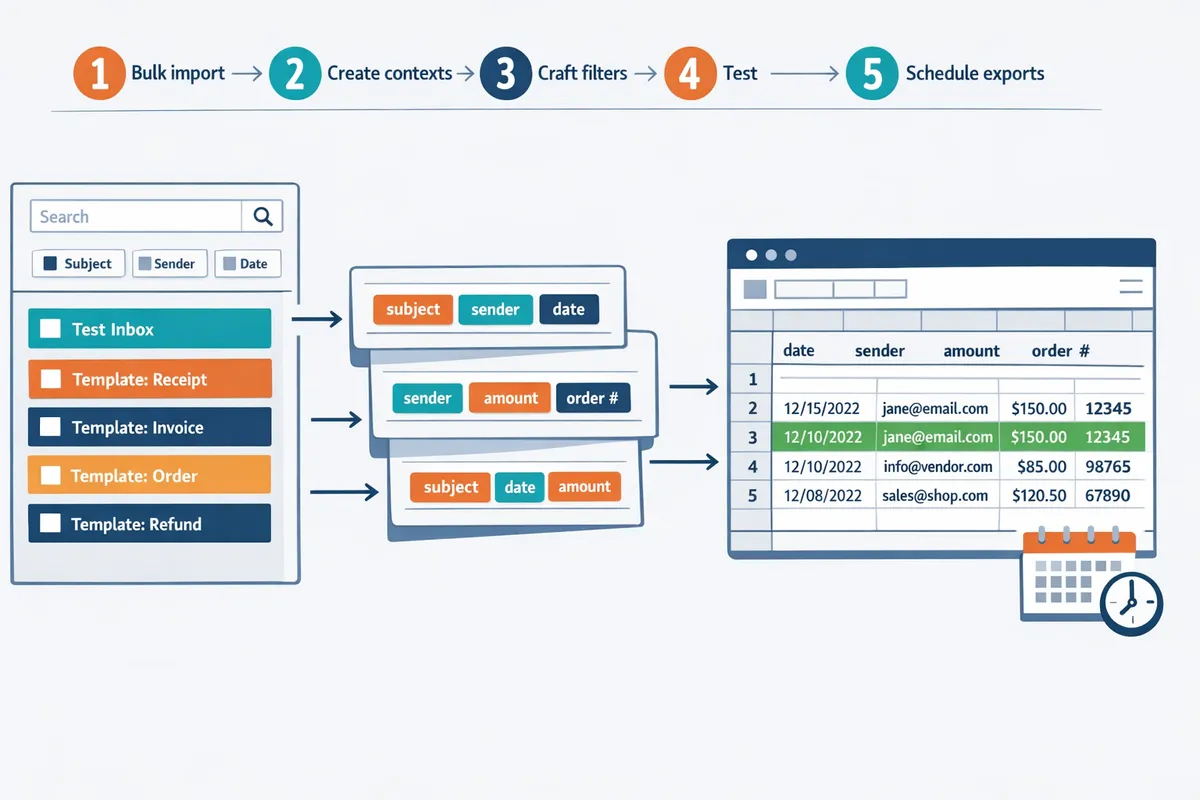
How to set up multi-context parsing in xtractor.app step by step
Follow an ordered setup: bulk import, create contexts, craft filters, test, and schedule exports. Multi-context parsing is a parsing approach that defines separate extraction contexts for each stable email template so the system applies layout-specific rules instead of one-size-fits-all patterns. This workflow maps audit outputs into reproducible xtractor.app actions so you can parse emails with multiple formats and produce clean spreadsheets for finance, ops, or ecommerce.
Step 1: Bulk import labeled emails into xtractor.app 📥
Start by one-click bulk importing a labeled test set so contexts and tests use the same source data. Use xtractor.app’s bulk import to load a representative sample (include common senders, odd variants, and recent edge cases). Tag each import run with the schema name and a version label (for example: vendorA_invoice_v1) so you can re-run the exact test set later.
- Prepare a folder of exported emails or set a scheduled pull that isolates the test period. Expected outcome: a reproducible dataset you can rerun after edits.
- Click one-click bulk import in xtractor.app and assign the schema tag. Expected outcome: all samples show in the parser queue with the tag visible in the run history.
- Include at least one sender-variant per label and flag known problem emails (embedded images, quoted replies). Expected outcome: early visibility on extraction failure modes.
See our bulk import guide for batching and filter best practices in the Email Parser to Google Sheets walkthrough.
💡 Tip: Tag each import run with the schema and version to compare accuracy before and after rule changes.
Step 2: Create parsing contexts for each layout 🧩
Create one parsing context per stable template and name contexts by sender and variant so xtractor.app matches unknown emails to the correct rule. For each context, configure extraction fields to map into your canonical spreadsheet schema (for example: order_id, order_date, net_amount, currency, buyer_email). Use xtractor.app’s visual selector to capture line-level fields and text patterns rather than relying only on positional offsets.
- Create a context named using the sender and template version (example: acme_orders_v2). Expected outcome: faster triage when templates change.
- Capture 6–8 core fields per context and store them in your canonical column order. Expected outcome: consistent export mapping across contexts.
- Save contexts and document the matching rule (subject pattern, sender address, or unique phrase). Expected outcome: simpler maintenance when senders update templates.
If you need pattern examples or rule templates, consult our guide on custom parsing rules for emails with inconsistent formats for recommended selectors and naming conventions.
Step 3: Build custom filters and test extraction rules 🔍
Use xtractor.app custom filters to extract canonical fields and iterate until field-level accuracy meets your threshold. Run batch tests against your labeled set and record false positives and false negatives for each field so you measure progress objectively. For example, track the percent of correctly captured order IDs and the common failure reasons (truncated lines, currency symbols, or reply headers).
- Apply filters for order numbers, dates, and amounts and run a batch test on the tagged import. Expected outcome: a CSV of extracted rows and a failure report.
- Review failures, then either loosen strict patterns (if too many false negatives) or add contextual anchors (if false positives occur). Expected outcome: improved precision per iteration.
- Repeat until the field-level accuracy meets your SLA, or route residual failures to manual review.
Address two common gaps here: when to use template rules versus ML, and how to measure accuracy and ROI. Template rules perform best when templates are stable and predictable; use ML-assisted layout recognition when new sender variants appear frequently. Measure parsing accuracy by field (true positives / total expected) and calculate ROI by comparing manual processing hours saved versus the time spent creating and maintaining contexts. For more on tradeoffs between DIY and managed flows, see our practical guide to building an email parser.
Step 4: Add fallback contexts and schedule exports to Google Sheets ⏰
Add a fallback context that captures the whole message block and flags rows for manual review, then schedule exports to Google Sheets mapped to your canonical schema. Configure the fallback to extract a raw_text field, mark the row with a review_flag, and assign it to a manual queue so operations can correct boundary cases without halting automated exports.
- Create a final context named fallback_unmatched that extracts full_message and sets review_flag = true. Expected outcome: no data is lost and edge cases are visible in the sheet.
- Map all contexts to the same Google Sheets column layout and set a daily scheduled export in xtractor.app. Expected outcome: a consistent spreadsheet that downstream teams can rely on.
- If attachments are required, request xtractor.app custom parsing since attachments are not included in the default import. Expected outcome: a plan for attachment parsing without breaking the standard workflow.
For mapping tips and rate-limit handling, follow the Google Sheets export tutorial in our export guide.
⚠️ Warning: Remove or mask sensitive PII before sharing exported sheets. Use the review_flag to route rows with emails, SSNs, or payment details to a secure manual review queue.
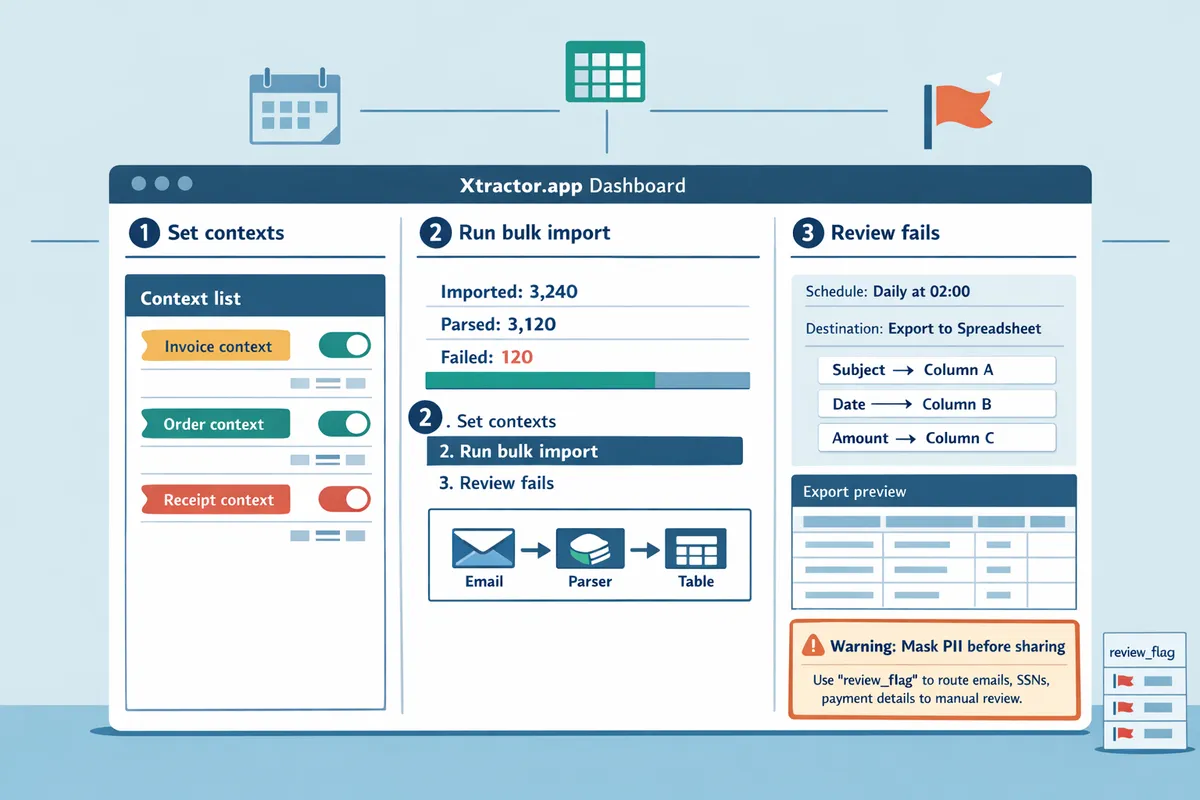
How to maintain accuracy, troubleshoot common errors, and avoid mistakes
Monitor parsing quality, add fail-safes, and apply corrections to reduce manual review time. Set measurable quality thresholds, run automated reruns for failed parses, and schedule regular reviews so errors are caught before they compound. This reduces hours spent on manual fixes and keeps your multi-context parsing to handle varying email layouts production-ready. Our website recommends using saved searches and scheduled audits in xtractor.app to surface problem rows quickly.
Step 1: Monitor parsing accuracy and set a review cadence 📊
Track field-level accuracy and the percent of parsed rows needing manual correction, then flag contexts that fall below your acceptance threshold. Use xtractor.app saved searches to filter rows routed to the fallback context or flagged during validation so you see failing examples without hunting through the inbox. Establish metrics that matter: percent-correct rows, percent-correct per field, and average time to fix a flagged row. Example: if each manual correction averages 90 seconds, 200 flagged rows cost 5 hours of operator time; that makes ROI calculations straightforward.
Actionable cadence to implement now.
- Weekly checks for new contexts. Sample 100 rows and record field-level pass rates. Expect faster iteration in week one.
- Monthly audits for established contexts. Review fields with persistent drift and deprioritize rarely used contexts.
- Use saved searches named by problem (example: “fallback:missing_amount”) so reviewers run one filter and fix consistently.
See our step-by-step setup for scheduled imports and exports in the Email Parser to Google Sheets guide for a ready checklist.
Step 2: Troubleshoot common parsing failures 🛠️
When a context fails, inspect a representative set of failed emails to identify whether the cause is brittle rules, layout shifts, or OCR artifacts. Start by sampling 10–30 failed rows from the fallback saved search in xtractor.app. Check for common issues: added header lines, shifted columns, alternate currency placement, or inline images converting to attachments. Replace exact-string anchors that break when templates add lines with contextual cues like sender, subject tokens, or relative anchors (the line before “Total”).
If OCR errors appear in image-heavy emails, mark that context for attachment handling and request a custom plan from xtractor.app for attachment parsing. When fixes are applied, rerun the affected batch and compare pre/post pass rates. Keep a short audit note on each fix so you can revert if accuracy drops.
Step 3: Avoid common mistakes that increase manual work ✂️
Do not overfit rules to a single sample; keep rule sets minimal, use consistent naming, and maintain a changelog for edits. Overly specific rules anchored to one invoice layout create brittle contexts that fail when a sender tweaks formatting by adding a promo line or new footer. Name contexts with a clear pattern (example: vendorname_v1 or vendorname_relaxed) so reviewers know which to update or retire.
Practical limits and examples.
- Limit fields per context to what downstream systems need. Extra extracted fields increase review time.
- Prefer canonical formats for dates, currencies, and order numbers so spreadsheet formulas and downstream imports stay stable.
- When you must split for variants, create a relaxed fallback context that catches near-matches rather than dozens of one-off contexts.
Refer to our best practices on Custom Parsing Rules for Emails with Inconsistent Formats for patterns that reduce breakage.
Step 4: Handle PII and compliance risks 🔒
Treat personally identifiable information as sensitive by masking or excluding it from scheduled exports and restricting who can access raw rows. Use xtractor.app saved searches to control which rows and fields reach your scheduled Google Sheet exports; extract only required business fields such as order numbers, totals, and dates when possible. When personal fields are necessary for reconciliation, mark those rows for manual-review-only exports that live in a restricted Google Drive folder.
⚠️ Warning: Store PII only when legally required, and keep an audit trail of who accessed exports.
Operational steps to reduce exposure.
- Configure scheduled exports to omit PII columns.
- Use role-based access on the destination Sheet and rotate reviewer accounts monthly.
- Retain raw email extracts for a minimum time dictated by policy, then purge automatically.
If you need to process attachments or image-based identity documents, contact xtractor.app for a custom parsing plan that includes stronger access controls.
Frequently Asked Questions
This FAQ answers common implementation and product questions teams face when building multi-context parsing workflows. Use these responses to decide whether to build a DIY parser or use xtractor.app for production parsing of varied inboxes. Each answer highlights expected outcomes, common failure modes, and next steps you can take today.
How does multi-context parsing differ from single-template parsing?
Multi-context parsing runs multiple context-specific rule sets against the same inbox and selects the best match. Single-template parsing uses one fixed rule set and only works well when every sender and layout is consistent; it fails as soon as a sender changes format. In practice, multi-context parsing reduces manual exceptions because you can add a context per frequent template (for example, four vendor invoice formats). Our website recommends starting with template contexts for stable senders and adding a fallback context for anything new.
Can xtractor.app parse emails with attachments?
xtractor.app does not parse attachments by default but offers custom parsing plans on request. For most customers we parse the email body and metadata (subject, sender, date, visible amounts) and export clean rows to Google Sheets or CSV. If your workflow requires PDFs, images, or spreadsheets attached to emails, request a custom ingestion plan and we will map which attachment types to process and how to handle OCR exceptions.
⚠️ Warning: Attachments often contain scanned images and inconsistent layouts, which increases manual review unless you include OCR and template mapping in your custom plan.
How accurate is multi-context parsing for invoices and receipts?
Accuracy depends on template stability and the quality of field labels used during setup. For stable templates where a vendor always uses the same layout, template contexts typically yield high per-field precision; for high-variance feeds, combining template contexts with ML fallbacks reduces missed fields and lowers review time. When you set up xtractor.app, include anchor fields (order number, vendor name, line totals) to improve match confidence and track field-level error rates during the first 2 weeks of production.
How do I measure ROI from implementing multi-context parsing?
Measure ROI by comparing time spent and error costs before and after automation. Track three baseline metrics: weekly hours spent on manual entry, error rate in exported sheets, and days-to-report; then measure those same metrics after deployment to calculate hours saved and error reductions. Use xtractor.app’s scheduled exports to capture post-deployment output consistently, and include the time required to maintain contexts as an ongoing cost when you calculate payback and monthly savings.
What should I do when a fallback context collects many rows?
A rising fallback rate means your current contexts do not cover recurring templates and you should create new contexts. Review the top 50 fallback samples to identify repeated layouts, then add contexts using sender or subject anchors and test against a 100-email sample. xtractor.app supports saved filters and bulk reprocessing so you can convert existing fallback rows into structured rows without manual re-entry.
How do I integrate parsed output into bookkeeping workflows?
Use scheduled exports to push canonical spreadsheets to Google Sheets or CSV, then connect those sheets to your bookkeeping or BI tools. Our website’s Google Sheets export tutorial shows how to map fields, keep column order stable, and protect your sheet from accidental schema changes. If you need tighter control, schedule daily exports and run a short validation step that checks totals and required fields before the downstream import.
Finalize a production-ready multi-context parsing workflow that exports clean spreadsheets
A tested multi-context setup lets you parse varied email layouts reliably and cut hours of manual cleanup. Following the steps in this guide should leave you with parsing contexts, field mappings, and validation rules that tolerate sender template changes and missing fields. This article shows how to use multi-context parsing to handle varying email layouts so your exports remain consistent.
xtractor.app is an email parsing and data-extraction tool that pulls structured text out of emails and exports it directly into Google Sheets, CSV, or Excel. Start a free trial and follow the step-by-step getting-started guide in our Email Parser to Google Sheets: Fast Setup, Bulk Imports, and Scheduling (Step-by-Step) article to import a batch, validate extracted rows, and schedule daily runs. Custom Parsing Rules for Emails with Inconsistent Formats: Best Practices, Patterns, and Examples can help prevent breakage when templates change. Find more resources in uncategorized if you want deeper workflows or comparisons.
💡 Tip: Test each parsing context on a 100-email sample and save filters before enabling scheduled imports.